

The fastest way to keep a Rust server healthy is to automate two separate things: a restart schedule that clears memory and crash risk, and a wipe schedule that resets the map and blueprints on a cadence players can set their calendars by. This guide covers how to set up automatic restart and wipe schedules for a Rust server, whether you’re running through a host’s panel scheduler or building your own with cron jobs and RCON scripts. Either way, the goal is the same: predictable resets that never collide with each other.
A server that restarts and wipes on autopilot builds trust. Players know exactly when the map resets, admins stop losing sleep over 2 AM crashes, and your Tool Cupboard upkeep doesn’t rot because nobody remembered to force a restart after a laggy raid night.
In this guide, you’ll learn how to set up automatic restart and wipe schedules for a Rust server. Starting with picking a cadence, then scheduling wipes and restarts so they don’t overlap, and finally confirming everything actually fired. We’ll walk through the exact steps, from choosing map versus blueprint wipes to verifying your first automated cycle. By the end, you’ll have a schedule that runs itself, whether you’re on managed hosting or a box you administer yourself.
Want to run this without babysitting a crontab? Physgun’s Rust server hosting includes a built-in Wiper and cron-style Schedules tool, so restarts, wipes, and backups all run from the same panel instead of a patchwork of scripts.
Map Wipes, Blueprint Wipes, and Restarts: What Each One Actually Resets
Before you schedule anything, get the vocabulary straight. Rust admins use “wipe” loosely, but the game treats map wipes, blueprint wipes, and restarts as three different operations with three different outcomes.
| Action | What Resets | What Survives | Typical Cadence |
|---|---|---|---|
| Map Wipe | Terrain, bases, loot, entities, most plugin data tied to the map | Blueprint progress, unless paired with a blueprint wipe | Weekly, sometimes every 2-3 days on fast-cycle servers |
| Blueprint Wipe | Unlocked tech tree progress | The map, bases, and Tool Cupboards | Monthly, usually aligned to the official forced wipe |
| Restart | Nothing on the map | Everything | Daily or every few days, purely for maintenance |
A full wipe is a map wipe and a blueprint wipe run together, which is what most communities mean when they say “wipe day.” A restart on its own touches none of that. It just closes and relaunches the server process to clear memory leaks, apply a config change, or recover from creeping lag.
Choosing a Wipe Cadence That Fits Your Server
There’s no universal answer here, but a few patterns hold across most communities.
- Vanilla, casual servers: weekly map wipe (Thursday or Friday), monthly blueprint wipe aligned to the official forced wipe.
- 2x-5x rate servers: map wipe every 3-4 days, since progression is faster and bases go stale sooner.
- 10x and arcade servers: map wipe every 1-2 days, blueprint wipe weekly or skipped entirely.
- Small private or friends servers: whatever matches how often the group actually plays, often biweekly.
Facepunch pushes its official forced wipe on the first Thursday of each month, tied to the monthly update. Most public servers pair their blueprint wipe with that date so players don’t have to track two separate schedules. Physgun’s Wipe Schedule Tool shows the next official wipe date converted to your timezone, plus a subscribable calendar feed, which makes this easy to plan around instead of guessing.
Setting Up Automatic Wipe Schedules
Both routes get you to the same place: a wipe that fires without you at the keyboard. Which one fits depends on whether you’re on managed hosting or running your own box.
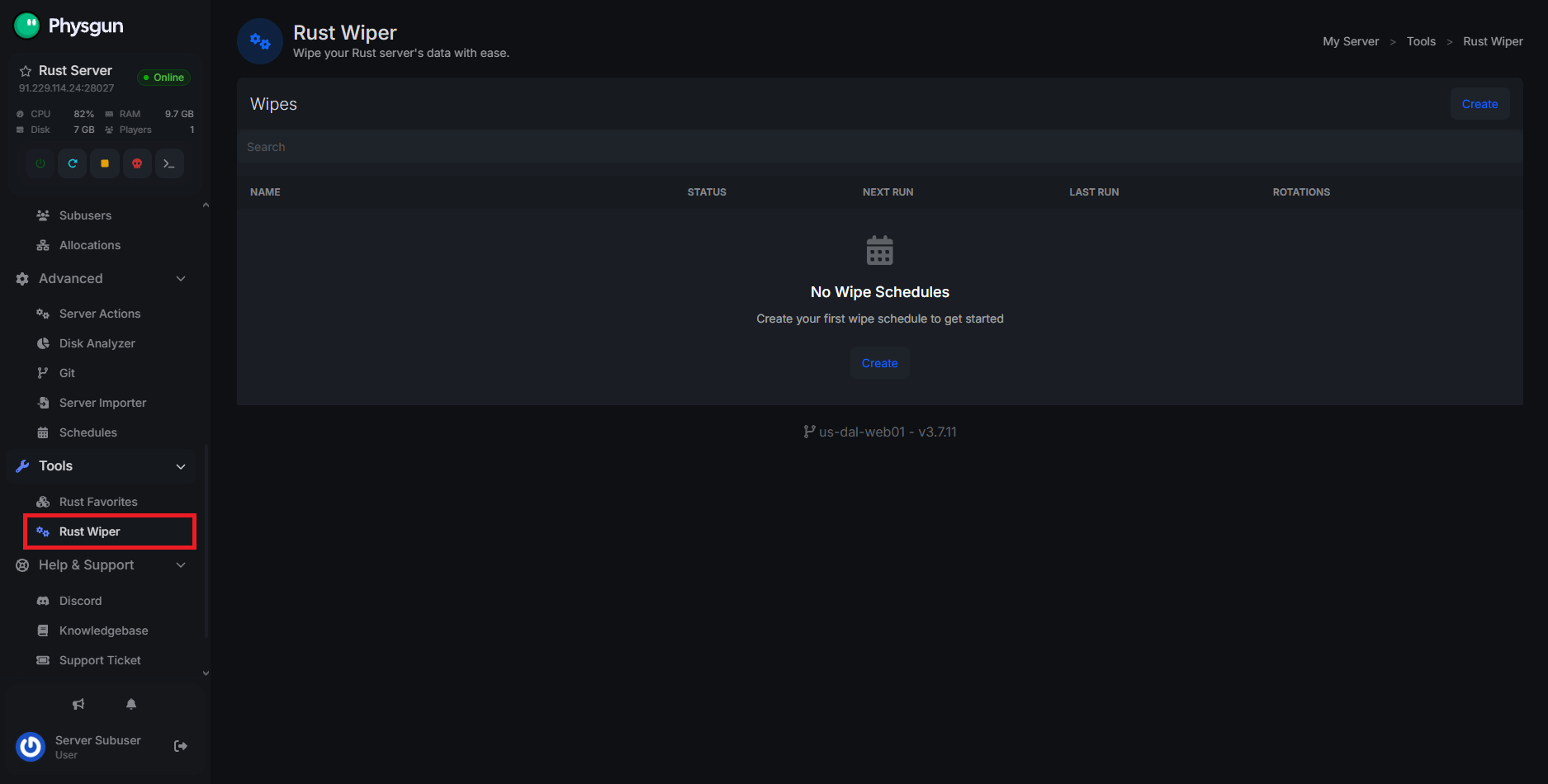
Scheduling Wipes Through the Physgun Gamepanel
The panel handles map and blueprint wipes as one scheduled job instead of a script you maintain yourself.
To schedule a recurring wipe through the Physgun Gamepanel:
- Head to the Physgun Gamepanel.
- On the left side of the screen, select Rust Wiper.
- Choose which files to delete, whether to delete blueprints, and whether to cycle the map after each wipe.
- Select your map
.savfiles to wipe the map.
- Select your map
- Set the recurrence, for example, every Thursday at 7 PM, or monthly aligned to the official forced wipe.
- Save the schedule.
Turn on Automated Backups to run right before your wipe job fires, so a bad wipe or a fat-fingered admin action is one click to undo instead of a lost map.
The Wiper is force-wipe ready, so if Facepunch drops a mid-month forced wipe, you can trigger one immediately instead of waiting on your next scheduled cycle.
Scheduling Wipes Manually
Running your own box means building the wipe logic yourself, usually with a script tied to cron or Windows Task Scheduler.
To wipe a self-managed Rust server manually:
- Use an RCON service like MCRCON.
- Warn players first. Broadcast a countdown:
say Wipe incoming in 10 minutes! - Stop the server safely with the
quitconsole command instead of killing the process, so Rust finishes writing its save files. - For a full map wipe, either delete the map’s save files from your server’s identity folder, or change the
+server.seedstartup parameter to a new value, which generates a fresh procedural map on the next launch. - For a blueprint-only wipe, delete just the
player.blueprints.dbfile and leave the map save files alone. - Relaunch the server with your start script.
- Wire steps 1 through 5 into a script, then schedule it with cron on Linux or Task Scheduler on Windows.
Changing the seed is safer than hunting down every save file by hand, since it’s easy to accidentally delete the wrong thing while sleep-deprived at 3 AM.
If cron jobs and RCON scripts already feel fragile, that’s the tradeoff of self-managing. Physgun’s Rust server hosting folds map wipes, blueprint wipes, and the safety net of Automated Backups into the same Wiper tool, so a bad script doesn’t cost you downtime and frustration.
Setting Up Automatic Restart Schedules
Restarts follow the same panel-versus-manual split as wipes, just with simpler mechanics since nothing needs to be deleted or reseeded.
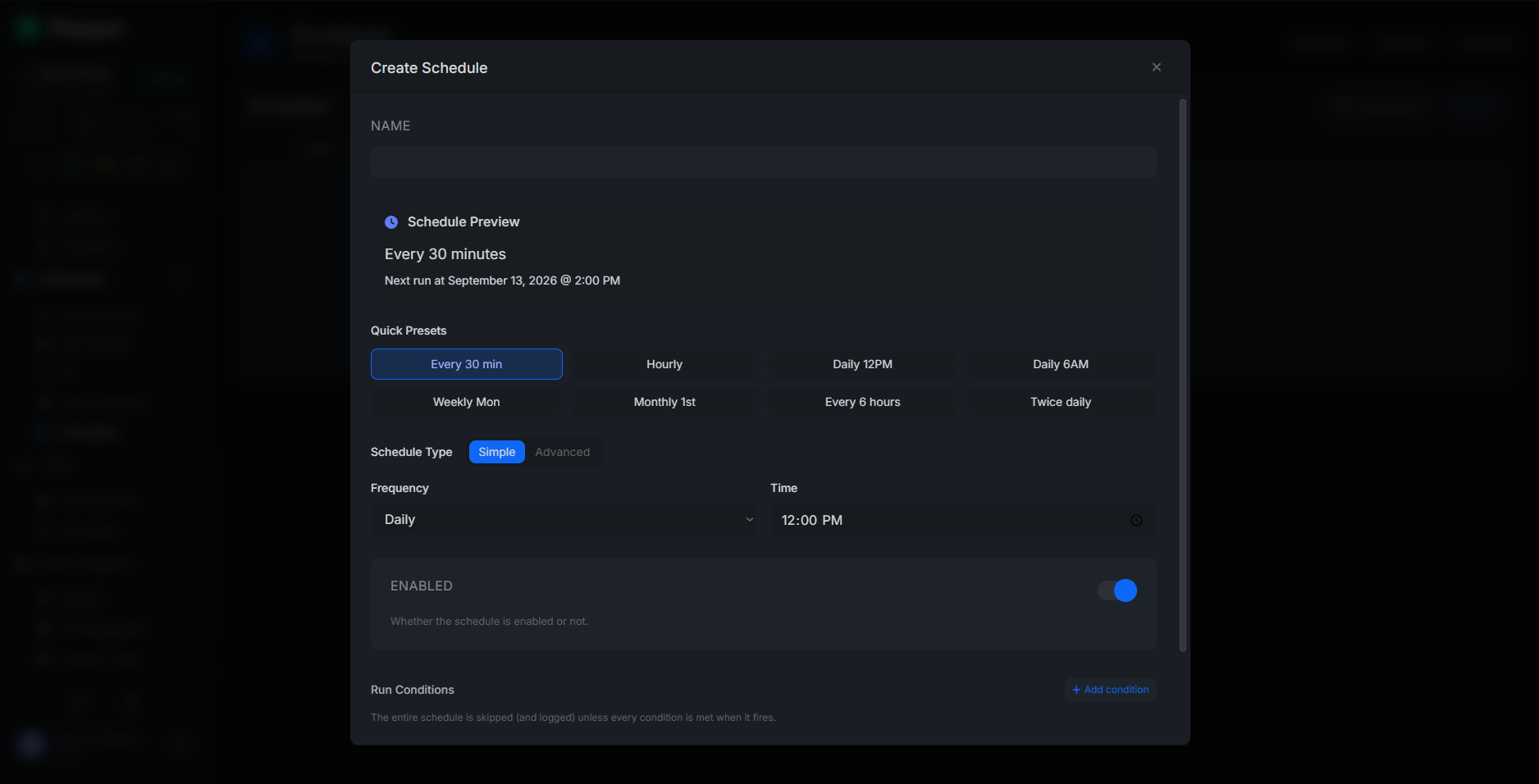
Scheduling Restarts Through the Physgun Gamepanel
To schedule recurring restarts through the Physgun Gamepanel:
- Head to the Physgun Gamepanel.
- On the left side of the screen, select Schedules.
- Create a new schedule and set up your desired interval.
- Pick a recurrence that avoids peak hours, for example, daily at 4 AM server time.
- Create a new task and set the action to a server restart.
- Save and enable the schedule.
Schedules also run custom console commands on the same cron-style timing, so you can fire a say warning a few minutes before the restart without a separate script.
You don’t need a schedule for crash recovery. Physgun’s Automated Crash Recovery already restarts a crashed server within seconds on its own, so the schedule you’re building here only has to cover planned maintenance.
Scheduling Restarts Manually
To schedule restarts manually:
- Write a start script that launches
RustDedicatedwith your usual startup parameters. - Write a restart script that sends a warning using console commands, issues the
quitcommand, waits for the process to fully exit, then calls your start script again. - Add a cron entry or Task Scheduler trigger for your chosen cadence.
- Run a separate crash-only watchdog- systemd, pm2, or a tool like LGSM all work- alongside the scheduled job, so a crash at 2 PM doesn’t sit dead until your next 4 AM restart.
Confirm the process actually exits before relaunching. A restart script that fires too early can spawn a second RustDedicated process fighting the first for the same port.
If you want to watch a scheduled restart happen live instead of tailing a log file after the fact, the panel’s True Console & SSH Access streams console output directly from the container with no log-file delay.
Keeping Restarts From Colliding With Wipes
A restart and a wipe scheduled five minutes apart double the disruption for no reason, since a wipe already restarts the server as part of resetting the map.
- Never stack a maintenance restart inside the same window as a wipe job. The wipe’s own stop-and-relaunch cycle already covers it.
- Push daily maintenance restarts to your server’s lowest-population hour, not a fixed clock time that might land mid-raid for someone’s timezone.
- If restarts seem to be happening more often than you scheduled, check whether a plugin is crashing the server and getting caught by crash recovery instead of your actual schedule. The panel’s Server Metrics breaks down hook and invoke time per plugin in milliseconds, which usually points straight at the culprit instead of you guessing from a wall of console text.
Verifying Your Schedule Actually Ran
Don’t trust a schedule you haven’t watched fire at least once.
- Check the server’s file timestamps, or the panel’s Advanced File Manager, right after a scheduled wipe. The map save file should show a fresh modified time.
- Confirm blueprint wipes actually cleared progress by checking a test account’s tech tree after the job runs, not just the map.
- On multi-admin servers, use the panel’s Audit Logs to confirm a schedule fired and see exactly who, or what automation, triggered it. It saves a lot of “did the wipe even run” Discord arguments.
- If a scheduled action silently didn’t fire, the most common cause is a timezone mismatch between the scheduler’s clock and the time you think you set.
Troubleshooting Common Scheduling Problems
Most scheduling failures trace back to one of these.
| Symptom | Likely Cause | Fix |
|---|---|---|
| Restart never fires | Scheduler timezone doesn’t match what you expect | Confirm the panel or cron’s timezone setting, not just the number you typed |
| Map clears, but an economy or stats plugin’s data survives | Plugin data lives outside the map save, often in a database | Reset the plugin’s data through the panel’s MySQL Databases tool, or check the plugin’s own wipe hook |
| Players still see the old map in the server browser | Client-side server list cache, not a failed wipe | Have players refresh their in-game server list or reconnect |
| Two restart jobs seem to be running | Overlapping cron entries, or a schedule left enabled after editing | Audit active schedules and remove duplicates |
| An admin says they didn’t touch the schedule, but it changed | Multiple admins share full panel access | Use Subusers to grant wipe or restart permissions without handing out full admin access. |
Running Wipes and Restarts on Autopilot
Get the cadence right first: a weekly or faster map wipe for most servers, a blueprint wipe aligned to the official monthly forced wipe, and maintenance restarts scheduled separately from both. Keep restarts out of your wipe window, since a wipe already restarts the server on its own. Verify the first cycle instead of assuming it worked, and lean on crash recovery for the unplanned stuff so your schedule only has to cover planned maintenance. Whether you build this with cron and RCON scripts or let a host’s panel run it, the servers that keep players coming back are the ones where wipe day never feels like a surprise. Physgun’s Rust server hosting bundles the Wiper, Schedules, and Automated Backups into one panel built for exactly this, so give it a look if you’d rather manage a schedule than a crontab.