







Whether you’re editing configuration files, uploading addons, or organizing your server’s content, the File Manager makes it easy to manage your files directly from the Physgun panel. While there are several ways to access your server’s files, the File Manager is the quickest and most beginner-friendly option for day-to-day management.
In this guide, we’ll compare the different file management methods available, then walk through the File Manager’s features so you can confidently upload, edit, and organize your server files.
File Manager, SFTP, SSH, and VS Code. What’s the Difference?
We offer four different ways to manage and edit your files, but what option is the best? The answer to that question isn’t black and white.
File Manager is best used for quick edits and basic file management. It’s easily the most beginner-friendly and can more or less do every task you need.
SFTP is best used for bulk management. Using a program like FileZilla allows you to send hundreds of files at once without worrying about overloading anything.
SSH is best used for advanced server management and command-line tasks. It gives users more intricate access to the server’s functions and allows you to manage files through commands where a graphical interface may become tedious.
VS Code is best used for development. It comes with a lot of integrated dev tools, syntax detection, and more, making it the ideal method for coding.
Navigating the File Manager
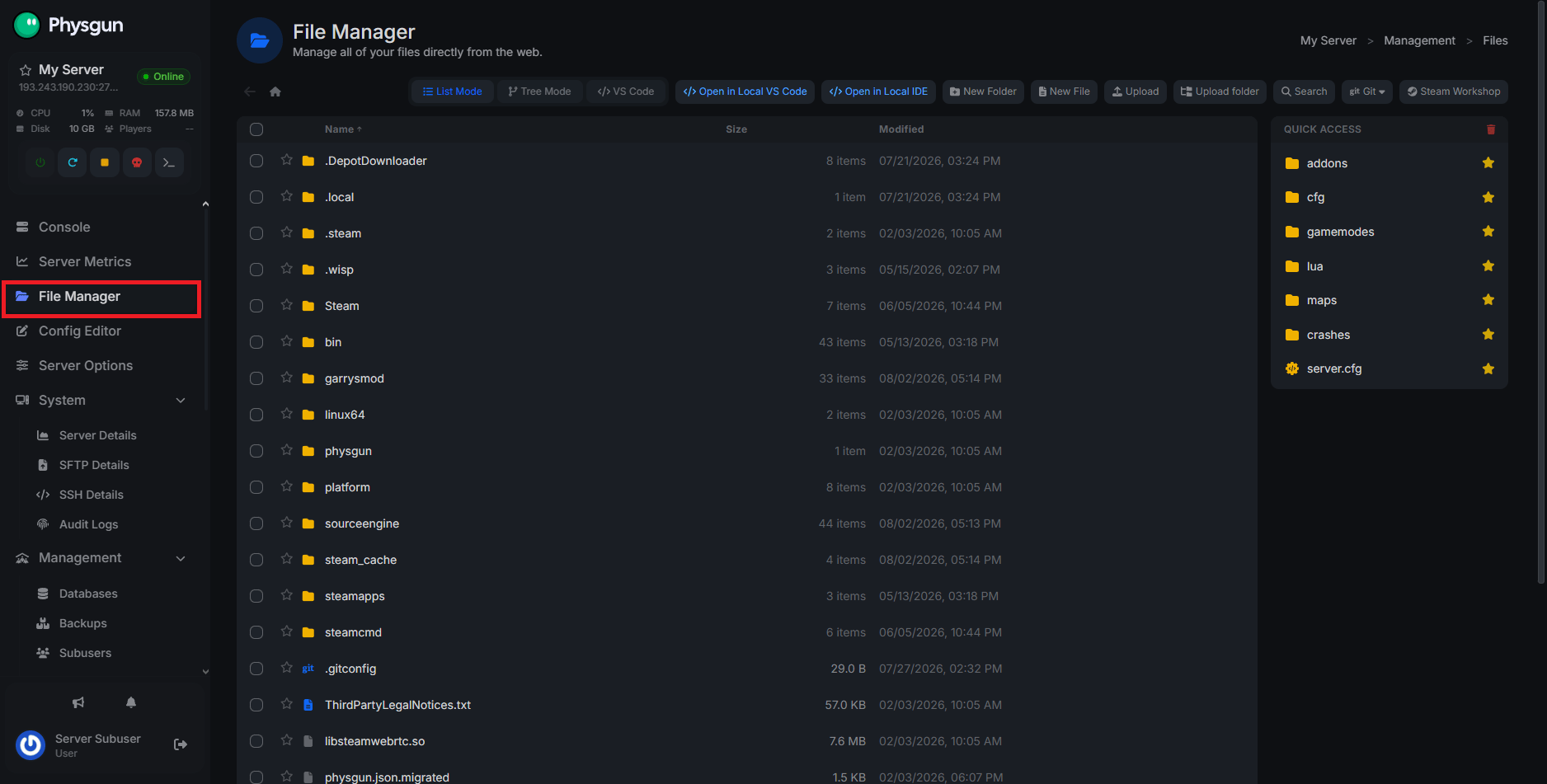
Log in to your game panel and find the File Manager tab to manage your files. At first glance, the File Manager displays all of the folders in your server’s root directory. On the right-hand side, you can find your favorite folders. We’ve added a few presets so you can navigate your new server easily. At the top, you’ll see some display modes, quick actions, and VS Code integration.
Our file manager has two display modes:
- List Mode - The default option built to resemble your Windows File Explorer. This is the simplest format, as you can navigate and open files easily without unnecessary distractions or overcomplications.
- Tree Mode - Tree Mode is built to resemble VS Code’s formatting, but without all of its technical mumbo jumbo. Good for people who don’t want to be overwhelmed, but want to navigate their files and edit them at the same time.
Quick actions include:
- Creating a New Folder
- Creating a New File
- Uploading a File
- Uploading a Folder
- Keyword and File Search
- Git tools (Clone, Pull, Commit, etc.)
Lastly, the VS Code integration. If you’d rather edit and manage your files using VS Code’s developer tools, you can use it directly in the File Manager.
Uploading and Downloading Files
Using the File Manager, you can quickly upload and download files through two methods:
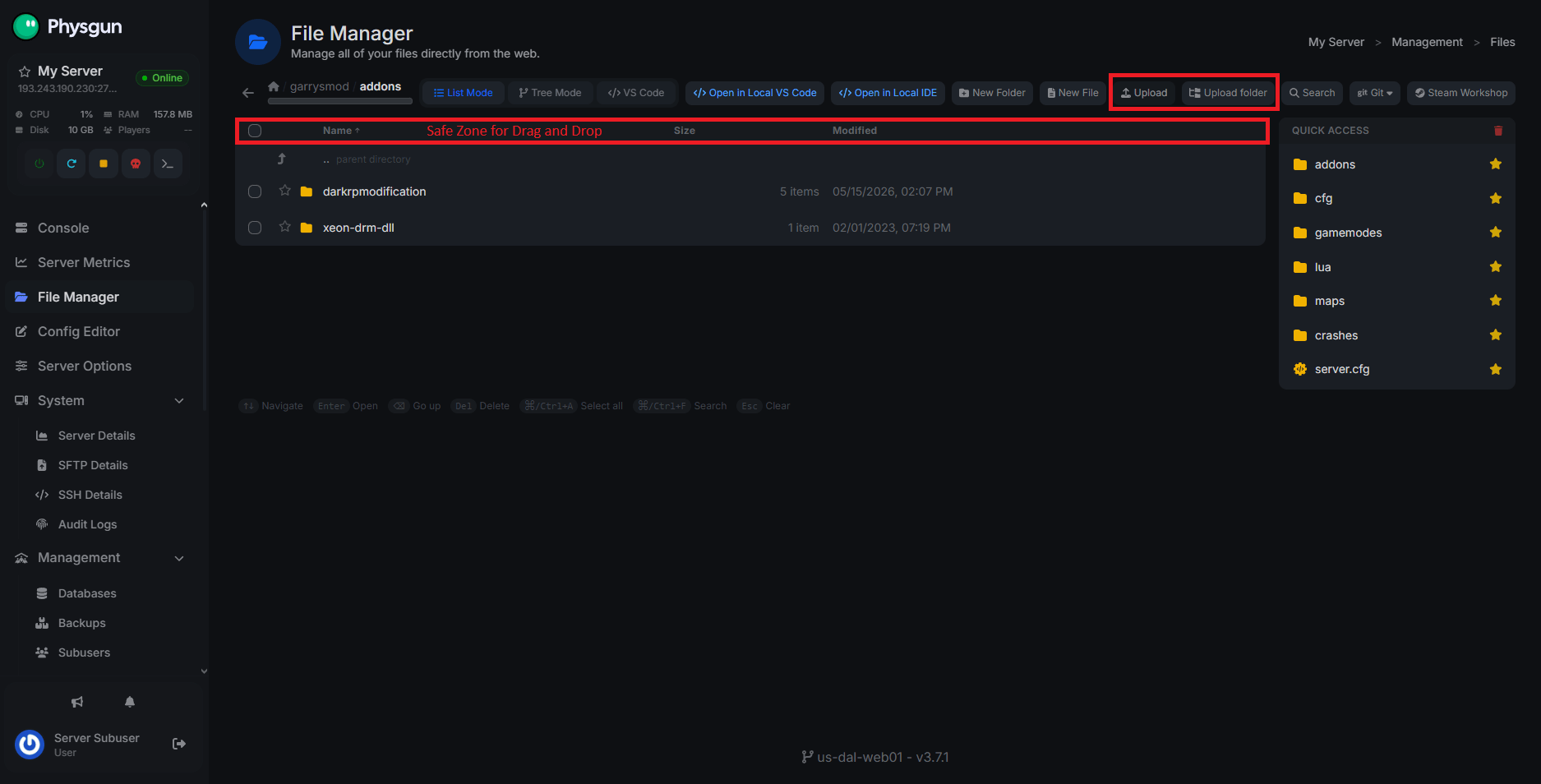
- Upload or Upload Folder buttons in the top toolbar
- Clicking either of these will open your local file explorer and allow you to select the files/folders you want to upload to your current directory.
- Drag and drop your folders or files directly into the directory
- Be careful not to drop your files into another folder by accident. Dragging a folder on top of another one will place it inside that folder. Instead, try to drag it closer to the top.
Editing Files
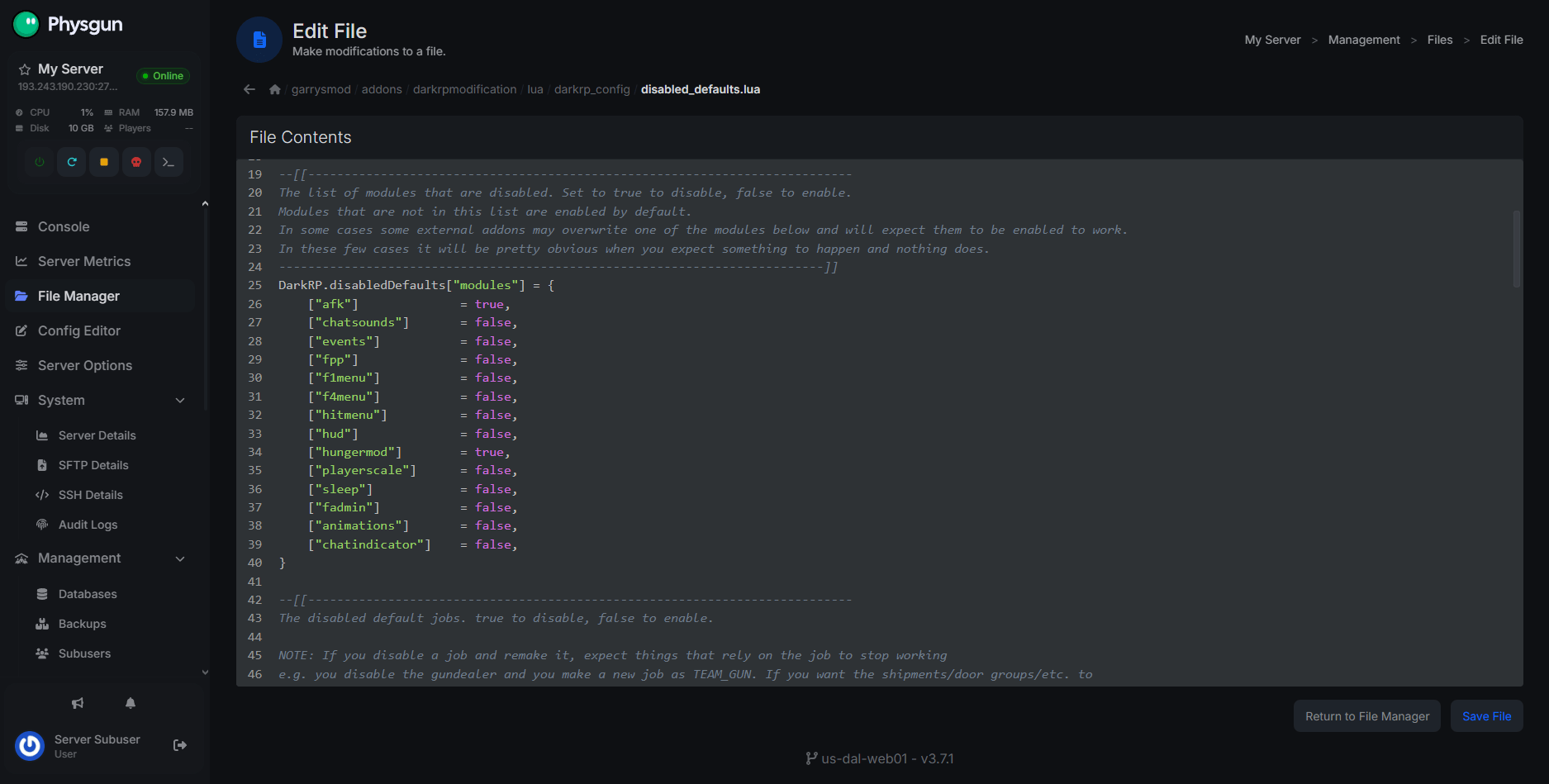
Regardless of the display mode you use, you can edit your files directly in the manager by simply clicking on them. Similar to VS Code, the file manager will automatically detect basic code syntax to help you in your programming if needed.
However, if you want access to VS Code’s extensions, auto-completion, and other dev tools, you can switch over to VS Code instead to edit your files.
NOTE: If you don’t want to have to keep returning to tedious directories to edit files, just click the star icon to add your folder or file to the Quick Access tray!
Conclusion
The File Manager is the easiest way to handle everyday server management tasks without installing additional software. From uploading files and making quick edits to organizing your server’s directories, it provides everything most server owners need in a simple, browser-based interface.
As your needs grow, you can always branch out into tools like SFTP, SSH, or VS Code. But for most day-to-day file management, the File Manager is the fastest and most convenient place to start.