






Server backups are one of the most important tools for protecting your world and player data. Whether you’re installing new mods, updating your server, recovering from file corruption, or preparing for an unexpected wipe, having a recent backup can save you hours, or even days of lost progress.
In this guide, we’ll show you how to create manual backups, restore them when something goes wrong, download copies to your computer for safekeeping, and schedule automatic backups so you’re always protected. We’ll also cover how backup storage works and how to manage your available space.
Creating a Manual Backup
We make creating backups incredibly simple. To do so:
- Log into your Physgun Panel.
- Stop your server to prevent corruption or unforeseen issues.
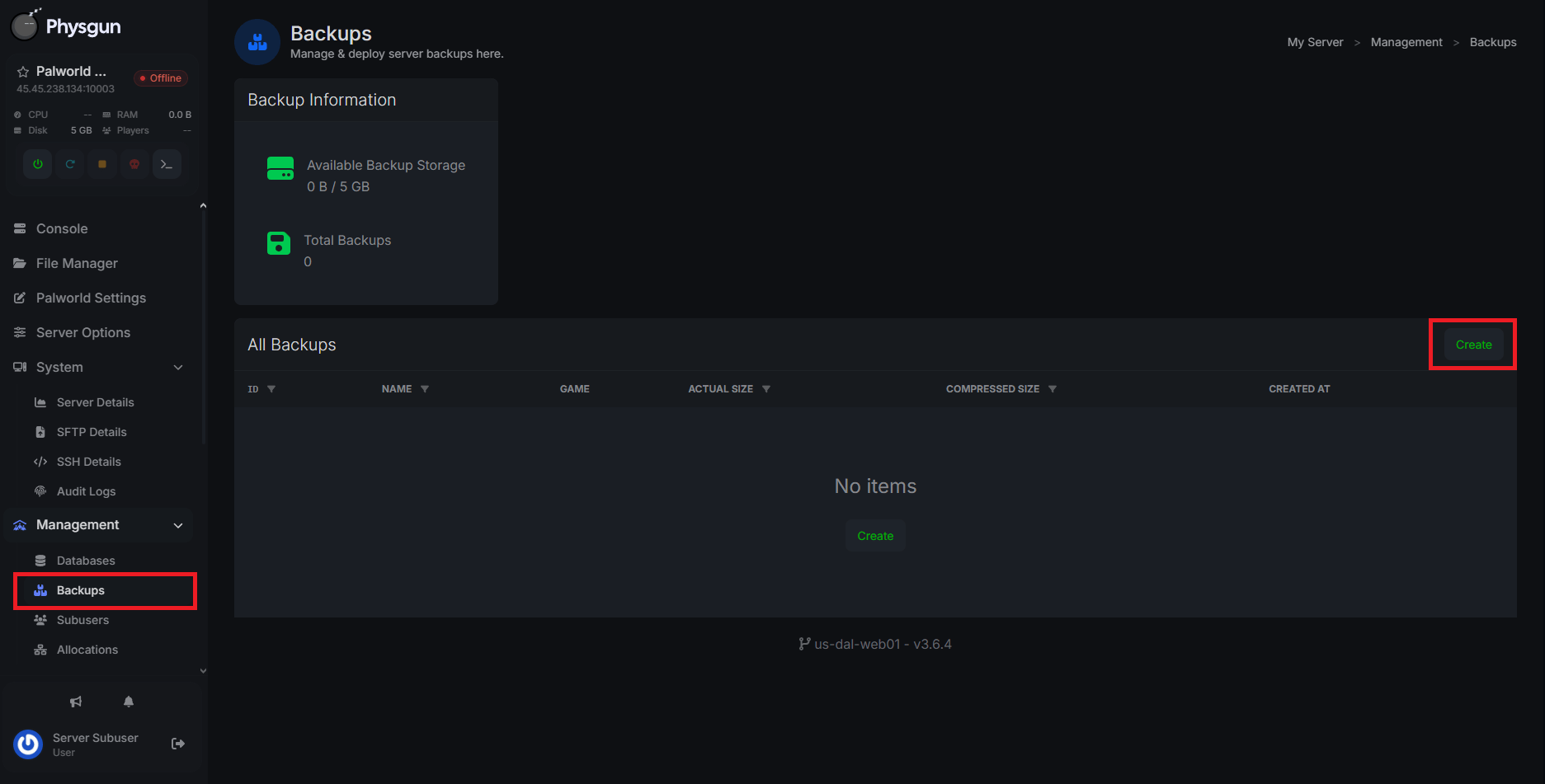
- Scroll down to Backups under the Management tab in the left navbar.
- Click Create.
- Give your backup a name, define any ignored file paths, and mark whether you want this backup to be locked after it’s created.
- Click Submit and wait for your backup to finish. You’ll get a notification once it’s done!
Restoring Your Backup
Knowing how to create a backup is only part of the process. You also need to know how to deploy it too. With a backup already created, all you have to do is:
- Stop your server.
- Return to the Backups tab.
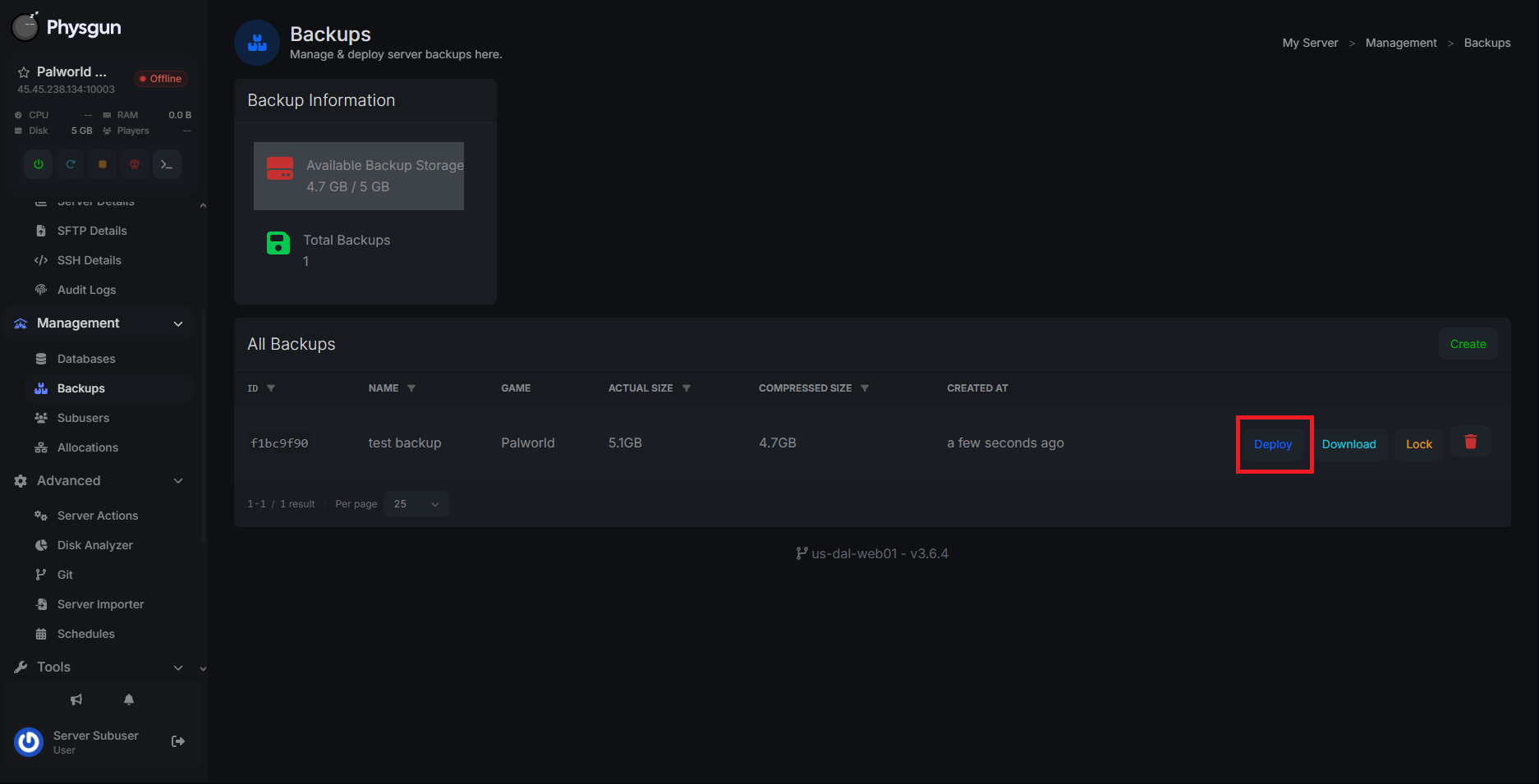
- Click Deploy on the backup you want to restore.
- Check whether you want to delete and replace all the server’s files, and whether you want to rerun the server install script once the backup is deployed.
- Click Start Restoration.
- Just like before, wait for the notification to know when your backup is restored.
Downloading Backups to Your PC
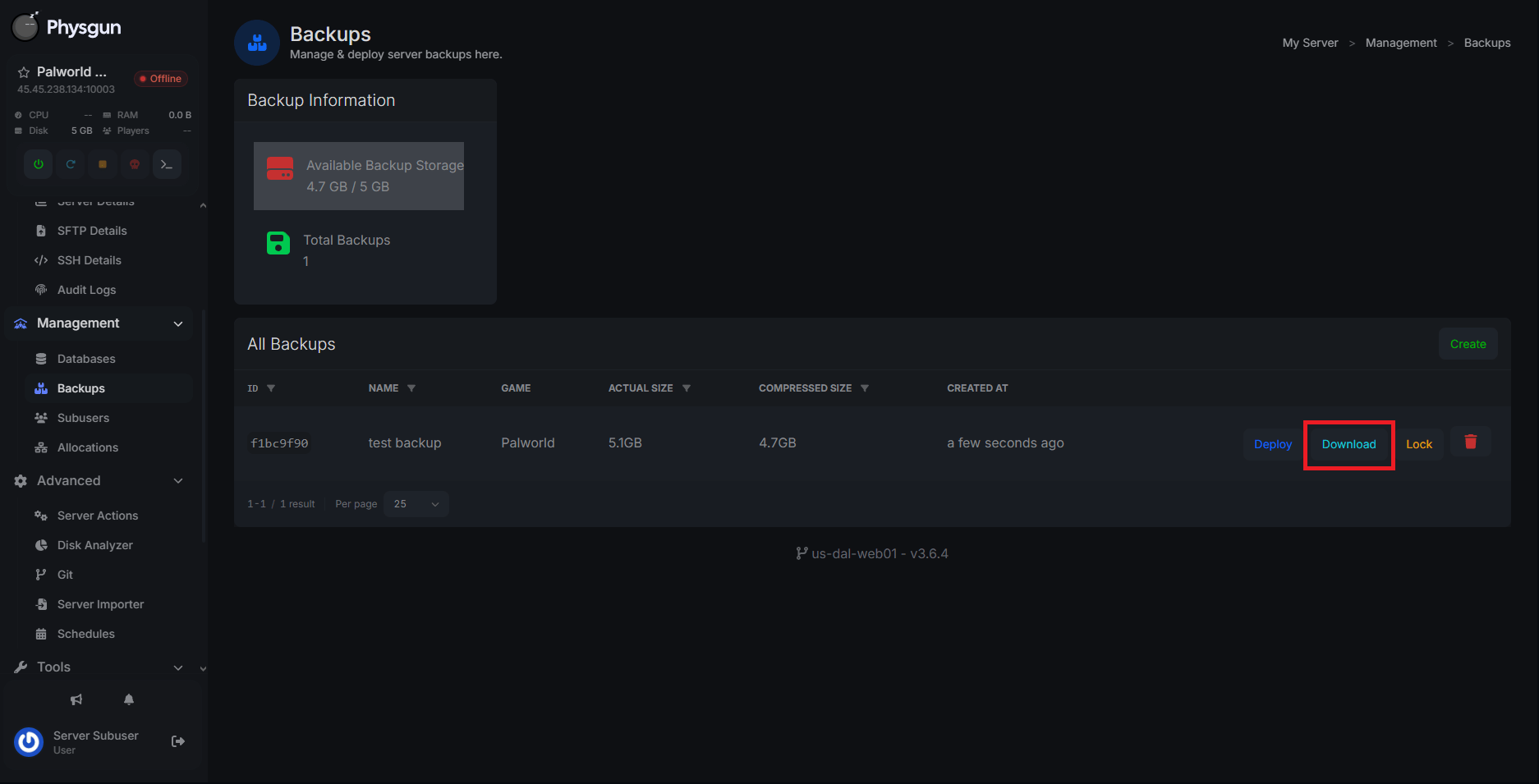
You can download backups to your computer just as easily. Downloading backups is useful if you want to save them locally without taking up your server’s backup storage. To download a backup:
- Return to the Backups tab in your server panel.
- Click the Download button on the backup you want to download.
- It will automatically start downloading to your computer.
That’s all you have to do!
Scheduling Automatic Backups
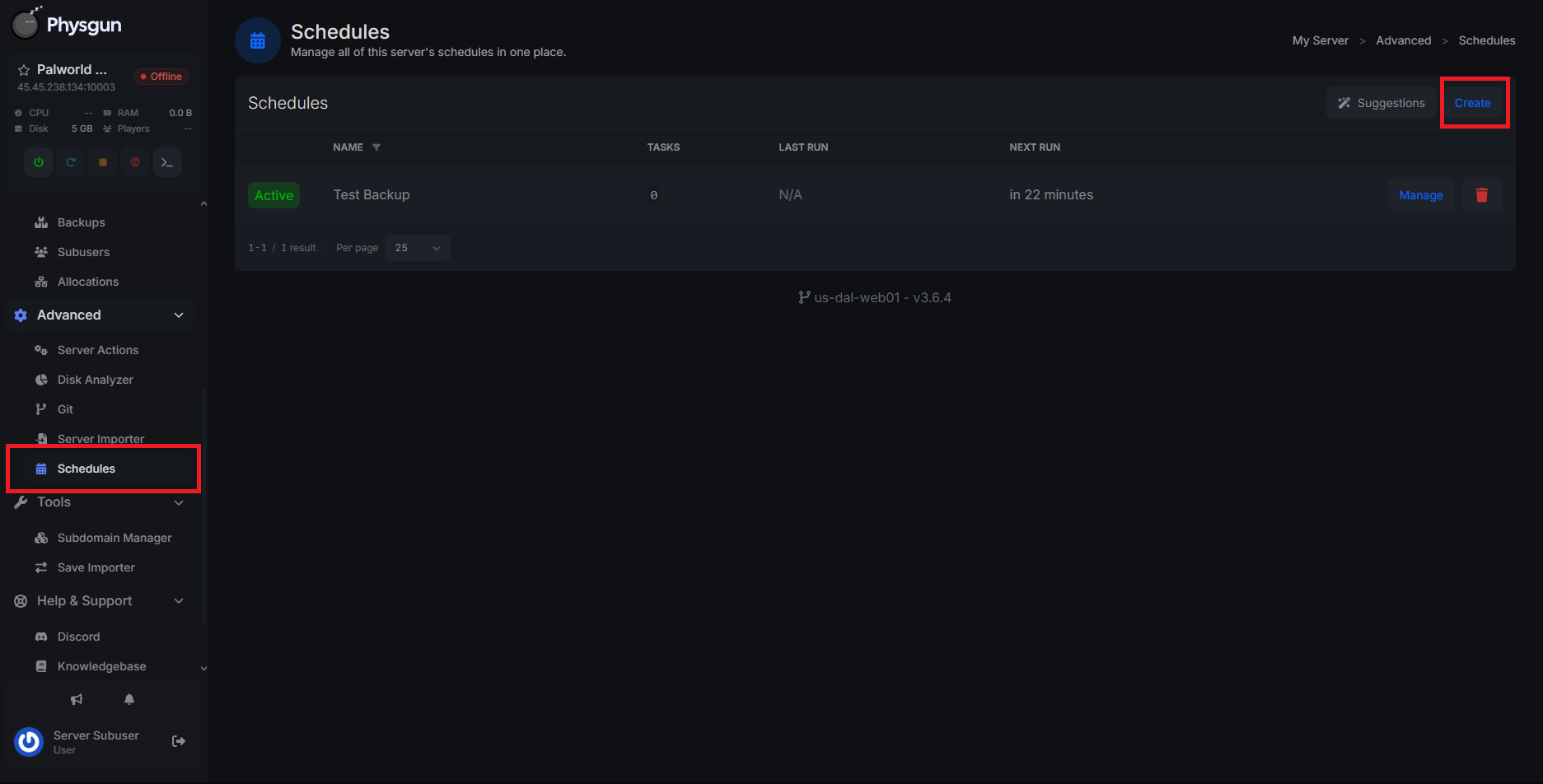
Having a recent backup is important because you never know when you’ll run into problems. Instead of getting frustrated because your last backup was 2 months ago, just set up an automated schedule! To do so:
- In your server panel, navigate to Schedules under the Advanced tab.
- Click Create
- You can also find automated backups under Suggestions too!
- Give your schedule a name, set the frequency at which it triggers, and any run conditions.
- Click Submit.
- Now that your schedule is created, you just need to assign the task. Click Create Task.
- Choose Create Backup as the task’s action.
- Choose a time offset and any specific conditions that need to be met.
- Click Submit.
- Now you’ll have automatic backups ready to go!
Limitations and Space Management
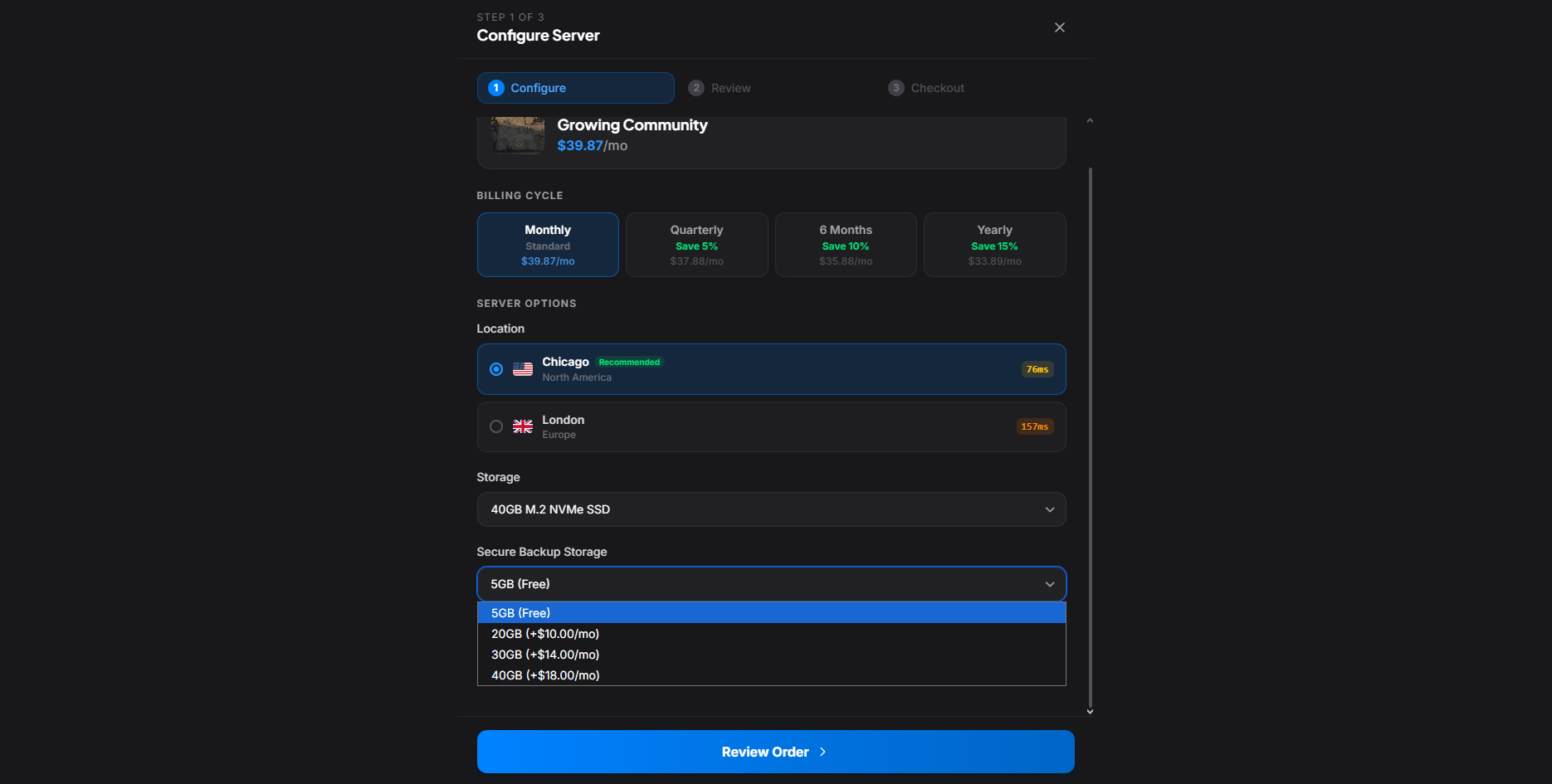
All Physgun servers come with a small bit of free allocated backup storage. In most cases, this is enough to store a few backups depending on the game you’re running. Make sure to keep an eye on your storage in the Backups tab. If you plan to save frequent backups, make sure to either transfer them to your local PC to save room or upgrade to more Secure Backup Storage.
Conclusion
Regular backups are the best insurance policy for your server. By creating backups before major changes, scheduling automatic backups, and keeping an eye on your available storage, you can recover quickly from almost any issue without losing valuable progress.
Whether you’re experimenting with new mods, troubleshooting a broken update, or simply preparing for the unexpected, our backup tools make it easy to protect your server and restore it whenever you need to.