







Managing a server is often a team effort. Whether you’re working with friends, moderators, developers, or administrators, our subuser system lets you grant access to your server without sharing your main account credentials.
In this guide, we’ll show you how to invite a subuser to your Physgun panel, configure their permissions, and use audit logs to keep track of every action they perform. You’ll also find a complete breakdown of every available permission so you can give collaborators exactly the level of access they need.
Note: You should NEVER share your main login to your server panel. Subusers only have the limited access that you give them, but your main login gives them access to all of your billing information, control over your server plan, and unfettered access to your server panel. No matter how much you trust a person, it’s a major security risk for not only your server, but yourself to grant people access that way.
Inviting a Subuser to Your Physgun Panel
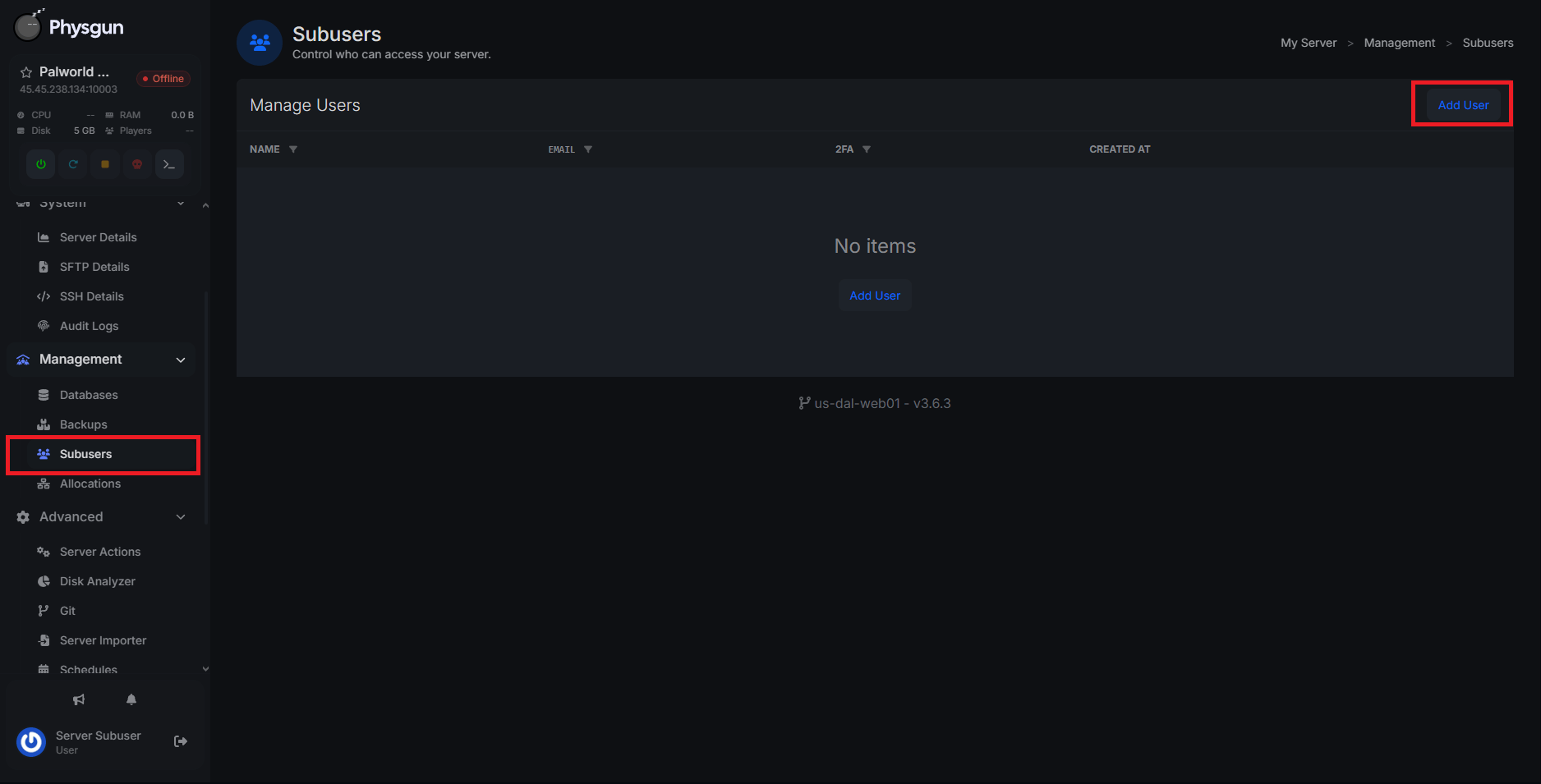
With Physgun, you can invite subusers straight from the panel! To do so:
- Visit your Physgun Panel
- Scroll down in the left navbar and select Subusers under the Management tab
- Click Add User in the top-right corner of the box.
- Enter their email and click Add User.
- They must have a Physgun account associated with that email, though they don’t need any prior or active services.
Now that you have a basic subuser set up, you need to configure permissions to make it practical.
Managing Subuser Permissions
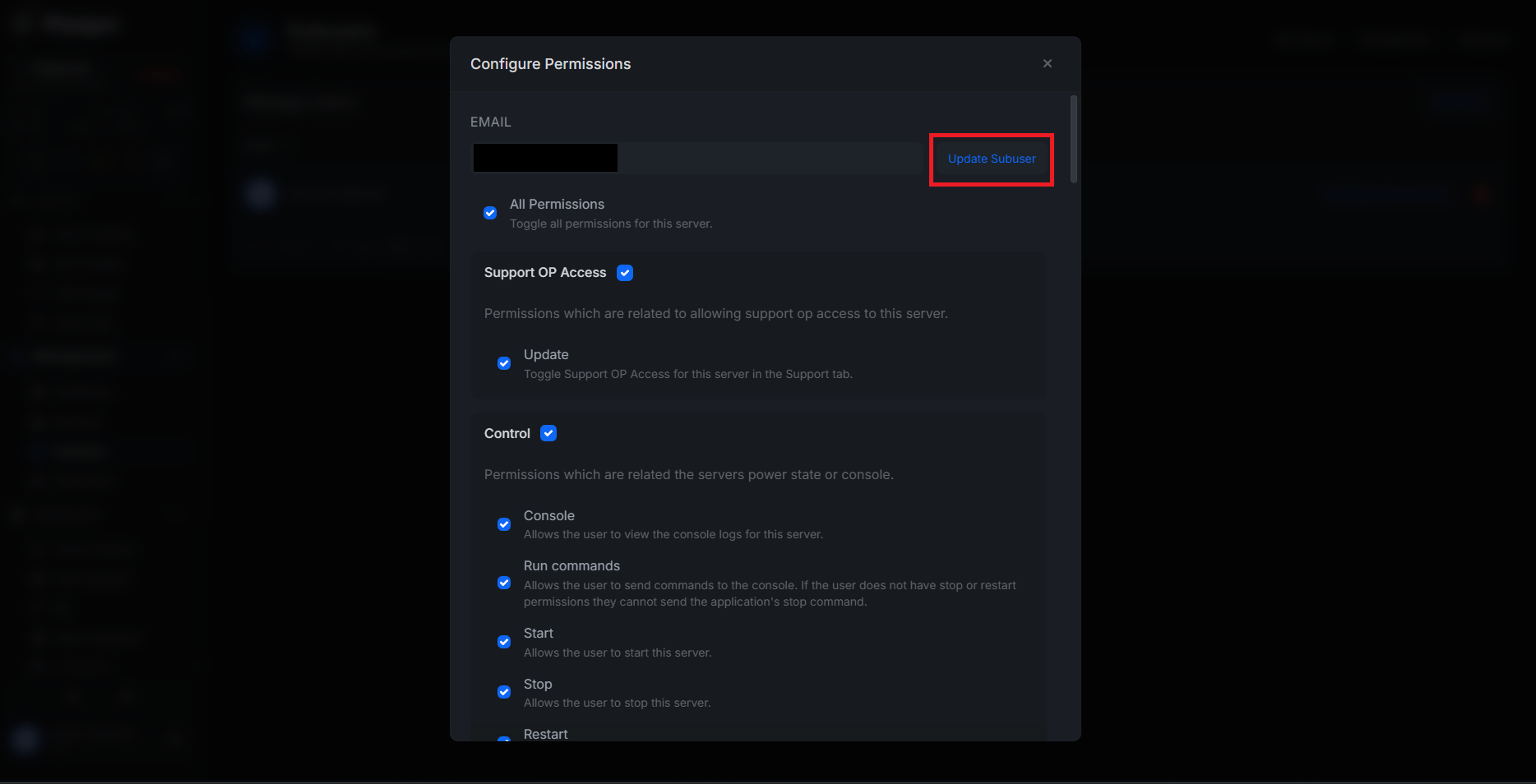
We offer a wide array of permissions you can grant your subusers. You probably noticed them when creating your initial subuser profile. To assign these, just click Configure Permissions on the subuser, check the boxes for permissions you want enabled, and hit Update Subuser.
See the list of available permissions at the bottom of this article.
Removing Subusers
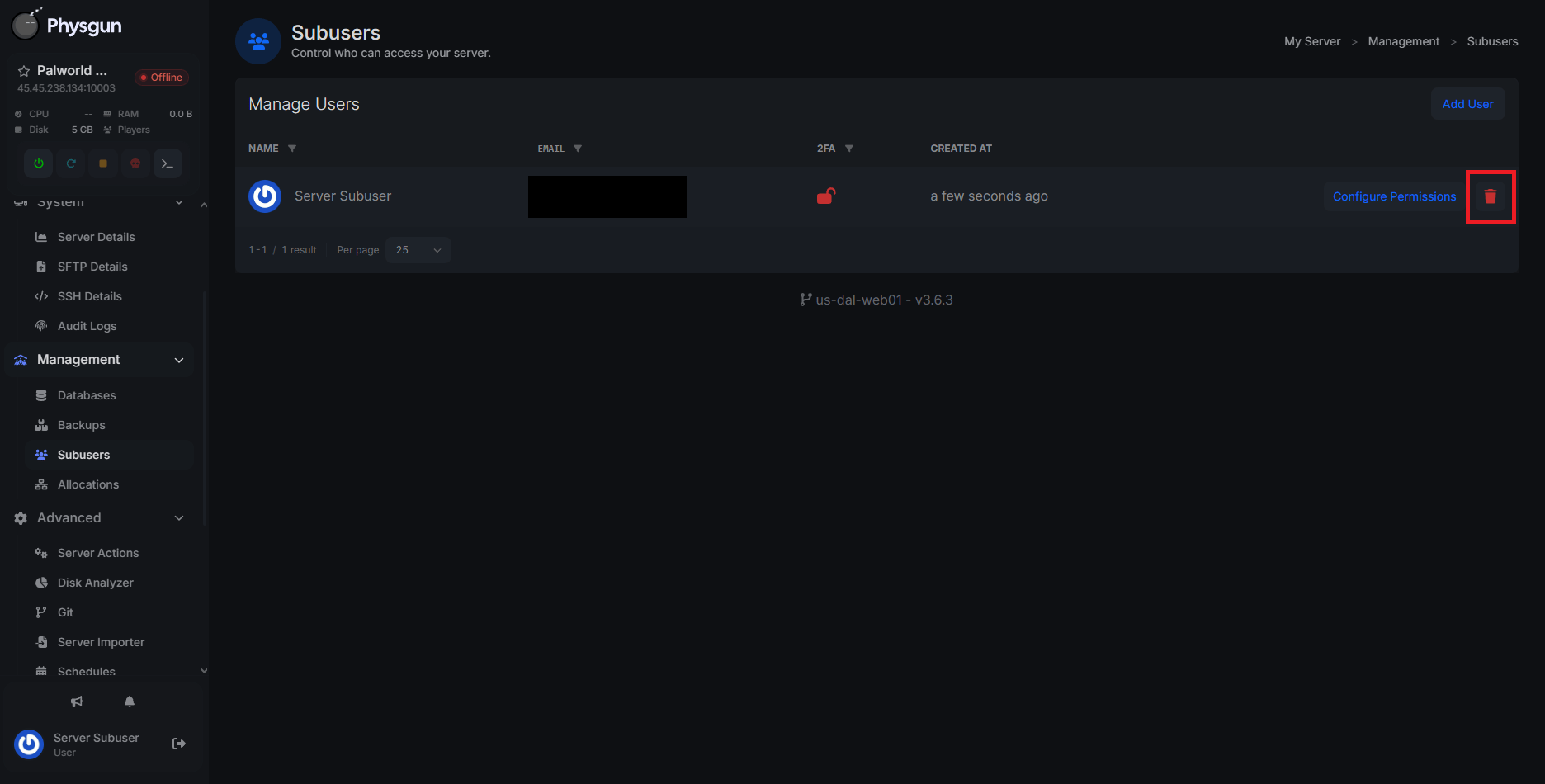
You can remove subusers just as easily as you can add them. All you have to do is click the red trash can icon next to their profile and type in their email to confirm you want to remove them. Then, just click Delete.
Watching Subuser Activity Through Audit Logs
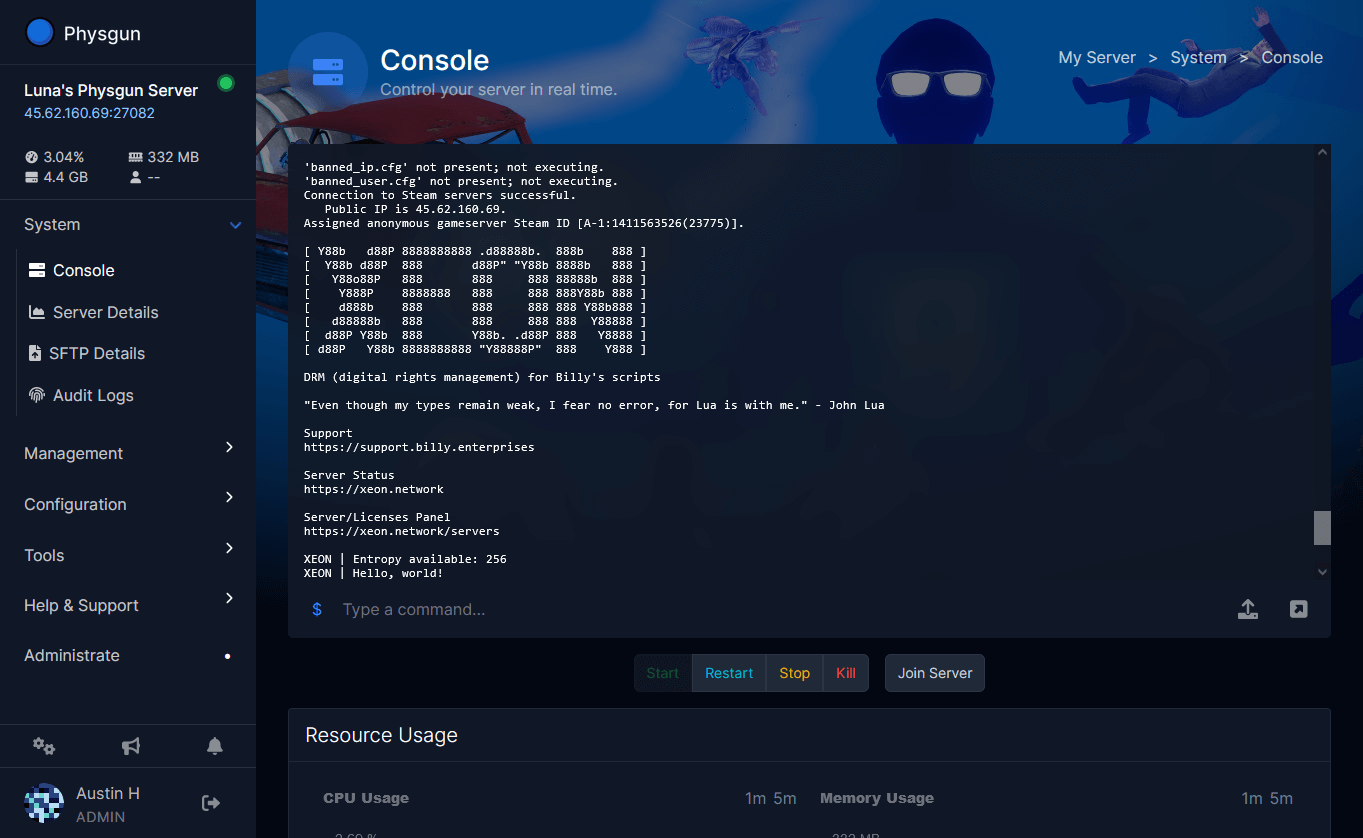
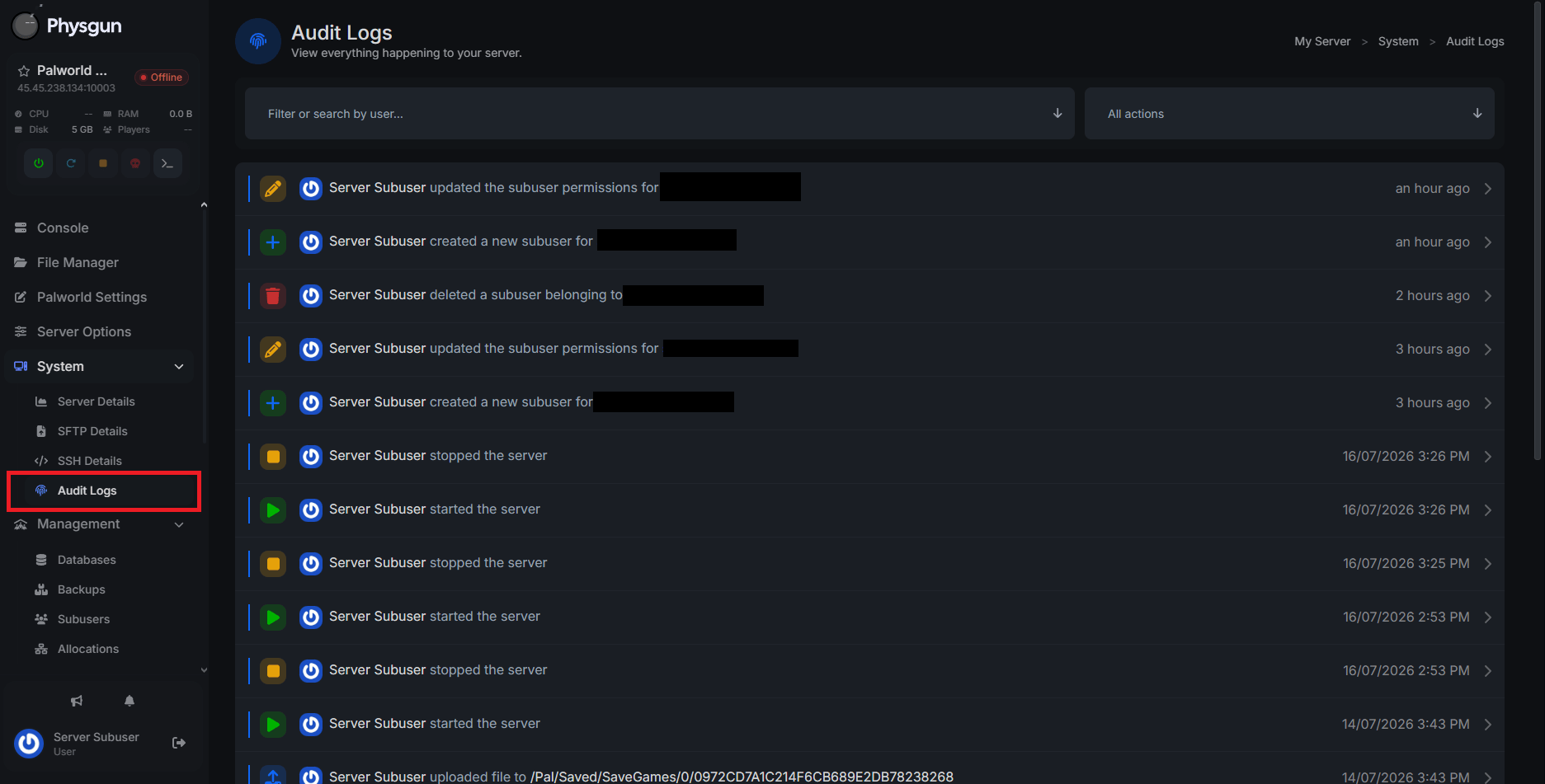
If you’re making sure your subusers aren’t abusing their permissions or backtracking on something they did, you can review all of their actions in the panel audit logs. You can find audit logs under the System tab in the left navbar.
Here, you can sort by subuser or by specific actions to narrow down your search. We log every action taken on your server panel, along with the date and time it was done, so you’re never in the dark about what’s happening with your server.
Available Permissions
Support Op Access
| Permission | Description |
|---|---|
| Update | Toggle Support OP Access for this server in the Support tab. |
Control
| Permission | Description |
|---|---|
| Console | Allows the user to view the console logs for this server. |
| Run Commands | Allows the user to send commands to the console. If the user does not have stop or restart permissions they cannot send the application’s stop command. |
| Start | Allows the user to start this server. |
| Stop | Allows the user to stop this server. |
| Restart | Allows the user to restart this server. |
Subuser
| Permission | Description |
|---|---|
| Read | Allows the user to list & inspect subusers assigned to this server. |
| Update | Allows the user to edit permissions assigned to other subusers. |
| Create | Allows the user to create additional subusers on this server. |
| Delete | Allows the user to delete other subusers on this server. |
Allocation
| Permission | Description |
|---|---|
| Read | Allows the user to view all allocations assigned to this server. Users with any access to the server can always view the default allocation via the Details page. |
| Update | Allows the user to change the primary allocation. |
Server Options
| Permission | Description |
|---|---|
| Read | Allows the user to view the startup command and associated variables & options for this server. |
| Update | Allows the user to modify startup variables & options for this server. |
Database
| Permission | Description |
|---|---|
| Read | Allows the user to view all databases associated with this server including the usernames and passwords for the databases. |
| Reset Password | Allows the user to reset the passwords for databases. |
| Create | Allows the user to create additional databases for this server. |
| Delete | Allows the user to delete the databases from this server. |
File Manager
| Permission | Description |
|---|---|
| SFTP | Allows the user to connect to the SFTP server. |
| List | Allows the user to list all files & folders on this server but not view file contents. |
| Read | Allows the user to view the contents of existing files. |
| Write | Allows the user to update the contents of existing files for this server. |
| Delete | Allows the user to delete files from this server in the file manager or SFTP. |
| Archive | Allows the user to compress files & folders in the file manager. |
| Git | Allows the user to use git actions (ie Cloning, Pulling). |
SSH
| Permission | Description |
|---|---|
| Connect | Allows the user to open an SSH session into a container with the server files mounted. This effectively grants full read/write access to the server files. |
Schedule
| Permission | Description |
|---|---|
| Read | Allows the user to list schedules & view a schedule’s details including all of the assigned tasks. |
| Update | Allows the user to edit a schedule including all of the schedule’s tasks. This will allow the user to remove individual tasks, but not delete the schedule itself. |
| Create | Allows the user to create a new schedule. |
| Delete | Allows the user to delete schedules from this server. |
Backup
| Permission | Description |
|---|---|
| Read | Allows the user to view all backups for this server. |
| Update | Allows the user lock/unlock backups to stop them from being automatically deleted to make room for future backups. |
| Create | Allows the user to create backups for this server. |
| Delete | Allows the user to delete a backup belonging to this server. |
| Deploy | Allows the user to deploy a backup to this server. |
| Download | Allows the user to download a backup belonging to this server. |
Details
| Permission | Description |
|---|---|
| Read | Allows the user to view this server details. |
| Update | Allows the user to change this server name. This only allows the user to change the server’s name in the panel, not the in-game one. |
Audit Log
| Permission | Description |
|---|---|
| Read | Allows the user to view this server action logs. Other permissions may be required to read certain logs. |
Steam Updater
| Permission | Description |
|---|---|
| Update | Allows the user to use the Steam Updater for this server. |
Health Monitor
| Permission | Description |
|---|---|
| Read | Allows the user to view the status of the server’s Health Monitor. |
| Update | Allows the user to toggle the server’s Health Monitor status. |
Reinstall
| Permission | Description |
|---|---|
| Update | Allows the user to reinstall this server. |
Subdomain Manager
| Permission | Description |
|---|---|
| Read | Permission to read domains. |
| Create | Permission to create a domain used to connect to this server. |
| Delete | Permission to delete server domains. |
Conclusion
Our subuser system makes it easy to collaborate on server management while keeping your account secure. By assigning only the permissions each person needs and reviewing activity through the audit logs, you can safely delegate tasks without sacrificing control.
Whether you’re giving a friend access to restart the server, allowing a developer to manage files, or granting an administrator full control, subusers provide a flexible and secure way to manage your Physgun server together.