
Secure Shell (SSH) gives you direct command-line access to your game server, making it an invaluable tool for advanced administration and development. While the Physgun File Manager is perfect for quick edits and SFTP excels at transferring files, SSH allows you to navigate directories, edit files, inspect logs, run scripts, and automate repetitive tasks all from a terminal.
Unlike a VPS, Physgun provides SSH access to your individual game server container rather than the underlying operating system. This means you have powerful control over your server files and environment while important system components remain protected. In this guide, we’ll show you how to connect to your server over SSH, explain what the container environment allows, cover the most useful commands you’ll use day-to-day, and compare SSH with the other file management tools available in the Physgun panel.
What is SSH?
SSH, or Secure Shell, is a secure protocol that lets you remotely access your game server through a command-line interface. Instead of navigating folders with your mouse, you’ll interact with your server by entering commands into a terminal.
On Physgun Game Hosting, SSH provides direct command-line access to your game server’s files and environment, allowing you to perform advanced management tasks that would be cumbersome through a graphical interface.
What You Can Do with SSH
SSH is ideal for advanced file management and server administration tasks. Some common uses include:
- Browsing your server’s directories.
- Creating, moving, copying, or deleting files.
- Editing configuration files with terminal-based editors like Nano.
- Viewing and searching server logs.
- Downloading files directly from the internet with tools like Wget.
- Compressing and extracting archives.
- Running scripts included with your game server or plugins.
What You Can’t Do with SSH
Because you’re connected to a container rather than a full VPS, there are a few limitations:
- You cannot gain root or administrator access.
- You cannot install system packages or software using package managers.
- You cannot modify the host operating system.
- You cannot access files outside of your own server.
For the vast majority of things you’ll be doing with your game server, these restrictions won’t affect your workflow.
SSH vs File Manager vs SFTP vs VS Code
Each file management method has its own strengths, and many server owners use several of them together.
- File Manager - Good for quick browser-based file edits and uploads.
- SFTP Client - Ideal for uploading and downloading a large number of files.
- SSH - Perfect for command-line administration, automation, and troubleshooting.
- VS Code Integration - Best for developers who want access to all the dev features that VS offers.
For example, if you only need to edit a single config file, the File Manager is the quickest option.
If you’re uploading an entire world save, modpack, or transferring files from a dedicated server, SFTP is generally the most efficient for bulk transfers.
SSH is the best choice for when you’re searching logs, running scripts, performing bulk operations, or downloading files directly onto the server.
Lastly, for developers, VS Code combines SSH access with a modern code editor, allowing you to edit files directly on the server with syntax highlighting, extensions, integrated terminals, and other familiar dev tools.
Connecting to SSH Outside of the Panel
Finding your SSH Credentials
Your SSH credentials can be found right in the server panel. To locate them:
- Log into your Physgun game panel.
- Scroll down in the left navbar until you find SSH Details under the System tab.
- In here you’ll find your Connection Address, SSH Command, and Username.
Connecting from Windows
Windows locally supports SSH through Windows PowerShell. To connect to SSH from Windows:
- Press your Windows key and search for PowerShell.
- Open PowerShell and paste the SSH Command from your panel into the command line.
- Next, you’ll be prompted to enter a password. This is the same password that you use to log into the panel. If you don’t see anything show up while you type, that’s intentional. Just type as if it were there and hit Enter.
- Now you’re fully connected to SSH on your Windows device.
Connecting from Linux or Mac
For Linux and Mac users, SSH is supported through the terminal. To connect to SSH from Linux or Mac:
- Open your terminal. On Linux, use the
Ctrl + Alt + Tshortcut. On Mac, open Spotlight and typeTerminal. - Paste the SSH Command from your panel into the command line.
- Enter your password.
- After hitting Enter, you’ll be fully connected.
Using the SSH Console
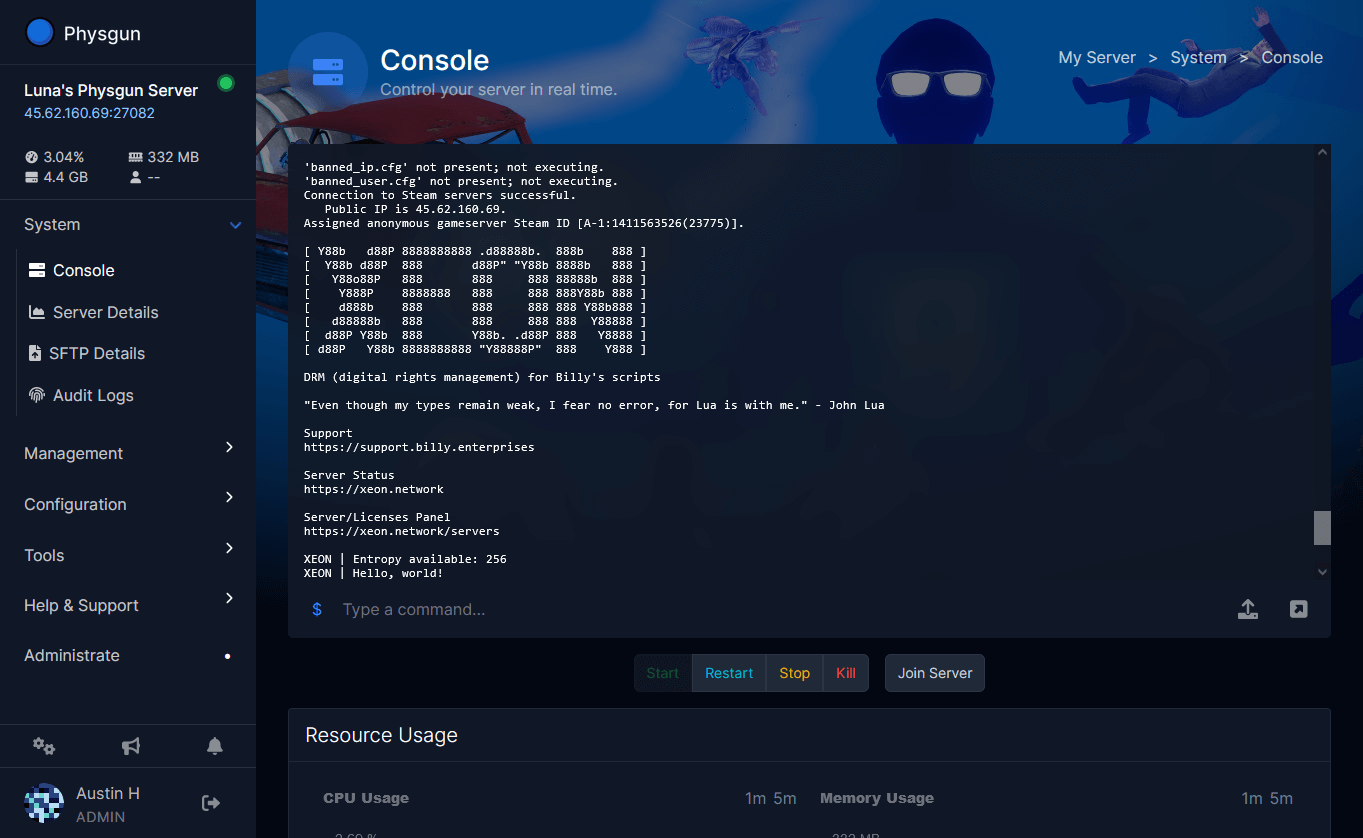
You can access SSH on the game panel by clicking the SSH Console button in the Console tab. Here you’ll have near full access to your server through various console commands. We don’t recommend using SSH unless you already have prior knowledge about it before reading this guide. If you don’t know what you’re doing, you can really mess up your server.
Physgun Commands
| Command | Description |
|---|---|
physgun start | Start the server |
physgun stop | Stop the server |
physgun restart | Restart the server |
physgun kill | Force kill the server (Warning: no graceful shutdown) |
physgun exec <command> | Send a command to the server |
physgun console | Open the server’s live console (Ctrl + C to exit) |
physgun status | Show whether the server is running |
physgun stats | Show server info and current resource usage |
physgun logs | Show or stream the server’s logs |
physgun switch <server> | Switch this SSH session to another server |
physgun help | Displays all of these commands in the console |
Common SSH Commands
| Command | Description |
|---|---|
ls | Lists the files and folders in your current directory. |
cd <folder> | Changes your current directory. For example, cd plugins. |
pwd | Displays your current directory path. |
mkdir <folder> | Creates a new folder. |
cp <source> <destination> | Copies files or folders. |
mv <source> <destination> | Moves or renames files and folders. |
rm <file> | Deletes a file. Use with caution! Deleted files cannot be recovered. |
nano <file> | Opens a file in the Nano text editor for quick edits. |
cat <file> | Displays the contents of a file in the terminal. |
grep "<text>" <file> | Searches a file for matching text, making it useful for finding errors in logs. |
tail -f <file> | Displays the end of a file and updates it live as new lines are written. Great for monitoring server logs. |
wget <url> | Downloads a file directly from the internet to your server. |
tar | Creates or extracts compressed archives. Commonly used when backing up or unpacking files. |
clear | Clears the terminal screen. |
exit | Closes your SSH session. |
Conclusion
SSH is one of the most powerful tools available for managing a game server. Whether you’re troubleshooting a problem, editing configuration files, searching logs, downloading files directly to the server, or automating repetitive tasks, command-line access can dramatically speed up your workflow.
While it isn’t a replacement for the File Manager, SFTP, or VS Code, it complements each of them by providing fast, flexible access to your server’s container. Once you’re comfortable with the basic commands covered in this guide, you’ll find SSH becomes an essential part of managing your Physgun server efficiently.