







Almost every Valheim server mod is a BepInEx plugin, so your server needs BepInEx before it can load any of them. On Physgun you don’t install BepInEx yourself. You switch your server to the Valheim (BepInEx) game, which comes with BepInEx already set up. After that, adding a mod means uploading its .dll file and restarting.
Switching games wipes your server’s files, and that includes your world. Your server name, password and world name carry over, but the world files don’t. Back up your world before you start. You also need the mod you want to add, downloaded to your computer.
Back up your world
Valheim saves each world as two files named after your World Name (the default is Dedicated): a .db file and a .fwl file. They are in the .config/unity3d/IronGate/Valheim/worlds_local folder on your server.
- Stop your server so the world files are fully saved.
- In the File Manager, open
.config, thenunity3d,IronGate,Valheimandworlds_local. - Download both files for your world, for example
Dedicated.dbandDedicated.fwl. - For a full safety copy as well, make a backup in Backups, under Management in the left menu.
Switch to Valheim (BepInEx)
- Open your server in the Physgun Gamepanel.
- Select Switch Game in the menu on the left.
- Type
Valheimin the Search games… box. - Select the Valheim (BepInEx) card.
- On Migrate server options, check that your server name, password, world name and other settings show their current values, then select Continue.
- On Confirm, select Switch game.
- Wait for the install to finish. It takes a few minutes, and the console ends with
Installation process completed.
Under your server’s name at the top of the page, the game now reads Valheim (BepInEx).
Start the server with BepInEx
- Select Start.
- Watch the console. BepInEx loads before the game, and you’ll see lines like these:
[Message:   BepInEx] BepInEx 5.4.23.5 - valheim_server
[Message:   BepInEx] User is running BepInExPack Valheim version 5.4.2351
[Message:   BepInEx] Chainloader started
[Info : BepInEx] 0 plugins to load- Wait for
Game server connected. The first start after the switch takes about two minutes.
Your version numbers may be newer. 0 plugins to load is correct for now, because you haven’t added a mod yet.
The server has started a fresh world, so now is the time to put your old one back. Stop the server, open .config/unity3d/IronGate/Valheim/worlds_local in the File Manager, upload your .db and .fwl files over the new ones, and start the server again. Both files must keep your world’s name.
Get a plugin
Most Valheim mods are on Thunderstore. Download the mod, extract the zip on your computer and find its .dll file. On each mod’s page, check its dependencies: BepInExPack_Valheim is already on your server, but any other mod it needs has to be uploaded too.
For a first test, pick a small mod with nothing else to install. Server devcommands by JereKuusela is a good one: a single ServerDevcommands.dll file that needs only BepInEx. Leave big mods and modpacks until you know the basics work.
Upload the plugin
- Select File Manager in the menu on the left.
- Open the BepInEx folder.
- Open the plugins folder.
- Select New.
- Select Upload and choose the mod’s
.dllfile on your computer.
The file now shows in BepInEx/plugins with its size. Upload the .dll itself, not the zip it came in.
Restart and check the plugin loaded
- Select Restart at the top of the page.
- Select Yes, Restart Server.
- Select Console in the menu on the left.
- Look for a
Loadingline with your mod’s name and version:
[Info : BepInEx] 1 plugin to load
[Info : BepInEx] Loading [Server Devcommands 1.115] (server_devcommands)
[Message: BepInEx] Chainloader startup complete (1 loaded, 0 skipped, 0 failed)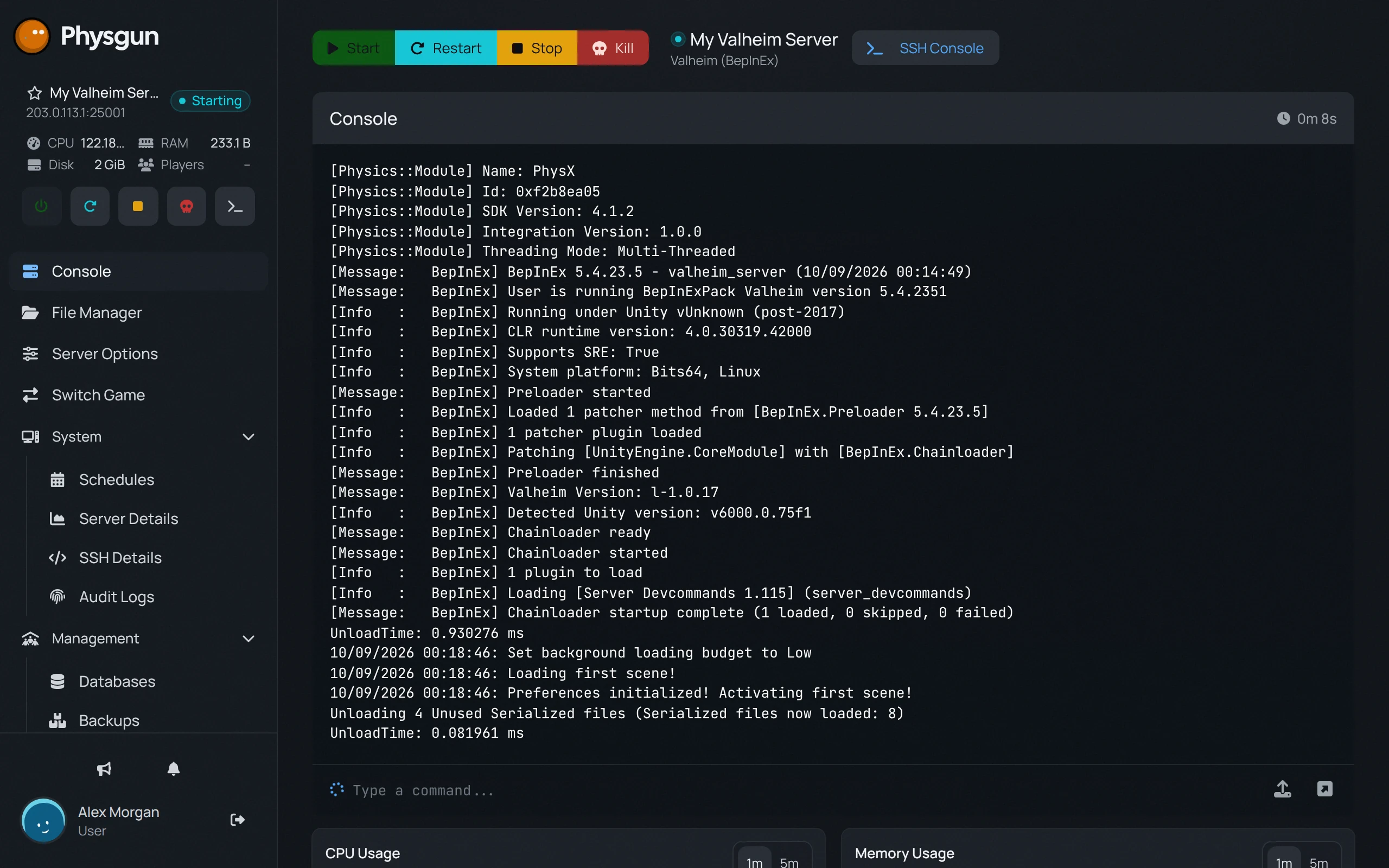 Check the mod loadedA Loading line shows your mod's name and version.
The server then reaches Game server connected as usual. The same lines are saved in BepInEx/LogOutput.log, which you can open in the File Manager after the console has scrolled past them.
Configure the mod
The first time a mod loads, it often makes a settings file in BepInEx/config, such as server_devcommands.cfg. Open it in the File Manager, change the values, save, and restart the server to apply them.
Players and mods
Many mods also have to be installed on each player’s PC, and players then need BepInEx and the same mods to join your server. Check each mod’s page to see whether it’s server-only or needs players to install it too. A mod manager such as r2modman or Thunderstore Mod Manager installs BepInEx and mods on a PC. Server devcommands is different: only admins who want its commands need it on their own PC.
Valheim updates can break mods. After a game update, check that your mods have updates too, and that your players have the same versions.
Manual install on other servers
On Physgun, switch games as shown above instead. Elsewhere, install BepInEx first. For Valheim it comes as BepInExPack_Valheim by denikson on Thunderstore. Follow the pack’s own instructions to put it in the server’s root folder, then start the server once so it creates the BepInEx folders.
After that, the plugin steps are the same on every server:
- Copy the mod’s
.dllintoBepInEx/plugins, using any file transfer you have, such as SFTP. - Restart the server.
- Check
BepInEx/LogOutput.logfor the mod’sLoading [...]line. - Change the mod’s settings in
BepInEx/config, then restart again.
If it doesn’t work
- Switch Game says your server is busy: wait until the current install or backup has finished, then try again.
- No BepInEx lines in the console: check the game shown under your server’s name. If it still reads Valheim, the switch didn’t happen. Run it again.
- Your mod has no Loading line: check that the
.dllsits directly inBepInEx/plugins, not in a zip or a subfolder, and that you restarted after uploading it. - The startup line shows skipped or failed plugins: the mod is usually missing a dependency or doesn’t work with this Valheim version. Read the lines around it in
BepInEx/LogOutput.log, upload any missing dependency and check the mod page for an update. - Your old world is gone: put your backup back as described in Start the server with BepInEx.
- Players can’t join: compare the mod versions on their PC with the
Loadinglines inBepInEx/LogOutput.log.