How To Use The Rust NTeleportation Plugin
Traversing a massive Rust map on foot gets old fast, especially on servers where players want to focus on building, raiding, and PvP rather than spending half their session just getting around. NTeleportation is a free Oxide plugin that solves this by giving players and admins a full suite of teleportation options, including setting homes, sending teleport requests to other players, and fast traveling to locations like Outpost and Bandit Camp.
In this guide, we’ll cover everything from installation and permissions to commands, configuration, and tips for tailoring the NTeleportation plugin to your server.
Installing NTeleportation On A Rust Server
Before installing, make sure Oxide is installed. On installation, Oxide defaults to marking the server as Modded, because it loads plugins.
- If you want it listed as “Community,” you’d set Modded: true to false in oxide.config.json, but for gameplay plugins like NTeleportation you normally leave it modded.
There are two ways to install the plugin:
-
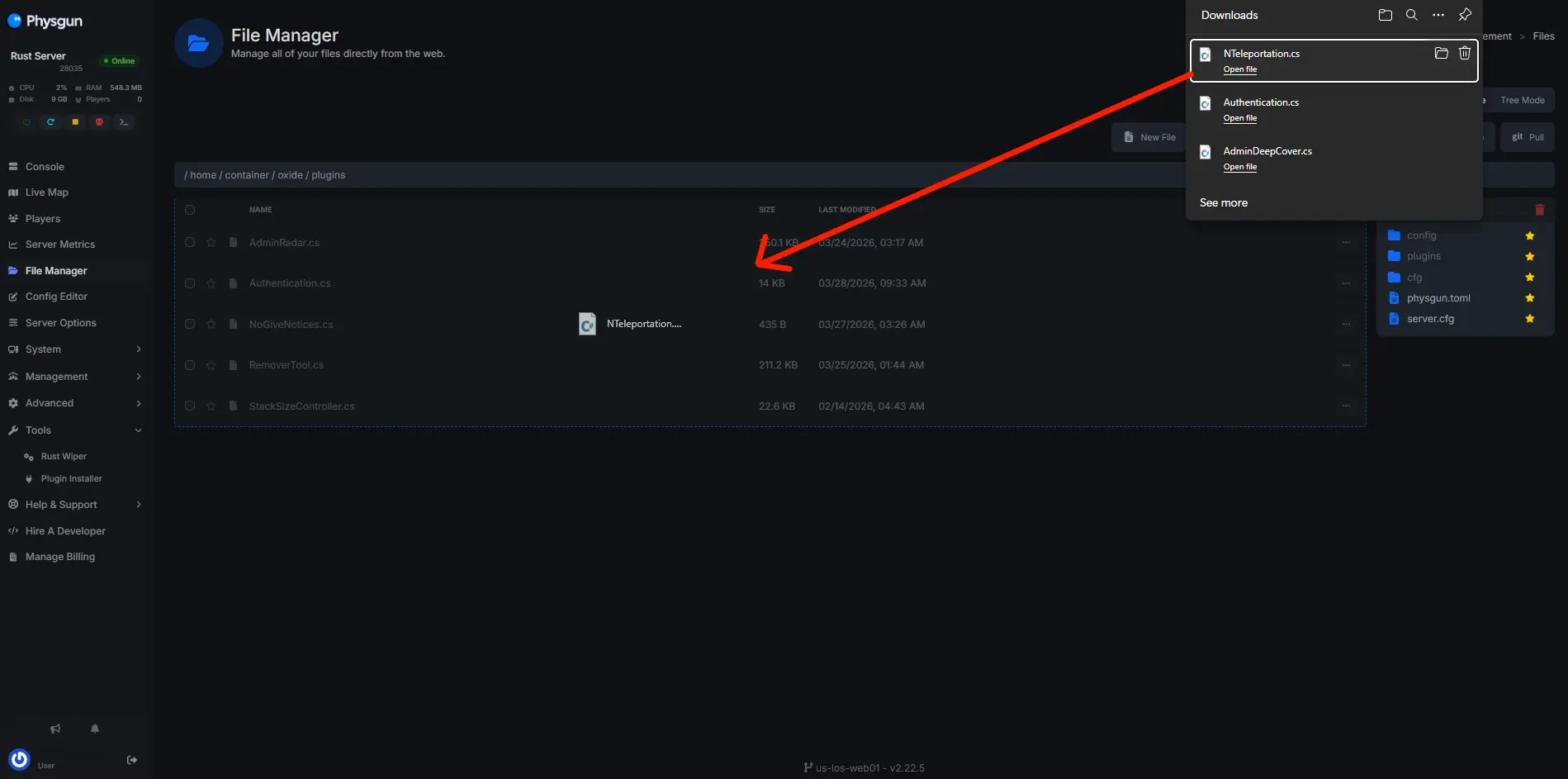
One-click installer (panel): Physgun makes installing new plugins easy. By utilizing the Plugin Installer tab in your Physgun Rust server’s panel, you can search “NTeleportation” and click install. After installation, the file NTeleportation.cs appears in your plugin folder.
-
Manual upload: Download the latest NTeleportation.cs from the uMod page and upload it via your file manager or FTP. Place it in the oxide/plugins folder (on most servers that’s oxide/plugins).
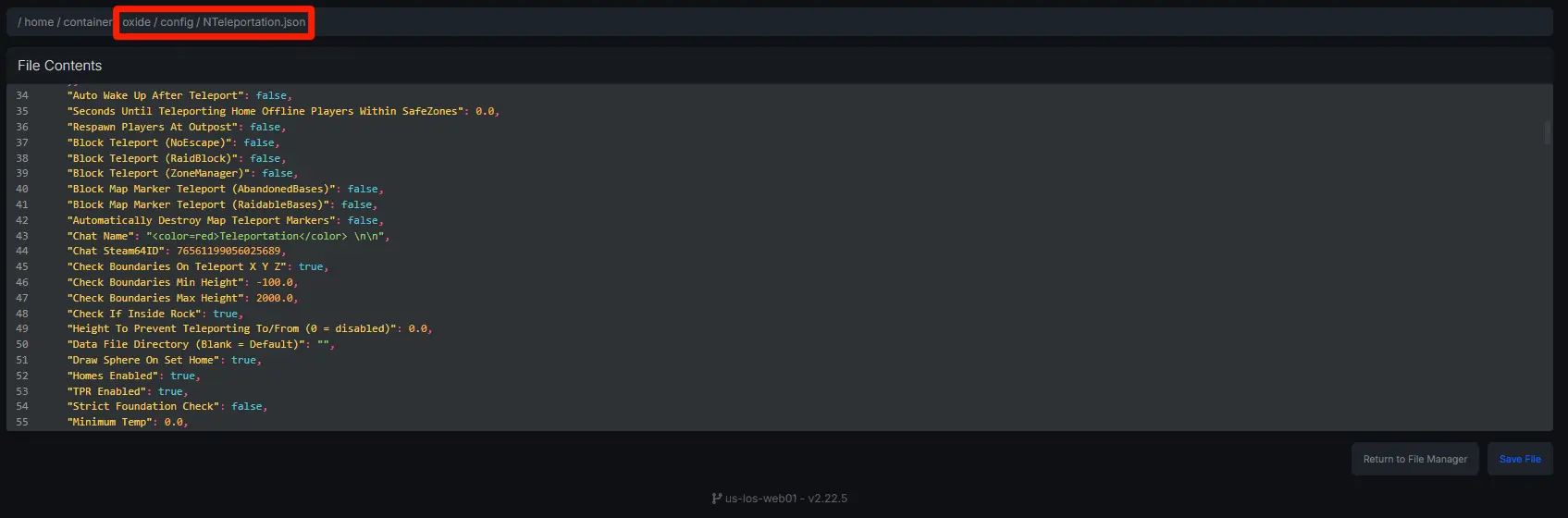
After uploading, restart the server (or use oxide.reload NTeleportation in console). Oxide will then create the default config file at oxide/config/NTeleportation.json.
Setting Up Permissions
NTeleportation is controlled by Oxide permissions. If players get “NotAllowed”, it’s usually a missing permission. To grant a permission for NTeleportation, run console commands like:
oxide.grant group default nteleportation.home
oxide.grant group default nteleportation.tpr
oxide.grant group default nteleportation.tpoutpost
oxide.grant group default nteleportation.tpbandit
And similarly, oxide.revoke user steamid perm to remove.
- You can use oxide.grant user steamid perm to give an individual player.
The basic player permission is nteleportation.home. Players need this to use /home, /sethome, and /removehome.
Other player permissions include nteleportation.tpr (teleport request), nteleportation.tptown, tpoutpost, tpbandit for using /town, /outpost, or /bandit commands.
Be careful with “admin” permissions. For example, the nteleportation.tp permission (which allows instant /tp <player> commands) is explicitly flagged “DO NOT GIVE THIS TO PLAYERS” on the plugin page.
In general, any permission that comes with a warning should only be granted to trusted admins. Permissions bearing a warning effectively give unilateral teleport power, so use them only for server owners or mods.
Core Teleport Commands
Once permissions are set, players use chat commands for teleportation. Here are the main ones:
-
Set and use homes:
-
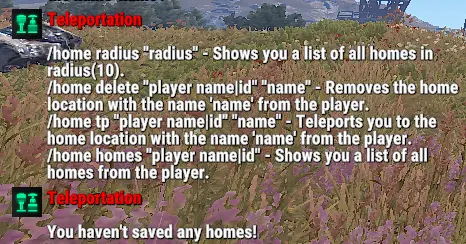
/home add <name> or /sethome <name> saves your current position under that name. You can set up to 2 homes by default (see Config below).
-
/home name teleports you to that saved home.
-
/home list (or /listhomes) shows your saved homes.
-
/home remove name (or /removehome name) deletes a saved home.
-
-
Teleport requests:
-
/tpr player sends a teleport request to another player.
-
The target player gets a message and can type /tpa (accept) or /tpc (cancel). (If accepted, the requesting player teleports after a short countdown.)
-
This uses the nteleportation.tpr and nteleportation.tpa permissions.
-
-
Fast travel to special locations (dynamic commands): If the admin has set them up, players can use /town, /outpost, /bandit, or /island number to teleport to those points.
-
By default the plugin includes commands for “Town”, “Outpost”, and “Bandit Camp” (Bandit Town). These are defined in config (see below).
Additional teleport commands (especially useful for admins) include:
-
/tp player – teleport yourself to the specified player.
-
/tpl – list all saved teleport locations (town/outpost/bandit/home points).
-
/tpsave name – save your current position (like a custom home).
-
/tpremove name – delete a saved location.
-
/home wipe or /wipehomes – remove all player homes.
-
Admin commands to set named locations: /town set, /outpost set, /bandit set to define those teleport points.
Configuration and Limits
The default configuration file (open with a text editor) is where you tailor the plugin to your server’s needs. It includes sections for each feature with cooldowns, limits, and VIP overrides. For example:
-
Homes limit: The default “Homes Limit” is 2, meaning each player can save up to 2 homes by default. You can increase this or add entries under VIP Homes Limits for special groups.
-
Cooldowns and cooldown bypass: There are default cooldowns (e.g. 600 seconds for /home and /tpr) and countdowns (usually 15 seconds). The config also supports charging players (via Economics or ServerRewards) to bypass cooldowns or even allowing instant teleports for VIPs.
-
Daily limits: The config shows “Daily Limit”: 5 for many commands, with a VIP Daily Limits map (e.g. nteleportation.vip: 10) to give perks to VIP players. (These implement the “vip daily limits” feature.)
-
Dynamic command locations: The default config has an entry for “Town”, which by default uses the Monument called “harbor” if no location is set. The admin can edit the JSON or use /town set in-game to fix the town location to current coords. Similar entries exist for Island, Outpost, and Bandit.
-
Cooldown/bypass commands: The global keyword (default “pay”) lets players type /town pay (for example) to pay to override the cooldown. This is disabled by default but can be enabled in config by toggling UseEconomics and setting costs.
-
Interrupts and blocked zones: The config has an “Interrupt TP” section with toggles for InterruptTPOnCold, InterruptTPOnHot, InterruptTPOnHostile, etc. Teleports can be interrupted by environmental factors (hot/cold water), combat (hurt/damage) or being within monuments/blocked areas. You can turn these on/off or adjust settings if you want to restrict teleport abuse (e.g. no teleporting out of raids or deep underwater).
Any change to the JSON requires /oxide.reload NTeleportation (or restart) to apply. The plugin’s documentation emphasizes that you can configure teleportation dynamically via that file.
Updating and Troubleshooting
When updating the plugin, you generally do not need to remove it.
Best practice: download the new NTeleportation.cs and overwrite the old one, then /oxide.reload NTeleportation. Your existing NTeleportation.json config will remain intact, so you don’t have to reconfigure from scratch. (Oxide keeps data files separate from the plugin code.)
If something goes wrong or you need to disable teleportation temporarily, you can unload the plugin without removing it:
oxide.unload NTeleportationThis stops the plugin until a reload or server restart.
To fully remove it, delete the .cs file from /oxide/plugins and the .json file from /oxide/config, then restart.
Final Thoughts
Even with NTeleportation installed, teleportation obeys the rules in your config. Teleports will fail if interrupted by damage, hot/cold as configured, or if you try to teleport from or to blocked zones. This ensures players can’t teleport to avoid dangers unless you explicitly allow it.
By carefully setting permissions, limits, and “interrupt” checks, NTeleportation can be a safe, convenient tool. For example, many servers set up town/outpost teleports on weekly wipes to aid new players, while keeping /tpr and /home usage limited by cooldowns. The plugin’s flexibility makes it a powerful addition to any Rust server.