

Managing a busy Rust server often feels like a constant battle against chaos, but the Admin Panel plugin streamlines your workflow into a clean, clickable interface. Instead of memorizing dozens of console commands, this tool consolidates your essential functions into a central admin menu that appears directly in-game. By installing the plugin into your Oxide folder and configuring the permission system, you gain the ability to monitor all the players and maintain order without ever leaving the action.
This interface provides immediate access to high-level server controls:
- Player Management: Easily ban, kick, or teleport to a selected player to investigate suspicious behavior.
- Visual Inventory Checks: Use the GUI to view inventory contents of any user, ensuring no one is hiding illicit materials.
- Dynamic Group Control: Edit permissions for a selected group or create new groups on the fly to delegate tasks to your staff.
A reliable admin panel plugin doesn’t just simplify your job; it ensures a professional, well-moderated experience for every player on your server.
Compatibilities With Other Plugins
Admin Panel is less of a standalone plugin and more of a framework. It comes with a simple teleport button on its own, but to really get the most out of it, this plugin works best alongside other uMod plugins such as Vanish, Godmode, and Admin Radar. It integrates their core mechanics into a unified UI, making them far more user-friendly. We recommend downloading most, if not all, of these into your plugins folder to get the full experience.
Configuring Rust Admin Panel For Your Rust Server
Before you start using the admin panel, you should configure it to meet your server’s needs.
Editing The Configuration File
Open up your server files using either the File Manager tab in your Physgun panel, or in your File Explorer if you’re not a customer. Open the file located at oxide/config/AdminPanel.json.
Here you can modify most visual elements and enable the Set TP Location button, which is very useful if you don’t like typing commands.
Assigning Permissions To Admins
Next, you’ll need to assign permissions. You can assign this plugin’s permissions using Oxide’s permission system. Type the oxide.grant command into your server console following this format:
oxide.grant [user or group] [name of group or user Steam ID64] [permission]A list of this plugin’s permissions includes:
- adminpanel.autotoggle.admin — Toggles the panel when a player is added or removed from the admin group.
- adminpanel.allowed — Allows the player to see the admin panel.
- adminradar.allowed — Allows the player to use the Admin Radar ESP.
- godmode.toggle — Allows the player to toggle god mode.
- vanish.use — Allows the player to toggle vanish mode.
For example:
oxide.grant group admin adminpanel.allowedYou can also revoke permissions using oxide.revoke if you’ve made a mistake.
Rust Admin Panel Chat Commands
The Rust Admin Panel plugin provides a short list of chat commands to toggle the menu or set up teleport locations. All other functions are handled through the in-game menu.
- /adminpanel hide — Disables the menu.
- /adminpanel show — Enables the menu.
- /adminpanel settp — Sets a custom teleportation location at your current position.
- /adminpanel settp all — Sets the teleport location for all admins to your current position.
- /adminpanel removetp — Removes your current teleport location.
Navigating the Admin Menu
Type /adminpanel show into the chat to open the menu, or bind a key by running this command in your F1 console (replace H with your preferred key):
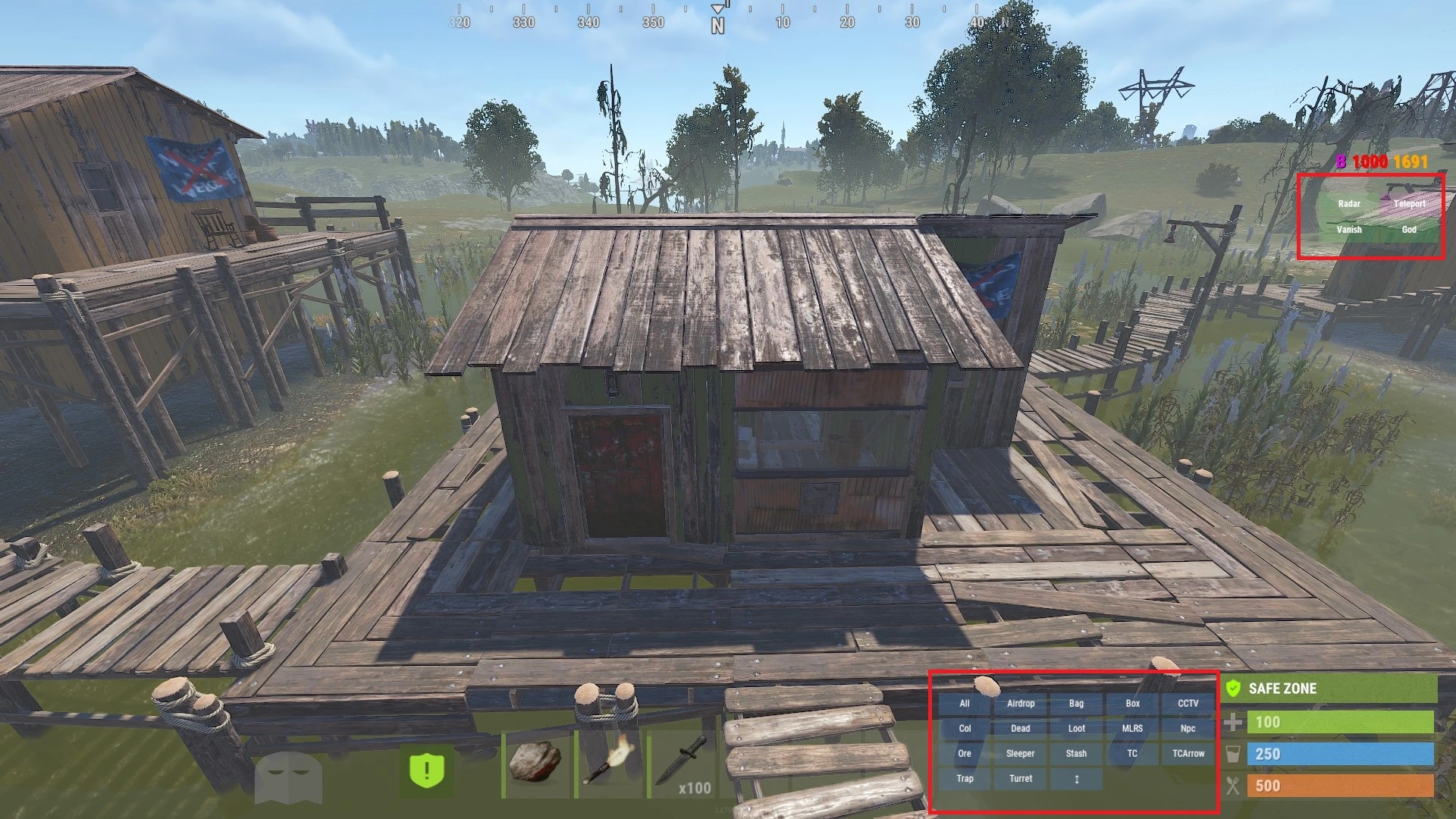
bind h adminpanel toggleOn the left-hand side of your screen you’ll see several utility buttons, depending on the supplementary plugins you have installed:
- Teleport — Teleports you to your defined teleport location.
- Radar — Opens options for the Admin ESP.
- Vanish — Toggles vanish mode, making you invisible and noclipped.
- God — Toggles Godmode.
Pressing the Radar button opens a smaller menu at the bottom of your screen, letting you select what you’d like to see through walls using the ESP.
Conclusion
The Admin Panel plugin for Rust makes other admin tools more accessible by turning wordy console commands into clean one-click buttons.
If you run into issues, make sure you’ve configured the plugin properly and that all supplementary plugins are fully up to date — outdated dependencies won’t load. Feel free to browse our help center for more guides, or join our Discord if you need a hand.