

The fastest way to schedule automatic Rust server restarts is with a cron-style scheduler, using either your control panel or a cron job or Task Scheduler entry on the machine itself. Set it to restart the server process at a fixed interval, and it runs without you touching a console. A clean restart every 6 to 12 hours clears out the memory leaks, entity buildup, and plugin bloat that pile up during a live session, so your server stays smooth instead of grinding to a crawl by hour ten.
In this guide, you’ll learn how to schedule automatic Rust server restarts using the Physgun Gamepanel’s built-in scheduler and manual methods like cron and Windows Task Scheduler, so you’re covered no matter how your server is hosted. We’ll walk through picking a restart interval, setting up the schedule, and warning players before the server drops so nobody loses a raid mid-fight. By the end, you’ll have a restart schedule running unattended, warnings dialed in, and a way to confirm it actually fired.
Want to run this on your own server? Physgun’s Rust server hosting includes a Schedules feature built for exactly this: cron-style task automation for restarts, wipes, backups, and custom commands, all from the panel.
Why Rust Servers Need Scheduled Restarts
Rust doesn’t clean up after itself perfectly while it runs. Every deployed item, corpse, dropped weapon, and loaded plugin hook adds a little more memory pressure, and by hour 8 or 10 of uptime, that adds up to real FPS loss.
Plugins make it worse. Oxide and Carbon plugins hold their own state in memory, and a plugin with a slow leak, one that doesn’t clean up timers or cached data, can quietly eat gigabytes over a long session. You won’t always notice until the server starts stuttering during a raid.
A scheduled restart resets all of that. It clears loaded entities that should have despawned, flushes plugin memory, and gives the Rust process a clean slate. That’s why almost every serious Rust community runs restarts on a schedule instead of waiting for someone to notice lag and restart it by hand.
If you want to watch this happen instead of taking it on faith, Physgun’s panel includes Server Metrics, live graphs of your server’s FPS, CPU, and memory alongside a per-plugin breakdown of hook and invoke time in milliseconds. Watching memory climb across a session is the easiest way to decide how often your server actually needs to restart.
Picking The Right Restart Interval
There’s no single correct interval. It really depends on your player count and plugin list.
| Server Type | Suggested Restart Interval |
|---|---|
| Small vanilla or lightly modded (under 50 players) | Every 12 to 24 hours |
| Mid-size modded community (50-150 players) | Every 8 to 12 hours |
| Large, heavily plugin-loaded server (150+ players) | Every 4 to 8 hours |
Two things matter more than the exact number:
- Time it around low-population hours. Check your player graphs or Discord activity for the quietest stretch of your day and anchor your restarts there.
- Don’t collide with wipe day. If you run a scheduled map wipe, keep your restart schedule separate from it, or you’ll end up restarting more than you intended. Physgun’s Wipe Schedule Tool shows the next monthly force wipe in your timezone, so you can plan restarts around it instead of guessing.
Setting Up Your Restart Schedule
Scheduling Restarts Through The Physgun Gamepanel
The panel handles this without touching a config file or SSH session.
To schedule automatic restarts through the Physgun Gamepanel:
- Head to the Physgun Gamepanel and select your Rust server.
- On the left side of the screen, select Schedules.
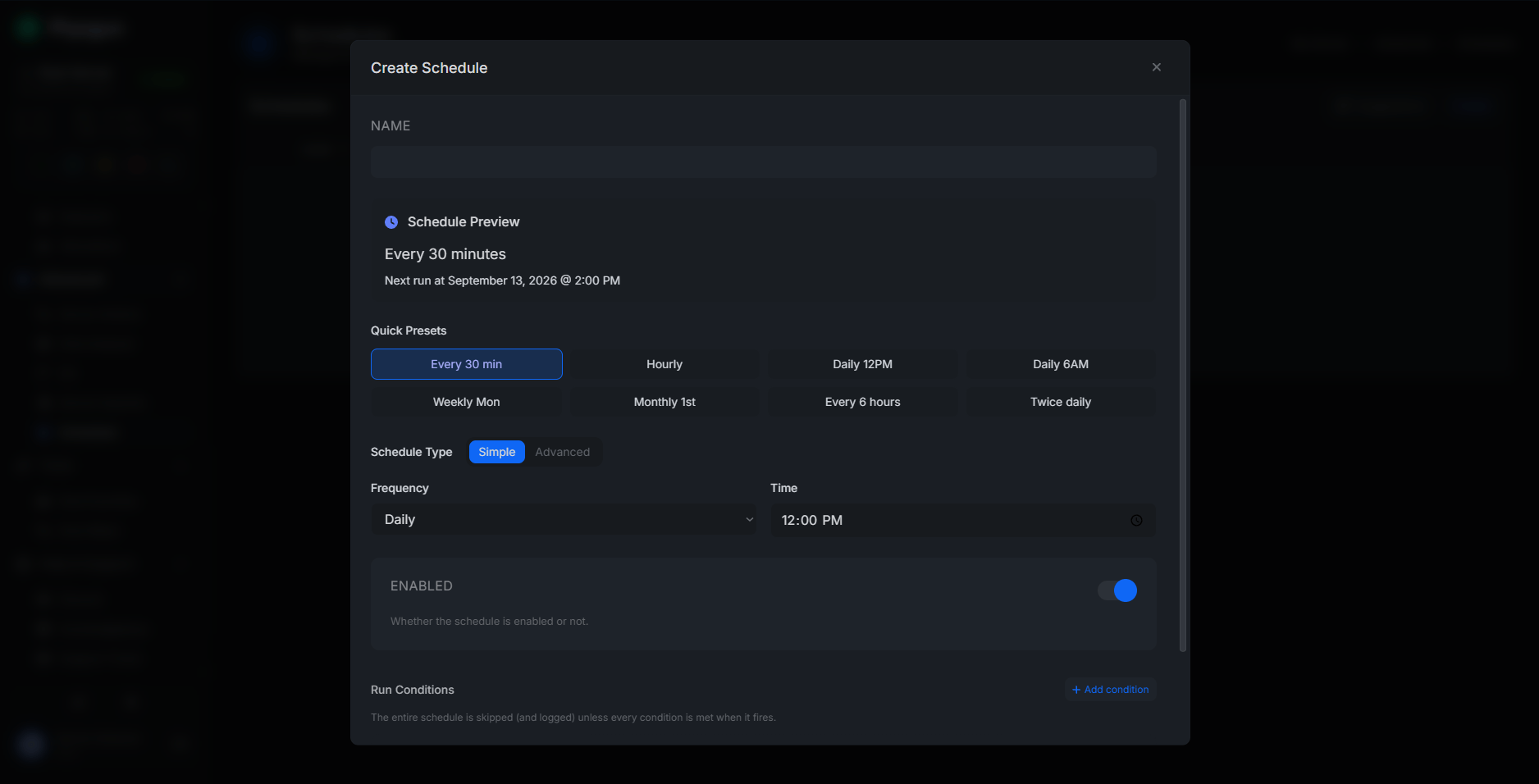
- Create a new schedule and set the action to Restart Server.
- We also have suggested presets for your convenience!
- Set how often it should run, for example, every 8 hours, or a specific time each day.
- Save the schedule.
The Schedules tool isn’t limited to restarts. You can also stack wipes, backups, and custom console commands on their own schedules, so your whole maintenance routine runs itself without you logging in.
If you’d rather not manage cron syntax and SSH sessions yourself, managed hosting makes this easy: Physgun’s Rust server hosting sets it up in a few clicks and keeps it running even when your PC is off.
Scheduling Restarts Manually With Cron (Linux)
If you’re self-hosting on Linux, cron is the standard tool for this. The trick is making sure the server saves and shuts down cleanly before it relaunches, not just gets killed.
To schedule a restart with cron:
- Write a shell script that sends a save command through RCON, waits a few seconds, then stops and restarts the server process (or the systemd service managing it).
- Make the script executable with
chmod +x restart.sh. - Open your crontab with
crontab -e. - Add a line for your interval, for example,
0 */8 * * * /home/rust/restart.shto run every 8 hours. - Save and exit. Cron picks up the new schedule automatically.
Test the script manually first. A cron job that silently fails because of a missing environment variable or wrong file path is one of the most common reasons “scheduled” restarts never actually happen.
Scheduling Restarts Manually With Windows Task Scheduler
Self-hosting on Windows works the same way, just with a different scheduler.
- Write a batch file that stops the Rust server process cleanly and relaunches it with your normal startup parameters.
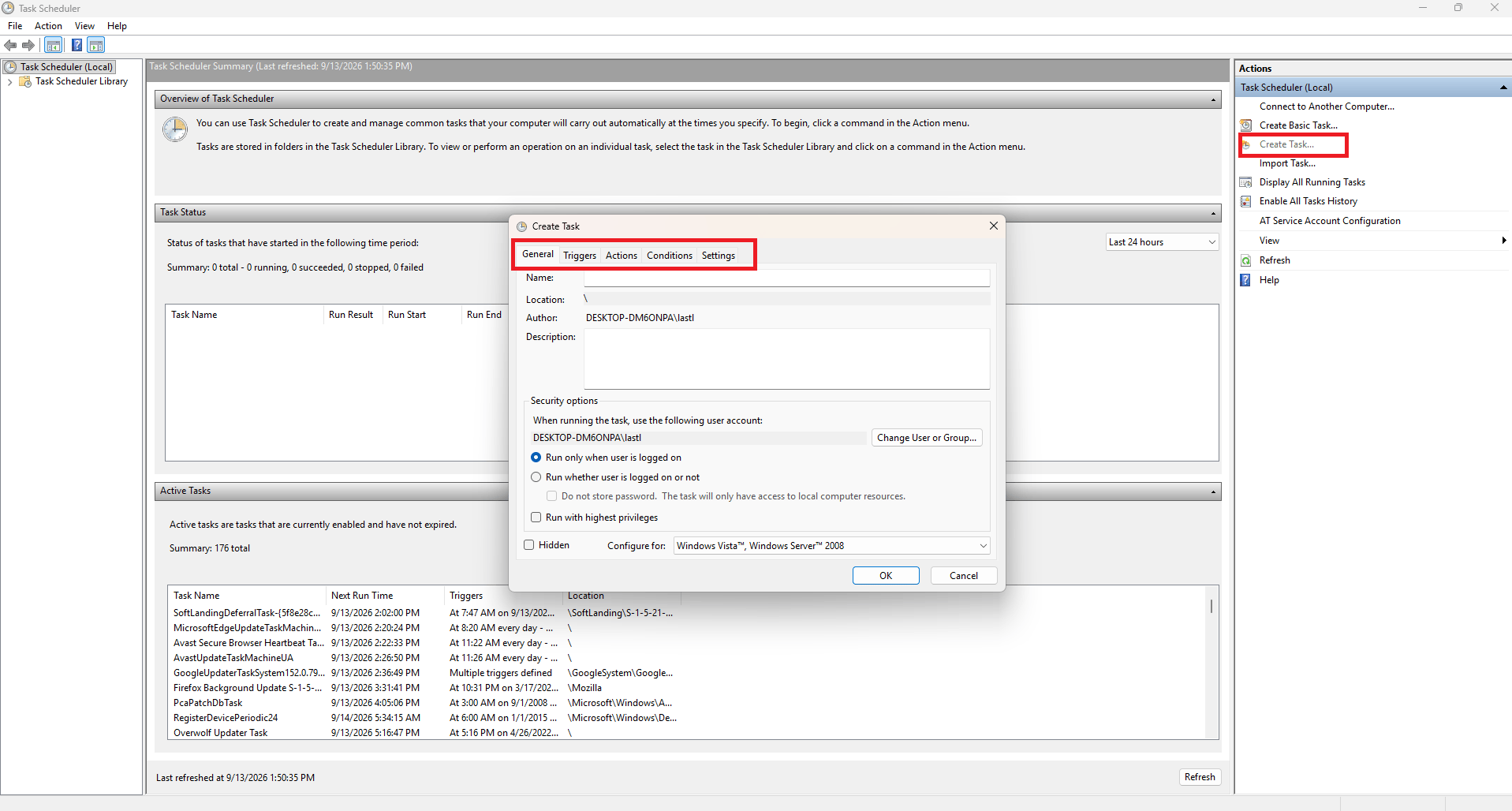
- Open Task Scheduler and choose Create Task.
- Under the Triggers tab, set it to repeat on your chosen interval.
- Under the Actions tab, point it at your batch file.
- Save the task.
Warning Players Before The Restart Fires
Nobody wants to lose a raid or a build to a restart they didn’t see coming. Give players a heads up before the server drops.
Scheduling Warnings Through The Physgun Gamepanel
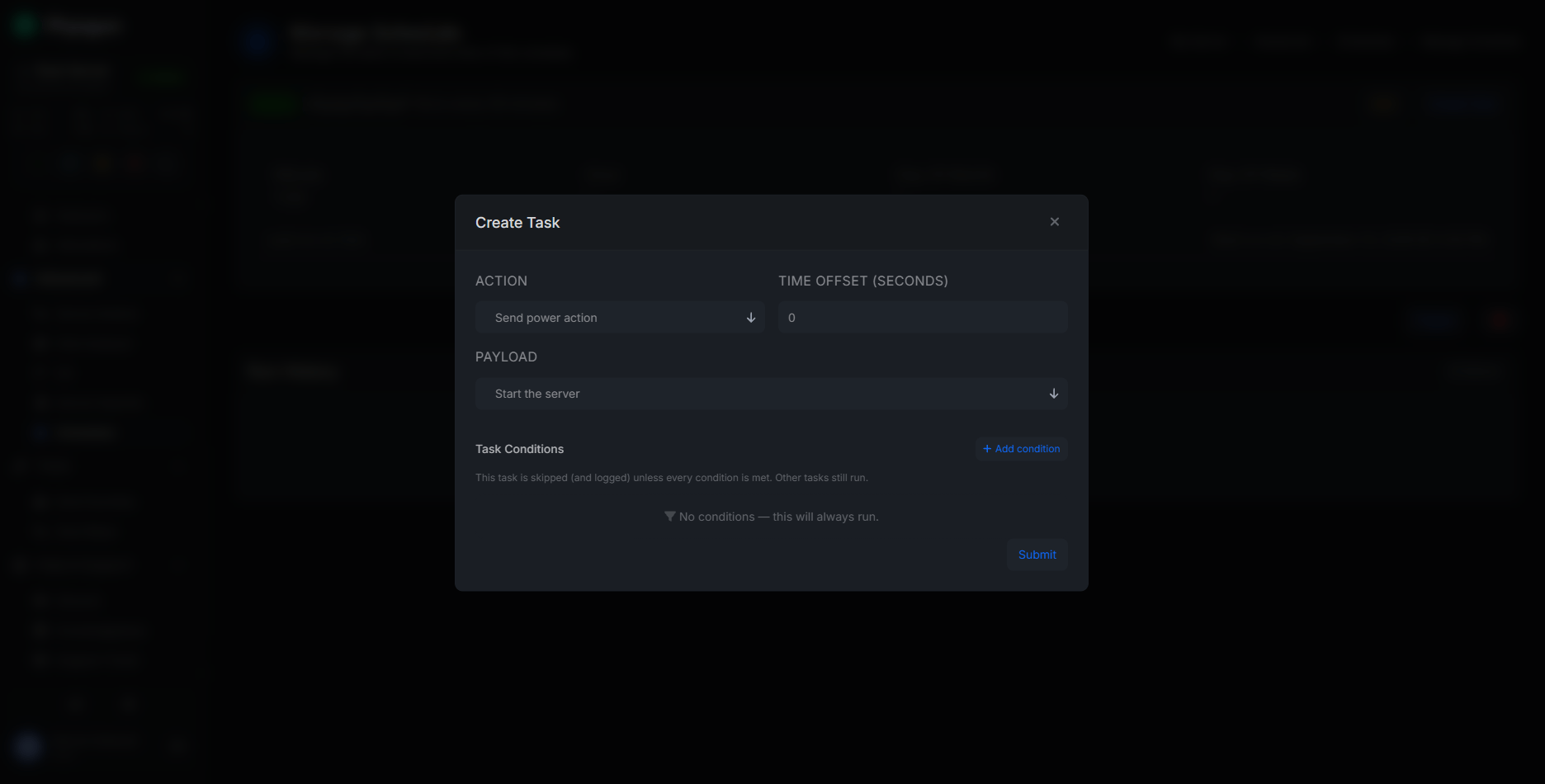
Since Schedules supports custom console commands, you can stack a few say broadcasts ahead of the actual restart action. Set one at 10 minutes out, one at 5, and one at 1, each running the console command say Server restarting in X minutes. Time those as their own scheduled tasks just before the restart itself fires.
Warning Players Manually With RCON
If you’re managing your own server, simply send the same say broadcasts from your restart script before it triggers the shutdown, spaced a few minutes apart through an RCON client. A basic countdown (10, 5, 1 minute) gives most players enough time to get somewhere safe.
Look for a restart-warning plugin on uMod.org or Codefling if you’d rather not hardcode the countdown yourself. Physgun’s Plugin Installer adds it straight from the source with one click and keeps it updated.
Making Sure The Restart Doesn’t Cost You Progress
A restart is only safe if the world saves first. Rust auto-saves at the interval set by saveinterval in server.cfg (600 seconds by default), but don’t rely on the timing lining up with your restart.
Force a save right before shutdown instead:
- Send the
server.saveconsole using a delay of a few seconds before the restart runs. - Give it a few seconds to finish writing before killing the process.
- Then proceed with the restart.
Physgun’s Automated Backups feature can snapshot your server automatically before a scheduled restart too, so if a plugin update or config change breaks something, you can restore to the previous state in seconds instead of losing progress.
When Restarts Alone Don’t Fix The Lag
If you’re restarting every few hours and FPS still tanks well before the next one, the problem usually isn’t uptime; it’s a specific plugin.
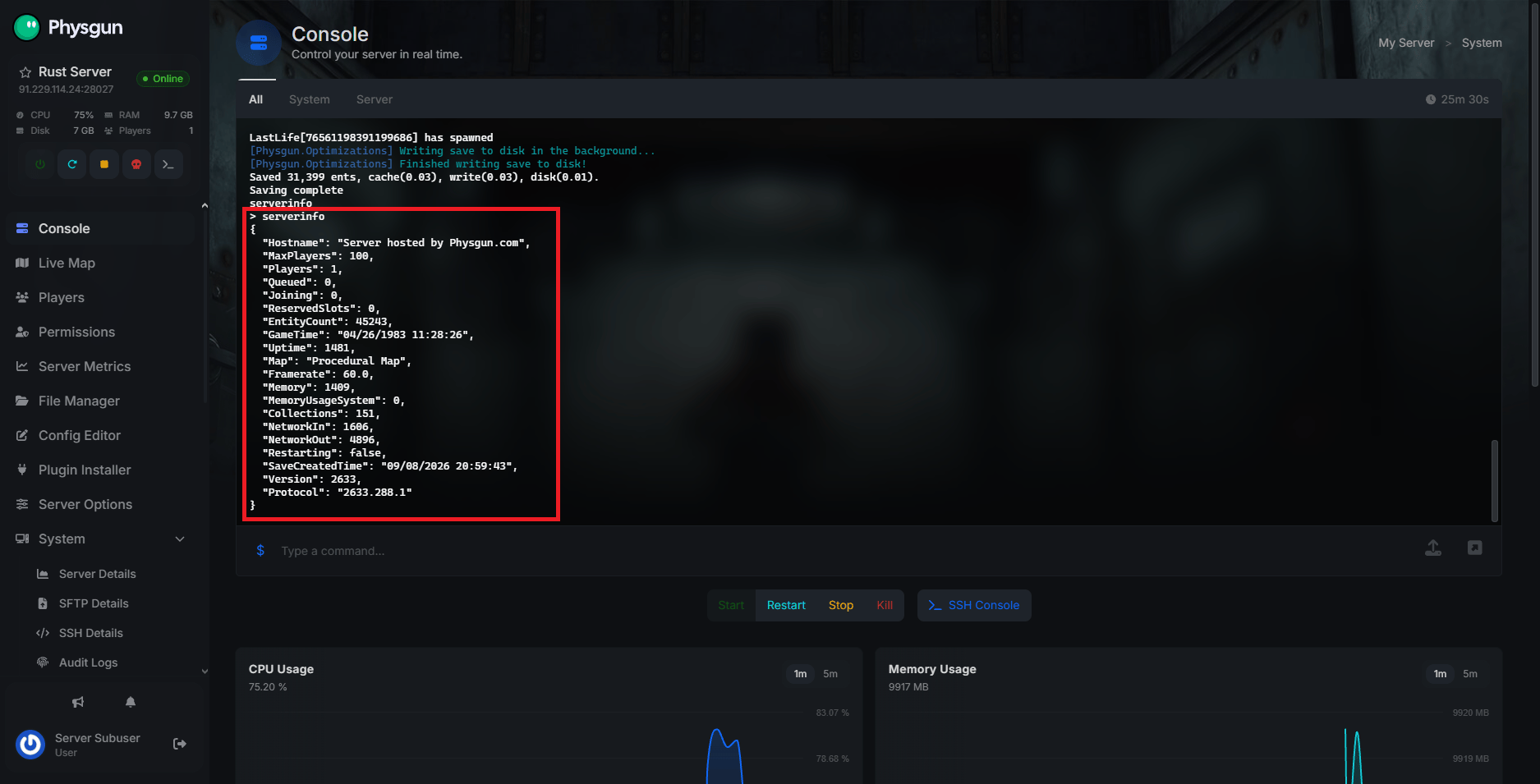
Run serverinfo in the console to check current FPS. Or check Physgun’s Server Metrics panel instead; it graphs FPS, CPU, and memory live and breaks down hook and invoke time per plugin in milliseconds. A plugin sitting at several milliseconds per hook while everything else is under a millisecond is your culprit, not the restart interval.
If memory keeps climbing no matter how often you restart, your server may just be undersized for your plugin list and player count. Physgun’s Rust Server RAM Calculator estimates what you actually need based on real running servers, not inflated marketing numbers.
Troubleshooting Restart Schedules That Don’t Trigger
Scheduled restarts fail silently more often than you’d think. Common causes:
- Timezone mismatch. Cron and the panel both run on the server’s set timezone, not necessarily yours. Double-check before assuming a schedule is broken.
- A process manager fighting the schedule. If
systemdor another supervisor is set to auto-restart the Rust process the instant it stops, it can relaunch before your script’s save-and-restart sequence finishes cleanly, causing corrupted saves or duplicate processes. - Wrong server targeted. If you manage more than one server, double-check the schedule is attached to the right one.
- Permissions. A cron script that isn’t executable, or a batch file missing admin rights, fails without an obvious error.
Physgun’s Audit Logs keep a timestamped record of every restart the panel triggers, so you can confirm a schedule actually fired instead of guessing from player complaints.
Keeping Your Restart Schedule Running Smoothly
Start with an interval that matches your player count and plugin load, anchor it to your quietest hours, and keep it clear of wipe day. Warn players with a short countdown, force a save right before the restart fires, and lean on backups as your safety net if something goes wrong.
If FPS problems persist despite frequent restarts, check plugin-level metrics before assuming you need to restart more often; it’s usually one plugin, not uptime. Once it’s set up, a good restart schedule is something you never have to think about again. If you’d rather not build and babysit that whole pipeline yourself, Physgun’s Rust server hosting sets up restarts, warnings, and backups from one panel, so your server stays healthy without an SSH session in sight.