










You don’t have to start over when you move to a dedicated server. Your Dragonwilds world is a single .sav file, and your server can run that same world with all the buildings and progress you already have.
You need your world’s .sav file from the Windows PC you played on, and your server on the Physgun Gamepanel. Your server should have been started at least once, so that it has already made its save folders.
Find your save on your PC
- On your PC, press Windows + R.
- Paste the path below and press Enter:
%LOCALAPPDATA%\RSDragonwilds\Saved\SaveGames- Find the
.savfile with your world’s name, for exampleLumbridge Keep.sav. - Copy it to your desktop or another easy place.
Don’t rename the file. The server finds your world by its file name, so a renamed file won’t load.
Worlds from the Xbox app or PC Game Pass are stored differently and need to be converted to a .sav file before you can upload them. PlayStation 5 and Nintendo Switch 2 worlds can’t be moved to a server.
Upload your save
- On your server’s Console page, select Stop.
- Select Yes, Stop Server and wait until the status shows Offline.
- Select Files in the menu on the left.
- Open the RSDragonwilds folder, then Saved, then SaveGames.
- Select New above the file list.
- Select Upload and pick your world’s
.savfile.
When the upload finishes, your file is listed with its original name next to the Physgun World.sav your server made on its first start. You can leave that file where it is. The server only runs the world named in the next step.
Set the World Name
- Select Server Options in the menu on the left.
- In World Name, type your file’s name exactly, without
.sav. ForLumbridge Keep.sav, typeLumbridge Keep. Capital letters and spaces must match. - Press Tab or click outside the field. The panel saves it right away and shows Startup variable successfully saved.
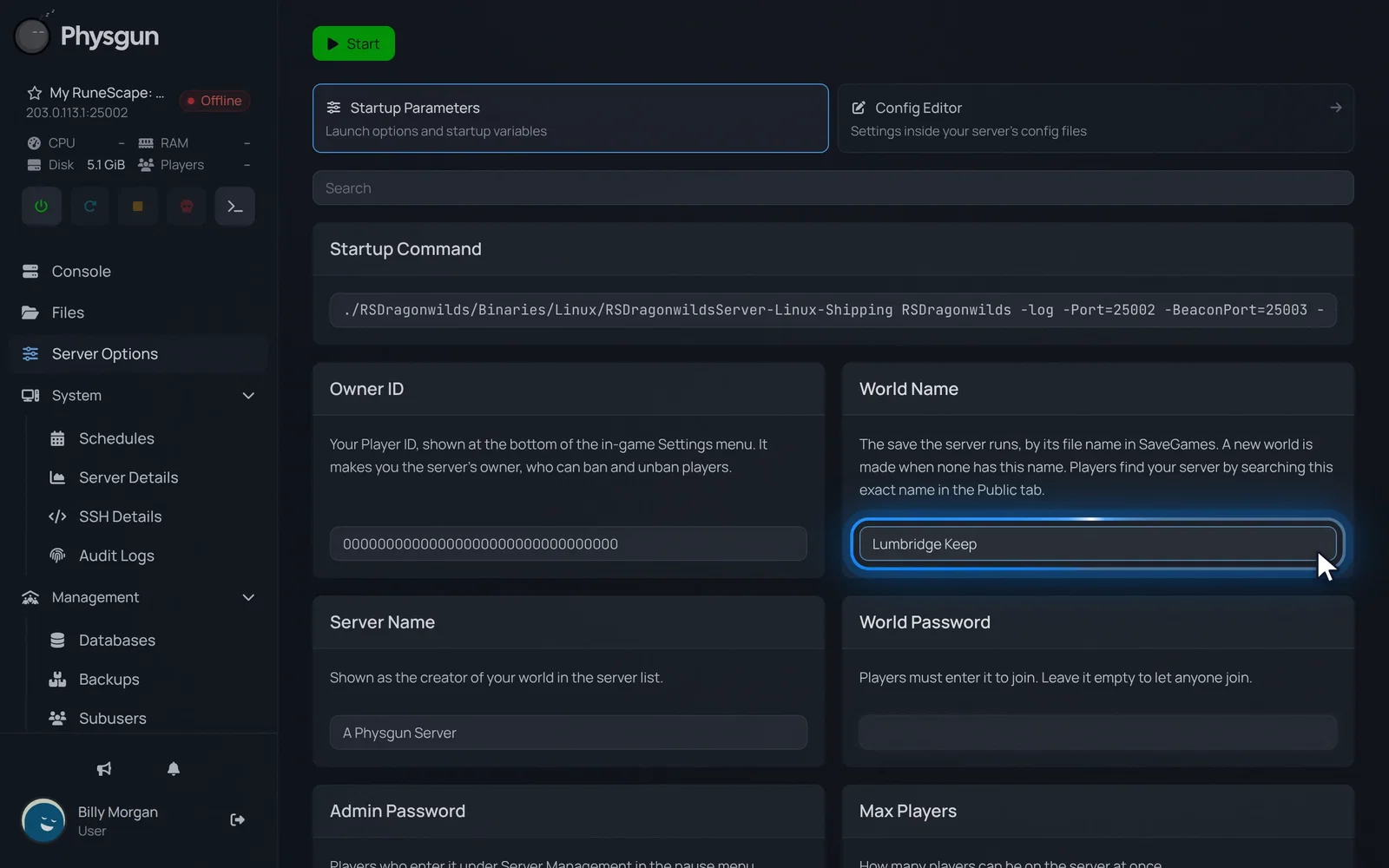 Enter the save's nameType your file's name in World Name, without .sav.
While you’re here, check Owner ID next to it. If it still shows all zeros, replace it with your 32-character Player ID, shown at the bottom of the in-game Settings menu. This makes you the server’s owner, who can ban and unban players. Press Tab to save it.
Server Name below is only the “created by” label in the server list. It doesn’t change which world loads.
Start the server with your world
- Select Console in the menu on the left.
- Select Start.
- Wait until the status shows Online. This takes about a minute.
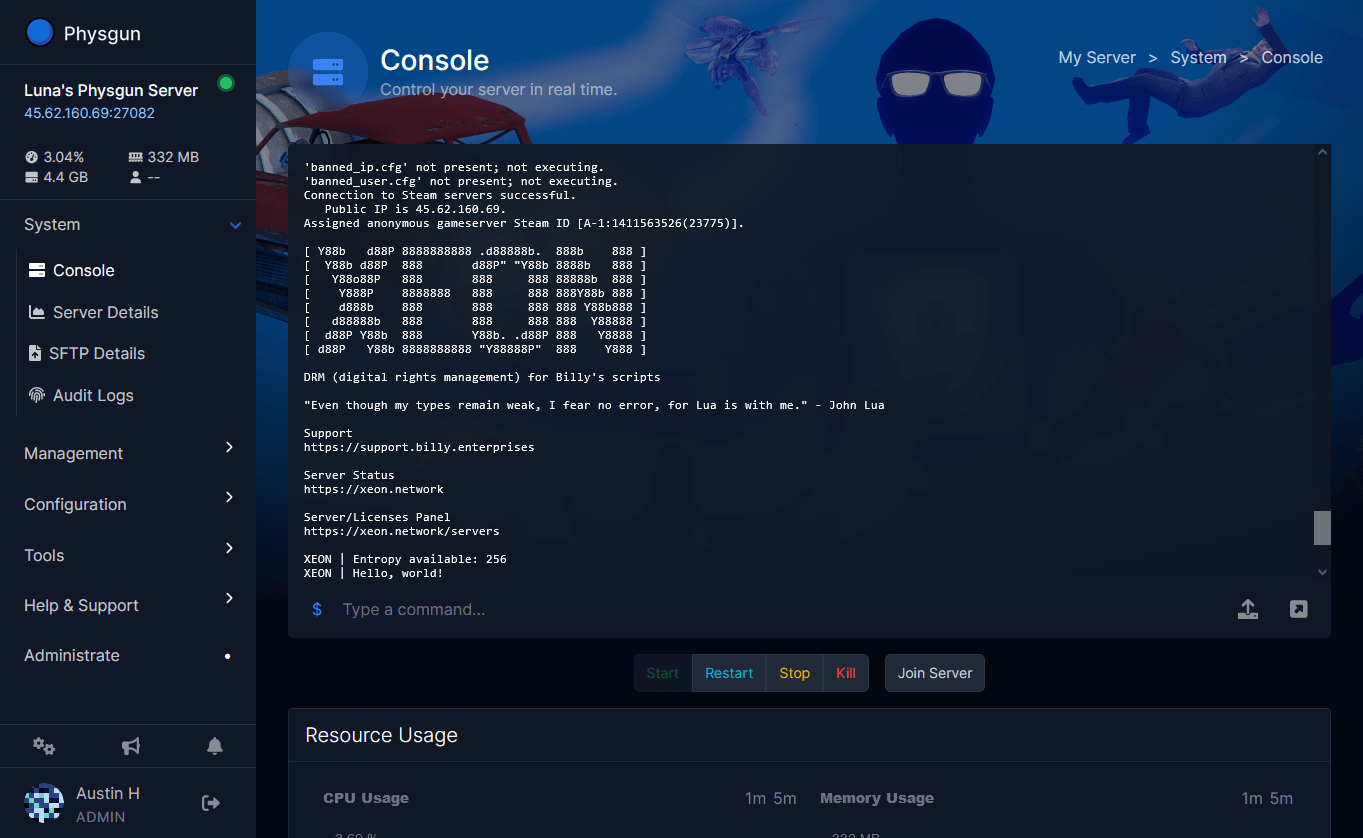
While it starts, the console prints lines like these, with your world’s name in place of Lumbridge Keep:
Loading configured world [Lumbridge Keep] from save slot [Lumbridge Keep]
World load SUCCEEDED (slot: Lumbridge Keep)
These lines mean the server found your save and loaded it. They scroll past quickly. A few red Error lines about Bink, Navmesh or the Online Subsystem show up on every start and are normal.
Join your world
- In Dragonwilds, open Worlds and go to the Public tab.
- Search for your World Name exactly as you typed it in the panel. The search is case-sensitive.
- Join the server and check that your buildings and character progress are there.
Your game must be on the same version as the server to join. If Automatic Updates is on in Server Options, the server updates itself every time it starts.
If it doesn’t work
- You get a fresh, empty world: World Name doesn’t match the file name. The console shows
Save completed SUCCESSFULLYwith your world’s name but noWorld load SUCCEEDEDline before it, and a new.savappears in SaveGames. Stop the server, fix World Name so it matches your file name exactly, without.sav, and start again. If the server made a new file with that name, delete it before you upload your save again. Also check that your file still has its original name and sits directly in SaveGames, not in a folder you made. - You can’t join: Update your game, then restart the server so it updates too.