














A new RuneScape: Dragonwilds server has no owner: its Owner ID is all zeros, so nobody can ban or unban anyone. Setting the Owner ID to your own Player ID makes you the owner, with full access to Server Management in game. The Admin Password lets you hand out admin rights to the players you trust, so they can deal with troublemakers while you are offline.
You need your Player ID first. In RuneScape: Dragonwilds, go to the Settings menu. The Player ID sits at the very end of that menu, next to a copy button. Copy it, then open your server in the Physgun Gamepanel.
Set the Owner ID and Admin Password
- Select Server Options in the menu on the left. It opens on the Startup Parameters tab.
- Type
Owner IDin the search box at the top of the page. - Click the Owner ID field, delete the zeros and paste your Player ID.
- Type
Admin Passwordin the search box. Your Owner ID saves as you leave its field, and a “Startup variable successfully saved.” message shows. - Click the Admin Password field and replace what is in it with a password of your own. The field is blurred while you are not editing it, so nobody looking over your shoulder can read it.
- Click outside the field to save it. Wait for the saved message.
Pick a password with letters and numbers and no spaces, and make it different from your World Password. The World Password is what every player types to join; the Admin Password is only for the people you want as admins, so keep it private.
You do not need the admin password yourself. As the owner, your Player ID already gives you every power an admin has, and more.
Restart the server
The new values load when the server starts, so restart it now.
- Select the arrow next to Stop at the top of the page.
- Select Restart.
- Select Yes, Restart Server to confirm.
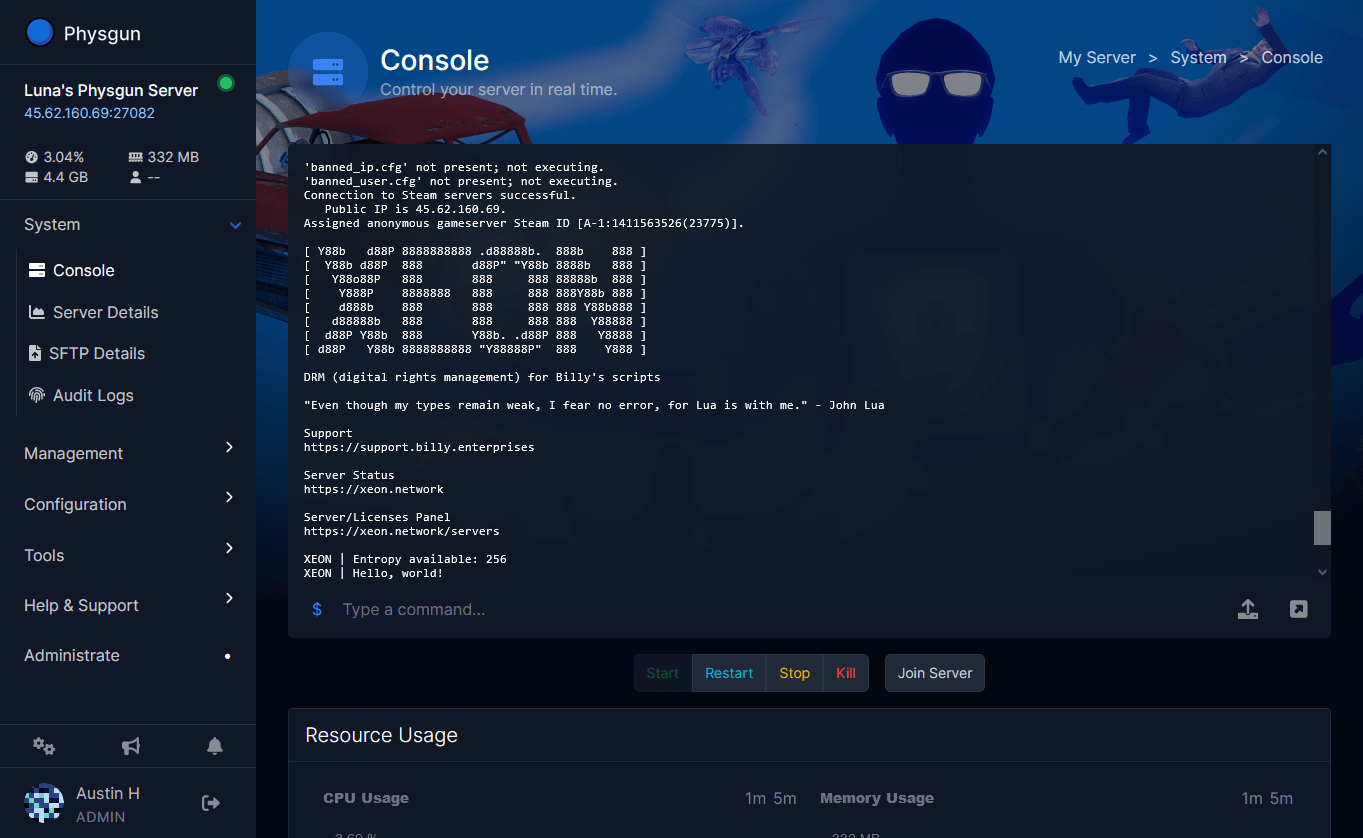
- Select Console in the menu on the left and watch the server start.
The console fills with red and yellow warning lines while the game loads. They show up on a healthy start too. The start is done when you see a line with Successfully updated session and the badge next to your server’s name says Online. This usually takes a minute or two.
To check that your Owner ID loaded, look for this line in the console during the start:
LogNetSessionSettings: Setting ["OwnerId"] written with key[oi] value[<your Player ID>]Check it in game
- Start RuneScape: Dragonwilds and open the Public tab of the worlds screen.
- Search for your server’s World Name (it is case sensitive) and join. Enter the World Password if you set one.
- Press Esc to open the pause menu, then open Settings and go to Server Management.
- As the owner, you see the options to ban and unban players.
To make someone an admin, give them the admin password. They join the server, open Server Management the same way and enter the password there. The two roles can do different things:
| Role | How they get it | What they can do |
|---|---|---|
| Owner | Their Player ID is the server’s Owner ID | Ban and unban any player, online or offline |
| Admin | They enter the admin password in Server Management | Ban players who are online, but not unban |
If an admin bans someone by mistake, only you as the owner can lift the ban.
Without the panel
The manual way is to edit the server’s config file. It works on any Dragonwilds dedicated server, but on a Physgun server the values in Server Options are written into this file every time the server starts, so use Server Options there.
- Stop the server. Changes made while it runs can be lost when it shuts down.
- Open
RSDragonwilds/Saved/Config/LinuxServer/DedicatedServer.iniin the file manager. - Find the
OwnerId=andAdminPassword=lines and set them:
OwnerId=<your Player ID>
AdminPassword=<your admin password>- Save the file and start the server.
After the start, OwnerId= keeps your Player ID. The AdminPassword= line disappears from the file: the game reads the password and then removes the line when it rewrites the file. That is expected, so do not use the file to check your admin password.
If it does not work
- No ban or unban options in game: your Owner ID does not match your Player ID. Copy the ID again from the game’s Settings menu, paste it into Owner ID with no spaces before or after it, and restart the server.
- The console still shows zeros for OwnerId: the field did not save. Set it again as in the first section and wait for the saved message before you restart.
- The admin password is not accepted: check for typos and capital letters. A new password only works after the server restarts.
- You cannot find or join the server: search for the exact World Name, and check that your game is on the same version as the server. With Automatic Updates on, the server updates itself each time it starts.