






Players can only join a RuneScape: Dragonwilds server that runs the same game version as their own game. When Jagex releases a patch, your friends’ games update through Steam, and your server has to catch up or nobody gets in. Jagex announces patches on the game’s Steam news page, in posts titled “is now live!” or “is going live!”.
On our servers, an update is a stop and a start: every time the server starts, it checks Steam and installs the newest version before it loads your world. Before you begin, ask your players to pick up any gravestones, rest at a bed and log out. Leave your Owner ID in place. An update doesn’t change your startup settings.
Check Automatic Updates
The update only happens when Automatic Updates is on. With it off, your server stays on its current version, and players lose access as soon as their game updates. It’s on by default.
- In the Physgun Gamepanel, open your server and select Server Options in the menu on the left.
- Type
Automatic Updatesin the Search box. - Check that the Automatic Updates switch is on. If it’s off, turn it on.
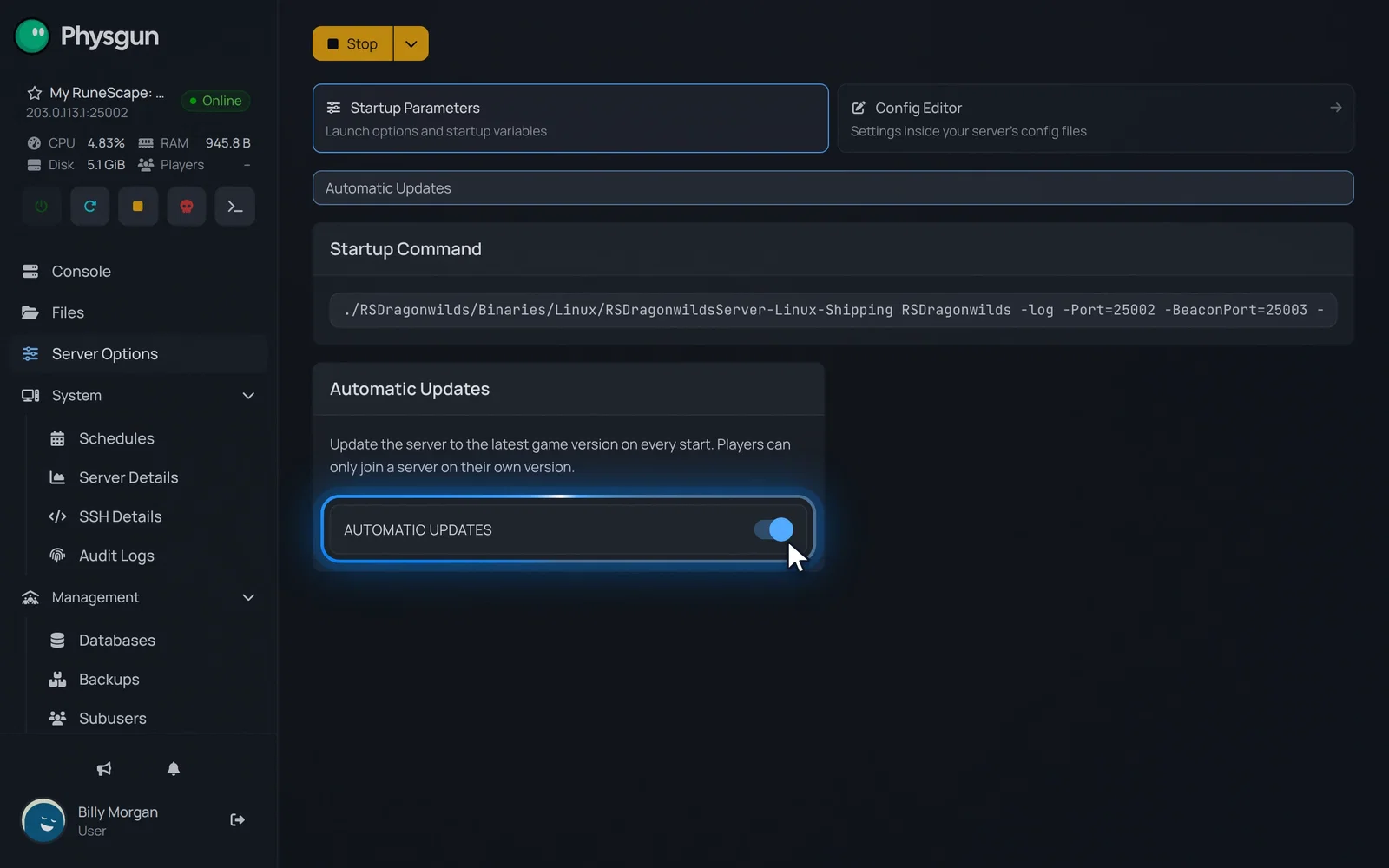 Keep it switched onLeave Automatic Updates on so every start installs the latest game version.
Stop the server and back up
Stop the server properly before you back it up, so it saves the world first. Don’t kill it: the server can lose progress it hasn’t saved yet.
- Select Backups in the menu on the left.
- Select Stop at the top of the page.
- Select Yes, Stop Server and wait until the status next to your server’s name shows Offline.
- Select Create.
- In Name, type a name you’ll recognise later, such as
Before update. - Next to Ignored Files, select Choose myself.
- Enter these lines in the box, one per line:
Engine/
RSDragonwilds/Content/
RSDragonwilds/Binaries/
RSDragonwilds/Plugins/
Manifest_*- Select Submit. A few seconds later, the backup appears in the list.
These lines leave the game’s own files out of the backup, because the update downloads them again anyway. The backup keeps what matters: your world in RSDragonwilds/Saved/SaveGames and your settings in RSDragonwilds/Saved/Config. That keeps it small, and it finishes quickly.
A backup brings back your world and settings, not an older game version. Jagex offers no way to roll the server back to an earlier build.
Start the server to update it
- Select Console in the menu on the left.
- Select Start.
- Wait until the status next to your server’s name shows Online.
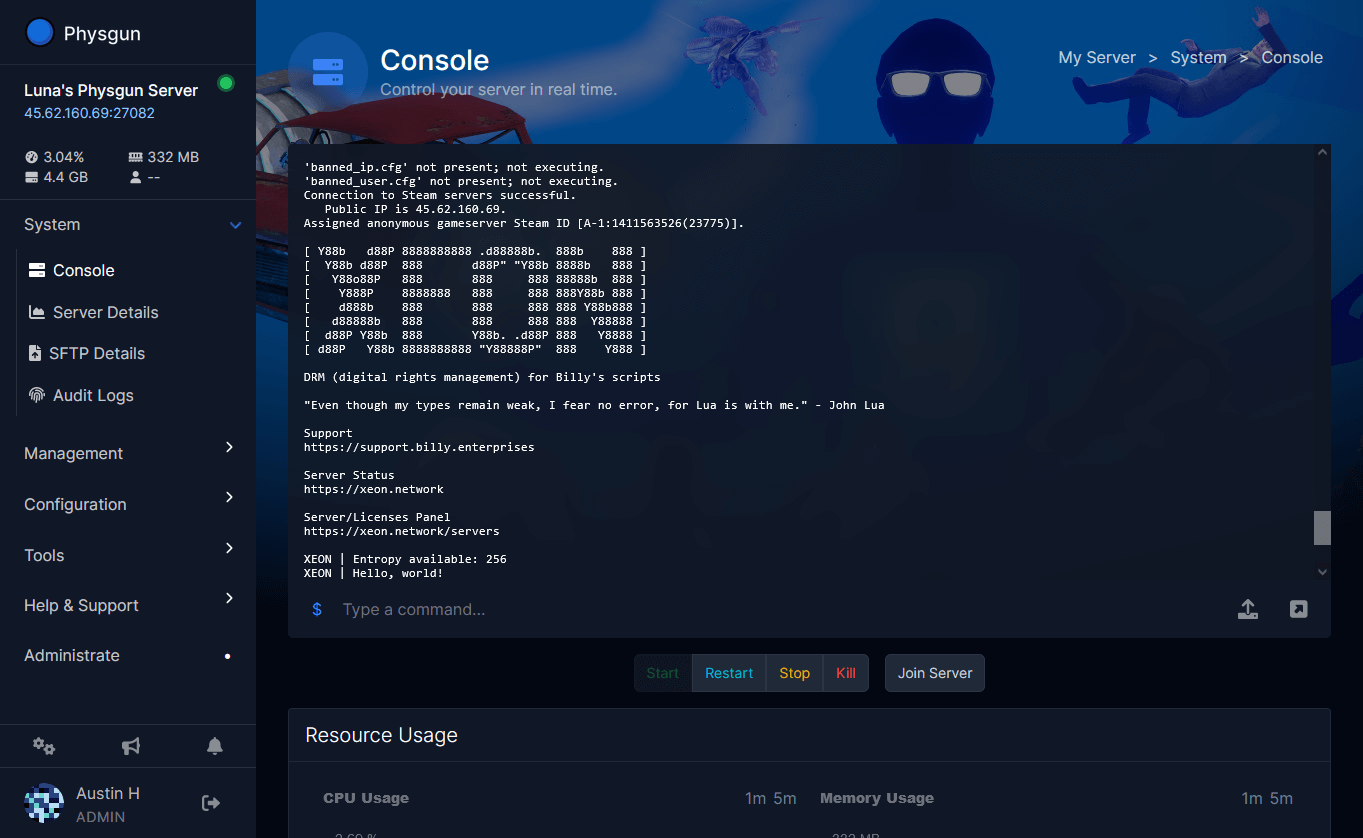
While the server starts, the console’s status card shows Contacting Steam…. If there’s a new version, it downloads before your world loads, so the start takes longer than usual. Let it finish and don’t restart the server during the download: restarting only starts the download over. If your server already runs the latest version, the card shows Everything is already up to date! and the server starts as normal.
When your world has loaded, the console shows this line:
START SESSION - SuccessIf the console stops scrolling during a long start, go by the status: once it shows Online, the server is ready.
Since every start checks for updates, Restart updates the server too. Stop and start is still the safer choice when you want a backup first.
Check your world
After an update, make sure the server loaded your existing world and didn’t create a new, empty one.
- Select Files in the menu on the left.
- Open RSDragonwilds > Saved > SaveGames.
- Find your world’s save file. On a new server it’s
Physgun World.sav.
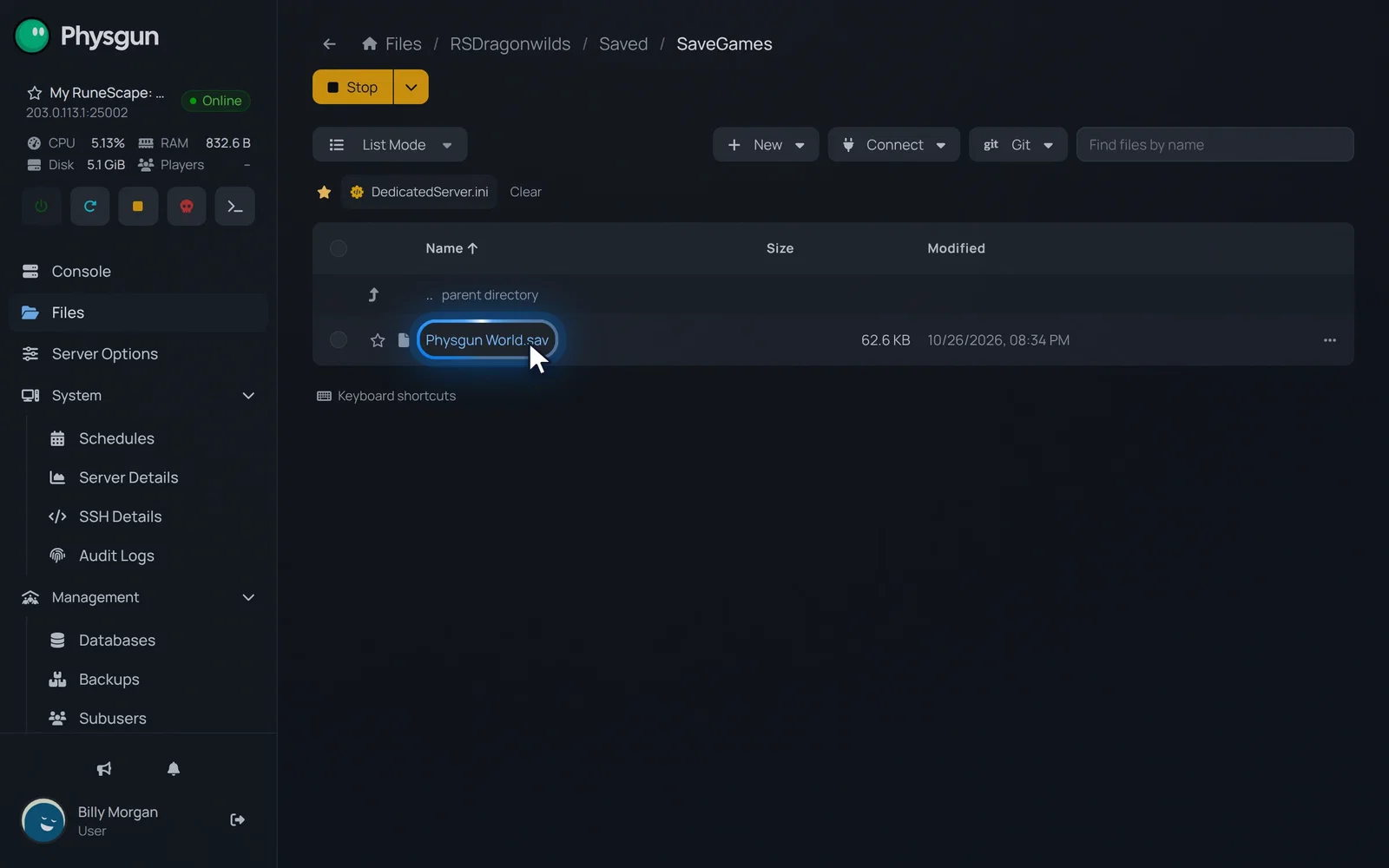 Find your worldYour world's save should still be here. If you see a new, empty world instead, restore your backup.
Your world should be the only save here, with the same name as before. If you see a second, new save instead, stop the server and restore the backup you just made.
Check the server version
The server writes its game version to its log every time it starts.
- Select Saved in the folder path at the top.
- Open Logs.
- Open
RSDragonwilds.log. This is the log of the server’s latest start. - Click any line in the log, press Ctrl+F, type
ProjectVersionand press Enter to jump to the line.
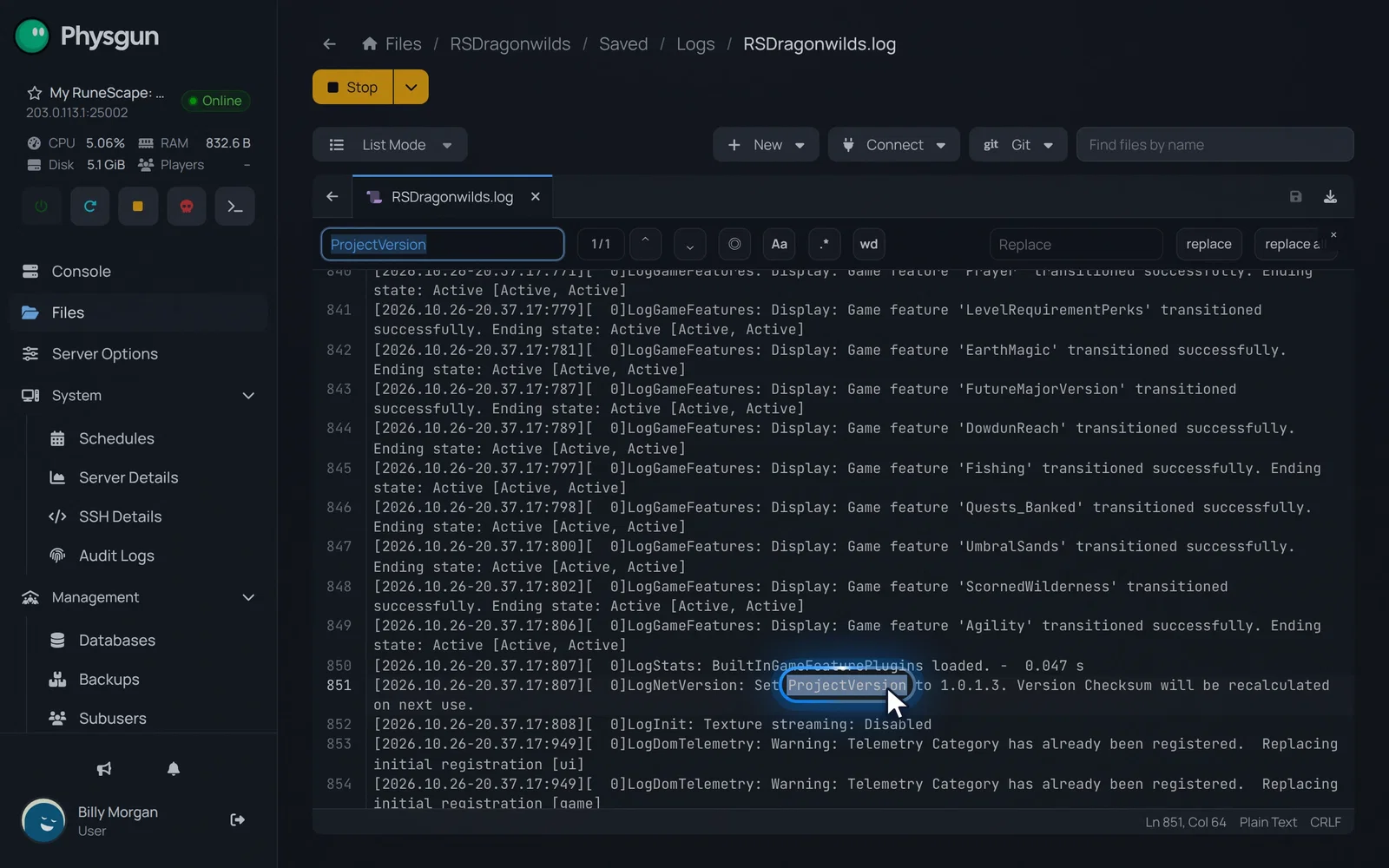 Compare the versionsThe number after Set ProjectVersion to must match the version in the top-left corner of the game.
The line reads like this, and the number after “to” is your server’s version:
LogNetVersion: Set ProjectVersion to 1.0.1.3. Version Checksum will be recalculated on next use.Now launch the game. Your game version is in the top-left corner of the screen. The two numbers must match.
Join the server
- In the game, open the server list and select the Public tab.
- Search for your world’s exact name, for example
Physgun World. - Join and check that your base and progress are as you left them.
As the owner, you can also open Pause > Settings > Server Management in the game to look at your server.
Updating without the panel
If you run a Dragonwilds server yourself, this is the manual way. The dedicated server is a free Steam tool with app ID 4019830, and SteamCMD can download it without a Steam account.
- Stop the server properly and wait until it has shut down.
- Copy the
RSDragonwilds/Saved/SaveGamesandRSDragonwilds/Saved/Configfolders somewhere safe. - Open SteamCMD and enter these commands one at a time. Replace
/opt/rsdw-serverwith the folder your server is installed in:
force_install_dir /opt/rsdw-server
login anonymous
app_update 4019830
quit- Start the server and check the version in
RSDragonwilds/Saved/Logs/RSDragonwilds.logas described above.
If it doesn’t work
- Players get a version error. Compare the version in the log with the one in the game. If the server is behind, check that Automatic Updates is on and start the server again. If Steam doesn’t have the new server version yet, wait a while and restart. If the server is ahead, players need to update their game.
- Console players can’t join right after a patch. Their platform may not have the patch yet. Nothing on the server changes that, so wait until their game updates.
- The server isn’t in the Public tab. Search for the exact world name, and check that your Owner ID is still set in Server Options.
- A new, empty world loaded. The world name in Server Options must match your save file’s name in
SaveGames, without.sav. Fix the name, or stop the server and restore your backup from Backups.