

On public servers, griefers and trolls can get really irritating. Whether you’re hosting a server for friends or simply want more control over who can join your world, setting up a private Palworld server is a great way to keep unwanted players out. By adding a server password, you can restrict access while still allowing your community to easily connect and play together.
In this guide, we’ll walk you through how to make your Palworld server private using the Physgun options tab or by editing your server configuration files manually. We’ll also cover how players can connect to your password-protected server once everything is set up.
 How to Setup a Private Server on a Physgun Game Server
Physgun provides a user-friendly menu where you can modify most of your server settings. This includes setting up a password for your server! To set up a password on your Physgun server:
-
Access your Physgun server panel.
-
Shut off your server to prevent loading failures, memory leaks, or file corruption.
-
Navigate to the Palworld Settings tab of the left navbar.
-
Scroll down until you find the Server Password field.
-
Set your password to whatever you’d like.
-
Start your server.
How to Private Your Own Dedicated Server
Even if you’re using Physgun server hosting, you can still make your dedicated Palworld server private using your configuration file. To set up a password using the config file:
-
Stop your server to prevent any issues.
-
Open your server files using your PC’s File Explorer or FTP/SFTP client, depending on your hosting method.
-
Navigate to the Pal/Config directory and open the folder that either says LinuxServer or WindowsServer depending on whether you’re running on Linux or Windows.
-
In that folder, open or create the
PalworldSettingsINI file. -
If it’s populated, you’ll need to add the
ServerPasswordfield into theOptionSettingslist. If it’s blank, you can copy the following command line into the file and add your password into the quotation marks:- Note: Don’t worry about trying to fill every single line with all of the server options. Your server will still use default settings, even if they’re not defined here. You should include your server name and description here as well, though.
OptionSettings=(ServerPassword="MyPassword")- Restart your server to apply changes.
How to Join a Private Server
Now that your server is private, players are going to need to know how to join. The process is more or less the same as usual, except they have to put in your password before connecting. To join a private Palworld server:
-
Open Palworld from your Steam Library.
-
After the game launches, click Join Multiplayer Game.
- Make sure not to click the Invite Code option. They’re two totally different things.
-
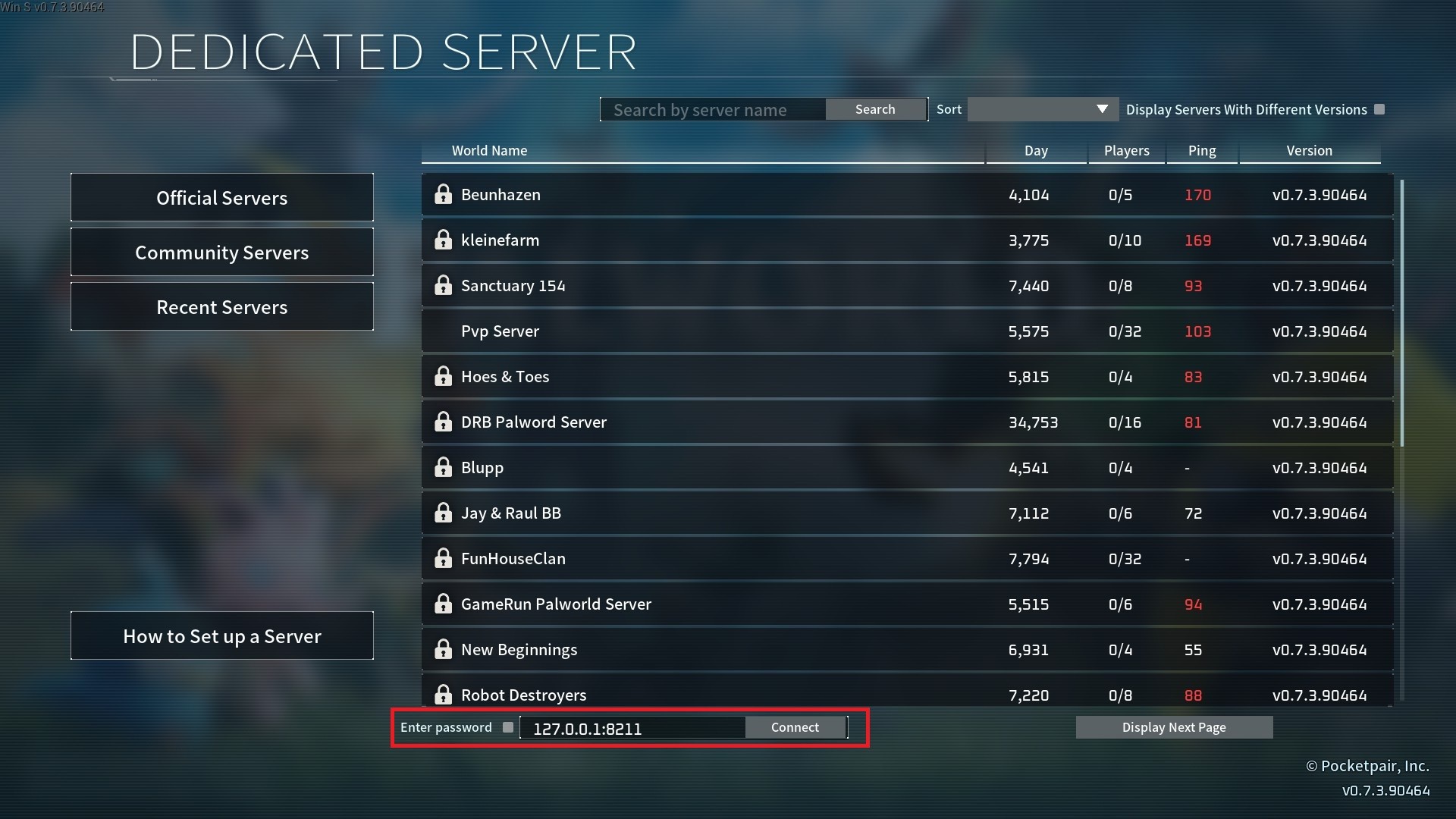
At the very bottom of the server browser, you’ll see the option to connect with the IP address.
-
Input the IP Address and Port number for your server.
-
Check the Input Password Box next to the text box.
-
Type in your server’s password.
-
Click Connect.
-
Now you can load up and start playing!
Conclusion
Making your Palworld server private is a simple way to control who has access to your world and protect your gameplay experience. Whether you’re using the Physgun game panel or editing your server files directly, adding a password only takes a few minutes and ensures that only invited players can join.
Once your password is configured, share it with your friends, connect through the server IP, and enjoy your private Palworld adventure without worrying about unexpected visitors.