

You have the server running, the files are in place, and you’ve shared the IP address with your friends, but nobody can connect. In most cases, the problem isn’t the Palworld server itself. Connection issues are usually caused by an incorrect network configuration, blocked ports, firewall rules, or an incomplete server setup.
This guide walks through the most common causes of dedicated server connection problems and how to resolve them, whether you’re hosting on your own hardware or using a Physgun VPS.
Before You Start
Before troubleshooting, make sure you have:
-
Administrative access to your Windows server, Linux server, or Physgun Gamepanel.
-
The latest version of the Palworld Dedicated Server installed through SteamCMD.
-
Your server’s local IP address if you’re self-hosting.
-
Your public IP address if players will connect over the internet.
-
The default game port (UDP 8211) available and not already in use by another application.
If you’re hosting at home, it’s also worth checking whether your ISP uses Carrier-Grade NAT (CGNAT), as this prevents traditional port forwarding from working.
Verify the Palworld Dedicated Server Is Running
The first step is confirming that the server has actually finished starting.
Open the server console or view the startup logs. A healthy server should fully load the world without reporting fatal errors or repeatedly restarting.
If the server process appears in Task Manager but never finishes loading, the issue may be unrelated to networking. Common causes include:
-
Corrupted world save data
-
Invalid server configuration
-
Missing files
-
Insufficient system memory
If the server never completes startup, players won’t be able to connect regardless of your firewall or port forwarding configuration.
Verify Your Server Configuration
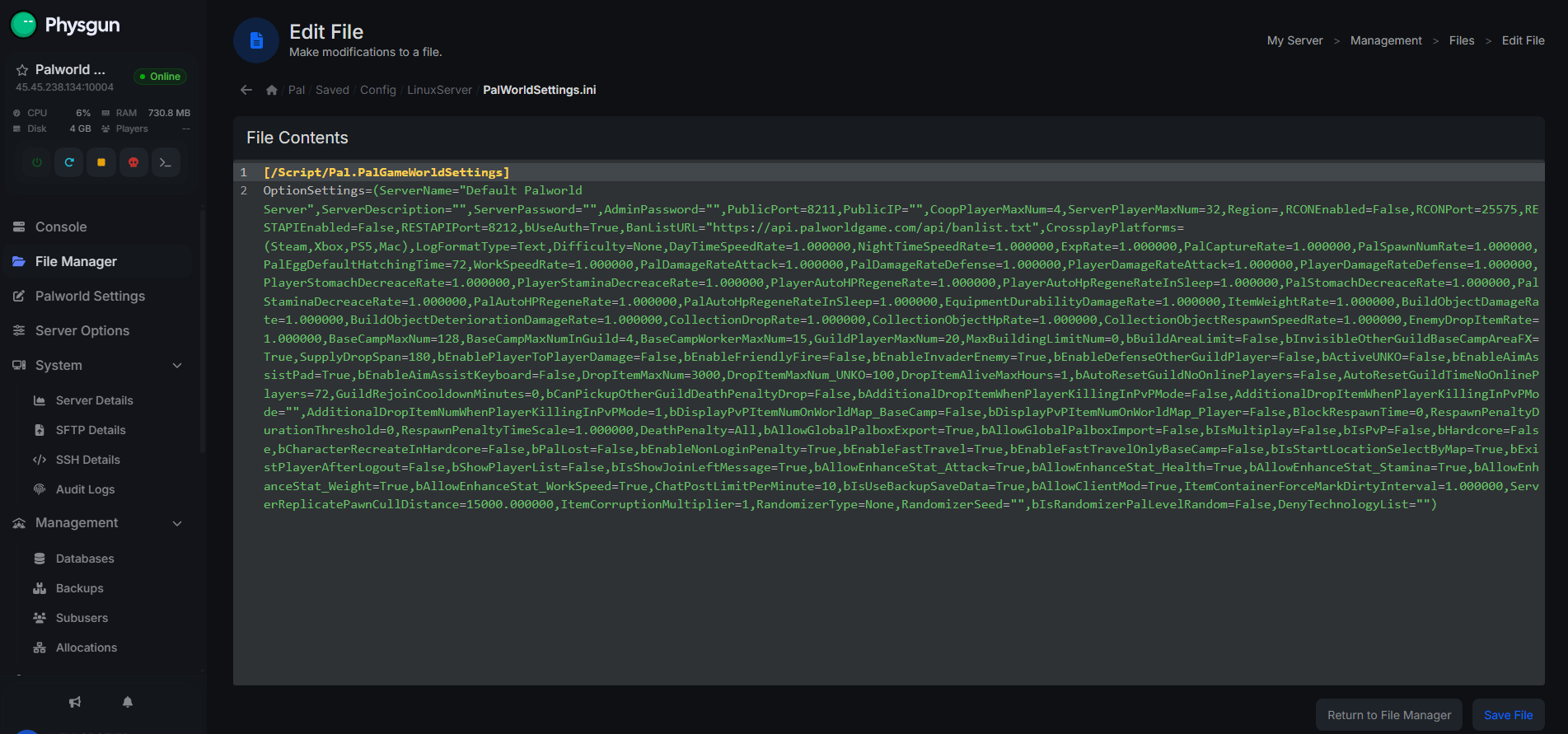
Open PalWorldSettings.ini and verify the important settings.
Confirm that:
-
PublicPort matches the port players will connect to (default: 8211).
-
ServerName is configured correctly.
-
ServerPassword and AdminPassword are entered correctly without accidental quotation marks or trailing whitespace.
-
Any gameplay settings you’ve modified contain valid values.
Most servers do not need to manually specify PublicIP. Unless you have a specific networking requirement, leave it at its default value.
Save the file and restart the server after making any changes.
Using the Physgun Gamepanel
If you’re hosting with Physgun, the easiest way to edit your configuration is through the Gamepanel.
-
Log into the Physgun Gamepanel.
-
Select your Palworld server.
-
Open the File Manager.
-
Navigate to Pal/Saved/Config/LinuxServer/
-
Open PalWorldSettings.ini
-
Save your changes.
-
Restart the server
Using FTP on a VPS
If you’re hosting on a Linux VPS, connect with an SFTP client such as FileZilla or WinSCP.
Download PalWorldSettings.ini, edit it using a text editor like Notepad++, upload the updated file, and restart the server.
Configure Port Forwarding
If you’re hosting the server from home, you’ll need to forward the game port through your router.
Create a port forwarding rule using the following settings:
-
Protocol: UDP
-
External Port: 8211
-
Internal Port: 8211
-
Internal IP: Your server’s local IP address
If your router separates firewall rules from port forwarding, also allow inbound UDP traffic on port 8211.
Static port forwarding is generally more reliable than relying solely on UPnP.
If your internet connection uses both an ISP modem and your own router, you may have a Double NAT configuration. In this case, ports must be forwarded through both devices, or the ISP modem should be placed into bridge mode.
If port forwarding still doesn’t work, verify that your ISP isn’t using Carrier-Grade NAT (CGNAT). If your router’s WAN IP address differs from your public IP address, standard port forwarding won’t work.
Configure a VPS or Cloud Firewall
If you’re hosting on a VPS, your hosting provider may use an additional firewall that blocks incoming traffic by default.
Create an inbound firewall rule allowing:
-
Protocol: UDP
-
Port: 8211
If your provider includes both a cloud firewall and an operating system firewall, both must allow incoming traffic before players can connect.
Configure Windows Defender Firewall
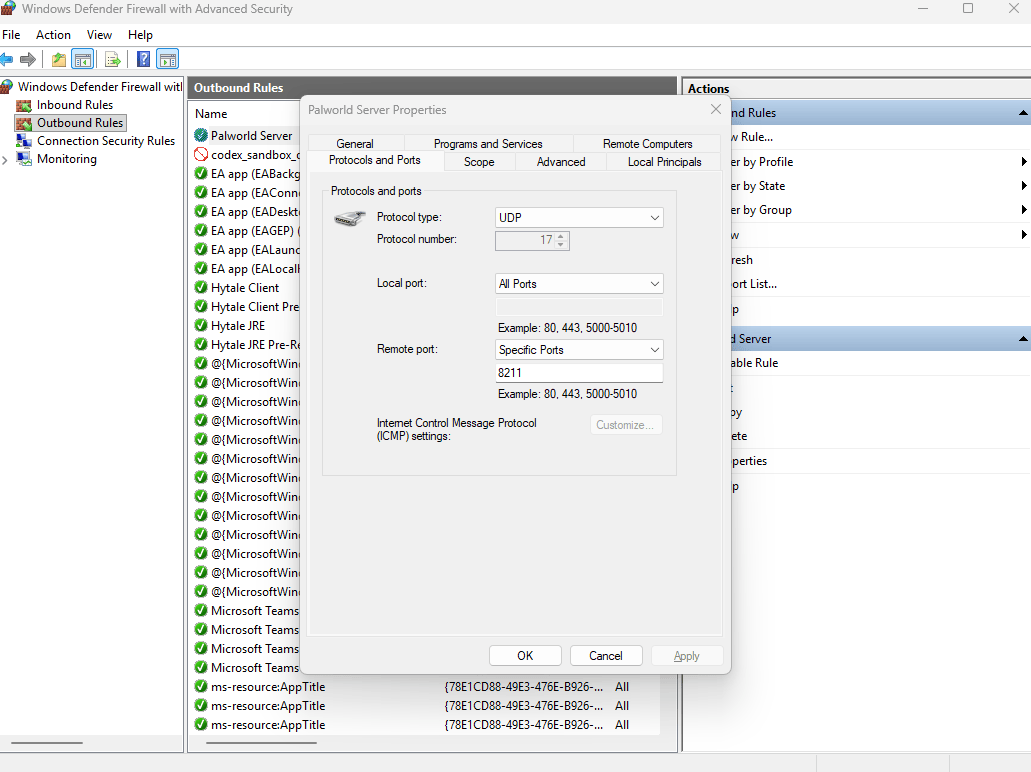
If you’re hosting on Windows, open Windows Defender Firewall with Advanced Security.
Create a new inbound rule with the following settings:
-
Rule Type: Port
-
Protocol: UDP
-
Local Port: 8211
-
Action: Allow the connection
-
Profiles: Domain, Private, and Public
After creating the port rule, create a second inbound rule allowing PalWorldServer.exe through the firewall.
If you’re using third-party antivirus or firewall software, temporarily disable it while testing to determine whether it’s blocking incoming connections.
Verify the Server Is Listening on Port 8211
Before testing from another device, verify that the server has successfully opened the game port.
Windows
Open Command Prompt and run:
netstat -ano | findstr 8211If the server is running correctly, you’ll see an entry showing UDP port 8211 is in use.
Linux
Run either of the following commands:
ss -lunpor
netstat -lunpThese commands confirm that the Palworld server has successfully bound to UDP port 8211.

Test Client Connections
Once the server is running and listening on the correct port, test a connection.
For a LAN test, connect using the server’s local IP address.
For players connecting over the internet, use:
public_ip:8211Make sure every player is running the same Palworld version as the server. Version mismatches are one of the most common causes of failed connections.
If someone outside your network can connect successfully, your networking configuration is working correctly.
Troubleshooting Common Connection Problems
Connection Timed Out
If players receive a timeout error, the server usually isn’t reachable.
Verify that:
-
Port forwarding is configured correctly.
-
Windows Firewall allows UDP 8211.
-
Your VPS firewall allows UDP 8211.
-
The server has fully started.
-
No other application is already using port 8211.
-
Your ISP isn’t blocking inbound traffic or placing you behind CGNAT.
Server Starts But Nobody Can Join
If the server appears to be running but nobody can connect, check that:
-
The server finished loading.
-
The correct IP address is being shared.
-
Players are using the correct port.
-
Firewall rules allow incoming traffic.
-
The server is actively listening on UDP port 8211.
Version Mismatch
If players receive a version mismatch error:
-
Update the dedicated server using SteamCMD.
-
Update every client through Steam.
-
Restart the server after updating.
The server and every player must be running the same version of Palworld.
Incorrect Password
If players receive password errors:
-
Double-check ServerPassword.
-
Remove any accidental quotation marks.
-
Remove any trailing spaces.
-
Restart the server after saving the configuration.
Mods Causing Connection Problems
If you’re running server mods, temporarily disable them and test with a vanilla server.
Many multiplayer issues occur because:
-
Clients are using different mod versions.
-
Required mods are missing.
-
Mods are incompatible with the current Palworld update.
Once players can successfully connect without mods installed, re-enable them one at a time until you’ve identified the problem.
Still Can’t Connect?
If you’ve verified your configuration, forwarded the correct ports, allowed the necessary firewall rules, and confirmed the server is listening on UDP port 8211, the remaining issue is usually related to your local network or ISP.
Double-check for Double NAT, verify that you aren’t behind Carrier-Grade NAT (CGNAT), confirm the server completed startup successfully, and review the server logs for socket binding errors or other startup failures. Working through each of these steps will resolve the vast majority of Palworld dedicated server connection problems.
If you are still having issues and have your server through Physgun, feel free to open a support ticket 24/7 and our support team will help!