



















Introducing Fleet: Manage Multiple Game Servers From One Tab
Multi-server management in the Physgun panel: server groups, bulk actions with previews, rollouts by location, teams, one live console and an API for CI.
Running one game server is easy. Running twenty is a different job. Every restart, every update and every config change turns into twenty tabs, twenty clicks and twenty chances to miss one. Whether you’re a studio looking after your game’s official servers in every region, or a community running a Rust network, a few DarkRP servers and a weekend tournament, the work is the same: you want to do one thing to many servers, safely.
That’s what Fleet is for. Fleet is multi-server management built right into the Physgun panel. Use what’s already familiar to you, from the makers of Pterodactyl.
Where Fleet Lives
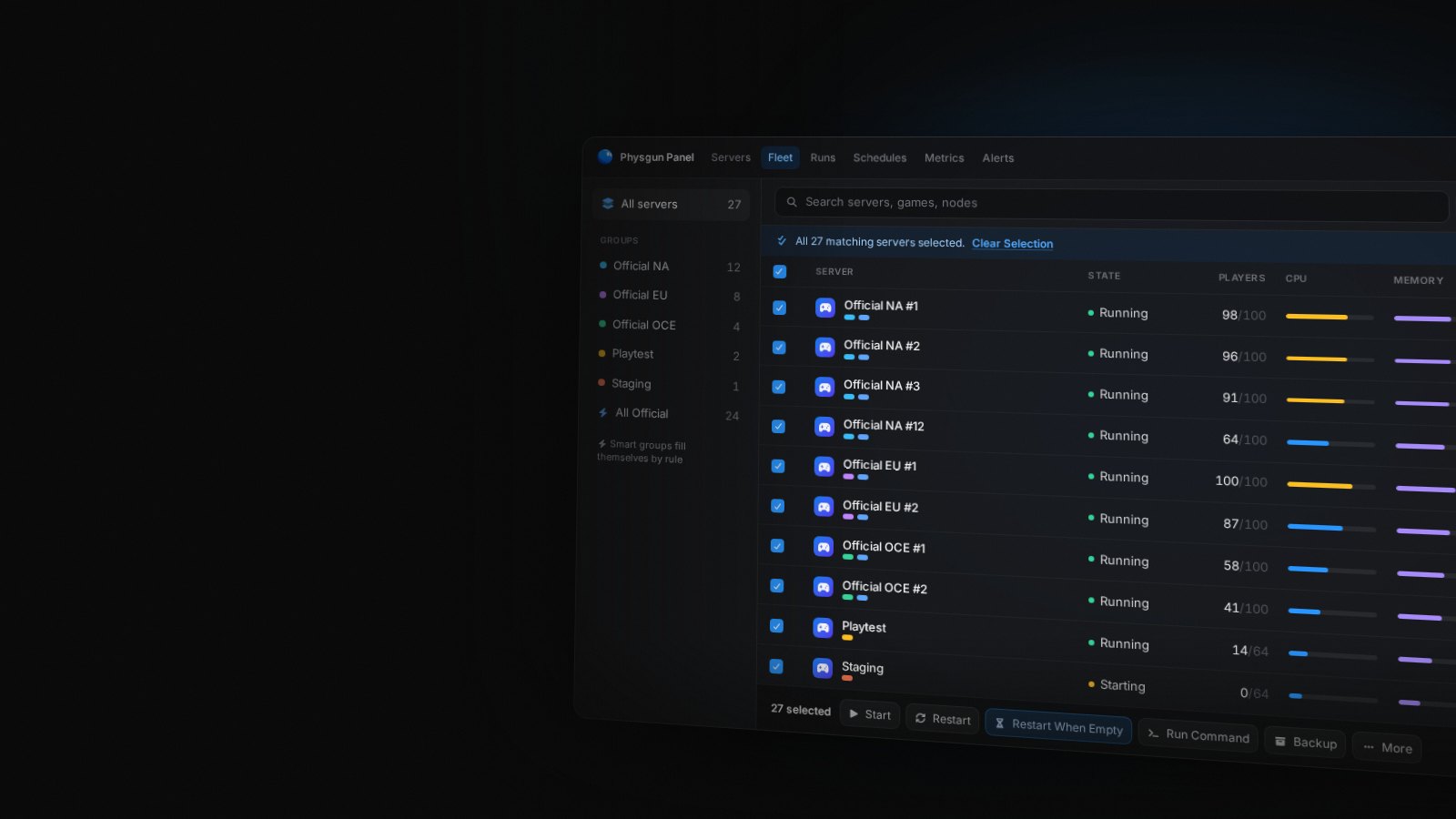
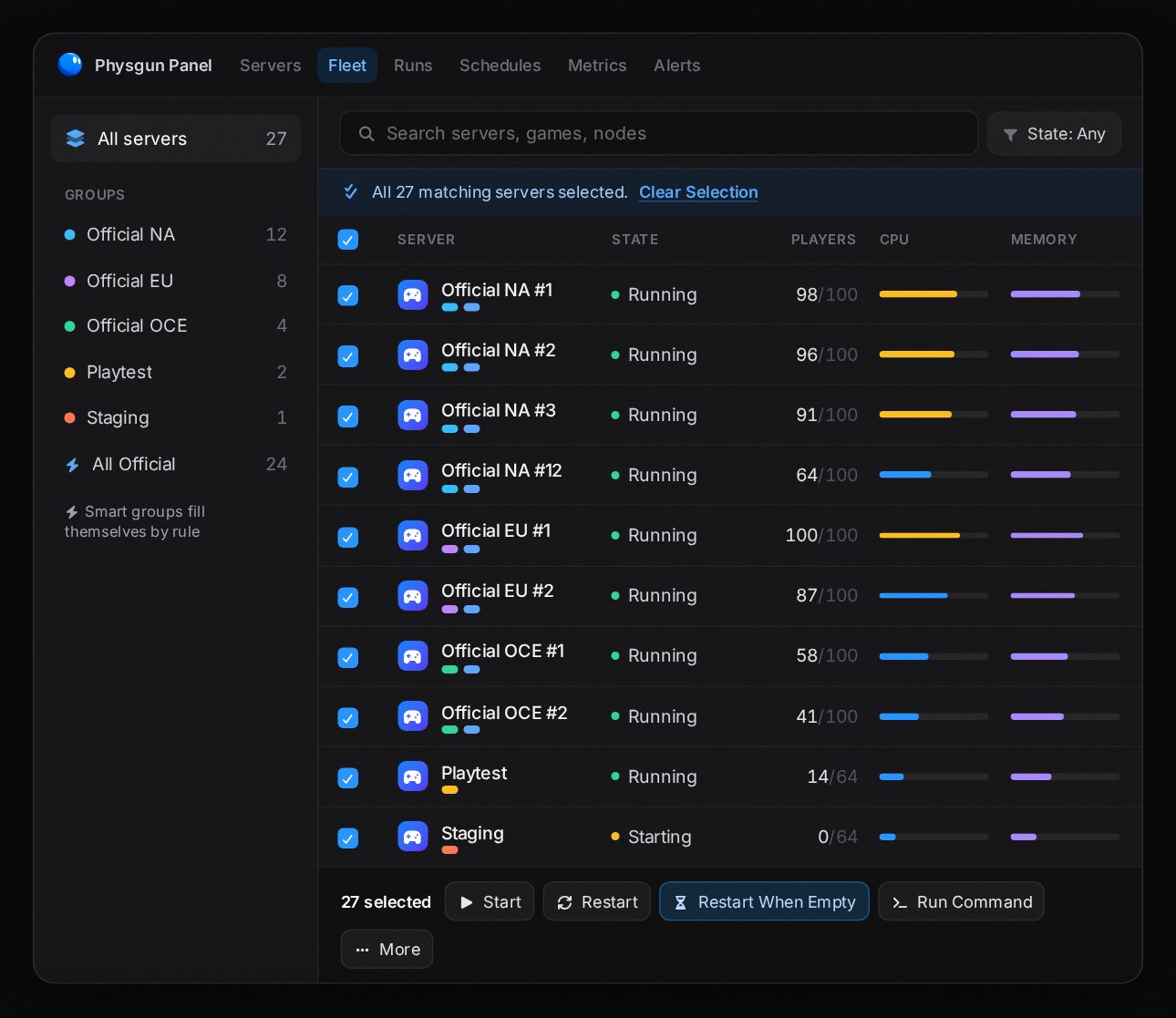
Open the Physgun panel and you’ll find a Fleet tab on the home page. It shows every server you host with us in one table: state, players, CPU, memory, location, node and uptime. Search it, filter it, and “select all matching” to grab every server that fits, not just the ones on the page.
It works across every game we host, mixed however you like. VMs show up too, for power actions.
Server Groups and Smart Groups
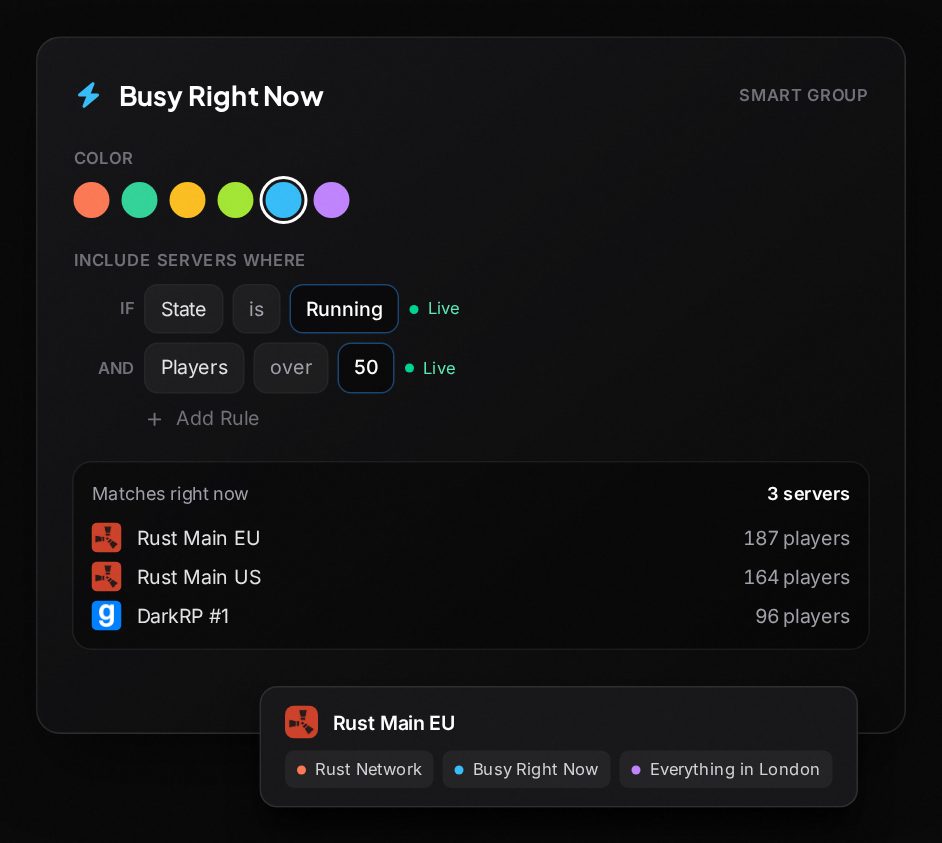
Groups are how you organize the fleet. Put any servers in a group, whatever the game or location, and give each group a color. A server can sit in as many groups as you like, so “Rust Network”, “Everything in London” and “Weekend Cup” can all overlap.
Smart groups fill themselves. Set rules on game, location, kind or name, plus live rules on server state, player count, CPU, memory or disk, and the group picks servers up on its own. A new Rust server joins your Rust group without you touching it, and a “Busy Right Now” group shows exactly which servers are packed at this moment.
Bulk Actions, Previewed First
Select a group, a filter or everything, and run one of twelve bulk actions:
- Start, Stop, Restart and Kill across every selected server.
- Restart When Empty, which waits until nobody’s online on each server, then restarts it.
- Run Command, one console command sent to all of them.
- Backup, every selected server backed up in one go.
- Change Setting, to edit startup variables everywhere, with an optional restart after.
- Update Game, which uses each game’s own updater, or reinstalls games that don’t have one.
- Push File, one file to the same path on every server. If a file is already there, choose to overwrite it, skip it, or back it up first.
- Add Subuser, an email and a preset (Read-Only, Operator, Full Access or Custom) on every selected server. New emails are invited, and people who already have access get their permissions updated. It only grants permissions you hold yourself.
- Remove Subuser, to take someone off every selected server.
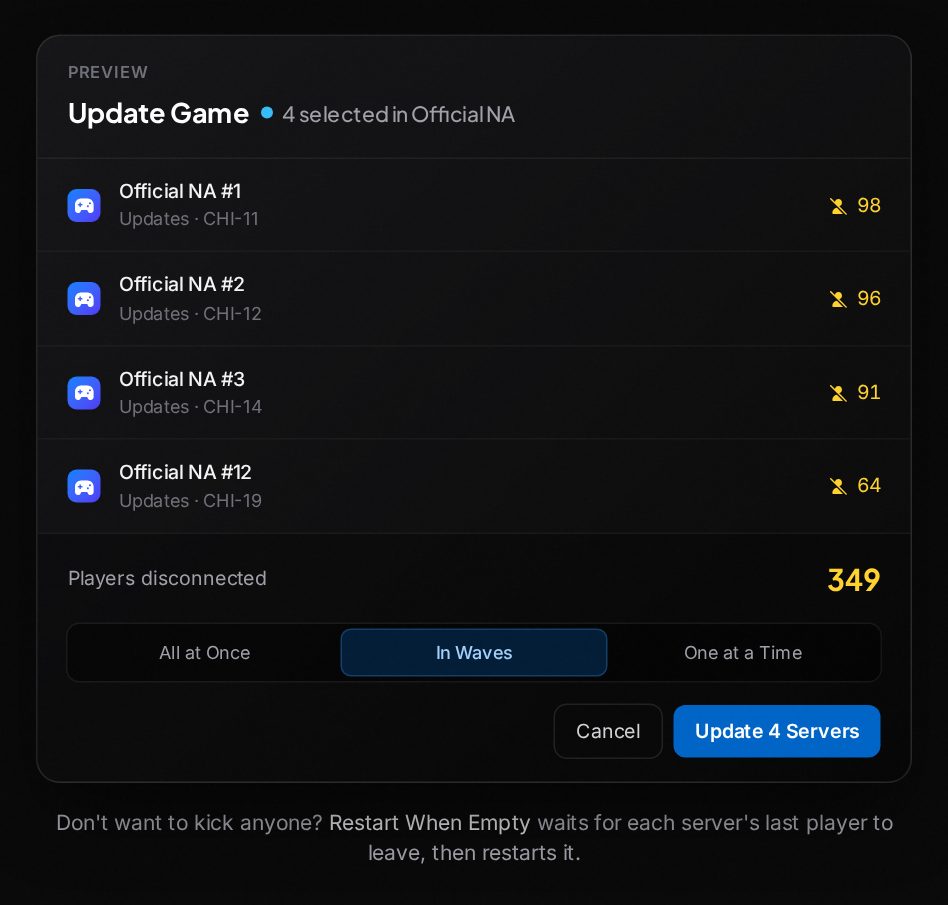
Every one of them opens with a preview: what will happen on each server, and how many players get disconnected. You see the cost before you pay it.
Rollouts: All at Once, in Waves, One at a Time, or By Location
Pick how a change spreads. Go all at once when speed matters, in waves of a few servers at a time so a bad change stops early, or one at a time so each server finishes before the next starts. Cap how many servers go at once on each node, too.
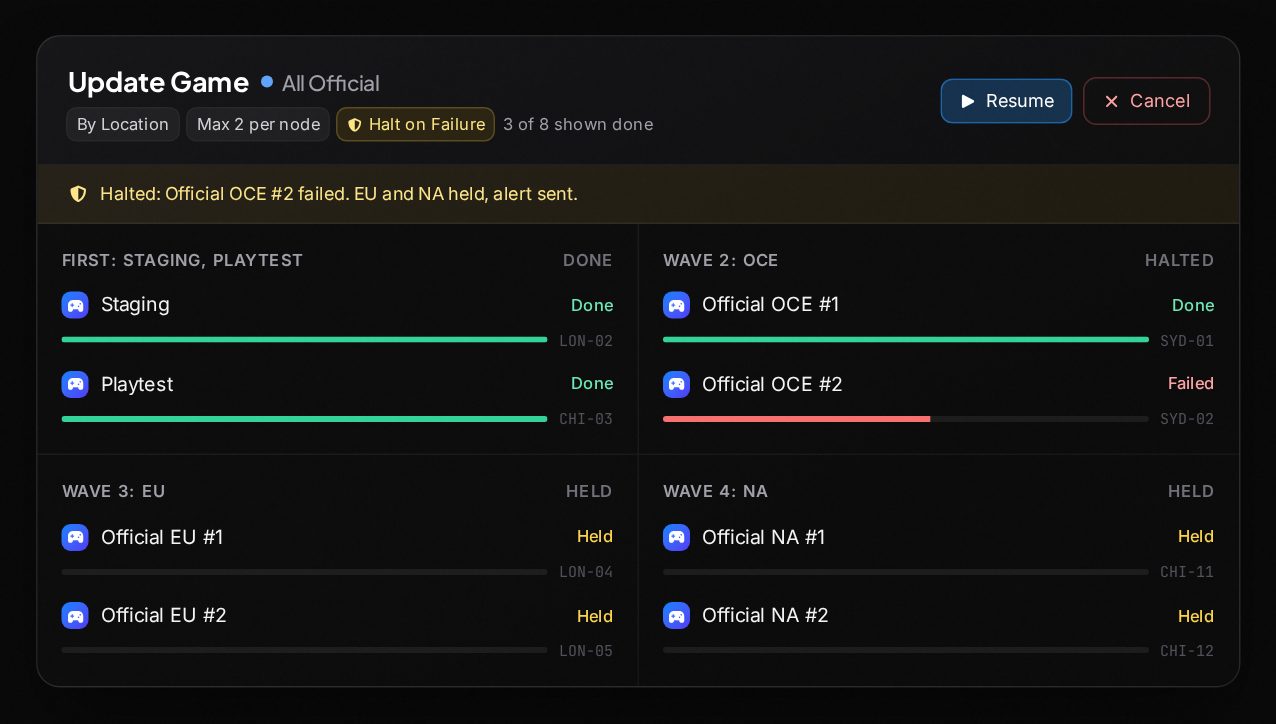
By Location rolls out one location per wave, in the order you choose, with an optional cap per wave. And in any mode you can name First servers or a group, like staging and playtest, to go as wave one. For a studio, that’s the whole release: staging and playtest first, then OCE, then EU, then NA.
While it runs you get live progress per server. Retry the ones that failed, cancel the run if something looks wrong, and look back at every run in its history.
Halt on Failure
Turn on Halt on Failure for a wave or one-at-a-time rollout, and Fleet guards the release for you. After each wave it waits a settle time you pick (1 to 15 minutes), then halts the run if a server failed, crashed or didn’t come back up, or, if you set it, if players dropped by more than a percentage you choose. The remaining servers are held, an alert goes to your alert destinations, and you decide: Resume or Cancel.
Trigger It From CI
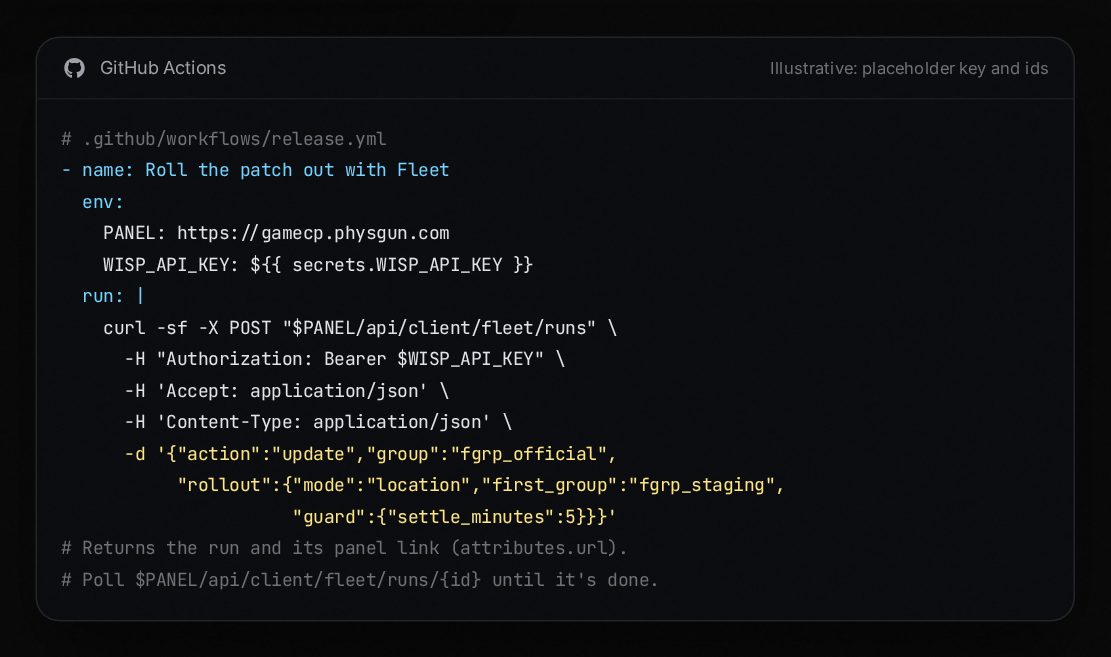
For studios shipping builds, Fleet has an API. An account API key can preview and start a Fleet run in one call, aimed at a group or smart group, and then poll the run until it’s done; responses include a link to the run in the panel. Put it in your build pipeline, say a GitHub Actions step after a release build, and every official server gets the patch by location, with Halt on Failure watching each wave.
One Live Console for Every Server
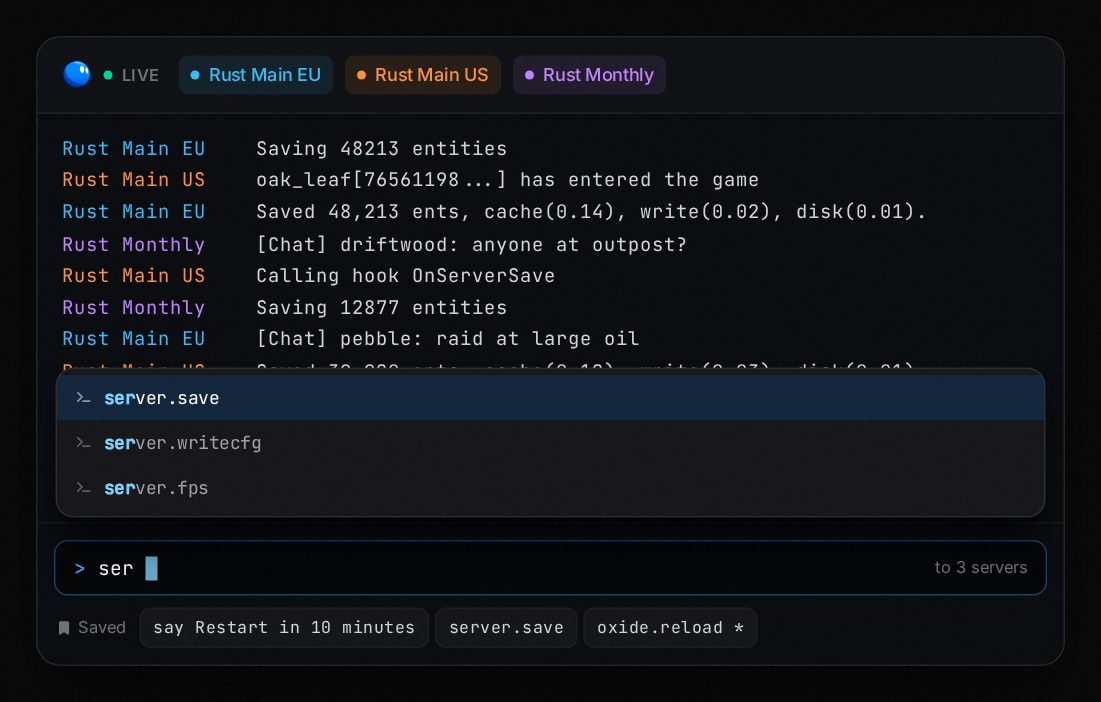
The fleet console streams the console of every server you select, live, in one view, each server in its own color. Type a command once and it goes to all of them: the “restarting in 10 minutes” announcement, a save across the network, a plugin reload.
The command palette suggests as you type, and the commands you use most are saved for next time.
Schedules and Maintenance Windows
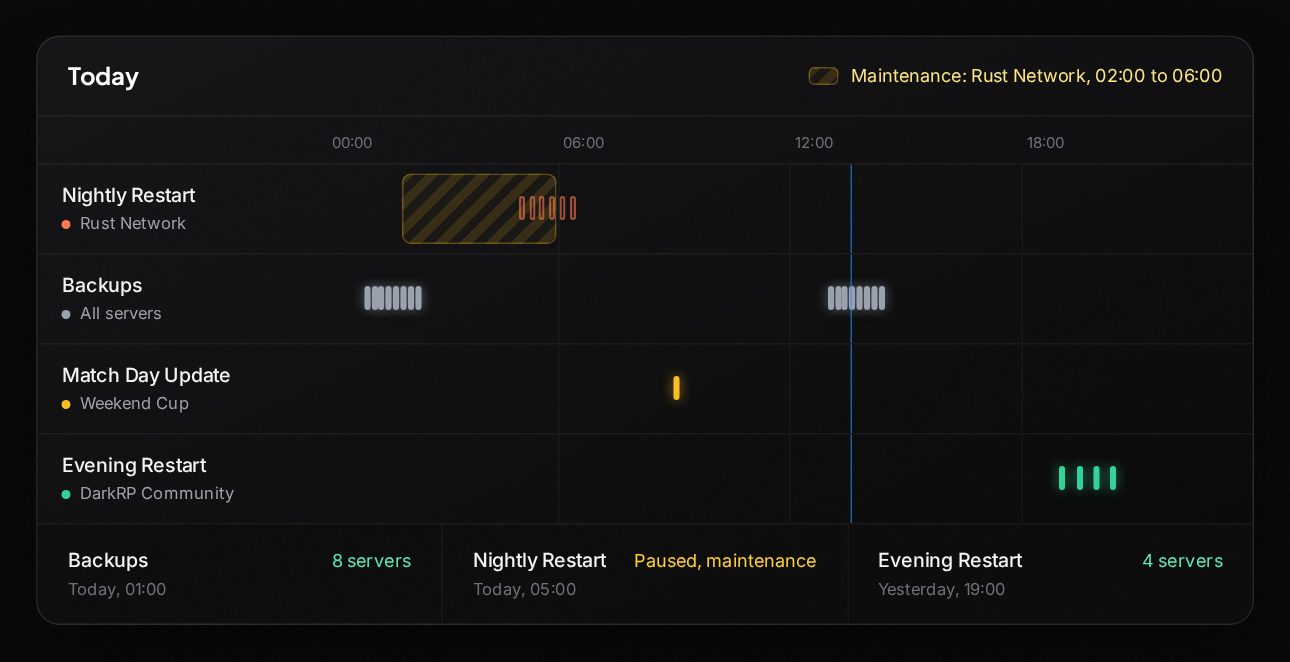
Schedule any fleet action to repeat across a group or every server: a nightly Restart When Empty, a weekly Update Game, a Push File or a Change Setting. Schedules get the same rollout options as a run (waves, By Location, First servers and Halt on Failure), and Run Once Now fires one straight away. Occurrences that are badly overdue are skipped rather than fired late.
See them all on a visual timeline, spread a schedule so your servers don’t all restart in the same minute, and check every run in the schedule’s history.
Planned work? Open a maintenance window on a group or your whole fleet, and its schedules and alerts pause until it ends. Perfect for a wipe, a map change or a planned patch.
Alerts and Metrics
Fleet watches for servers going offline, crashes, CPU, memory or disk over a threshold for a window, and player-count drops. Alerts go to destinations like a Discord webhook, so they land where your staff already are, and every alert is kept in its history.
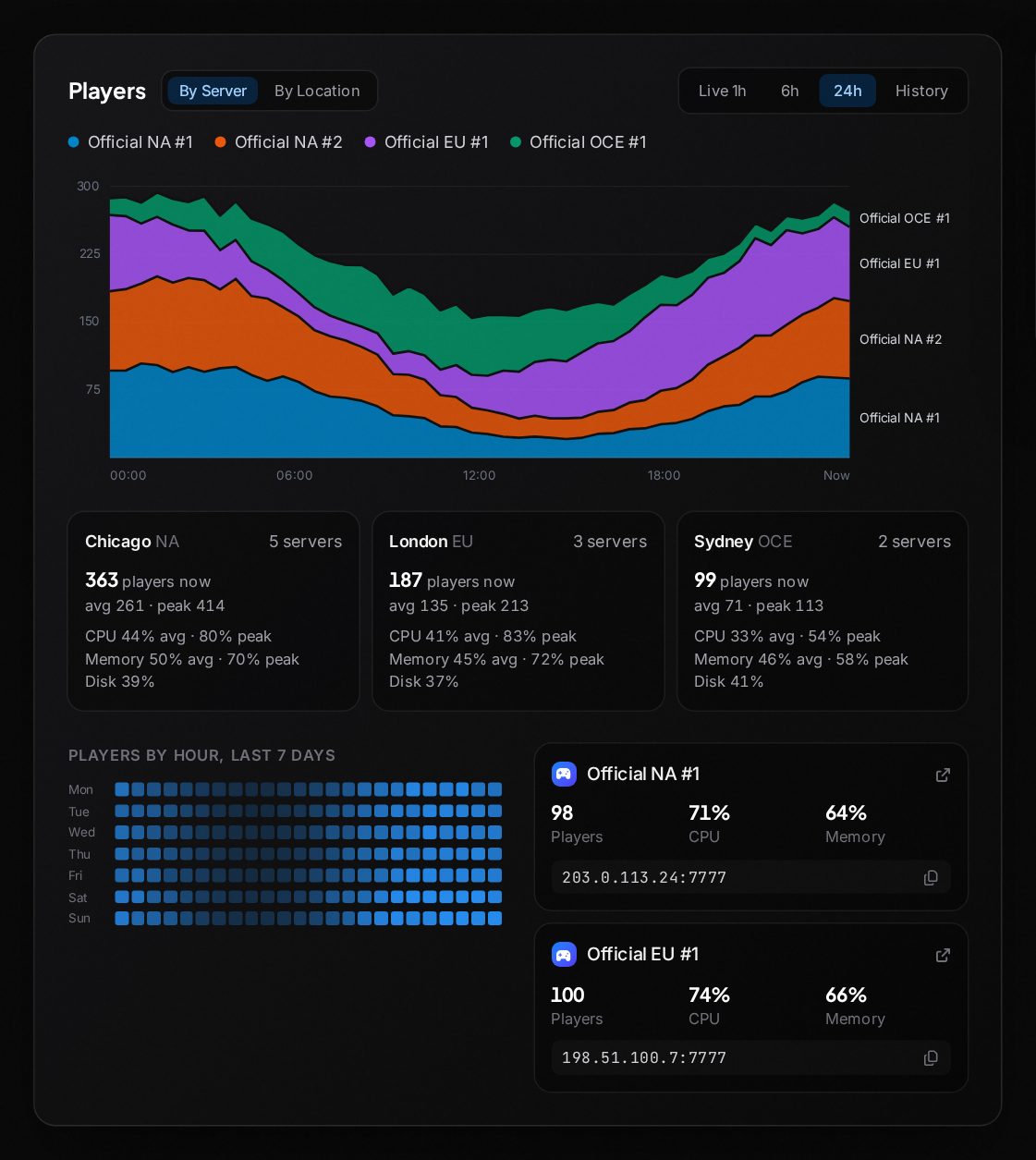
Fleet-wide charts show players stacked per server, or by location with the By Location toggle, a players heatmap (handy for finding a quiet hour to restart) and CPU, memory and disk, from the live last hour through 6 and 24 hours to longer history. Each location gets a card too: its server count, players now, average and peak, CPU and memory average and peak, and disk, so you can see how each region is doing at a glance. Each server also gets a metric card with its copyable connect address and a link straight to it.
Teams
Create a team, add your staff by email with a role (Read-Only, Operator, Full Access or Custom), and share Fleet groups with the whole team. Every member gets subuser access on the servers in those groups, kept in sync as members, roles and servers change. If someone has access from more than one place, it combines, and members can see the team and their own role. It’s game server team management for organizations of any size: QA, community managers, moderators and staff each get the servers they need.
You can still share a single group with one person by email, and the Add Subuser and Remove Subuser bulk actions handle one-off changes across any selection.
Locked Fleet Settings
Set startup variables once on a group. Locked ones are enforced on every server in it, and unlocked ones are defaults a server can override. Servers that join the group pick them up automatically, so every official server, or every server in your network, runs the same config.
Compare: Catch Server Drift
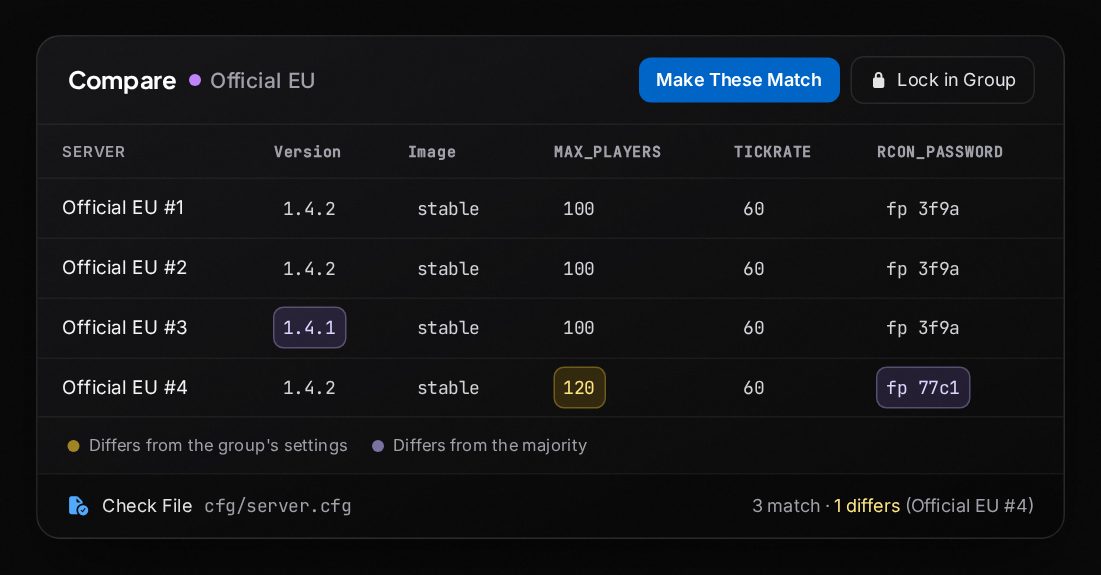
Pick a group or a selection and Compare shows every server side by side: game, image, version and each startup variable. Cells that differ from the group’s settings, or from the majority, are highlighted, so server drift shows itself. Make These Match prefills Change Setting to put them right, and Lock in Group keeps them that way. Check File compares one file’s hash across up to 25 servers. Values you can’t read stay hidden, and secrets only ever show a fingerprint.
Drive It With AI
Connect Claude or ChatGPT to your panel and run Fleet in plain language: “roll the patch out to every official server, region by region”. Every action still shows its preview before it runs.
Fleet Autoscale (Invite Only)
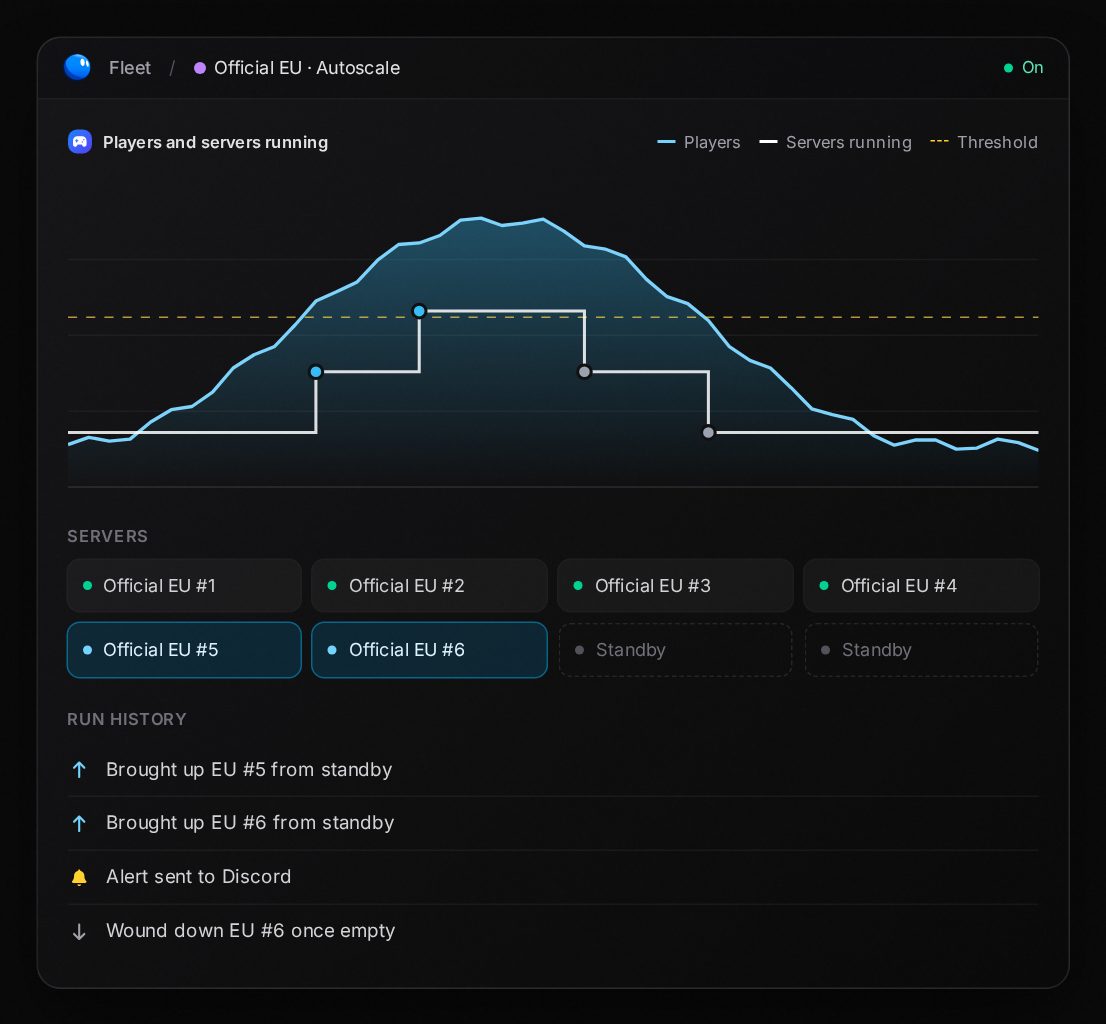
For studios running official servers, there’s one more piece. Fleet Autoscale scales your official servers on player load: when players climb past a threshold, Fleet brings up more servers from a standby pool, and when they drop, it winds the extra ones down once they’re empty. It’s built on Fleet’s player-count rules, run history and alerts.
Autoscale is invite only. To request access, email sales@physgun.com.
How to Get Started
Fleet is included with your Physgun servers at no extra cost. To try it:
- Open the Physgun panel and log in.
- On the home page, open the Fleet tab.
- Create a group: pick a few servers (or set a smart group’s rules), name it and give it a color.
- Select the group and choose an action, say Restart When Empty.
- Read the preview, pick how it rolls out (turn on Halt on Failure for waves), and run it. Watch each server’s progress live.
Learn More
Everything Fleet does is on the Fleet page. If you’re a studio hosting your game’s official servers, see Physgun for Studios or talk to our team. Not hosting with us yet? Pick your game and you’ll have Fleet waiting on your panel’s home page.