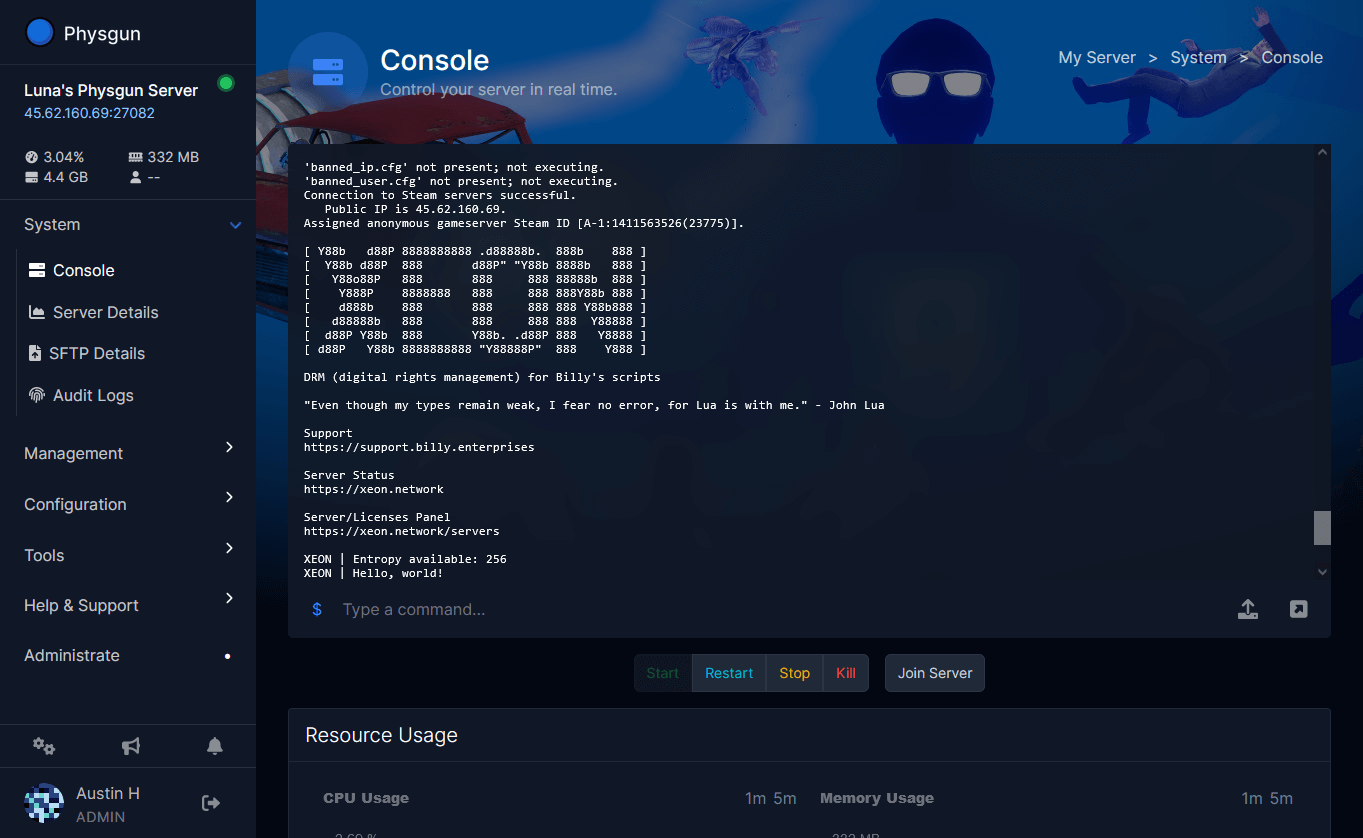








Your Physgun panel is the central hub for managing your game server. From starting and stopping your server to editing files, installing mods, creating backups, and monitoring performance, everything you need is accessible from a single, intuitive interface.
If you’re new to Physgun, the number of options can seem overwhelming at first. This guide provides a complete tour of the panel, explaining what each section does and highlighting some of the powerful tools available to help you manage your server more efficiently.
Logging In and Finding Your Server
Out of the box, the first step for you to take is to visit https://billing.physgun.com/clientarea.php and log in.
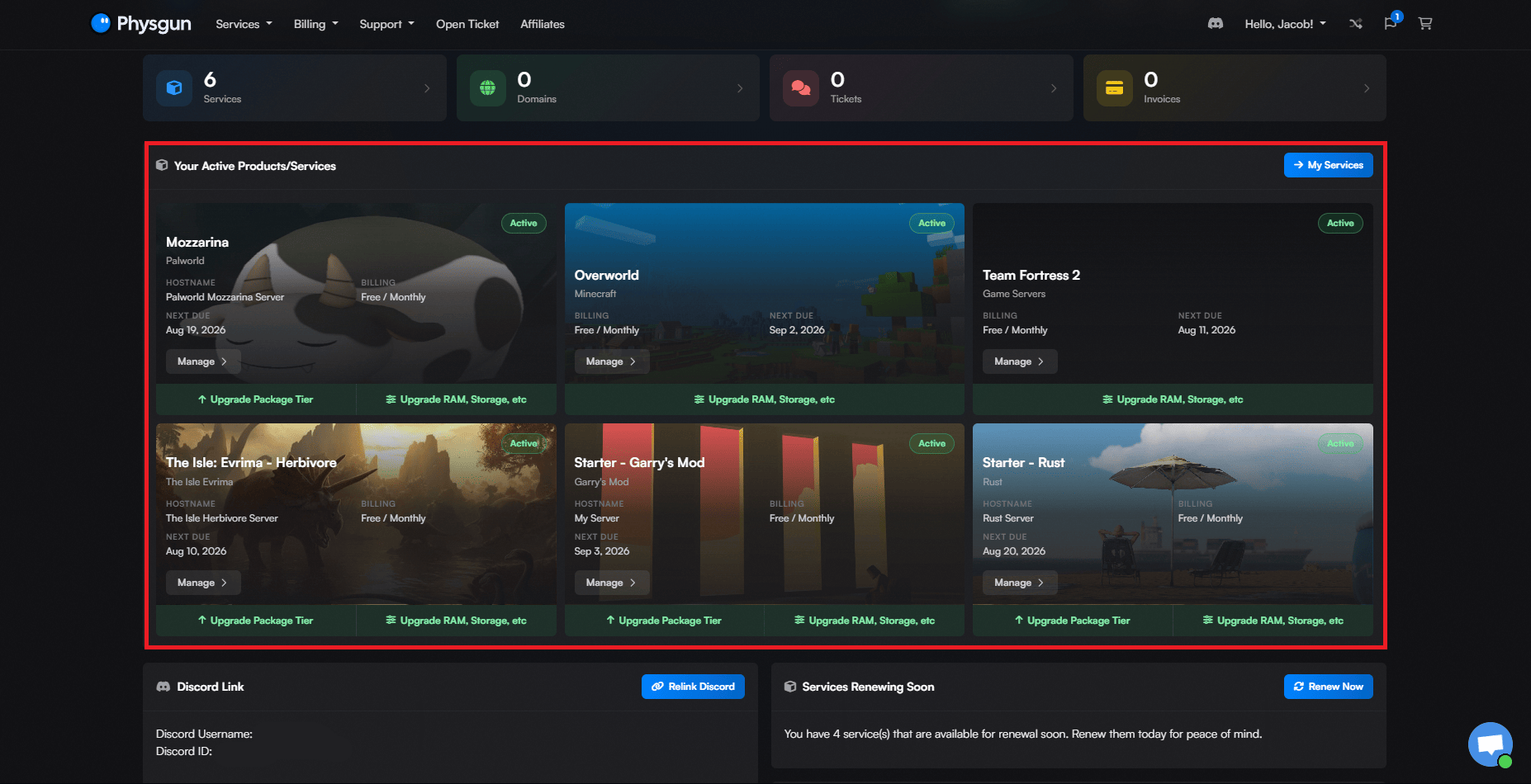
From your billing portal, you’ll have access to all of your account’s details, our ticket center, and most importantly, your services.
In the tab that reads Your Active Products/Services, you’ll find the server that you just purchased along with any other Physgun services you purchase in the future. Click on your server and select Go to Panel. You may need to log in again.
Navigating the Dashboard
Console
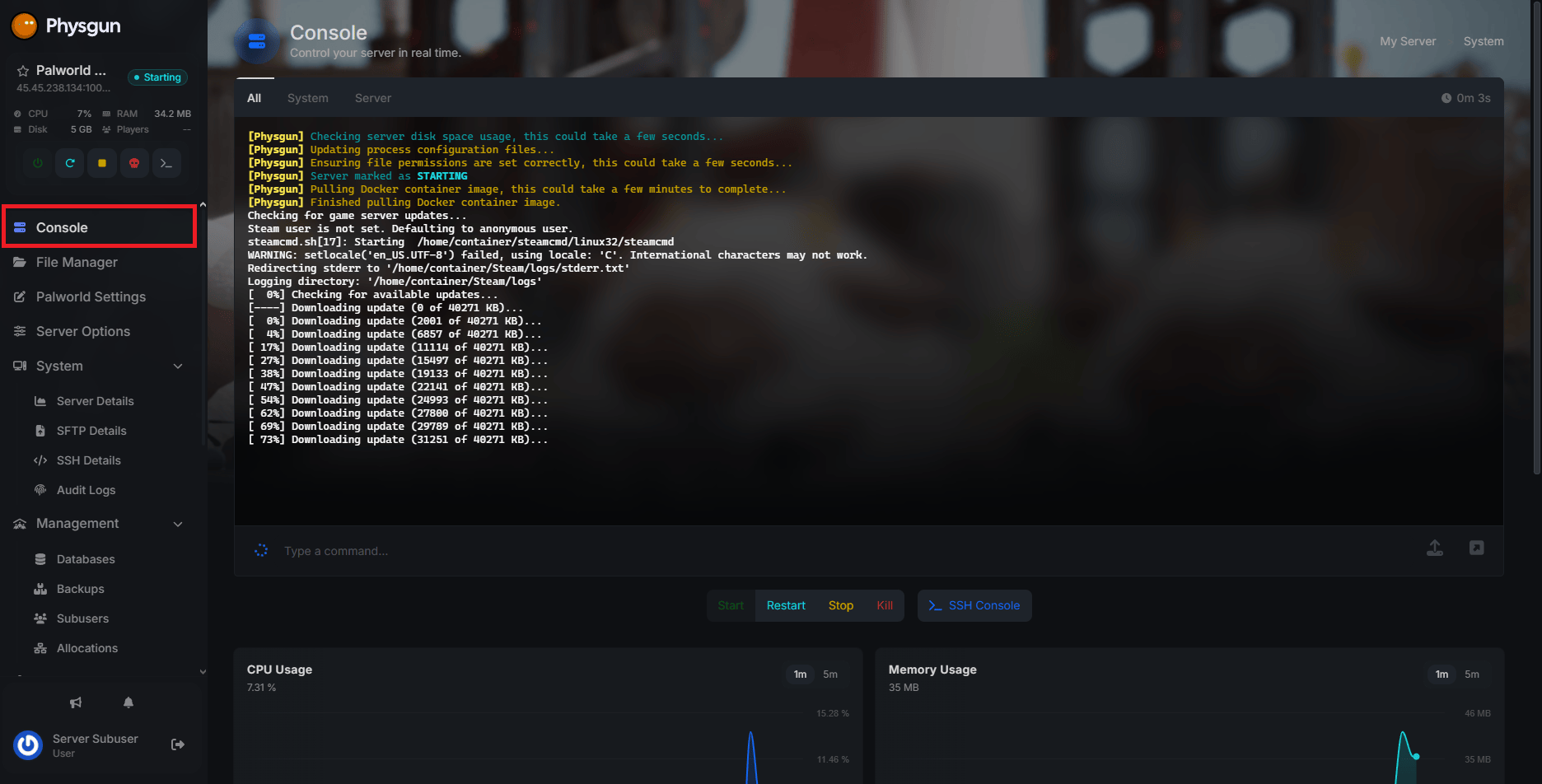
The first thing you’ll be greeted by when you launch your server panel is the handy dandy console. This is where you’ll start and stop your server, input console commands, and review your server’s basic resource usage.
File Manager
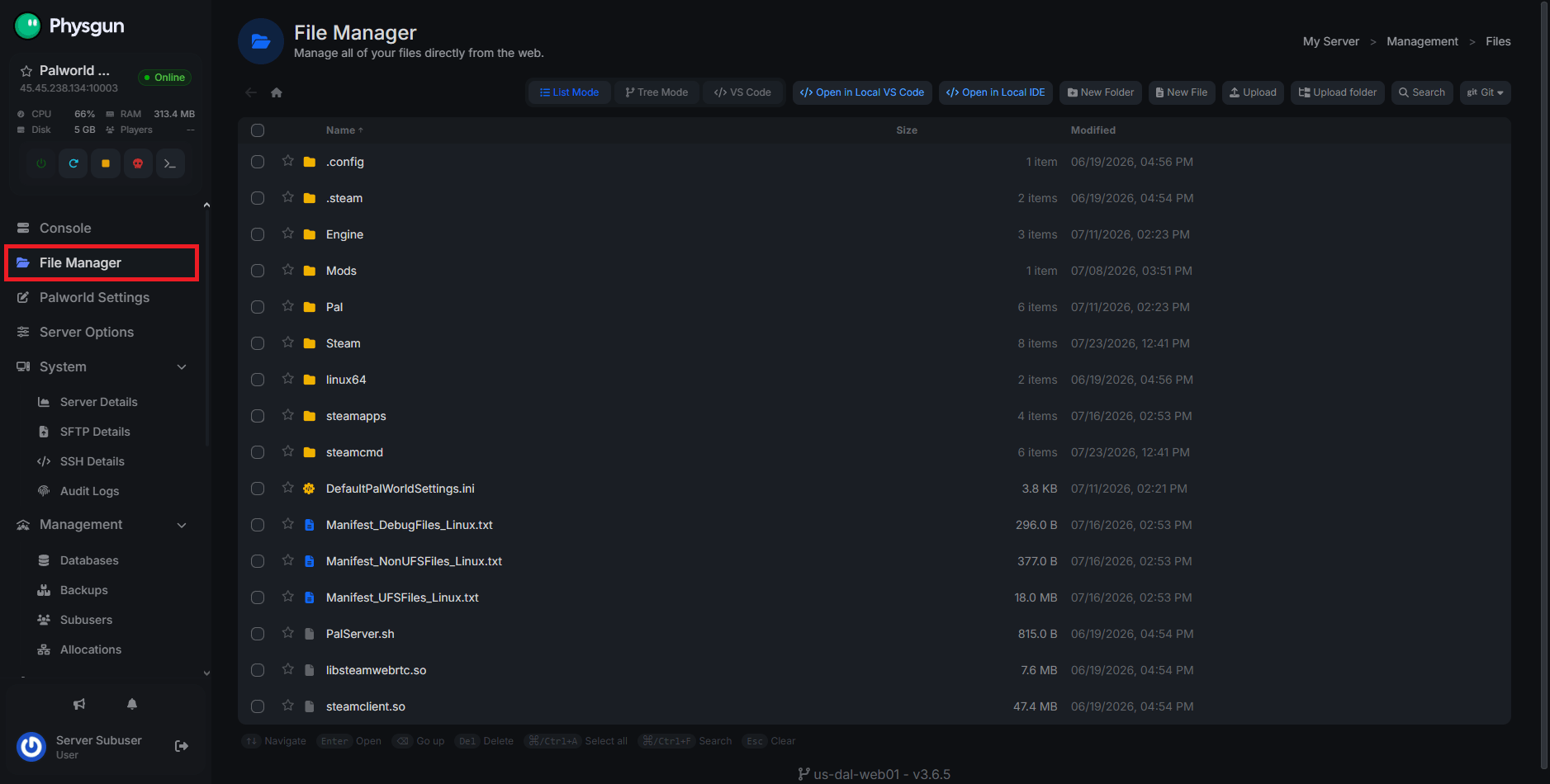
All server panels have an integrated File Manager, which skips the need for an SFTP client entirely. Though, if you’d rather use something like FileZilla, we still offer support for that too!
You can browse and edit all of your files from your server’s File Manager and update them all without needing to download or upload anything.
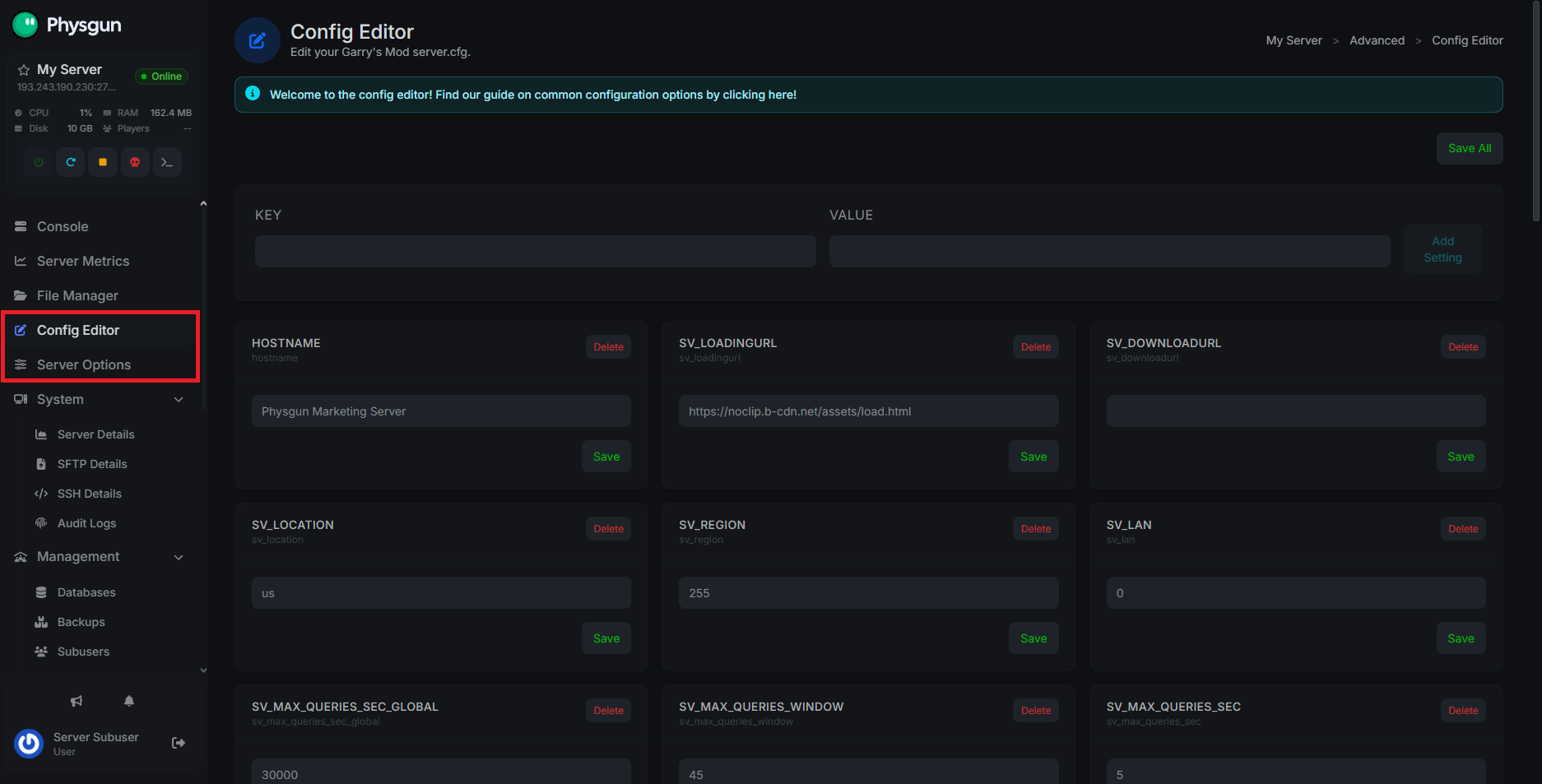
Server Options and Config Editor
Depending on the game your server is running, the panel has integrated Server Options which reflect the basic server details and server-related settings such as names or player limits.
The Config Editor, on the other hand, contains options such as game rules, behavior, and certain permissions. If your panel doesn’t have a Config Editor, chances are all of the supported options are located in the Server Options tab.
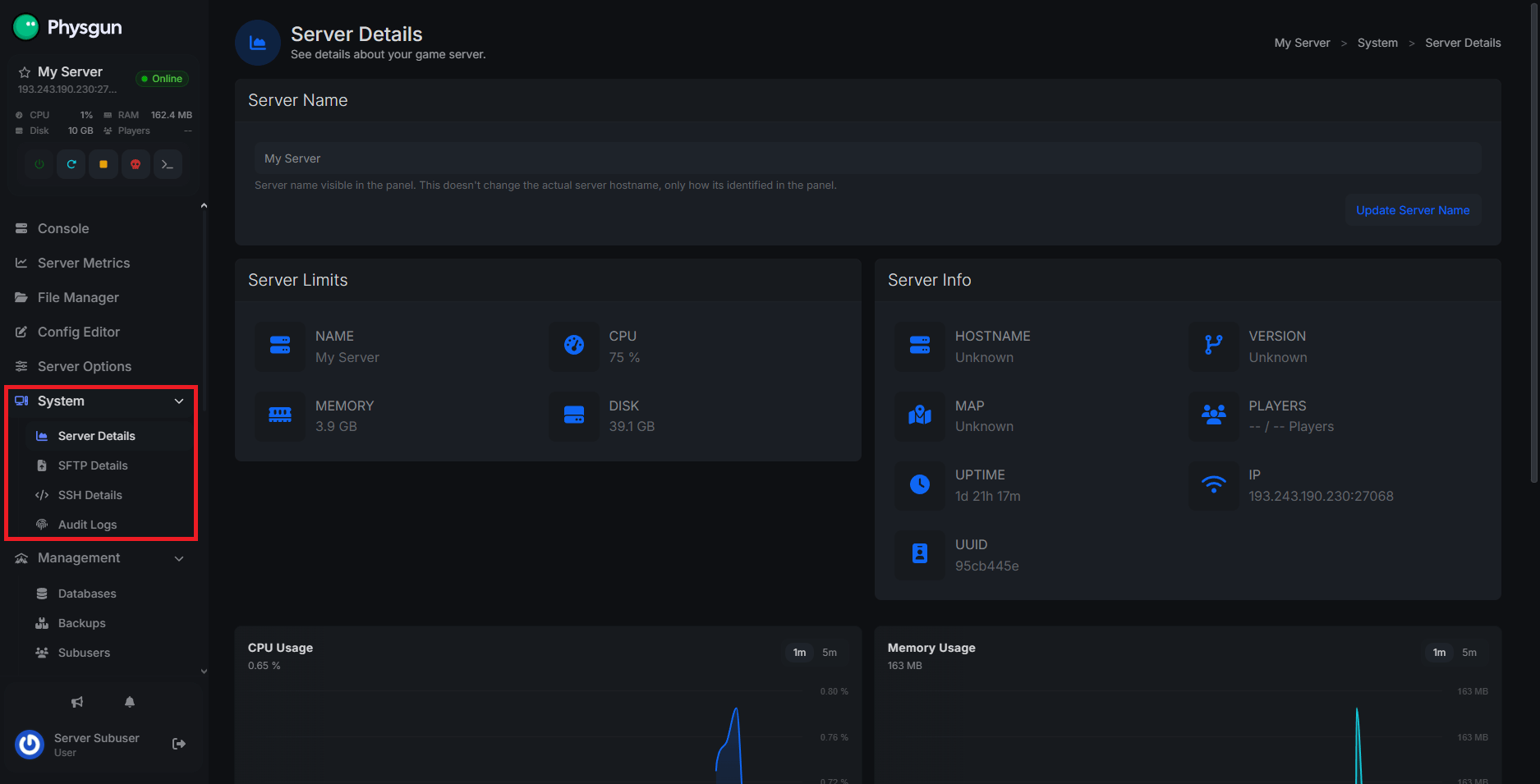
System
The System category contains 4 tabs:
- Server Details - Displays your panel name, specs, and basic information.
- SFTP Details - Outlines your SFTP login information for the server.
- SSH Details - Similar to SFTP, contains all of your connection information for SSH.
- Audit Logs - Displays every single action that’s been taken on your panel.
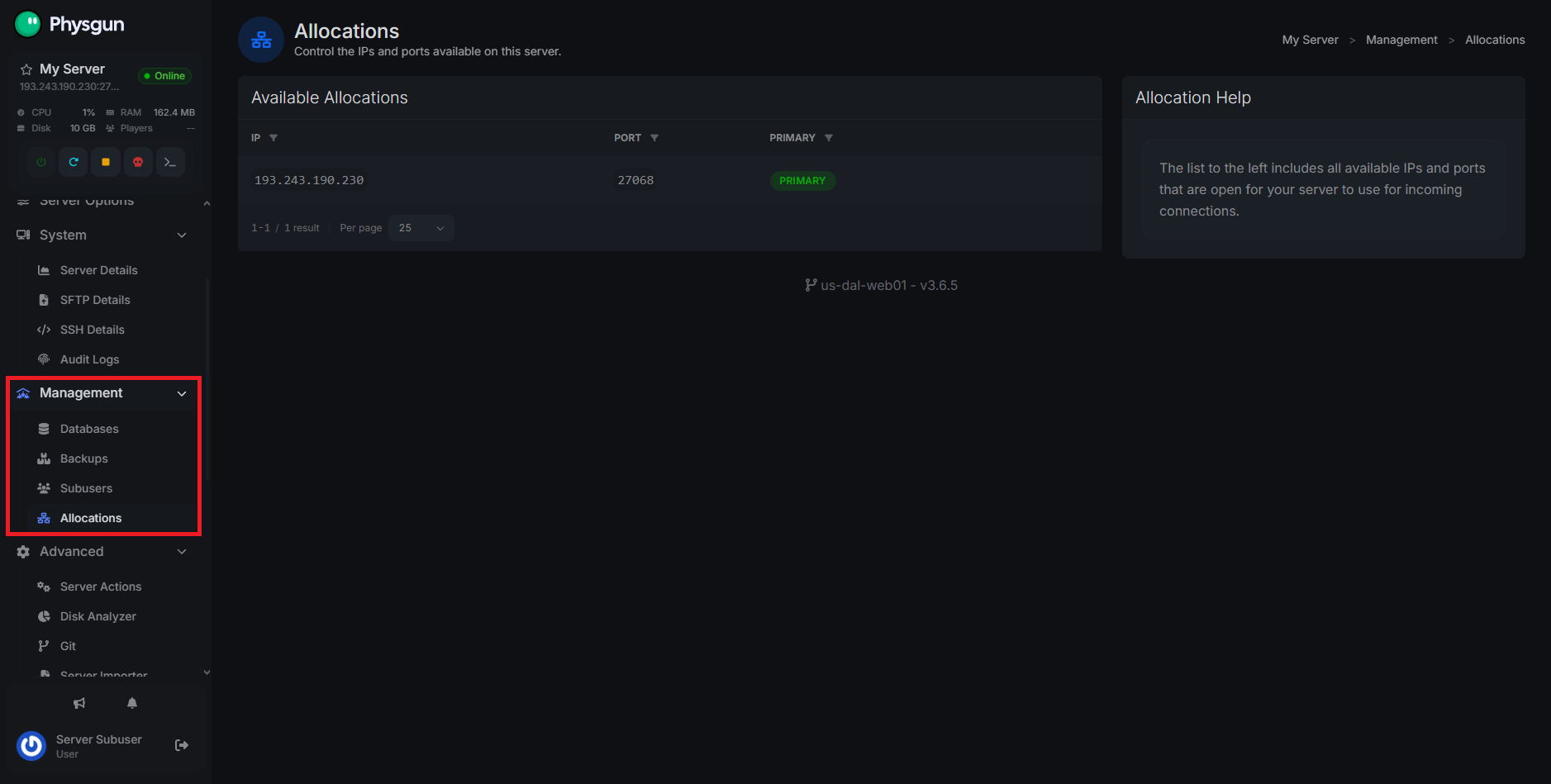
Management
The Management category also contains 4 tabs:
- Databases - This is where you set up MySQL databases.
- Backups - Here you can save stable versions of your server to roll back to in case of an emergency.
- Subusers - This is where you allow other people to access your panel and manage their permissions.
- Allocations - Allows you to view your server’s allocated addresses and ports.
We have more detailed guides for Databases, Backups, and Subusers here on our website for you to explore if any of this confuses you.
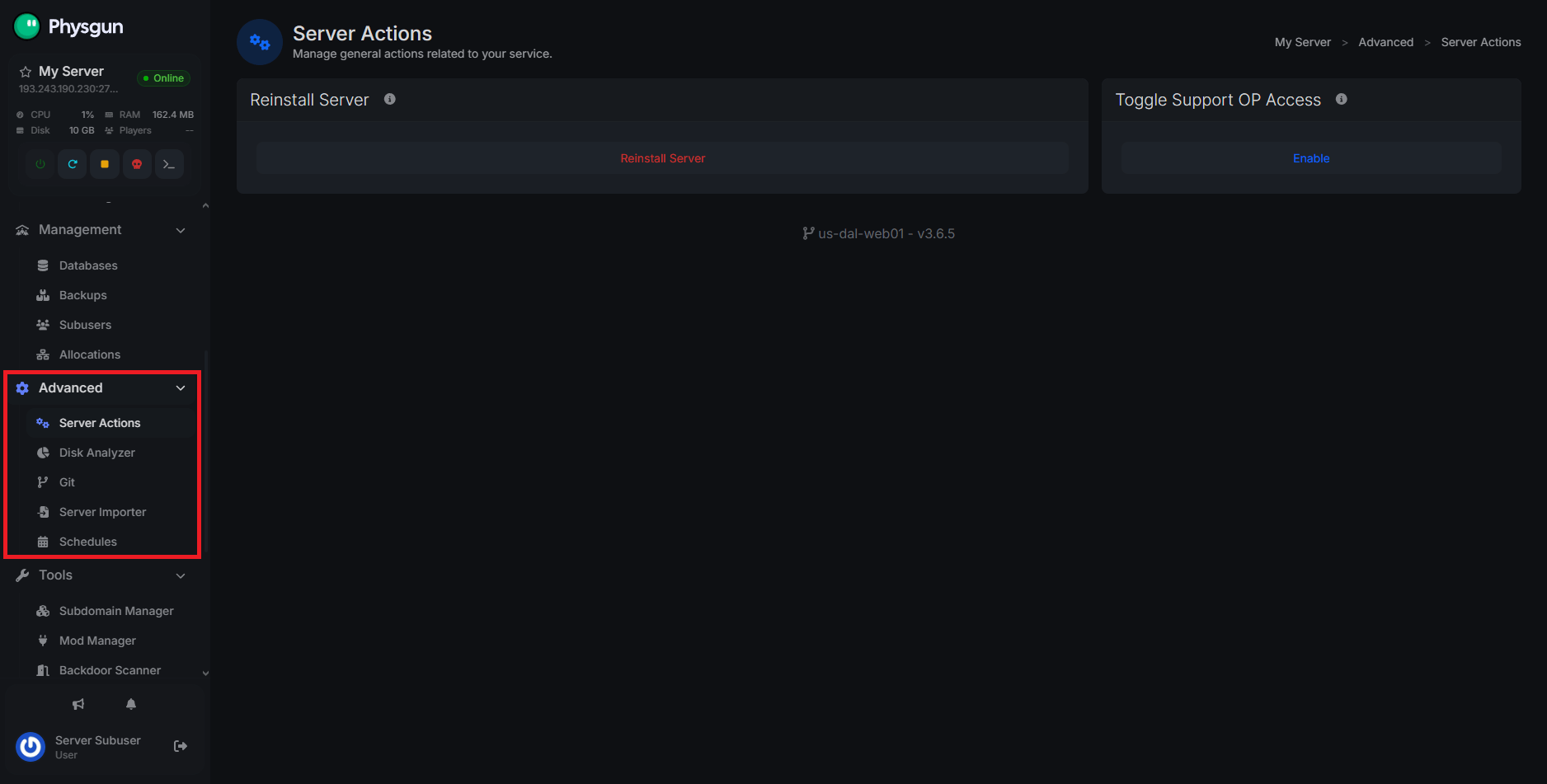
Advanced
The Advanced category includes more complex options. These include:
- Server Actions - A list of various server options that differ depending on your game. Most commonly, the options to toggle support operator access and reinstall your server are found here.
- Disk Analyzer - Figure out what’s taking most of your file space and review your bulkiest folders.
- Git - Manage your GitHub repositories, Git SSH Key, and GitHub/GitLab webhooks.
- Server Importer - Coming to Physgun from another host? Import your entire server through FTP before cancelling your old plan!
- Schedules - Set up automated actions on your server, including restarts, backups, and wipes.
Tools
The Tools category differs widely from game to game. Below is a compiled list of our most useful and iconic tools.
Integrated Tools
Note: Many of these tools have their own dedicated articles in our knowledgebase. Feel free to check them out if you want to learn more!
SSH and VS Code Integration
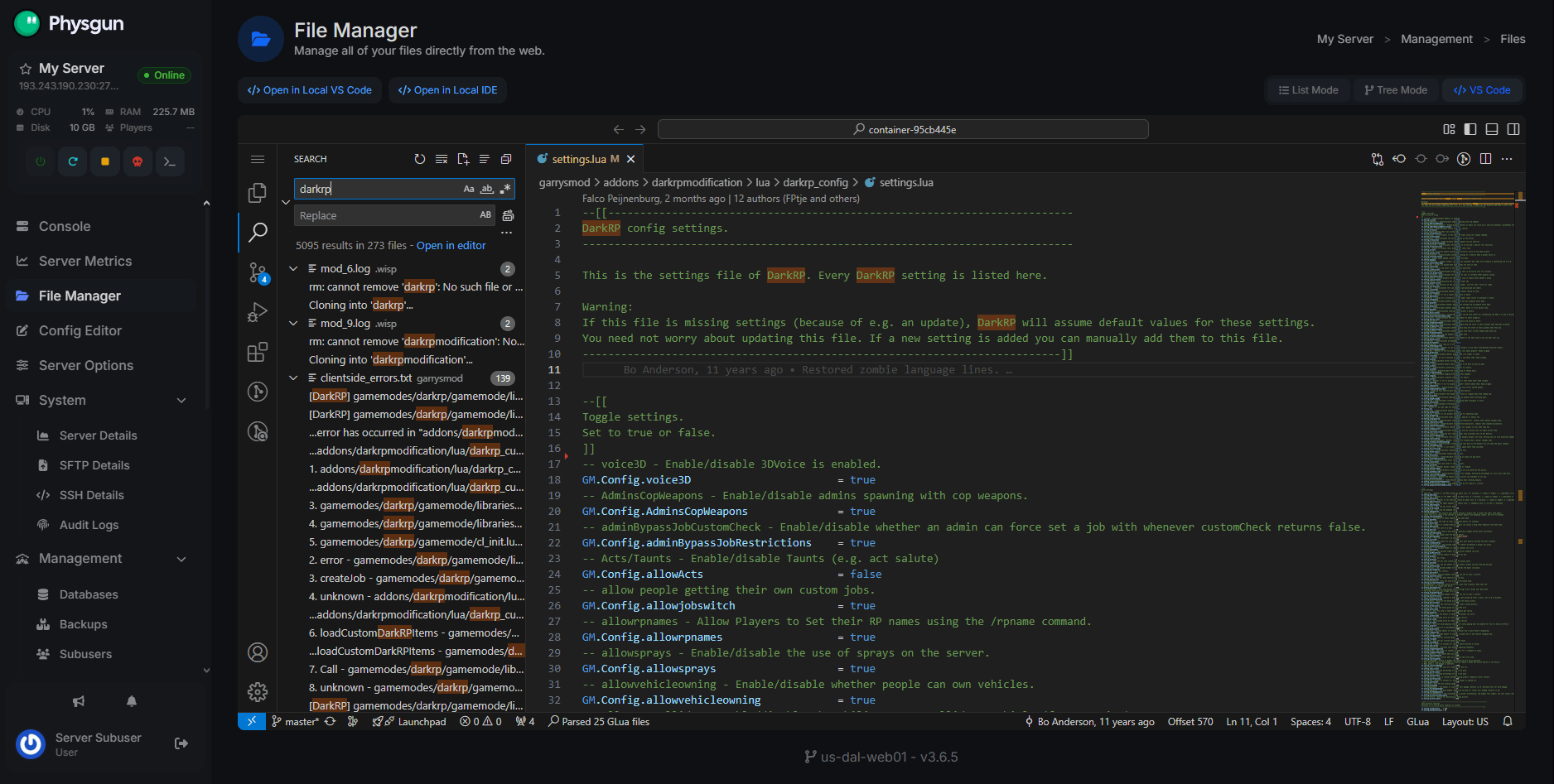
The first of our many tools is Secure Shell (SSH) and Visual Studio Code integration into our panels. This lets you manage and edit your game files directly on the server through different developer software without downloading them to your PC first. You can use the built-in browser version of VS Code or connect to your local VS Code installation over SSH to edit files with all of its developer tools.
For advanced users and nerds, SSH also provides direct terminal access for running scripts, using Git, automating tasks, and managing servers from the command line, making dev work and administration significantly faster and more efficient.
Mod and Plugin Managers
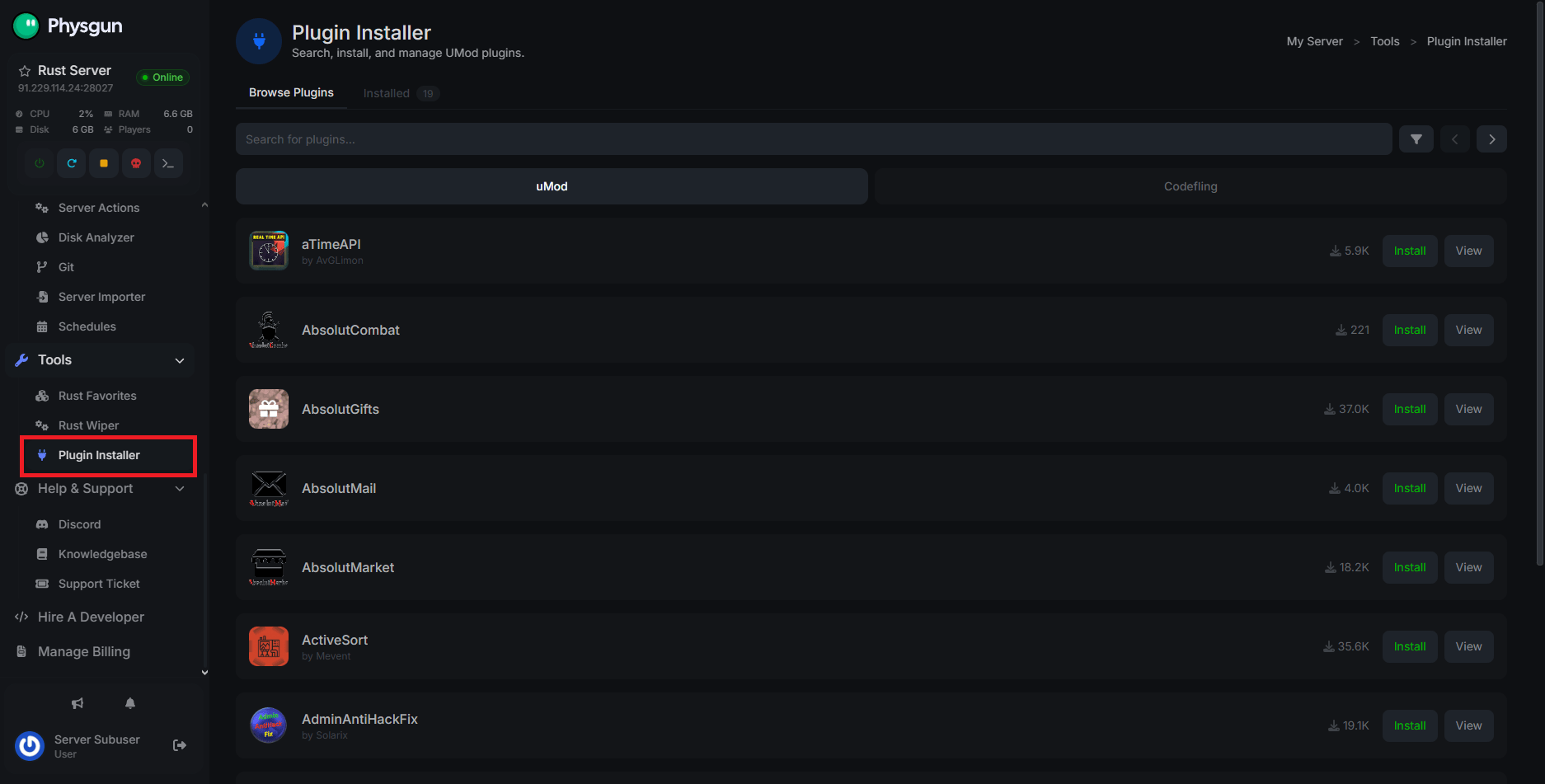
For games that are heavily focused around mods like Rust and Minecraft, we provide a Mod and Plugin Manager so you can download your mods right from the panel. For Rust, you’re linked directly to uMod and Codefling. Minecraft is linked to Spigot and Modrinth, with a Modpack Manager linked directly to Curseforge! S&Box is all hooked up with a native workshop browser, and Garry’s Mod has a wide array of popular workshop addons, gamemodes, modules, and our paid partner addons ready to deploy with just a click!
Rust God Tools
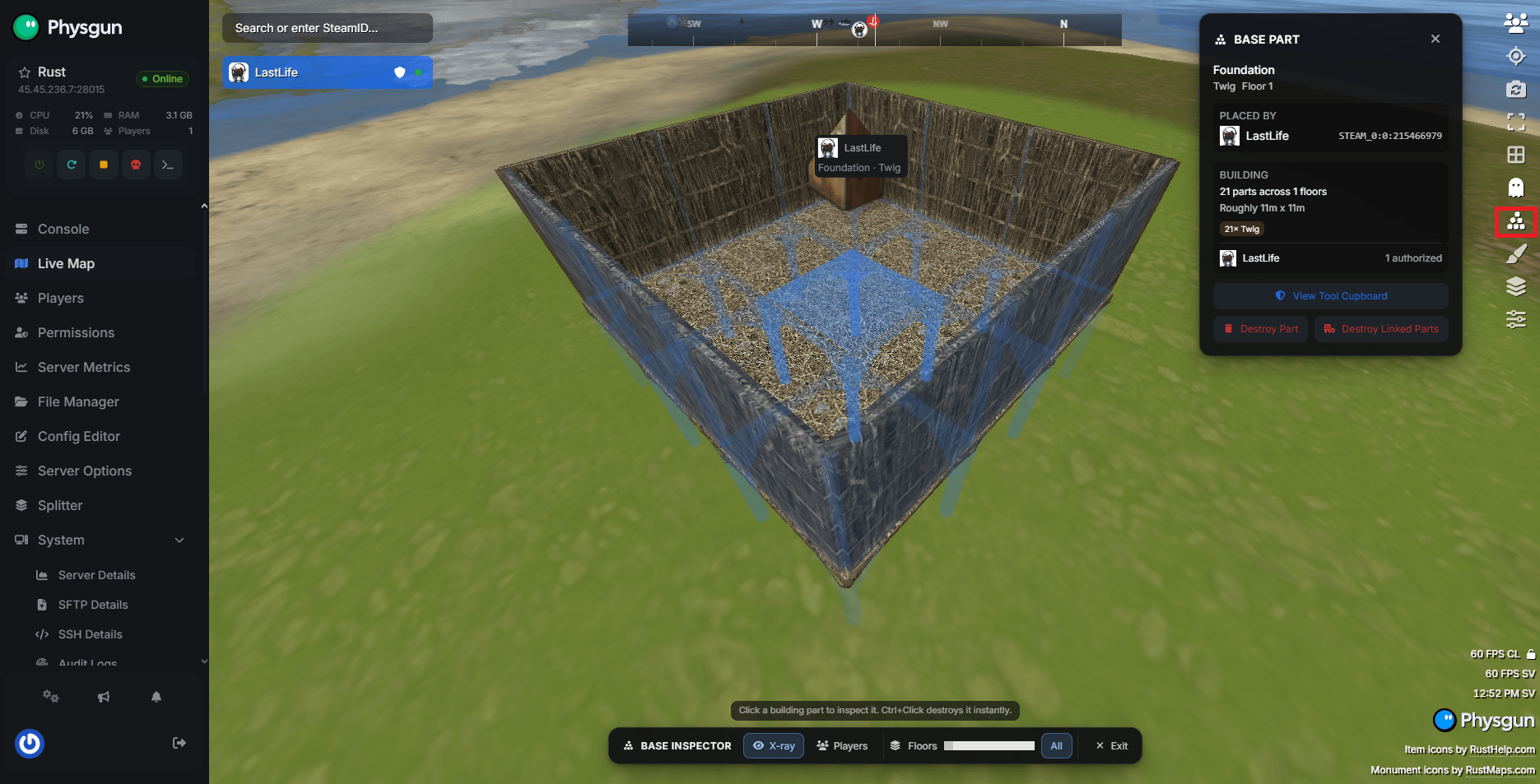
Rust God Tools is possibly one of our best tools available for Rust server owners. With God Tools, you can view your world and players in real time, all from the game panel. You can run admin commands, trigger events, destroy buildings, and manage inventories without needing to load up the game!
Palworld Save Importer
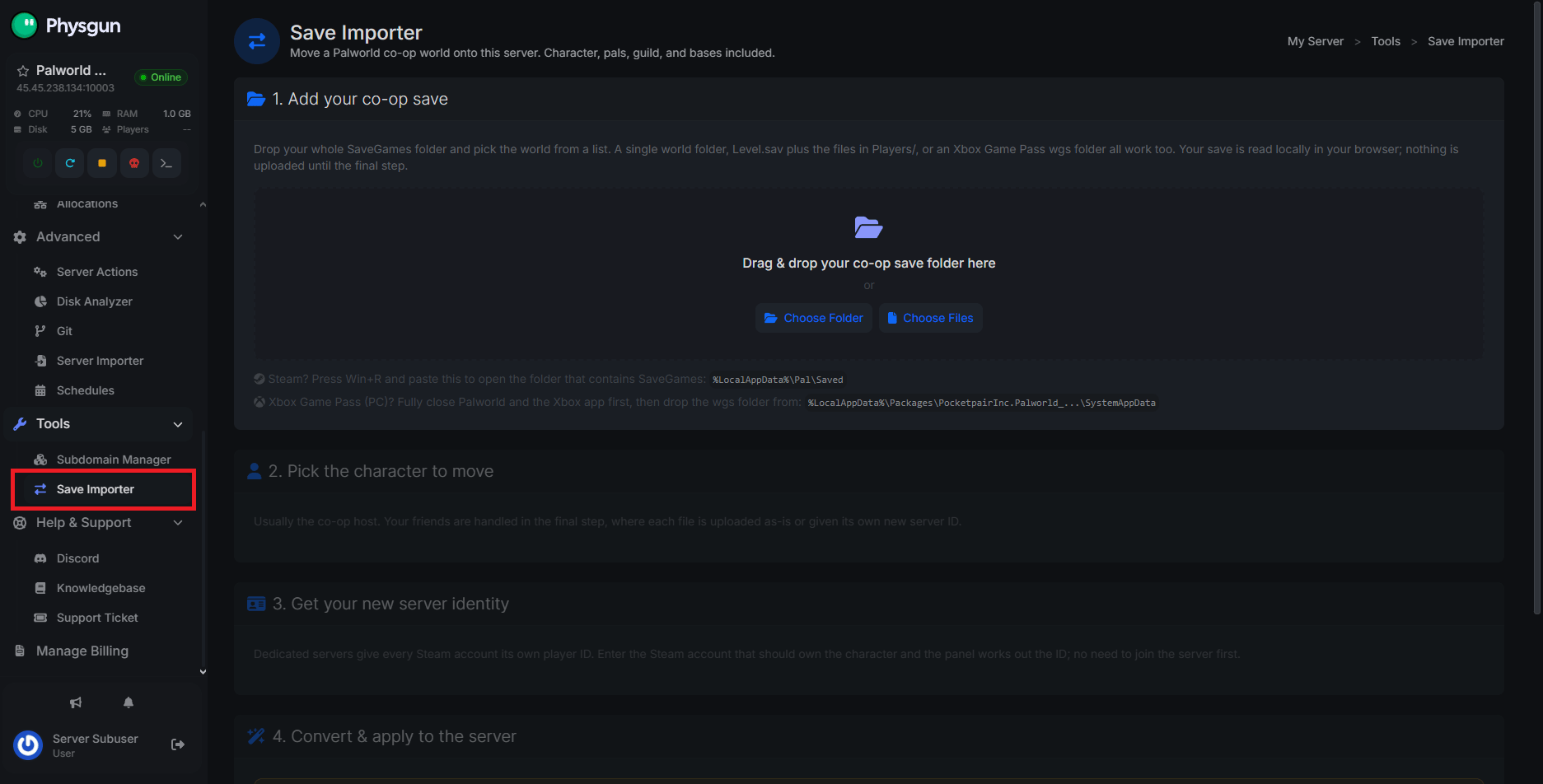
One of our newest tools is the Palworld Save Importer. Players hate losing their progress in any survival game, and we felt the same way. Behold, the save importer. If you have a world on your local PC that you want to import onto a server to play with your friends, use the Save Importer.
Getting Support
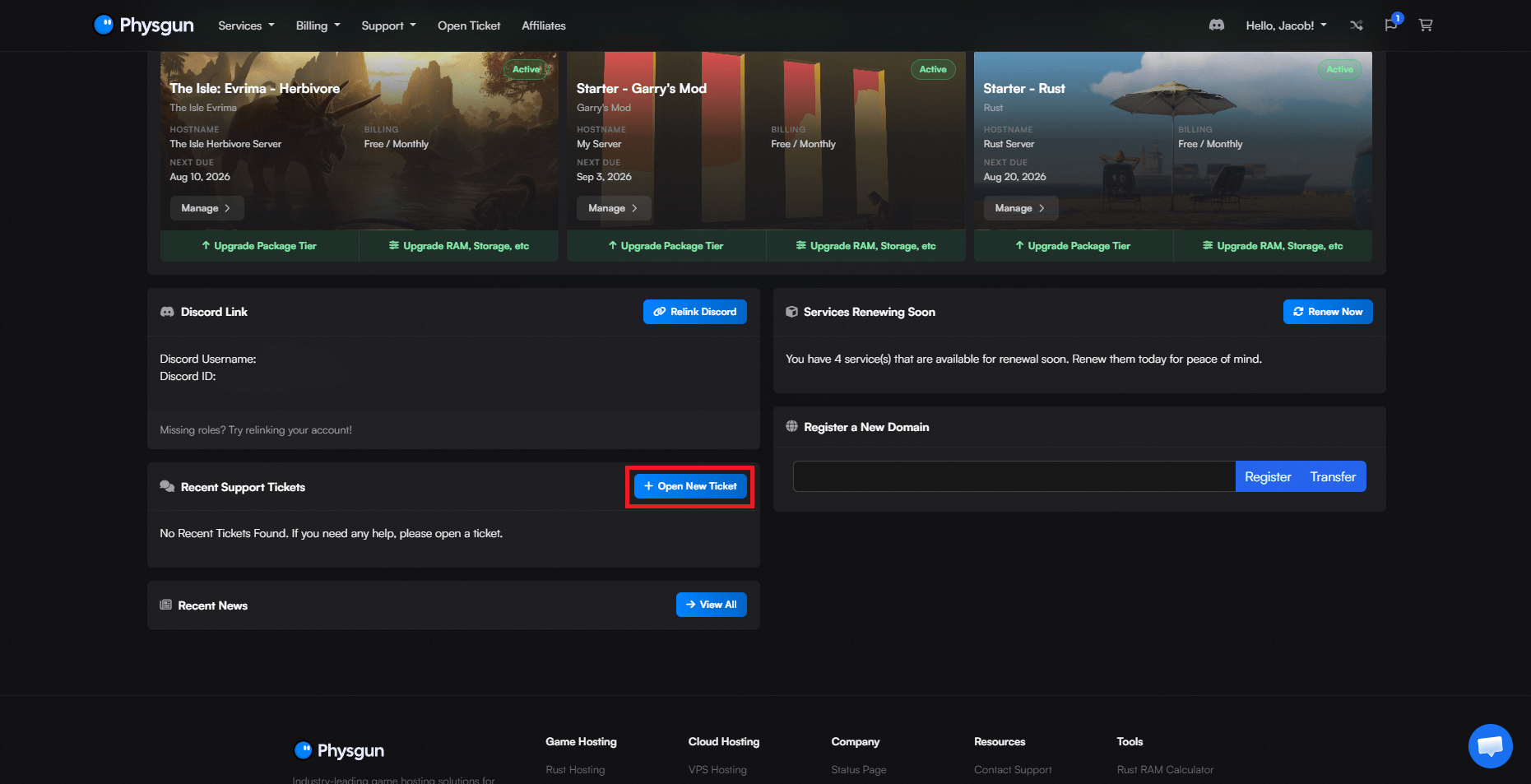
If at any point you run into problems while using your Physgun game panel, our support staff are happy to help. The best way to get help is to make a ticket so we can inspect your server using our own tools. You can create a ticket either through your panel at the very bottom of the navbar, or in your client area by selecting the Open New Ticket button.
Conclusion
Once you’re familiar with the Physgun panel, managing your server becomes quick and straightforward. Whether you’re making configuration changes, installing mods, scheduling automated tasks, or using advanced tools like VS Code integration and Rust God Tools, everything is designed to minimize the time you spend managing your server and maximize the time you spend playing.
As you become more comfortable with the panel, be sure to explore our dedicated knowledgebase articles for in-depth guides on individual features. And if you ever need assistance, the Physgun support team is only a ticket away.