







Our Git integration makes it easy to connect your server directly to a Git repository and manage your code without manually transferring files. You can clone repositories, pull updates, commit changes, and use other common Git tools directly from the File Manager.
This guide is intended for users who are already familiar with Git. If you’re new to Git, we recommend familiarizing yourself with the basics of repositories, branches, commits, and authentication before following this guide.
Connecting Your GitHub Repository
You can connect your GitHub repo directly through the File Manager.
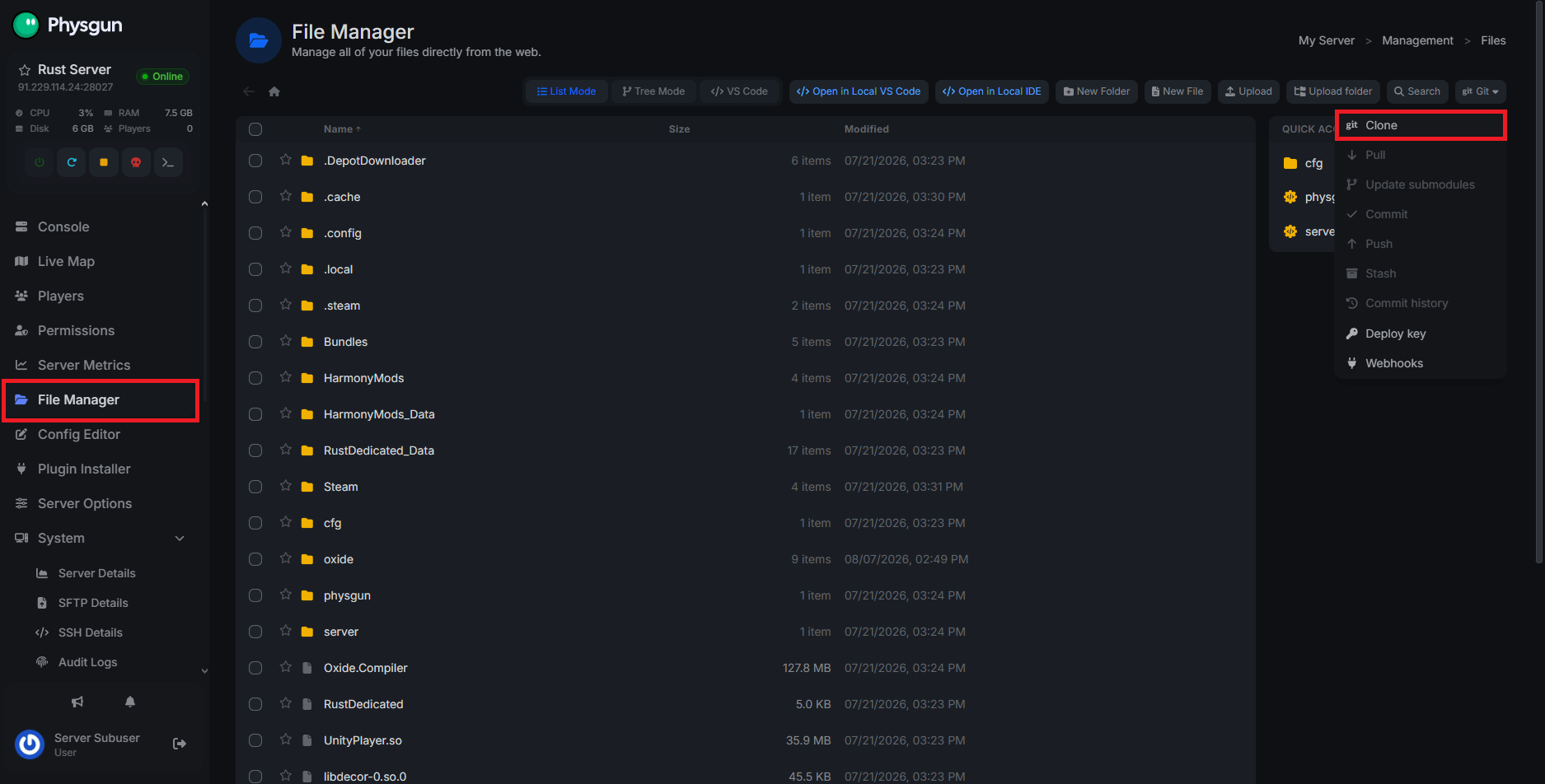
- In the File Manager, navigate to the Git dropdown menu in the top-right corner.
- Select Clone. This is where you can link your GitHub repository and connect it to your server.
- Paste your repo link and select the branch you want to clone.
- If your repository is private, mark the Private Repository option and follow the hyperlink to access your personal access token (PAT).
- If you would rather use a deploy key instead, you can do that as well.
- Next, tick the necessary options for your import. A shallow clone will only import the most recent commits. Single branch will only import the history of your chosen branch. The Clone Submodules option will ensure any submodules are imported alongside the repo.
File Manager Git Tools
In addition to the cloning feature, you also have access to the following options:
- Pull - Pulls the latest update of your GitHub repository and applies it to your cloned version.
- Update Submodules - Initializes and updates the repository’s submodules in the current directory.
- Commit - Commits your current changes.
- Push - Pushes your latest commits.
- Stash - Saves and archives your current changes into a “stash”.
- Commit History - Review your previous commits.
- Deploy Key - See your server’s SSH deploy key for you to add to GitHub, GitLab, or BitBucket.
- Webhooks - Create and manage your active GitHub and GitLab webhooks.
The Git Tab
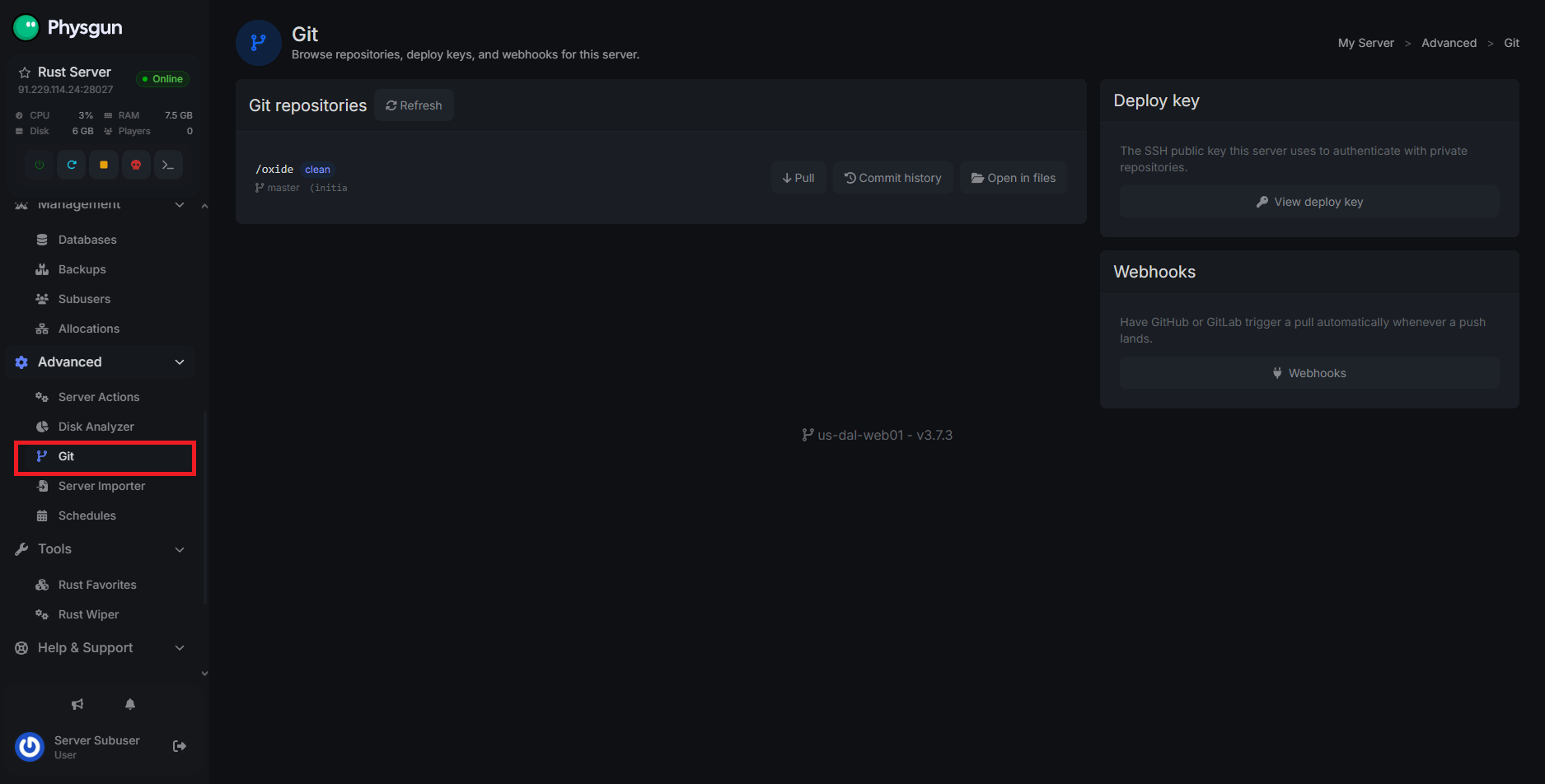
There’s one last thing to cover in the Git tools, and that’s the Git tab. Under the advanced category, you get access to a full dashboard that lets you easily access your server’s repositories, view your deploy key, and manage your webhooks.
You can pull, commit, and review your repositories from this dashboard as well.
Conclusion
With our Git integration, you can manage your server’s repositories directly from the panel without relying on external Git software for every task. From cloning a repository and pulling updates to managing commits, deploy keys, and webhooks, the built-in tools provide everything you need for a straightforward Git workflow.
Once your repository is connected, keeping your server’s files synchronized with your project becomes much simpler.