






Running out of storage can cause all sorts of headaches, from failed updates to an inability to upload new content. Fortunately, our Disk Analyzer makes it easy to see exactly what’s taking up space on your server, helping you quickly identify large files and directories that may no longer be needed.
In this guide, we’ll look at the most common causes of file bloat, how to navigate the Disk Analyzer, and the best practices for cleaning up your server without deleting important data.
What Often Causes File Bloat?
The usual culprits of file bloat depend heavily on your game. Generally, it comes down to old logs, backups, cache, and unused mods/assets.
In Garry’s Mod, the usual causes are the addon cache, stray BSP files from events, forgotten addons, and a buildup of console logs.
For Rust, it’s almost certainly old logs, demos, or player data from people who don’t play the server anymore.
To figure this out, the Disk Analyzer will tell you exactly what’s taking up all of your storage!
How to Use the Disk Analyzer Tool
Finding the Disk Analyzer
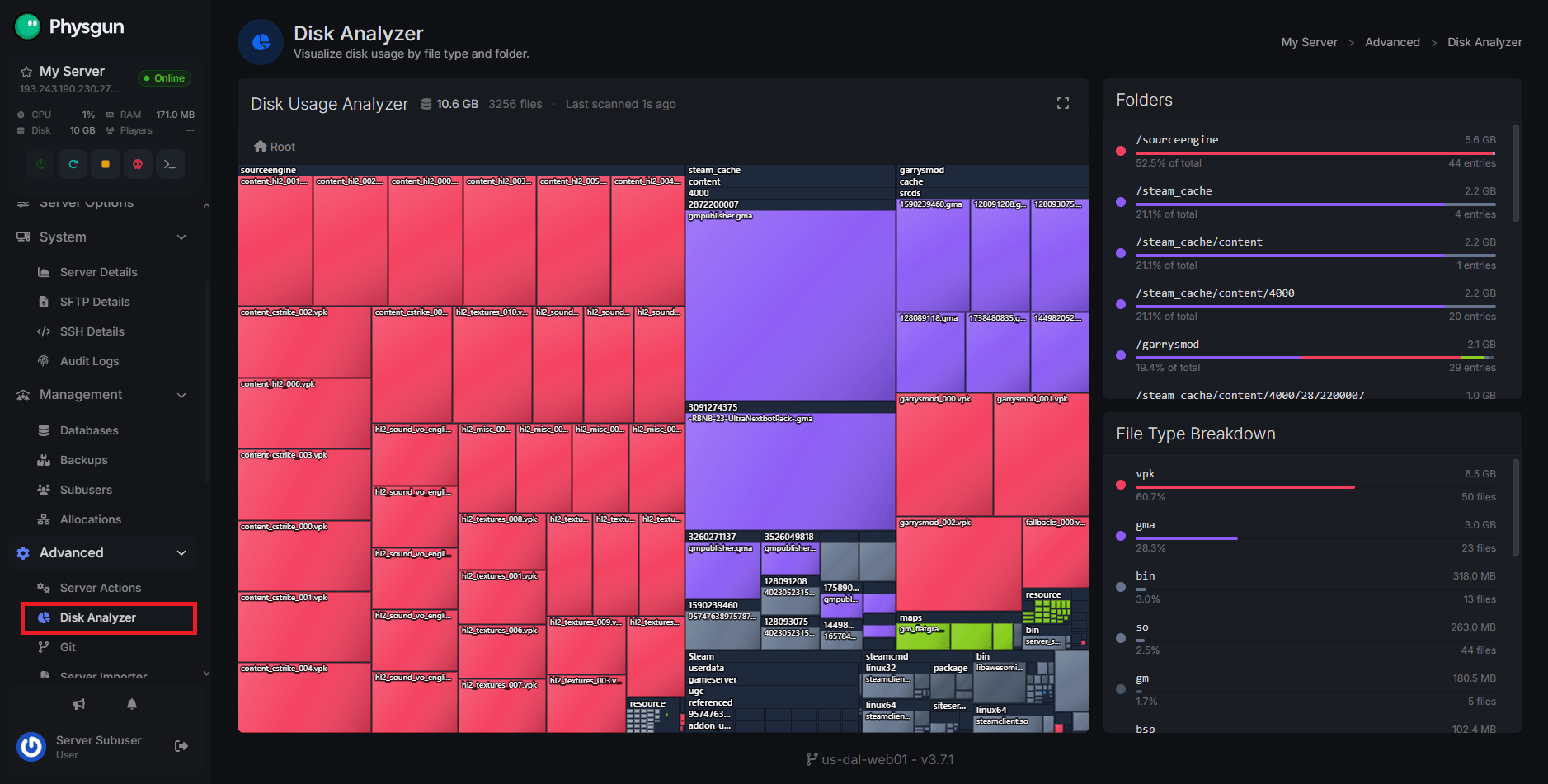
You can find the Disk Analyzer very easily. Just log in to your panel, scroll down to the Advanced Category, and select Disk Analyzer. That’s it!
Reading the UI
At first, the Disk Analyzer may seem a little overwhelming, but once you know what you’re looking at, it’s pretty simple.
The Disk Usage Analyzer is a visual representation of your largest files depending on the directory you select. The files all the way in the bottom right corner are the smallest, with the icons getting larger (along with the file size) as they progress to the top left corner.
The Folders box shows you the directories that take up the most storage, with the one on the top being the largest.
The File Type breakdown simply shows you what file types take up the most space.
Finding and Managing Files
When you first open the tab, the Disk Usage Analyzer will display all of the large files listed in the directories under the Folders list. You can click on these folders to get a better look at the files in that specific directory.
When you right-click a file, you’ll be given the following options:
- Edit - Opens a new tab with the file loaded in the editor.
- Download - Downloads the file directly to your PC.
- Rename/Move - Changes the name of the file. Typing a new file path will relocate the file. Keep in mind that this is relative to its current path.
- Duplicate - Creates an exact copy of the file in the same directory.
- Archive - Archiving a file will compress the file into a
.gzfile for later use. Keep in mind, this does not automatically delete the uncompressed file. You can restore an archived file by right-clicking it and hitting Extract. Again, this will not delete the compressed file.
Deleting vs Archiving
A good question to ask is “When should I be deleting files, and when should I be archiving them?” Well, the answer to that all comes down to how frequently a file is used and how necessary it is to keep.
A file that you never use that’s taking up a ton of space is better to delete. But if you frequently use a map or mod for events, but not all of the time, it may be better to archive it rather than having it sit around in your files.
You may also want to archive old logs, save games, or data files so they take up less space, but you still have them around for review and restoration. You should still delete the really old ones you’ll never use, though.
Conclusion
Regularly reviewing your server’s storage can help prevent issues before they become a problem. By using the Disk Analyzer to identify large files and cleaning up old logs, unused assets, backups, and other unnecessary data, you can keep your server running smoothly and leave room for future updates.
If you’ve cleaned up everything you no longer need and are still running out of storage, it may be time to upgrade your server’s storage plan to better accommodate your server and growing player base.