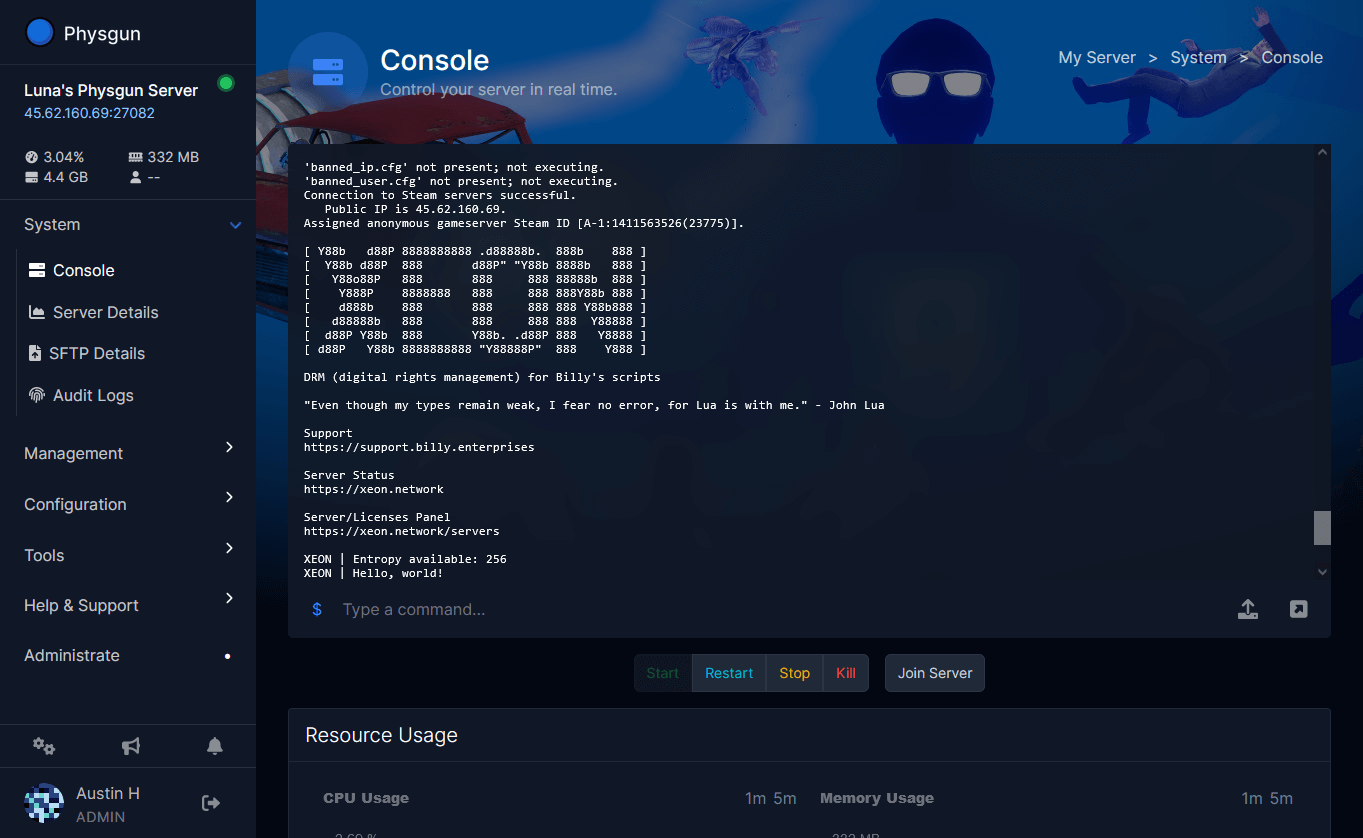








Visual Studio Code is a powerful code editor that makes managing server files faster and easier than a traditional file manager. Whether you’re editing configuration files, installing or modifying plugins, troubleshooting errors, or making changes to scripts, the integrated VS Code editor provides features like syntax highlighting, intelligent search, and multi-file editing to streamline the process.
In this guide, we’ll show you how to launch Visual Studio Code from the Physgun panel, edit your server files using its built-in tools, and even open your server directly in a local installation of VS Code or another supported IDE.
Launching Visual Studio Code in the Panel
Our integrated Visual Studio Code support allows you to modify everything locally or directly in the panel. To launch VS Code in the panel:
- Log into your Physgun game panel.
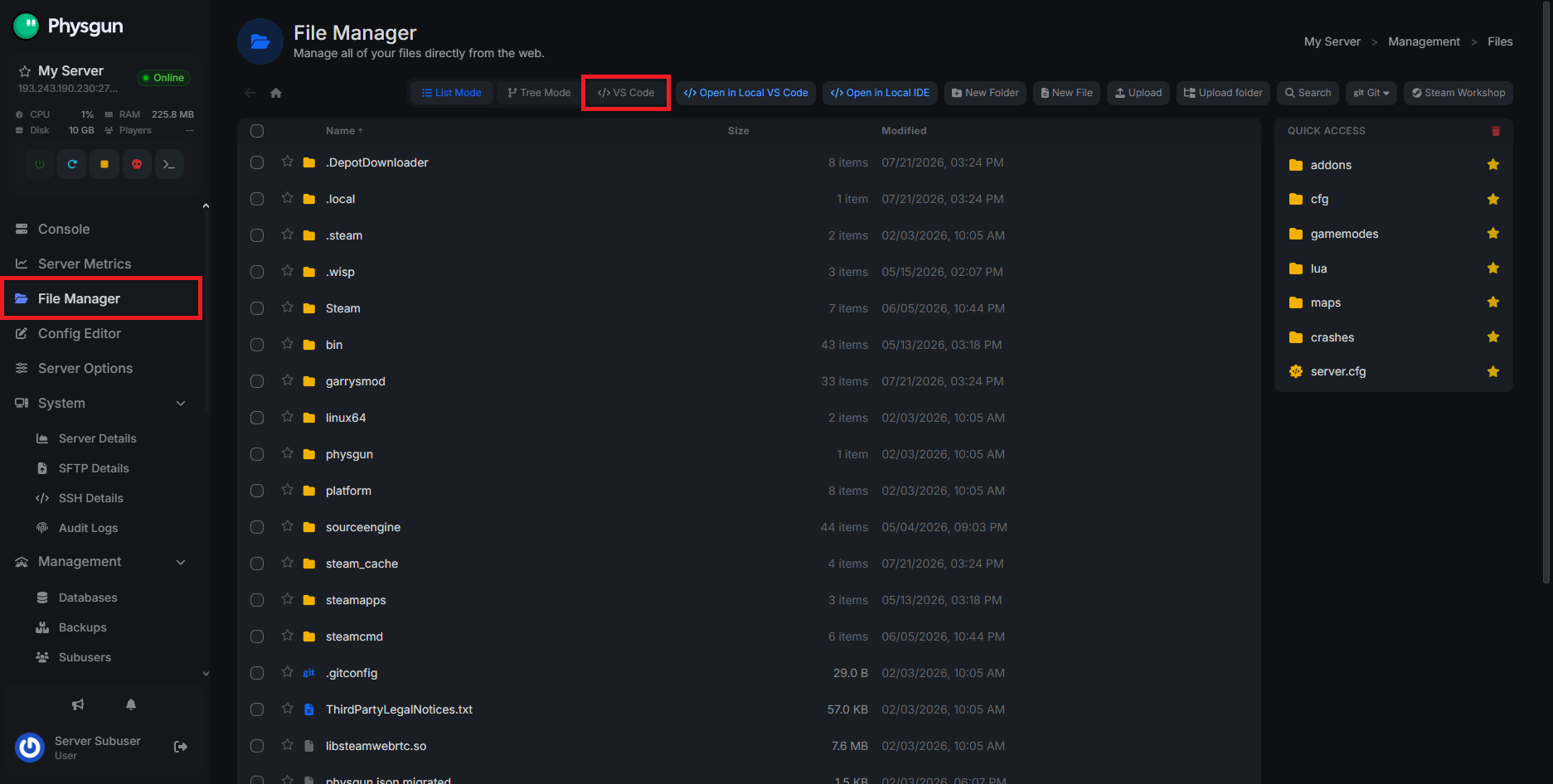
- Navigate to the File Manager tab.
- In the top toolbar, select the VS Code option.
- VS Code will automatically launch in the panel where your files once were.
- If you’d rather edit the files locally, you can select “Open in Local VS Code” or “Open in Local IDE”. Both of these will launch VS Code on your computer and open the necessary file.
Editing Files in VS Code
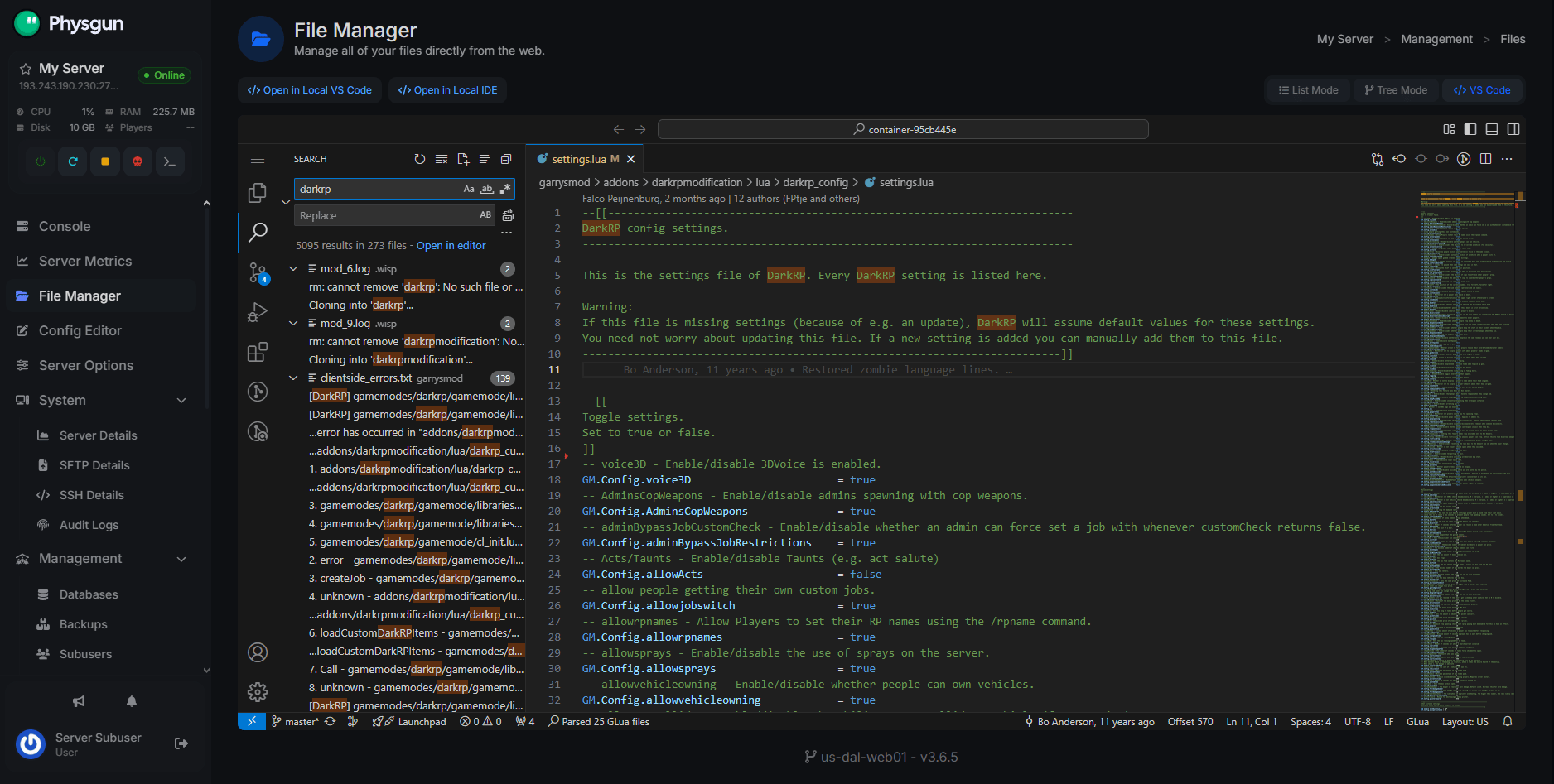
In Visual Studio Code, you can navigate your entire server directory in the left navbar. Treat it as you would your regular File Manager to find the files you want to edit. VS Code should automatically update to the coding language detected in the file. If you’re creating a new file, you’ll be prompted to select a language if necessary.
You can edit your file just like you would in the editor, but with access to all of VS Code’s integrated tools. If you need to find or replace different lines of code across several files, you can do so by pressing the magnifying glass icon in the left navbar.
Once you’re done, just press Ctrl + S to save the file and restart your server to apply your changes!
Conclusion
The integrated Visual Studio Code editor gives you a faster, more capable way to manage your server files without leaving the Physgun panel. With powerful editing tools and syntax highlighting, you can make everything from simple configuration changes to complex script edits with ease.
Whether you’re tweaking settings, updating plugins, or developing custom content, VS Code helps you work more efficiently while keeping your server files organized and accessible.