







The Config Editor provides a simple way to manage your server’s most common settings without digging through configuration files. Instead of manually editing files, you can change supported options directly from the Physgun panel, with your changes automatically synced to the underlying configuration files.
In this guide, we’ll explain how the Config Editor works, where to find it, and when you’ll need to switch to the File Manager for more advanced configuration.
What is the Config Editor?
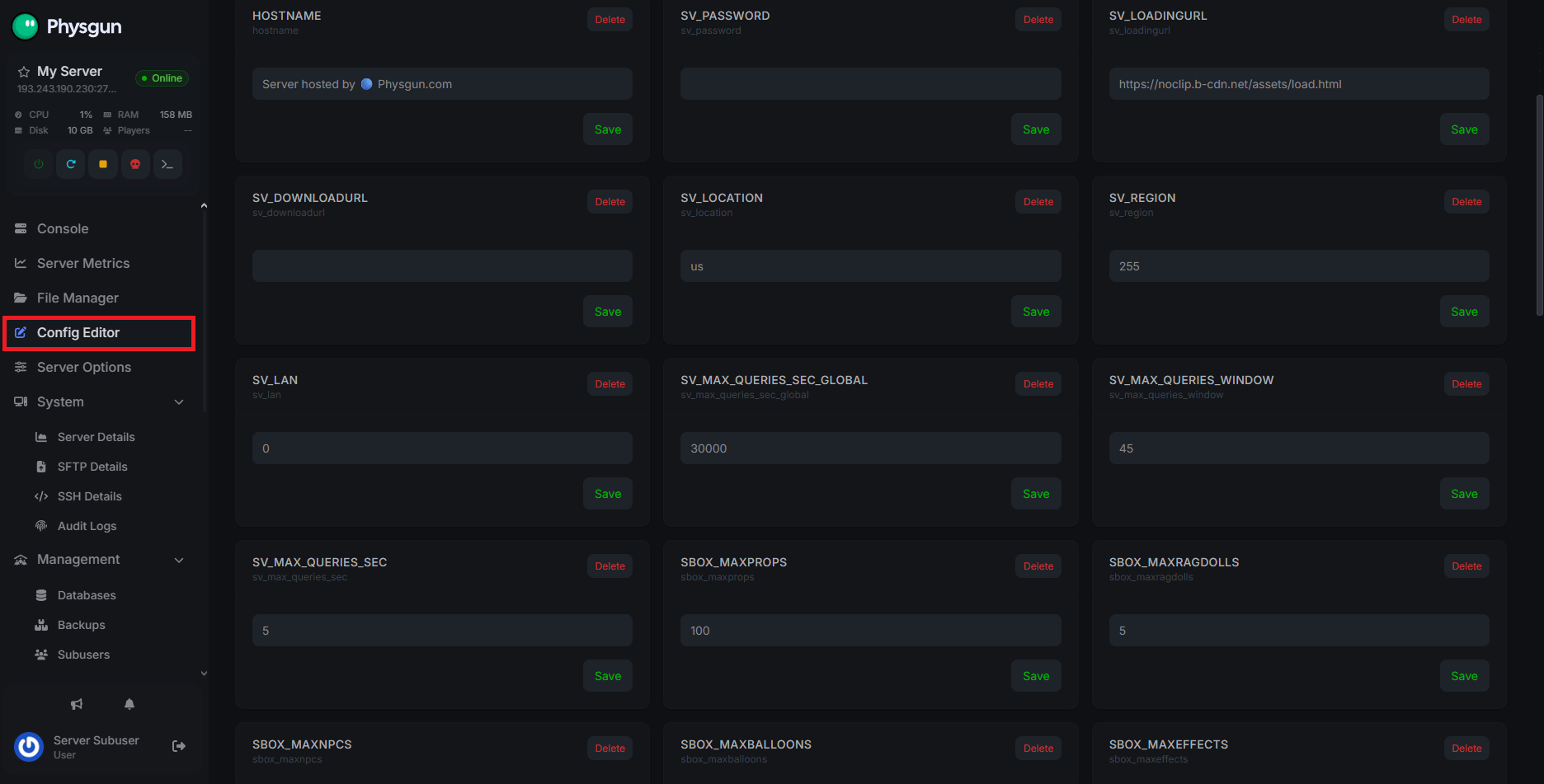
The Config Editor is our integrated game server settings manager. It connects directly to your server’s configuration files so you can customize without file hunting or trying to understand syntax in some cases. The config editor differs from game to game, but the premise is more or less the same.
Any changes you make in the config editor will automatically update their values in the raw config file. This works the other way around too, so you shouldn’t have to worry about keeping track of things in both places - just set it and be done.
IMPORTANT NOTE: Not all settings will be present in the config editor. This is for your basic server and game configuration. For example, you won’t see your DarkRP or Rust plugin settings here. Instead, you’ll need to dive into the File Manager or open up your files in VS Code.
Finding and Using the Config Editor
You can find the config editor directly in your panel. Just log in and scroll down to the Config Editor tab. Some settings may also be listed under Server Options depending on the game.
In these tabs, you’ll find a list of options for you to set their values. Some include text boxes, while others are toggle switches. If you’re unsure about what to put in each field, check your game’s wiki or pop in a support ticket - we’re happy to help!
MAKE SURE TO STOP YOUR SERVER BEFORE MODIFYING VALUES!
Troubleshooting
You can test your options by restarting your server and loading into the game. If it’s not working as intended, investigate the following:
- Make sure you stopped your server first. Configurations can corrupt or get overwritten if you don’t.
- Check to make sure what you put in each setting is correctly worded. Syntax errors can cause silent failures.
- Double-check to see if the options updated in the main file. If not, something is overwriting our editor.
If you’re unable to get things sorted yourself, open up a ticket.
Conclusion
The Config Editor is the quickest and easiest way to configure the most commonly used settings for your server. By providing a user-friendly interface that stays synchronized with your configuration files, it helps reduce mistakes while making routine server management much more convenient.
For more advanced configuration, plugin settings, or options that aren’t supported by the Config Editor, you can always use the File Manager or connect with VS Code to edit your server’s files directly.