If you manage multiple servers or frequently deploy the same firewall configurations, creating presets can save a significant amount of time. Instead of manually rebuilding your rules and filters for every new deployment, Physgun Firewall presets allow you to store your configurations and apply them whenever needed.
Whether you’re setting up a new VPS, migrating to a new dedicated server, or maintaining consistent security settings across multiple machines, presets provide a fast and reliable way to reuse proven firewall configurations. In this guide, we’ll show you how to create new presets from scratch and clone existing configurations from another server.
 Navigating Your Firewall Portal
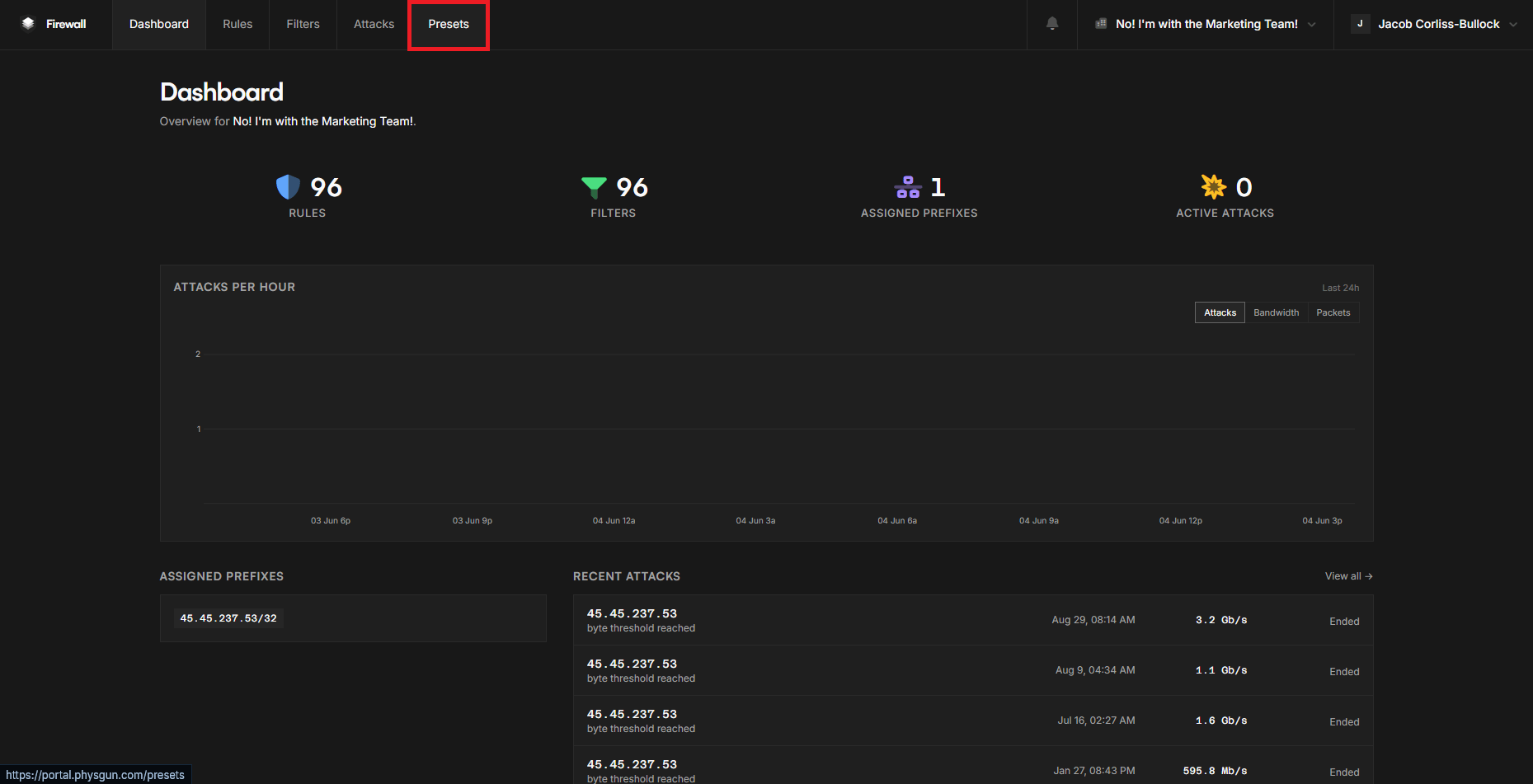
To start creating presets, you have to know where to look. Start by accessing your Firewall portal at https://portal.physgun.com. Once you’re in your portal, navigate to the Presets tab in the top-left navbar.
This page is where the magic happens. Here you can create new presets, modify existing ones, or delete the ones that don’t serve a purpose anymore.
Creating a New Preset
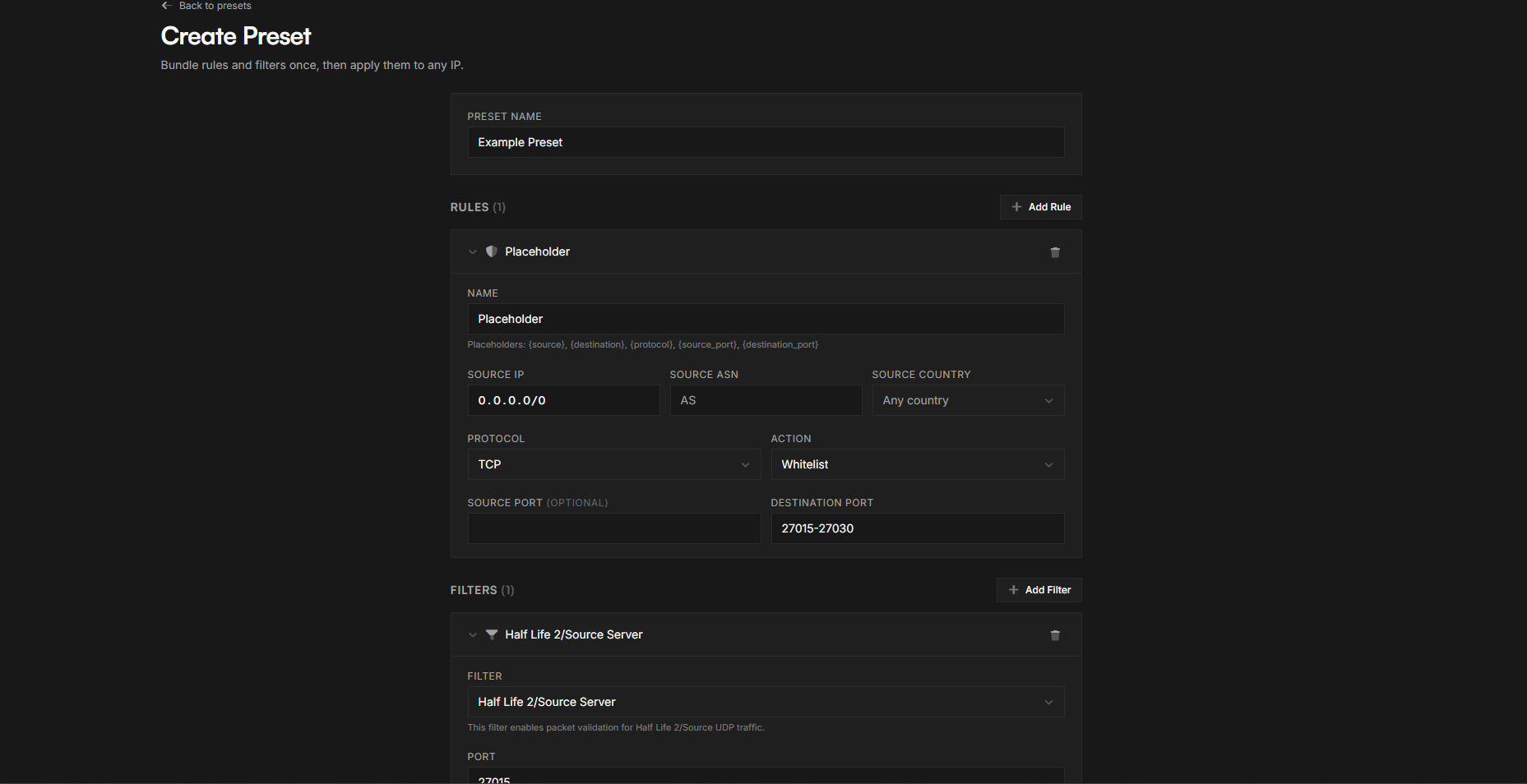
To create a new preset:
- Click on the Create Preset button.
- Give your preset a name. It doesn’t matter what you name it as long as you can remember what it does.
- Assign custom rules. This process is exactly the same as it is in the Rules tab on your portal.
- Next, assign any filters you want to use. Just like the rules, it’s the exact same process used in the Filters tab.
- Click Create Preset to apply your configurations.
If you don’t know how to set up Rules or Filters, check out our other articles in our Help Center. We go into it extensively.
Cloning a Preset from an Existing IP
If you have another VPS, Dedicated Server, or Colocation service and want to transfer a preset from there onto your new server, you can easily do that too!
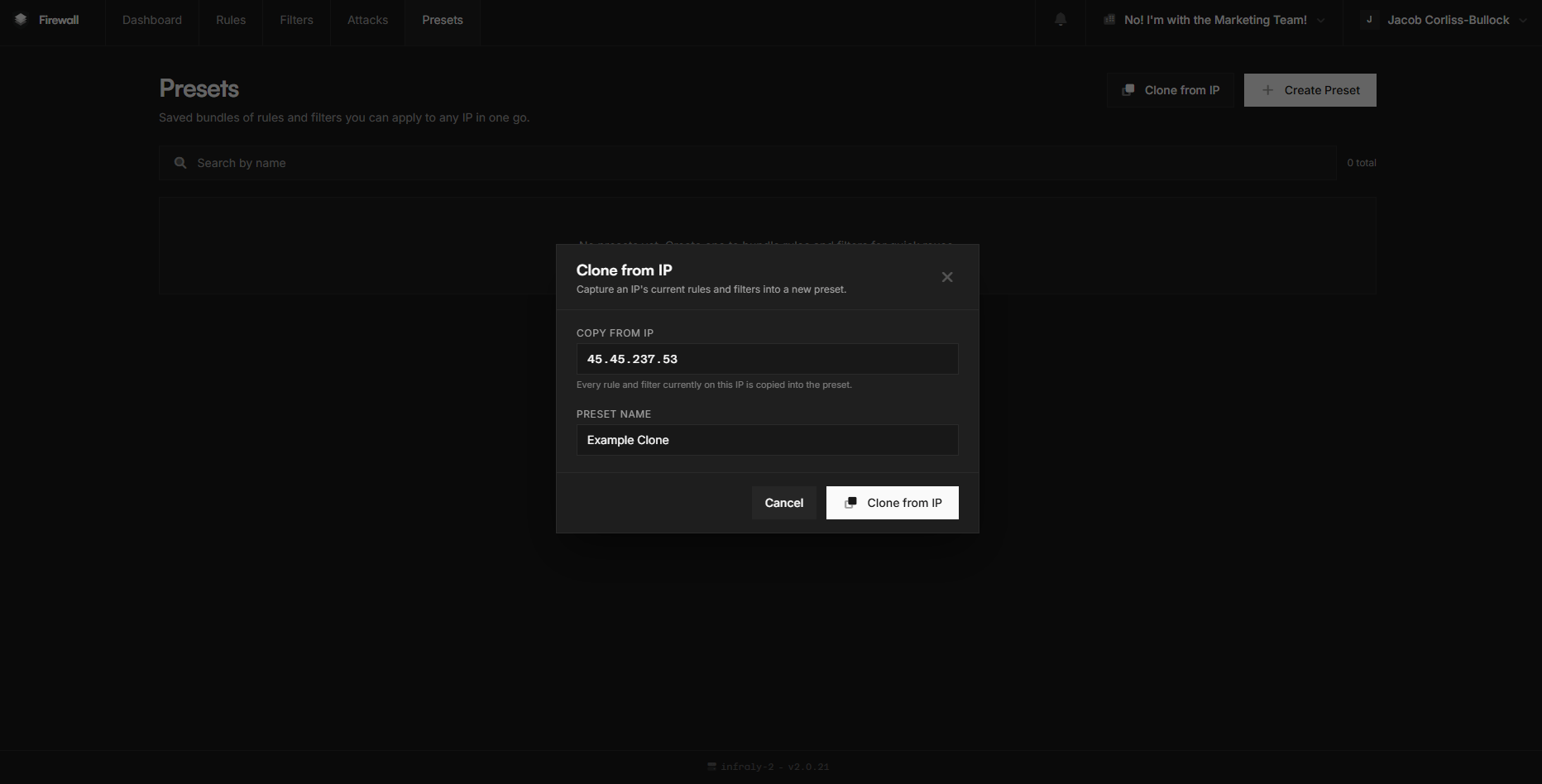
- In the Presets tab, click Clone from IP.
- Paste or select your other server’s IP address into the “COPY FROM IP” box.
- Give your preset a name.
- Click Clone from IP to import your new preset.
Conclusion
Firewall Presets are one of the easiest ways to streamline server management and maintain consistent security settings across your infrastructure. By saving commonly used rules and filters into reusable templates, you can deploy new servers faster while reducing the risk of configuration mistakes.
Whether you’re creating a preset from scratch or cloning one from an existing server, the Physgun portal makes it simple to build, store, and reuse your firewall configurations. With a library of presets ready to go, managing multiple servers becomes far more efficient and predictable.