Joining a Windrose dedicated server takes a few more steps than most co-op games — there’s no server browser to scroll through. Instead, you’ll need an invite code or direct connection details from the host, then enter them through the main menu to connect. Server passwords, port configuration, and DDoS protection settings can all affect whether you get in cleanly or hit a connection error. This guide covers how to join a Windrose server across every setup type, including self-hosted servers, dedicated servers, and servers running through a hosting provider.
Quick ways to connect
-
Invite code – the default method for most public and private worlds.
-
Direct IP – used when the host shares an address and port.
-
Managed hosting panel – providers like Physgun expose the code and extra controls.
-
Self‑hosted server – run the dedicated binaries on your own machine.
Locate the invite code
Through the Physgun control panel
-
Log into the Physgun Gamepanel.
-
Click the Windrose instance you own.
-
In the Server Information box, copy the alphanumeric string labeled Invite Code.
Tip: The code is case‑sensitive; a single wrong character prevents a connection.
On a self‑hosted server
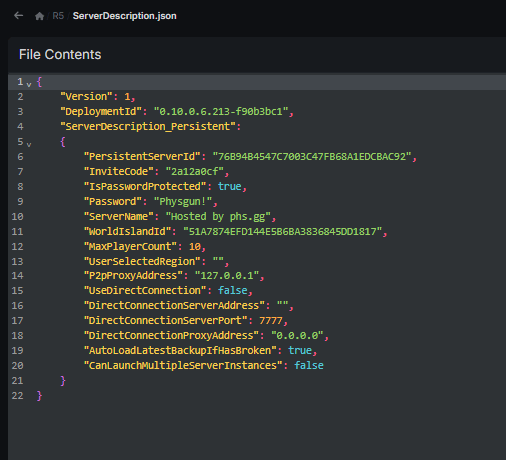
The code is written to ServerDescription.json in the root of the server folder.
/path/to/windrose/ServerDescription.jsonOpen the file with any text editor and look for the “inviteCode” field.
Joining with an invite code
-
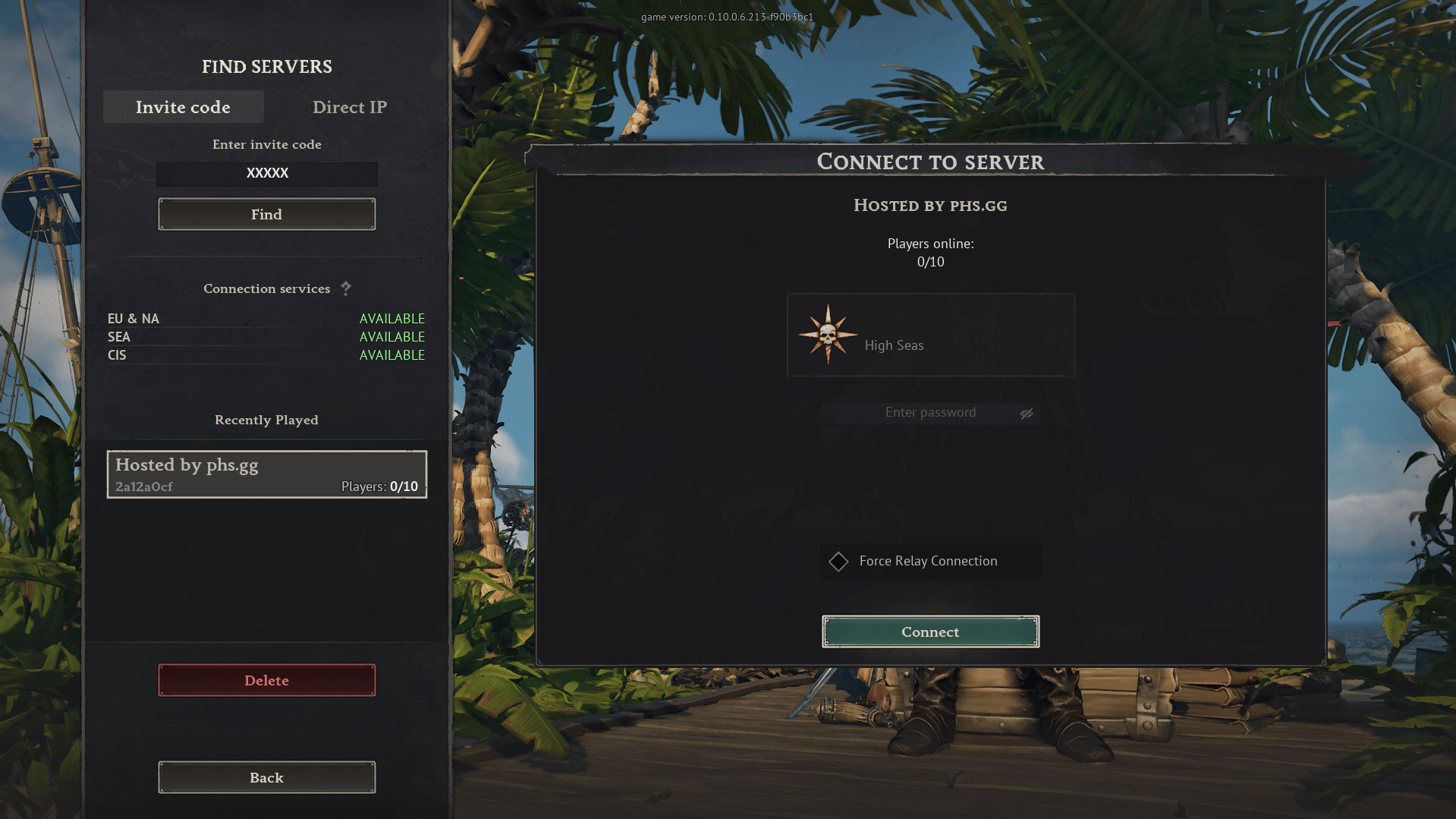
Start Windrose on your PC or console.
-
Open Play → Connect to Server.
-
Paste the invite code into the field.
-
Press Find and select the listed world.
-
Click Connect.
If the host is online and both sides run the same game version, you’ll drop straight into the shared world.
Connecting via direct IP
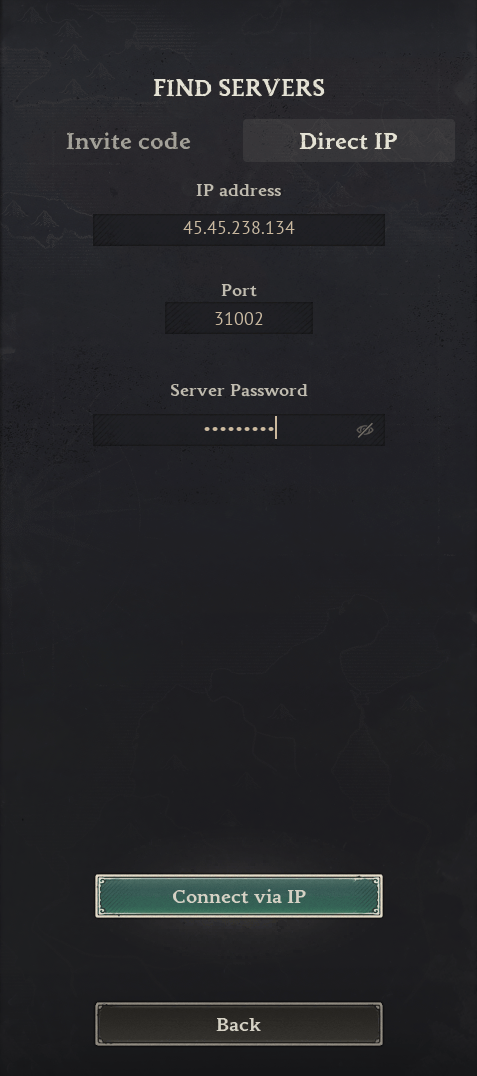
Some dedicated hosts publish an address and port, especially when NAT punch‑through fails.
-
In the same Connect to Server menu, choose Direct IP.
-
Enter IP_ADDRESS:PORT (e.g., 123.45.67.89:27015).
-
Hit Connect.
Make sure the host has opened the port in any firewall or router settings; otherwise the client will time out.
Dedicated hosting options
Managed providers
Physgun will spin up the Windrose binaries for you, handle DDoS protection, and keep the network stack configured. Ideal for:
-
Persistent worlds that run 24/7.
-
Groups larger than four players.
-
Users who prefer a web UI over command‑line fiddling.
Self‑hosting
Running the server yourself gives total control but adds responsibilities:
-
Install SteamCMD or use the Steam Tools tab in your library.
-
Download the Windrose dedicated server files.
-
Launch with the supplied batch script:
StartServerForeground.batThe console shows live logs, the generated invite code, and any port information. Save data resides in R5/Saved/SaveProfiles; back this folder up before applying updates.
Common pitfalls
-
Wrong code – double‑check case and spacing.
-
Version mismatch – a client on 1.2 cannot join a server on 1.3.
-
Firewall blocks – Windows Defender or router NAT may need a rule for the server’s port.
-
Insufficient hardware – large oceans and many ships tax CPU and RAM; allocate at least 2 GB per 8 players.
-
Forgot to restart – changes to JSON files only apply after a full server stop/start cycle.
Troubleshooting checklist
| Symptom | Quick fix |
|---|---|
| Invite code rejected | Re‑copy from panel, ensure case matches, confirm server is online |
| Infinite loading screen | Verify both sides run same version, restart client and server |
| Direct IP times out | Open port in router/firewall, test with ping or telnet |
| Players can’t see each other | Check maxPlayers setting, ensure world isn’t locked by password |
FAQ
Do I need to port‑forward?
Usually not. The invite‑code system uses NAT punch‑through, but direct IP connections do require the host to forward the server port.
Can I host on my own PC?
Yes. Use SteamCMD or the Steam Tools to install the dedicated server, then run StartServerForeground.bat.
Where is the invite code stored?
In ServerDescription.json under the “inviteCode” key.
Why can’t my friends join?
Common reasons are a mistyped code, firewall blockage, or mismatched game versions.
Is there a limit to players?
The default is 8, but you can raise it in ServerDescription.json as long as the host’s hardware can handle the load.
With the code in hand and the correct connection method chosen, you’ll be sailing the seas of Windrose alongside your crew in minutes. Happy sailing!