
When a player clicks your server in Rust’s in-game server list, the details panel shows your header image above the description. Your logo is the server’s icon in the details and in the Rust+ app once a player pairs with your server. A good header and logo make your server look looked-after before anyone joins.
Before you start, have your two images ready. You can make them in any image editor:
| Image | Shape | Size | Format |
|---|---|---|---|
| Header | 2:1 (twice as wide as tall) | 512x256 (1024x512 also works) | PNG or JPG, under 2 MB |
| Logo | Square | 256x256 | PNG or JPG, under 2 MB |
PNG is the safest choice for both. Rust shows the logo as a circle, so keep anything important away from the corners.
Upload your logo
- Open your server in the Physgun Gamepanel and select Server Options in the menu on the left.
- Stay on the Startup Parameters tab and type
Logoin the search box. The Server Logo Image setting shows. - Under Custom Image Upload, drag your logo onto the box, or click it and browse to the file.
- Select Upload.
When the upload finishes, you see Custom image upload complete!, a preview of your logo, and the image’s link in the field (it starts with https://rust-server-images.physgun.com/). The upload saves right away, so there is no save button to press.
Leave the OR enter a Custom Image URL… box empty. The upload fills in the link for you and hosts the image, so you don’t need an image host of your own.
Upload your header image
- Clear the search box and type
Header. The Server Header Image setting shows. - Under Custom Image Upload, drag your 2:1 header image onto the box, or click it and browse to the file.
- Select Upload and wait for Custom image upload complete!, the preview and the link.
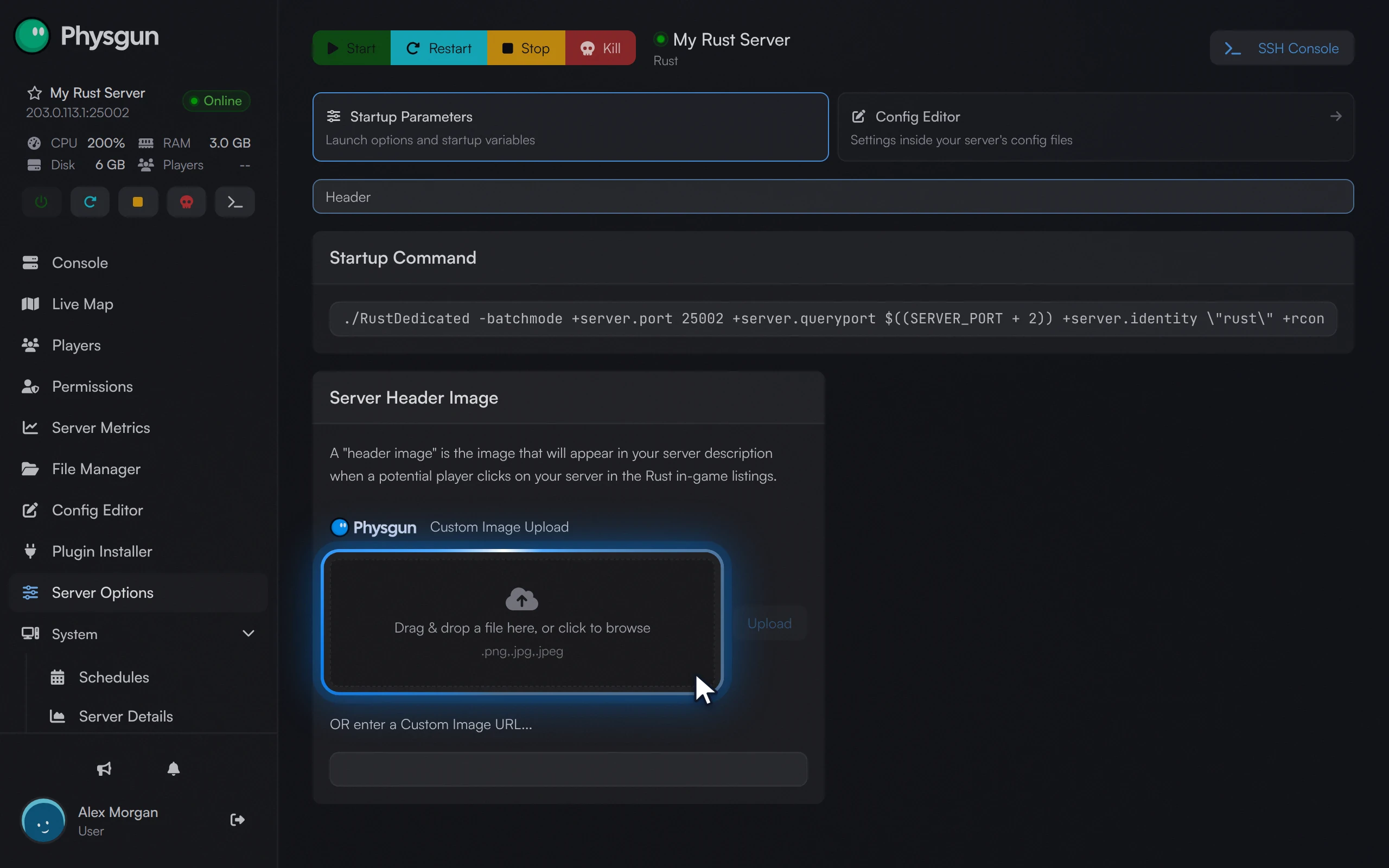 Choose your header imageDrop a 2:1 PNG or JPG, such as 512x256, onto Custom Image Upload.
To change an image later, upload a new file in the same place. The new file replaces the old one.
Restart the server
Your server only loads the new images when it starts, so restart it now.
- Select Console in the menu on the left.
- Select Restart at the top of the page.
- Select Yes, Restart Server to confirm.
- Wait until the server shows Online again.
Check the images are set
Once the server is back online, you can ask it which images it is using.
-
In the console, type this in the command box and press Enter:
server.logoimage -
Then type this and press Enter:
server.headerimage
Each command prints the link to the image you uploaded, for example server.headerimage: "https://rust-server-images.physgun.com/...". If you paste a link into your browser, it opens the image.
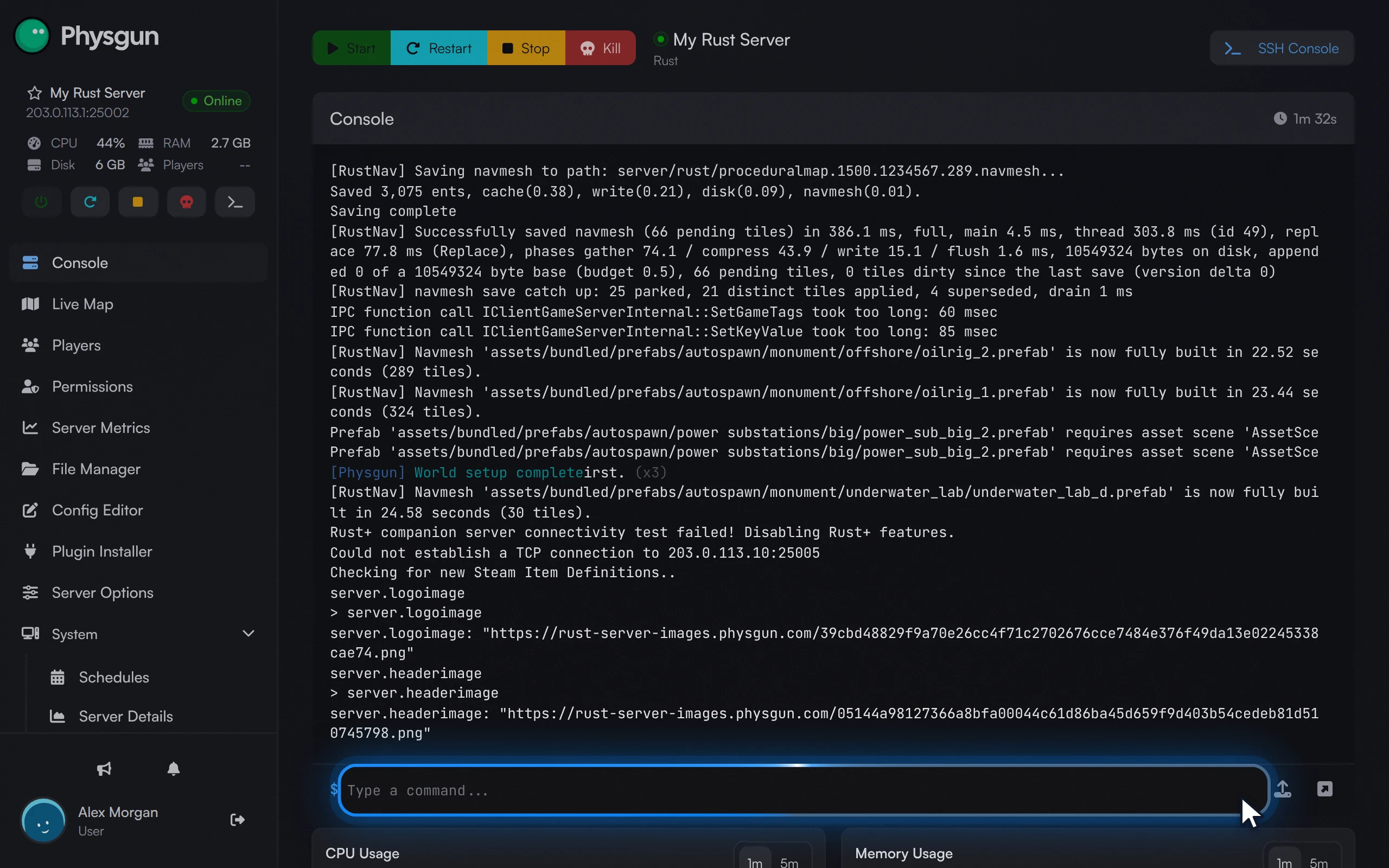 Read the header linkPress Enter to see the link to your uploaded header image.
To see the result in the game, open Rust, find your server in the server list and click it. The header image shows in its details. The server list can take a few minutes to pick up the change, so give it a moment if you still see the old picture.
Setting the images without the panel upload
The manual way works on any Rust server, as long as you host the images yourself at a public link. The link has to open the image file itself, not a web page about it, and must not need a login.
You can set the images from the console while the server is running:
server.headerimage "https://example.com/header.png"
server.logoimage "https://example.com/logo.png"
On a Physgun server, a value set this way only lasts until the next restart, because the images saved in Server Options load again every time the server starts. Use the upload above to keep your images.
On other servers, you can keep the same two lines in your server’s server.cfg file, in the cfg folder of your server’s identity folder (for example server/rust/cfg/server.cfg), and restart the server.
If the images don’t show
- You haven’t restarted yet. The upload saves straight away, but the server only uses the images after a restart.
- The server list hasn’t caught up. The in-game list can take a few minutes to show a new header. Close the server’s details and open them again.
- The size or shape is off. Rust is strict about images. Use exactly 512x256 for the header and 256x256 for the logo, and try a PNG if a JPG doesn’t show.
- The upload didn’t finish. If you don’t see Custom image upload complete! and the field stays empty, check that your file is a PNG or JPG under 2 MB and upload it again.
- The console prints an old link. Run
server.headerimageorserver.logoimageagain after the restart. If the link still doesn’t match, go back to Server Options, check the link in the field and restart once more. - The logo doesn’t show in Rust+. The logo appears there only once Rust+ works on your server and a player has paired with it.