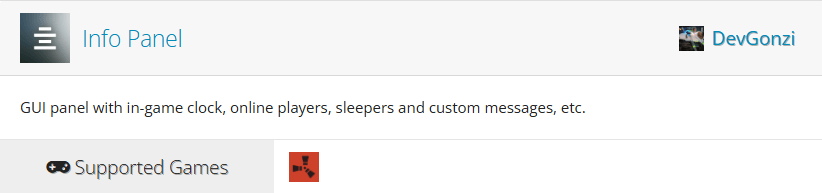
The Info Panel plugin is one of the most popular UI plugins available for Rust servers, giving players constant access to useful information without cluttering the chat. Whether you want to display server announcements, online player counts, event notifications, clocks, or other helpful widgets, Info Panel makes it easy to create a fully customizable and professional-looking interface that enhances the player experience.
In this guide, we’ll walk through installing the plugin, explain the available configuration options, and cover the in-game commands players can use to customize how the information panel is displayed.
 Installing the Plugin to Your Rust Server
The first thing you’ll need to do is install the plugin to your server. To do so:
-
Visit umod.org and navigate to the plugin’s page.
-
Click download. You’ll get a CS file that you’ll be adding to your server.
-
Open your server files using the Physgun File Manager, SFTP/FTP, or your File Explorer depending on your hosting method.
-
Drop the CS file into the oxide/plugins directory.
-
Either restart your server or run
oxide.reload InfoPanelin the console.
Info Panel Configuration
In the InfoPanel JSON file under the oxide/config directory, you’ll find all of the Info Panel configuration settings. Open the file using a text editor or the Physgun File Manager. Config options include:
-
Compass Directions - Here you can modify the language used on the compass. This is disabled by default due to new compass features, so it’s mostly obsolete. This can be enabled and modified if you’d like, however.
-
Docks - Docks allow you to define different screen space locations to put your different UI elements. Update the anchor, height, width, and margins of each of these dock presets.
-
Messages - Set up custom messages to display at the top of the player’s screen. For example, you could include some advertisements, your community website, or game tips.
-
Panels - Panels are the bulk of the UI elements. Here you can modify the appearance of each information panel, including event notifications, the compass, player counts, etc. The panels also offer compatibility with other plugins that offer daily rewards and an economy plugin.
Using Info Panel In-Game
Info Panel, for the most part, works entirely on its own. All information will be displayed automatically and updated when certain notifications need to be given. However, there are a few chat commands to be aware of:
-
/ipanel- Shows a list of available commands. -
/ipanel hide- Hides the info panel. -
/ipanel show- Shows the info panel while it’s hidden. -
/ipanel clock game- Set the clock to show in-game time. -
/ipanel clock server [/-hours]- Set the clock to show IRL time with the option to add or remove hours. -
/ipanel timeformat- Show available time formats. -
/ipanel timeformat [format]- Select a format from the list printed from the previous command.
Conclusion
Info Panel is an excellent addition to almost any Rust server, providing players with important information at a glance while giving administrators extensive customization options. From rotating announcements and customizable layouts to clocks, event notifications, and player statistics, the plugin can be tailored to fit virtually any community.
After installing the plugin, spend some time configuring the panels and messages to match your server’s style. A well-designed information panel helps keep players informed, promotes your community, and creates a more polished experience for everyone who joins.
If you’re encountering any errors, feel free to visit the plugin forums or ask around on our Discord server. There are plenty of knowledgeable people within the Rust community who can help.