

Rust God Tools is Physgun’s all-in-one administration suite designed to make managing your Rust server faster, easier, and far more intuitive. Instead of memorizing console commands or logging into the game to perform administrative tasks, you can monitor your server, manage players, inspect bases, and create events directly from your Physgun panel.
In this guide, we’ll walk through every major feature of Rust God Tools, including the Live Map, player management, Base Inspector, and Entity Painter. We’ll also show how these tools can be used in real moderation scenarios, from catching cheaters to hosting live server events and cleaning up abandoned or rule-breaking bases.
What is Rust God Tools?
Rust God Tools is Physgun’s in-house administration system that allows you to manage players, bases, and events right from your panel. God Tools replaces the need for remembering console commands and their syntax with a user-friendly interface. No need to load into the game either!
Available Tools
Rust God Tools includes:
- A Live Map with several methods of navigation, monument markers, integrated compass, and real-time updates of your players.
- An entire player management tab where you can manage their inventory, take administrative actions, or just troll and abuse your powers if that’s what you wanna do.
- A base inspector, allowing you to inspect and destroy bases.
- Entity Inspection, where you can review inventories, interaction history, shops, and more.
- An entity painter tool that allows you to spawn various entities for live events!
How to Use God Tools
Live Map
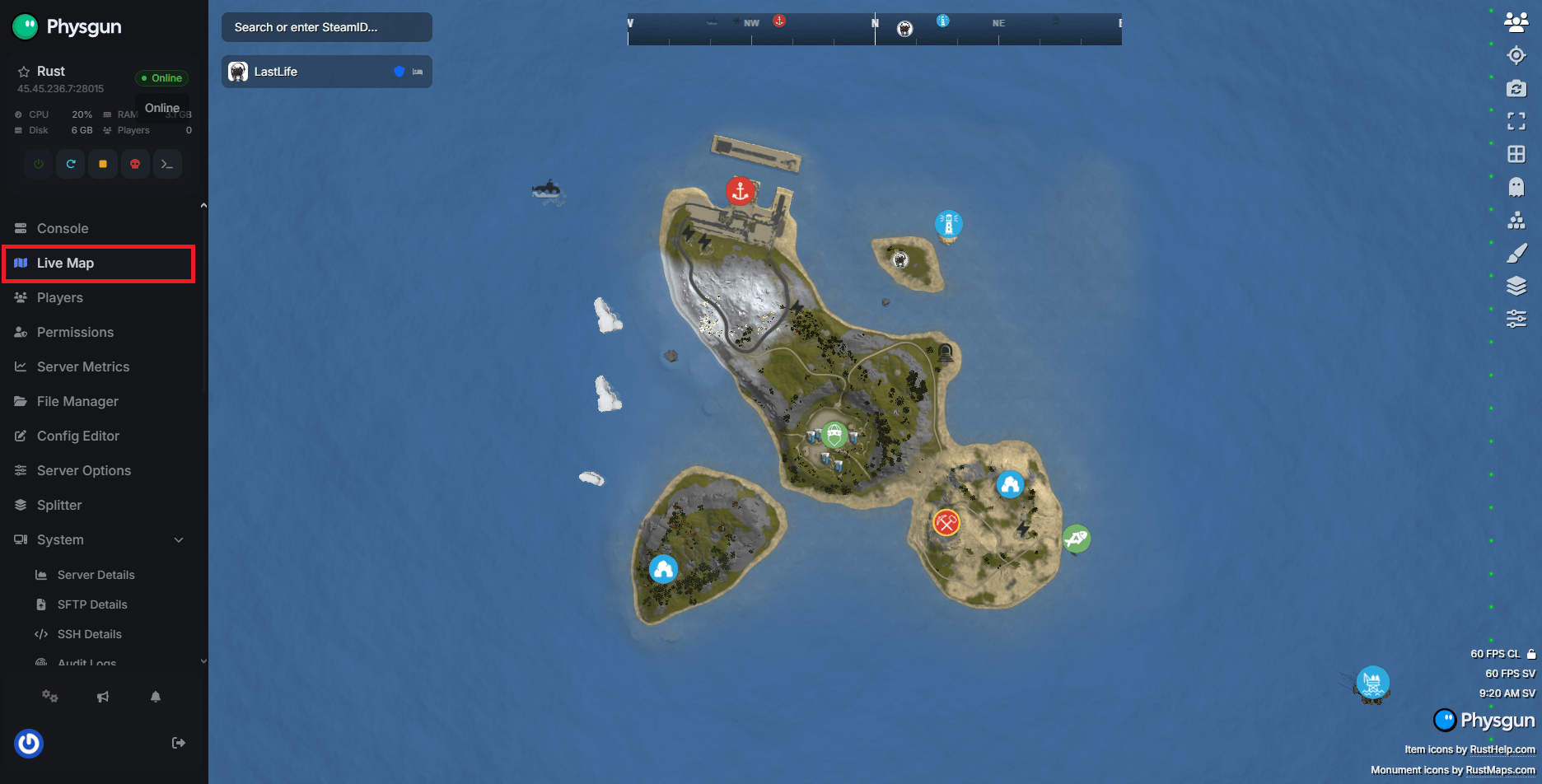
The Live Map is the core of Rust God Tools. It gives you an omniscient view of your server as you prepare to smite your players from the heavens. Or, I guess you could just moderate them too if you’re no fun.
In the Physgun panel, you’ll see the Live Map tab in the left navbar. Immediately, you’ll be presented with a real-time preview of your server. You can use the scroll wheel to zoom in and out, left-click and drag to pan the camera horizontally, click your scroll wheel down and drag to pan the camera vertically, and right-click and drag to rotate your view.
In the top-right corner, you’ll find a list of icons. These are all the tools you have access to. These icons include (from top to bottom):
- Players - Toggles whether or not players should be shown.
- Jump to Position - Allows you to jump to a specific coordinate on the map.
- Reset Camera - Brings you back to a centered top-down view of your map.
- Fullscreen - Toggles fullscreen.
- Map Grid - Toggles the map grid boxes.
- Noclip - Changes your camera behavior to reflect a noclipping player. You can hot-swap between regular and noclip navigation by pressing Space.
- Base Inspector - Toggles the Base Inspector. More on that later.
- Entity Painter - Toggles the Entity Painter. Again, more on that later.
- Map Layers - Allows you to toggle the visibility of certain parts of the map preview, such as trees, tunnels, rocks, and heatmaps.
- Modes and Tools - Gives an alternative method for enabling different views and modes. This menu also offers toggling day/night cycles, screen recording, and downloading map data.
Additionally, you can right-click anywhere on the map to teleport to that location or trigger events like supply drops, MLRS strikes, or just to drop a bee grenade on your players. Seriously, the admin abuse potential is endless, but we would never condone that. 
Player Management
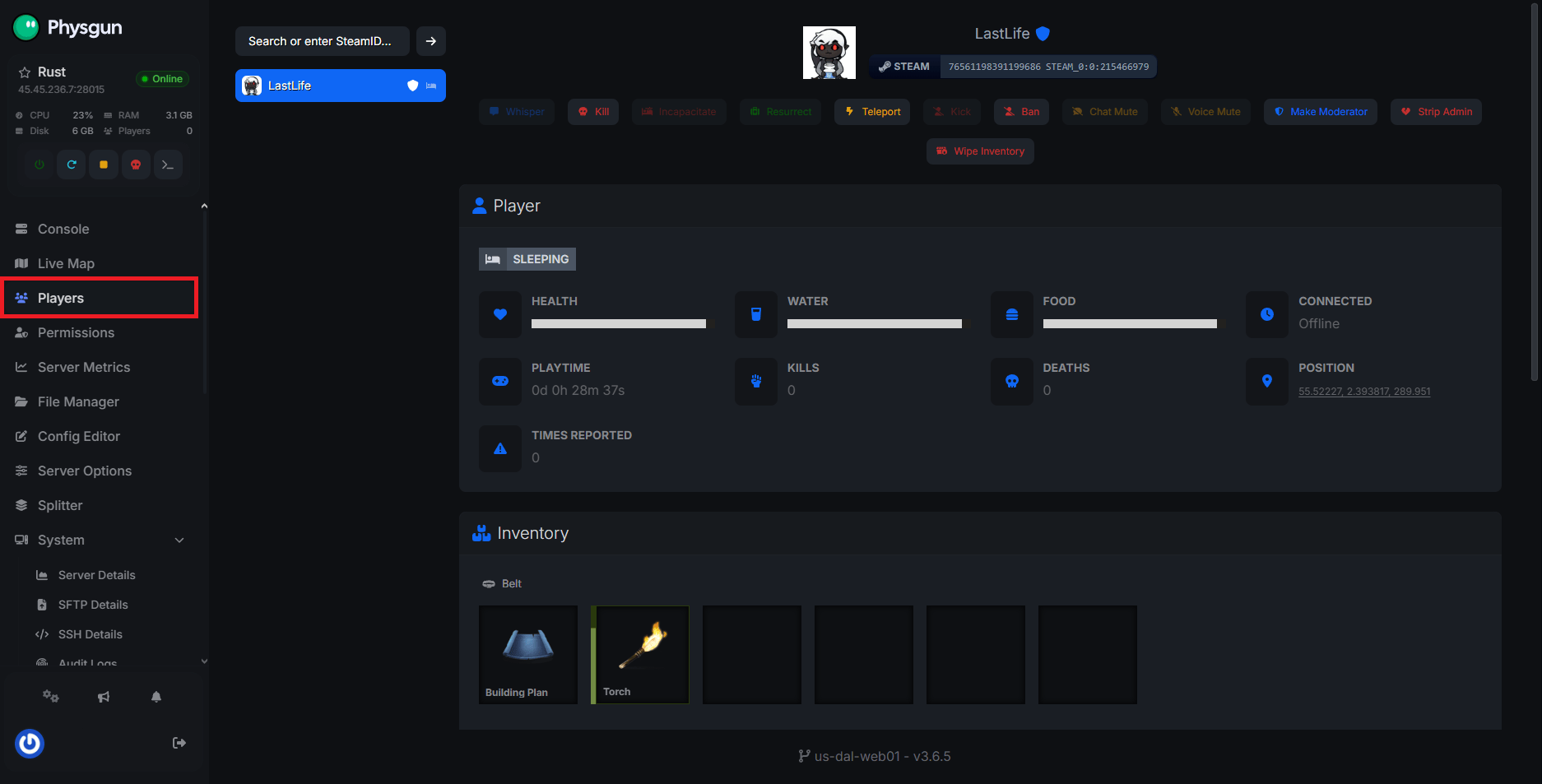
Rust God Tools also includes in-depth player management tools. You can access this by either right-clicking a specific player or by finding them in the Players tab in your panel.
After selecting a player, you’ll be given tons of information about them, including their Steam ID, stats, playtime, kills, deaths, location, report history, and inventory.
You can use the sliders to adjust their health, water, and food bars, or click the items in their inventory to remove, transfer, or relocate them. By clicking an empty inventory space, you’ll be prompted to add items to their inventory as well.
At the top, you’ll find a list of quick commands. These include:
- Whispering directly to the player.
- Killing the player.
- Incapacitating the player.
- Reviving the player.
- Teleporting the player to another location.
- Kicking or banning the player.
- Muting the player.
- Updating the player’s admin permissions.
- Wiping the player’s inventory.
Base Inspector
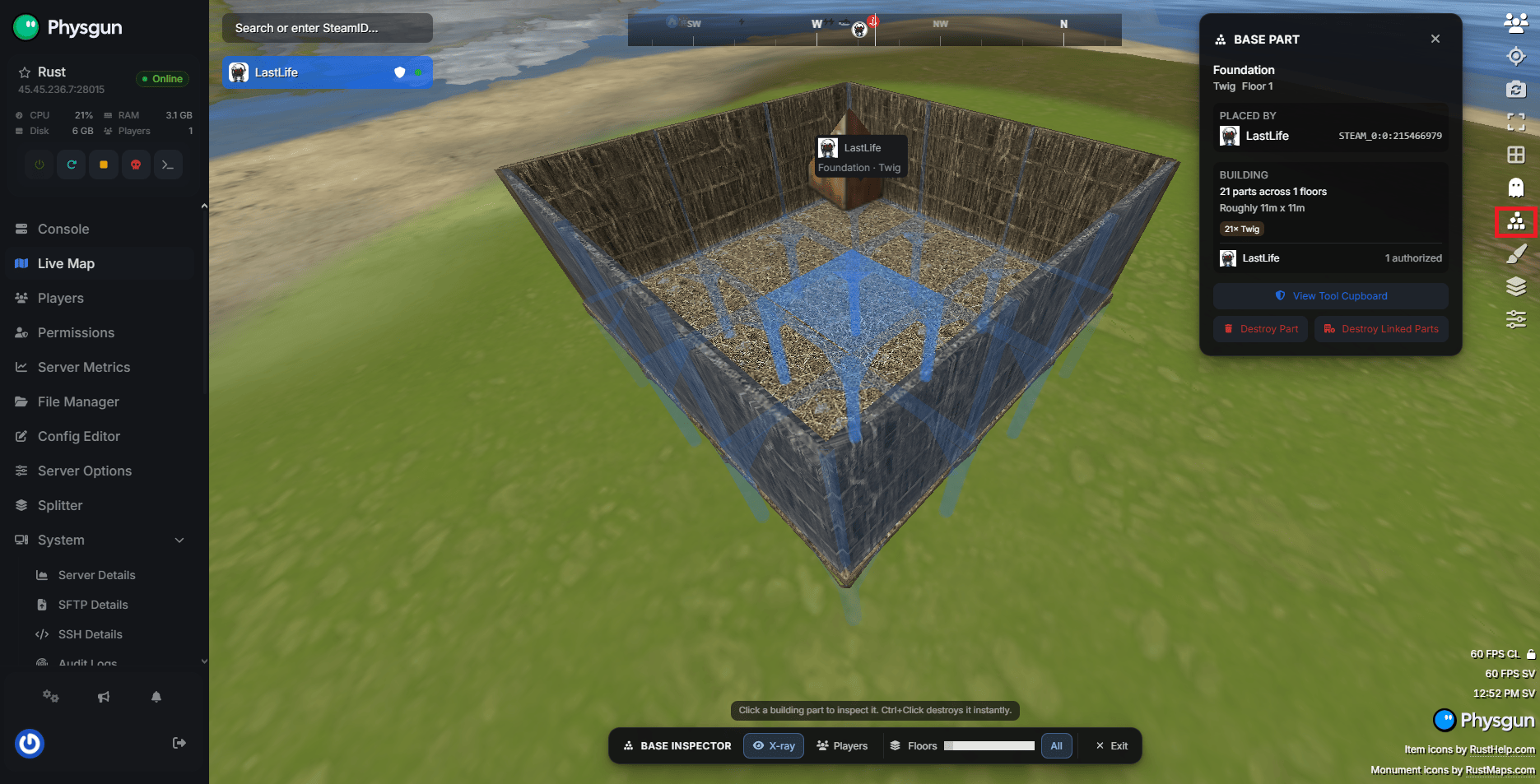
The Base Inspector tool allows you to check the metadata of different buildings, the overall information of a base, inspect tool cupboards, and destroy part of or entire bases.
By selecting the Base Inspector icon in the live map, you’ll enter Base Inspector Mode. Building items will be highlighted, and when you click them, you’ll be given all of the necessary information. In the popup, you have the option to view the tool cupboard that the building is connected to, or destroy the building.
When inspecting a tool cupboard, you can adjust the cupboard’s authorizations, destroy it, or destroy the entire base connected to it.
Entity Painter
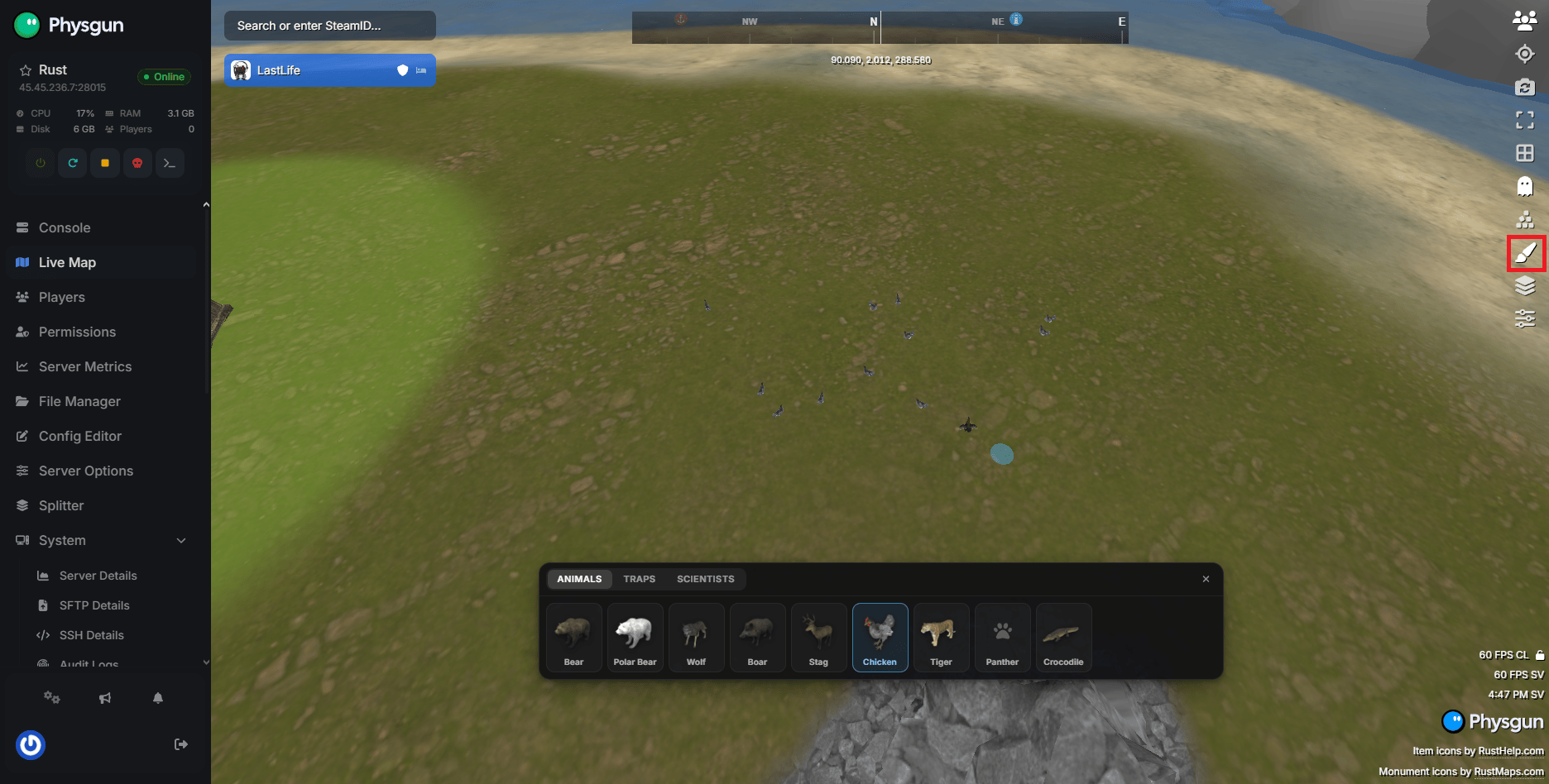
The Entity Painter is a simple spawner tool that allows you to spawn animals, traps, and enemies, reflected by the three tabs.
Click the Entity Painter icon in the live map to access the tool. All you have to do is select the entity you want to spawn, be it a chicken, landmine, or scientist, and click on the map to spawn it. Super simple.
Uses in Real Admin Scenarios
Investigating and Stopping Cheaters
Let’s say Joe McGee gets accused of being a cheater. Spawning items, getting things way too quickly, or moving incredibly fast. With Rust God Tools, all you have to do is find the player on the map, watch them for a while, and catch them in the act. You can inspect their base and player inventories to find out-of-place items, and when you’re ready to ban them, just right-click and hit the ban button.
Creating Live Map Events
You want to spice up your server by creating fun live events? Just right-click the map, spawn an airdrop, and surround it with traps and scientists using the Entity Painter. Voila, you just created a simple and fun PVP/PVE event!
Cleaning Up Bases
One of your players just got banned, and their base is a complete eyesore that you want to get rid of so someone else can build there. How do you do it? Just click the Base Inspector tool, click on their TC, and send the entire thing to the shadow realm. It’s that easy.
Conclusion
Rust God Tools puts nearly every administrative task at your fingertips, allowing you to manage your server from anywhere without ever launching Rust. Whether you’re moderating players, investigating reports, hosting dynamic events, or maintaining the map, the intuitive interface makes common admin tasks significantly faster than relying on console commands alone.
By combining real-time server monitoring with powerful management tools, Rust God Tools helps you spend less time navigating menus and more time building a fair, engaging, and well-managed Rust community.