How To Install And Use The Rust BGrade Plugin
The BGrade plugin automatically upgrades newly placed structures to a building grade of your choice, making building faster and reducing the need for manual upgrades. It’s a popular plugin for Rust servers that helps streamline gameplay while giving players a more convenient building experience. In this guide, you’ll learn how to install BGrade, configure its settings, and customize its behavior to fit your server. By the end, you’ll have the plugin up and running on your Rust server.
Before You Start on Your Rust Server
-
Your Rust server must have Oxide (uMod) enabled; the plugin relies on the Oxide framework.
-
You need admin or console rights so you can reload plugins and assign permissions.
-
Download the latest BGrade.cs file from a trusted source such as the official Oxide forum thread.
-
Confirm you can reach the server’s file system either through the Physgun Gamepanel file manager or an FTP client.
Installing the BGrade Plugin
Upload the BGrade.cs file to the oxide/plugins folder and then reload the server or the plugin. The reload step tells Oxide to compile the new C# script.
Via Physgun Gamepanel File Manager
-
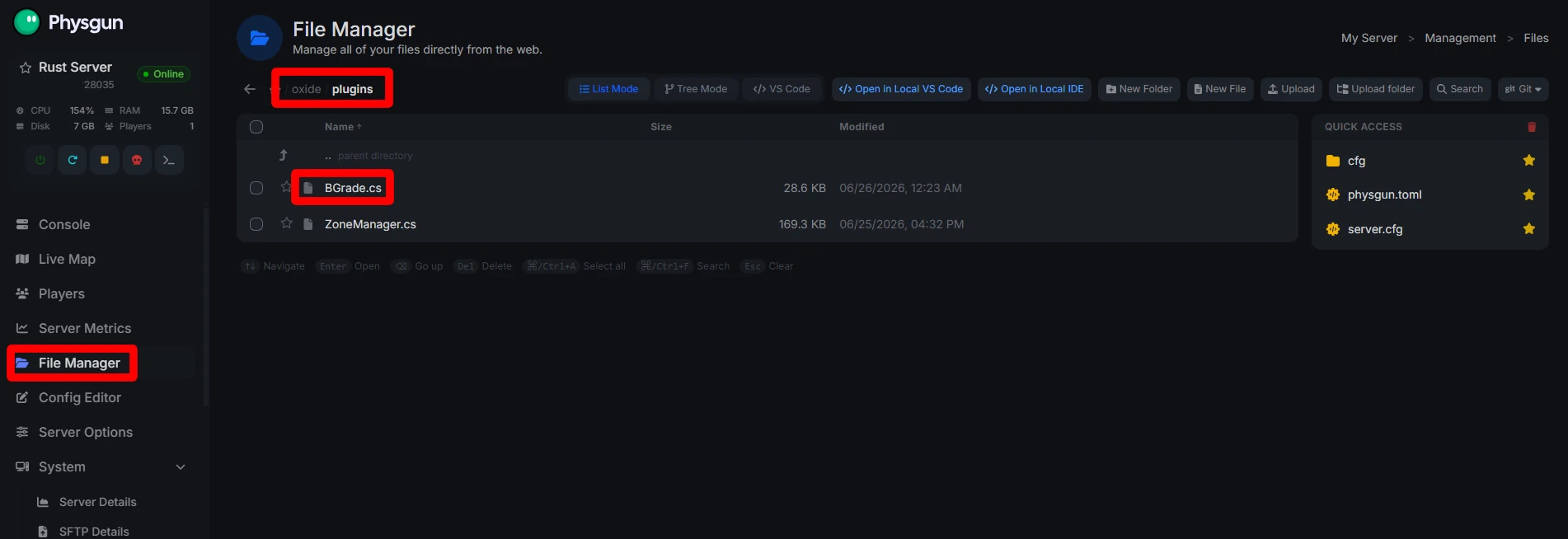
Log in to the Physgun Gamepanel and open File Manager from the dashboard.
-
Browse to oxide/plugins, locate the folder, and use the Upload button to select the BGrade.cs file.
-
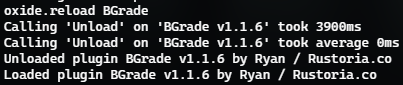
Switch to the Console tab and type oxide.reload BGrade or click the Restart button to restart your server. Re-uploading the latest BGrade.cs file and reloading is also how you update the plugin.
Via FTP (VPS/self-hosted)
-
Start your FTP client, connect with the credentials shown in the server details page.
-
Navigate to the oxide/plugins directory and transfer the BGrade.cs cs file.
-
Open your server console (via RCON, SSH or a remote admin tool) and run oxide.reload BGrade.
You can remove the plugin later by deleting the file and unloading it from the server console.
Configuring the BGrade Plugin
The plugin creates a JSON file at oxide/config/BGrade.json the first time it loads. Edit this configuration file to customize the configuration so the plugin will function the way you want on your server, including command behavior. BGrade also supports customizable chat commands in this file.
Via Physgun Gamepanel File Manager
-
In File Manager, go to oxide/config.
-
Click on BGrade.json to open the built‑in editor.
-
Change the values you need—refund percentages, cost per grade, command settings, chat commands, console commands, and timer settings—then press Save.
-
Review each line carefully before saving your changes.
-
Return to the Console tab and execute oxide.reload BGrade to apply the changes.
Via FTP (VPS/self-hosted)
-
Download BGrade.json from oxide/config to your computer.
-
Edit the file with a plain‑text editor such as Notepad++ or VS Code.
-
Upload the modified file back to the same folder, overwriting the existing version.
-
Reload the plugin from the console with oxide.reload BGrade. You can also disable the plugin from the console if you need to test config changes before re-enabling it. When you update the mod, keep the JSON file so your settings are preserved.
Using BGrade Commands and Permissions
BGrade uses Oxide/uMod permissions to control which players can use automatic building upgrades and which building grades they can access.
Grant permissions with the following command:
oxide.grant user "<player name>" <permission>Or grant a permission to an entire group:
oxide.grant group <group name> <permission>The available permissions include:
bgrade.all– Allows the player to use every available building grade.bgrade.1– Allows upgrading to Twig.bgrade.2– Allows upgrading to Wood.bgrade.3– Allows upgrading to Stone.bgrade.4– Allows upgrading to Metal.bgrade.nores– Allows upgrades without consuming resources.
For example, to allow a player named Admin Kawaii to use every building grade:
oxide.grant user "Admin Kawaii" bgrade.allOnce the appropriate permissions have been assigned, players can use the BGrade chat command:
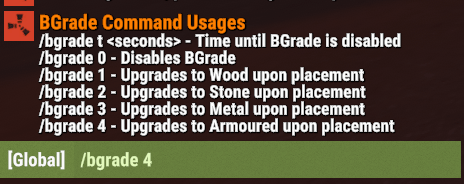
/bgrade helpThis command shows the proper commands to use to automatically upgrade to certain tiers, using /bgrade 0-4. While enabled, building blocks placed by the player are automatically upgraded to the selected building grade, provided they have the required resources (unless they have the bgrade.nores permission).
Troubleshooting Common Issues
-
Plugin not loading: Confirm that
BGrade.csis located in theoxide/pluginsfolder. If the plugin does not appear after startup, check your server console for compilation errors. You can also runoxide.pluginsto verify it loaded oroxide.reload BGradeafter fixing any issues. -
Players can’t use BGrade: This is almost always a permission problem. Verify the player or group has the appropriate permission, such as
bgrade.allor one of the individual grade permissions (bgrade.1throughbgrade.4). You can inspect assigned permissions with:oxide.show user "<player name>"or
oxide.show group "<group name>" -
Automatic upgrades aren’t working: Ask the player to run
/bgradeto make sure automatic upgrading is enabled. If the feature is enabled but blocks still place normally, check whether they have permission to use the selected building grade and enough resources in their inventory. Servers that grantbgrade.noreswill ignore resource costs. -
Configuration changes aren’t applying: Save
oxide/config/BGrade.json, then reload the plugin withoxide.reload BGrade. If your changes still do not appear, look for a JSON formatting mistake. Even a single misplaced comma or missing bracket can cause Oxide to regenerate the configuration or ignore your edits. -
Errors after a Rust update: Major Rust updates can temporarily break plugins until they are updated. If BGrade suddenly stops functioning after a game patch, review the console for errors and replace the plugin with the latest compatible release before troubleshooting anything else.