The Blueprint Manager plugin lets you customize blueprint progression on your Rust server. Instead of relying entirely on Rust’s default research system, you can automatically unlock blueprints, grant blueprint access through permissions, create custom blueprint sets, and control when players gain access to specific crafting recipes. This makes it useful for servers that want custom progression, no-blueprint gameplay, or permission-based crafting access.
Prerequisites
Before installing Blueprint Manager, make sure you have:
-
A Rust server running the latest supported version.
-
Oxide/uMod installed on your server.
-
The BlueprintManager.cs plugin file (Downloaded from uMod).
-
Access to your server through the Physgun Gamepanel or an FTP/SFTP client.
Installing Blueprint Manager
Install Using the Physgun Gamepanel
-
Log in to the Physgun Gamepanel.
-
Select your Rust server.
-
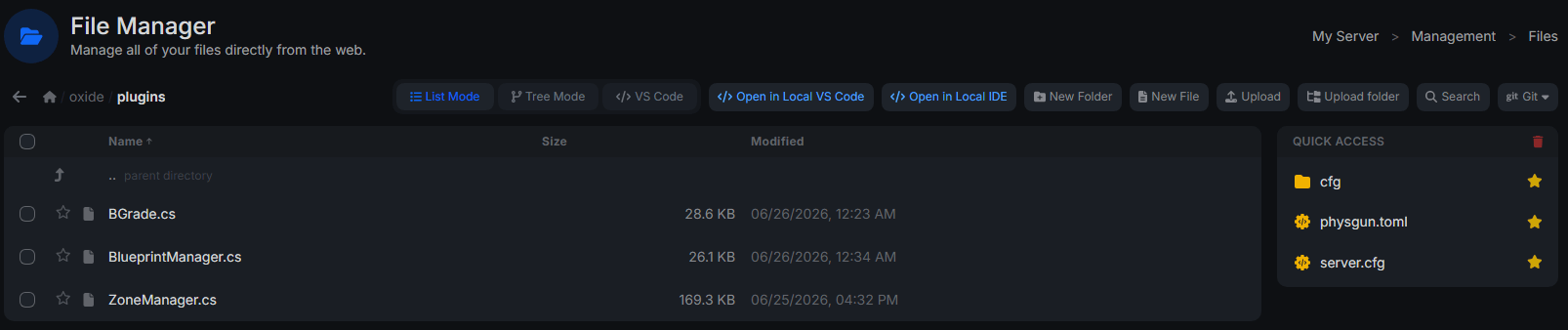
Open File Manager.
-
Navigate to:
oxide/plugins-
Upload BlueprintManager.cs.
-
Restart your server or run oxide.reload BlueprintManager in your server console.
After the server finishes starting, check the console to verify that Blueprint Manager loaded without any errors.
Install Using FTP or SFTP
-
Connect to your server using your preferred FTP or SFTP client.
-
Browse to:
oxide/plugins-
Upload BlueprintManager.cs.
-
Restart your server or reload the plugin.
-
Check the server console for any loading errors.
Configuring Blueprint Manager
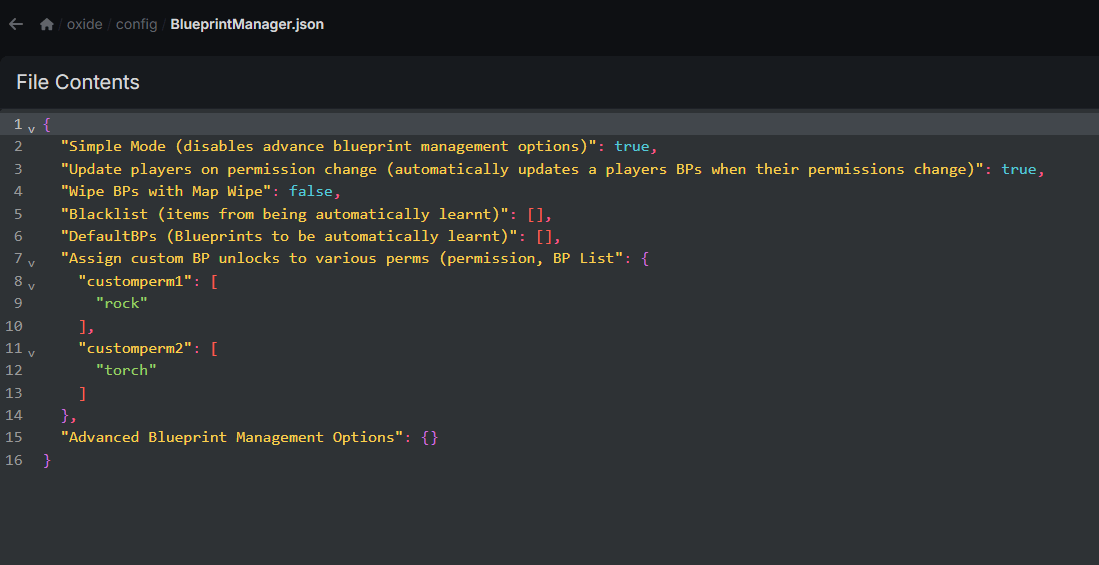
When Blueprint Manager loads for the first time, it automatically creates its configuration file:
oxide/config/BlueprintManager.jsonOpen the file using the Physgun File Manager or edit it locally before uploading it back to your server.
The plugin includes several configuration options, including:
-
Default blueprints that every player learns automatically
-
Blueprint blacklists
-
Custom blueprint permission sets
-
Automatic blueprint updates when permissions change
-
Blueprint wipes alongside map wipes
-
Research restrictions
-
Scrap costs for researching items
-
Timed blueprint unlocks after a server wipe
After saving your changes, reload the plugin or restart the server to apply the new configuration.
Managing Permissions
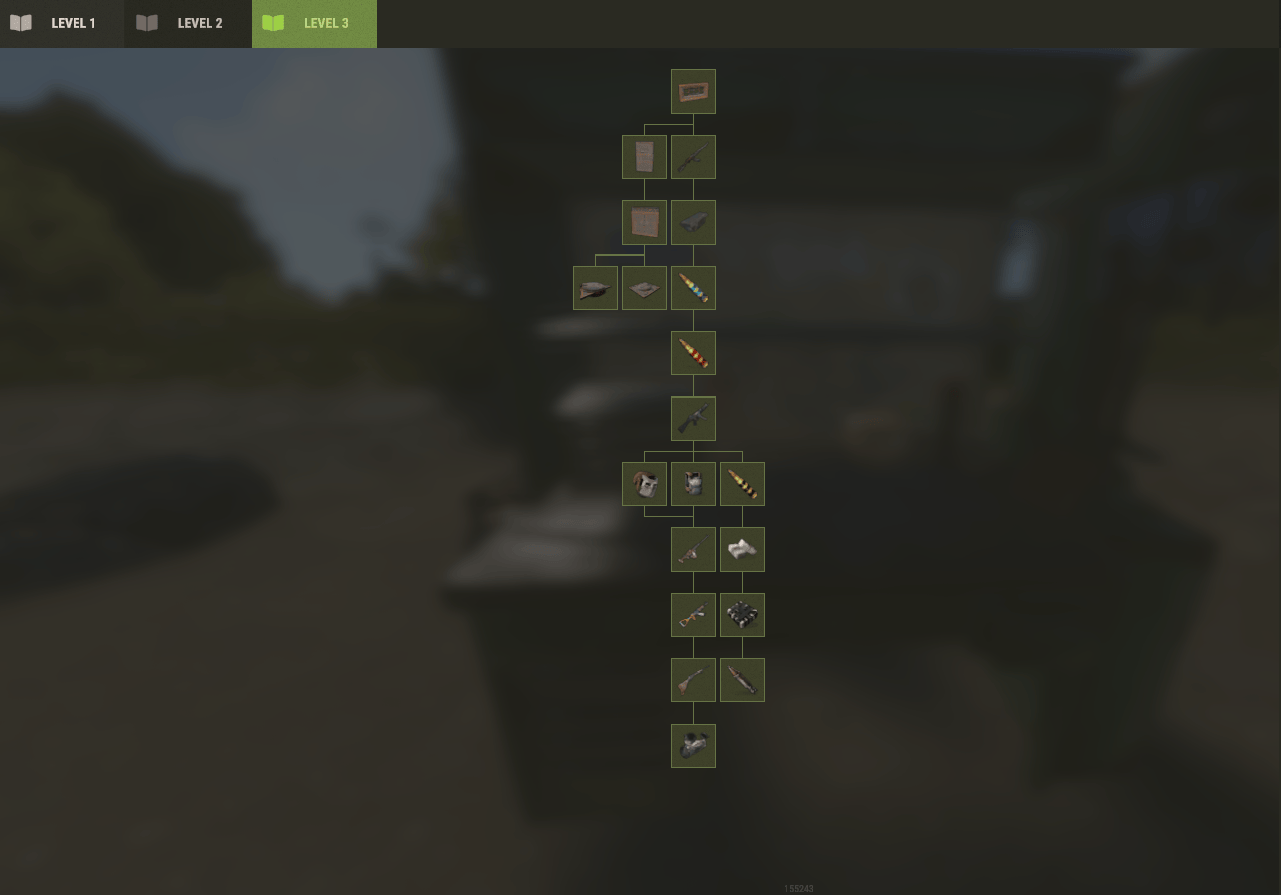
Blueprint Manager uses Oxide permissions to determine which blueprints players can access.
Allow the admin group to access in-game commands:
oxide.grant group Admin blueprintmanager.adminGrant every blueprint to the default player group:
oxide.grant group default blueprintmanager.allGrant Workbench Level 1 blueprints:
oxide.grant group default blueprintmanager.WorkbenchLvL1Grant a custom blueprint set:
oxide.grant user <SteamID> blueprintmanager.customperm1The plugin also creates permissions for individual item categories, including Weapons, Tools, Resources, Medical items, Construction, Electrical, and others. You can combine these permissions to create custom progression paths for different player groups.
Using Blueprint Manager
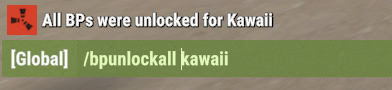
Blueprint Manager includes several console commands for managing player blueprints.
Unlock one or more blueprints for a player:
bpunlock "<player>" "<item shortname>"Unlock every blueprint for a player:
bpunlockall "<player>"Remove specific blueprints from a player:
bpremove "<player>" "<item shortname>"Reset a player’s learned blueprints:
bpreset "<player>"Remove blueprints from every player on the server:
bpwipeallMost servers use these commands alongside permissions to automate blueprint progression while still allowing administrators to make manual changes when needed.
Troubleshooting Common Issues
Plugin does not load
If Blueprint Manager fails to load:
-
Verify that your Rust server is running a compatible version of Oxide/uMod.
-
Confirm that BlueprintManager.cs is located inside the oxide/plugins directory.
-
Check the server console for compilation or loading errors.
-
Verify that oxide/config/BlueprintManager.json contains valid JSON.
-
Reload the plugin or restart the server after making configuration changes.
Players are missing blueprints
If players are not receiving the expected blueprints:
-
Verify that the correct permissions have been assigned.
-
Confirm your configuration matches the behavior you expect.
-
Reload the plugin after changing permissions.
-
Have affected players reconnect if blueprint permissions were granted while they were already online.
Configuration changes are ignored
If changes do not appear to take effect, save the configuration file, reload the plugin, or restart the server. Invalid JSON formatting can also prevent the plugin from loading updated settings.
Blueprint Manager gives server owners fine-grained control over Rust’s blueprint system. After configuring permissions and blueprint settings, test the plugin with a regular player account to confirm that progression behaves as intended.