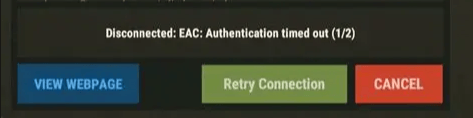
Easy Anti-Cheat is the anti-cheat system Rust uses to keep cheaters off official and secure servers, and it has to complete a handshake with the server before you’re allowed to connect. When that handshake fails, you’ll get kicked with a “Disconnected: EAC: Timed out” error, usually caused by a corrupted client install, a conflicting overlay or background app, a firewall blocking EAC traffic, or a server-side misconfiguration.
This guide covers verifying and repairing your Rust client, fixing firewall and driver signing issues, checking your server’s server.secure setting, and confirming the issue is resolved.
Prerequisites
Before working through this guide, make sure you have:
- Confirmed your exact error message reads
Disconnected: EAC: Authentication timed out (1/2)orEAC: Disconnected - Timed out. (If you’re seeingEAC Bannedor a genericConnection lostinstead, this guide won’t apply — those have separate causes.) - Updated both Rust and your launcher (Steam or Epic Games) to the latest version.
- Checked Facepunch’s official Twitter or the Rust status page for an ongoing EAC master server outage.
- Identified your platform (Windows, Steam Deck/Proton, or Linux/Proton-Wine), since a few fixes below only apply to specific platforms.
Player-Side Fixes
Verify Game File Integrity
Steam
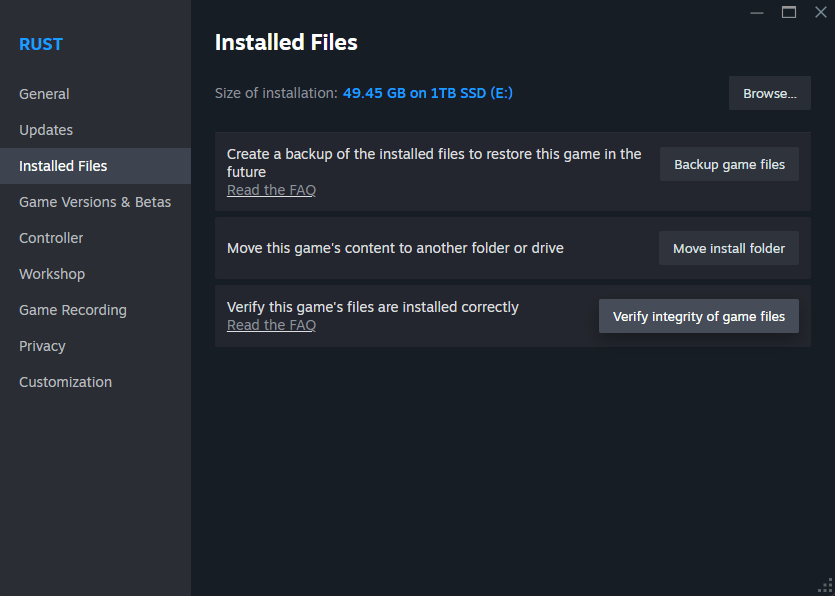
- Open your Library and right-click Rust.
- Select Properties.
- Go to the Installed Files tab.
- Click Verify integrity of game files.
- Wait for
All files validatedbefore relaunching.
Epic Games Launcher
- Open your Library.
- Click the three-dot menu next to Rust.
- Select Verify.
- Confirm the process completes without a
File mismatcherror.
After verification, launch Rust directly from Steam or Epic once (not a desktop shortcut) to re-register the EAC service.
Repair or Reinstall Easy Anti-Cheat
- Navigate to:
Steam/steamapps/common/Rust/EasyAntiCheat- Run
EasyAntiCheat_Setup.exeas Administrator. - Select Rust from the dropdown.
- Click Repair Service and wait for
Repair completed successfully.
If Repair fails or is greyed out:
- Choose Uninstall.
- Reboot your PC.
- Run Setup again and select Install.
Admin rights are required — without them, the repair can appear to succeed while the kernel driver never actually loads.
Check Firewall & Antivirus
- Add exclusions for
RustClient.exe,EasyAntiCheat.exe,EasyAntiCheat_Setup.exe, and the full Rust install folder in Windows Defender or your third-party AV. - Confirm Easy Anti-Cheat and Rust Client have Allow rules for both Private and Public networks, Inbound and Outbound, in Windows Firewall.
- Disable any “Gaming VPN,” strict NAT, or QoS feature on your router that could fragment EAC heartbeat packets. Test with a mobile hotspot to rule out ISP routing issues.
Disable Overlays & Conflicting Background Apps
| Application | Where to disable |
|---|---|
| Discord | User Settings → Game Overlay → toggle off for Rust |
| NVIDIA GeForce Experience | In-Game Overlay → Settings → Off |
| Xbox Game Bar | Win+G → Settings → General |
| Steam Overlay | Steam → Settings → In-Game → uncheck for Rust |
| RGB software (iCUE, Synapse, SteelSeries GG) | Close completely |
These tools hook the renderer or load their own kernel drivers, which can delay or conflict with EAC initialization.
Launch Options & Steam Deck/Proton
Standard Windows: Steam → Rust → Properties → General → Launch Options. Try -eac_launcher to force the EAC bootstrap.
Steam Deck / Linux (Proton):
- Use Proton-GE or Proton Experimental.
- Disable Secure Boot in BIOS, or the EAC kernel driver will fail to load. (MOK enrollment is required for signed drivers on some distros.)
Fix Driver Signature Enforcement Issues
EAC will refuse to start if Windows test-signing mode is enabled — that mode allows unsigned drivers to load, which is exactly what EAC blocks. If you’ve ever turned on test signing or disabled integrity checks (for modding, dual-booting, or another tool), make sure both are switched back off:
bcdedit /set nointegritychecks off
bcdedit /set testsigning off
Reboot, then repair EAC again using the steps above. Do not turn these settings on as a fix — that will break EAC, not restore it.
Disable Steam Cloud Sync
Steam → Rust → Properties → General → uncheck Keep game saves in the Steam Cloud. A corrupted client.cfg sync can trigger a handshake mismatch.
Server-Side Fixes (Physgun Rust Admins)
Using the Physgun Gamepanel
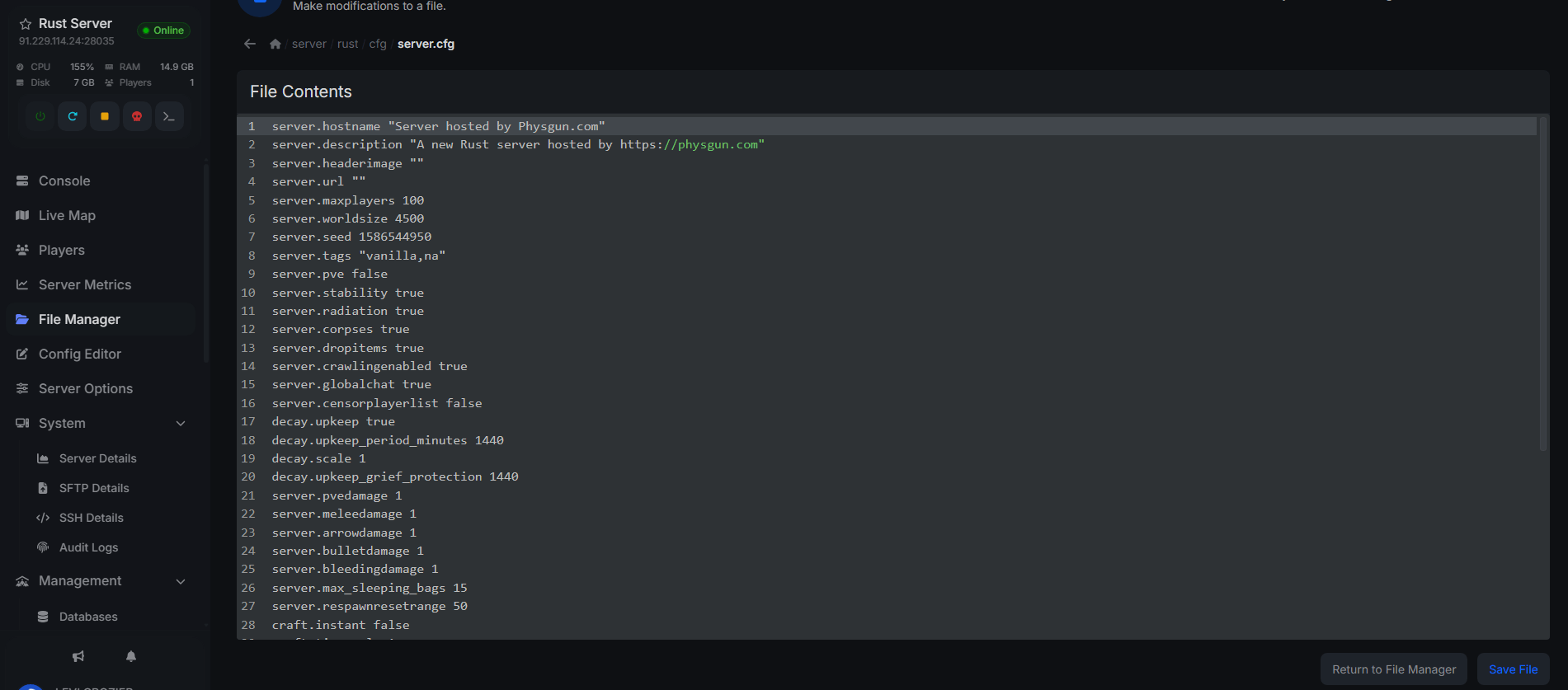
- Open File Manager in the Gamepanel.
- Open
server.cfg. - Confirm:
server.secure trueThis is the convar that enables EAC. If it’s set to false or missing entirely, secure clients will be rejected.
- Check your
ownerid/moderatoridentries inusers.cfgare correct — a broken admin-auth setup can cause connection problems that look like an EAC timeout but aren’t. - In the Startup tab, confirm Update on Start is enabled so your EAC server binaries stay current with client updates.
- Check Metrics for packet loss above 1% or ping spikes above 200ms during the handshake phase. If your server is saturated, consider upgrading your plan or enabling DDoS protection.
Using FTP/SFTP
- Connect with FileZilla or WinSCP.
- Navigate to:
/server/rustds/server/<identity>/cfg/server.cfg- Confirm
server.secure trueis set as above. - Ensure file permissions are
644and ownership issteam:steam.
Firewall Ports to Whitelist
| Port | Protocol | Purpose |
|---|---|---|
| 28015 | TCP/UDP | Game traffic |
| 28016 | TCP/UDP | RCON |
| 443 | TCP | EAC backend services |
In the Physgun Firewall Portal, confirm these are allowed. EAC backend domains can change without notice, so check current Physgun documentation or open a support ticket if you need the exact list to whitelist.
Verifying the Fix
- Join a vanilla official server first. If EAC works there, the problem is specific to your own server (mods, plugins, or its firewall).
- Play continuously for 15+ minutes and watch the F1 console for
EAC: Heartbeat lostorClient-server synchronization failed. - If it works on official servers but fails on a specific community server, report
server.ip:portto that server’s admin — theirserver.cfgor firewall is likely blocking EAC callbacks. - Note which single change fixed it (e.g., “GeForce Overlay disabled”) in case you need it for a future support ticket.
Troubleshooting
”EAC Timed Out” on every server
Usually a firewall/AV issue blocking outbound EAC traffic on port 443, or a Secure Boot/test-signing problem on Windows, Linux, or Steam Deck.
”EAC Timed Out” only on your Physgun server
Check Gamepanel → Console for [EAC] Server version mismatch or [EAC] Heartbeat timeout. This points to an outdated server binary or a firewall rule blocking return traffic.
Steam Deck stuck in “EAC Offline Mode”
Re-verify through SteamOS, reinstall Proton-GE, and disable Secure Boot. If it persists, open a Physgun support ticket with your proton.log attached.
Conclusion
Most EAC timeout errors come down to either a corrupted client install, a background app conflicting with EAC’s kernel driver, or a server-side server.secure/firewall misconfiguration. Work through the player-side fixes first since they resolve the majority of cases, then move to the server-side checks if the issue only happens on one specific server.