

Cheaters, griefers and players who break your rules can ruin a wipe for everyone else. Rust has built-in commands to kick a player, ban them, check who is banned and lift a ban, and you can run all of them from your server’s console.
Your server needs to be running. You also need the player’s SteamID64, the 17-digit number that starts with 7656, or their exact in-game name if they are online right now.
Start your server
- Open your server in the Physgun Gamepanel. It opens on the Console page.
- If the server is offline, select Start.
- Wait until the console prints
World setup complete. The status shows Online a little earlier than that, but commands you send before this line can be lost. The first start can take several minutes.
Kick or ban an online player
When the player is on your server right now, you can deal with them from the Players page in the server menu.
- Select Players in the server menu.
- Find the player in the list and open their actions.
- To kick them, choose Kick, type a reason in the Reason… box and confirm.
- To ban them, choose Ban, type a reason, pick Permanent or a length from Seconds to Years, and confirm.
Bans and unbans you make here are recorded in your server’s activity log. To see your ban list or lift a ban, use the console as shown below.
Ban a player from the console
banid bans a player by their SteamID64, so it works whether they are online or not. These steps use Anthony (76561198979425569) as the example.
-
On the Console page, click the command box at the bottom (Type a command…).
-
Type
banid, the SteamID64, the player’s name and a reason, with the name and reason in quotes:banid 76561198979425569 "Anthony" "Cheating" -
Press Enter. The console confirms the ban:
Banned User: 76561198979425569 - "Anthony" for "Cheating". -
Type
banlistexand press Enter to check your ban list.
Each ban shows on its own line with a number, the SteamID64, the name and the reason. The -1 at the end means the ban is permanent.
1 76561198979425569 "Anthony" "Cheating" -1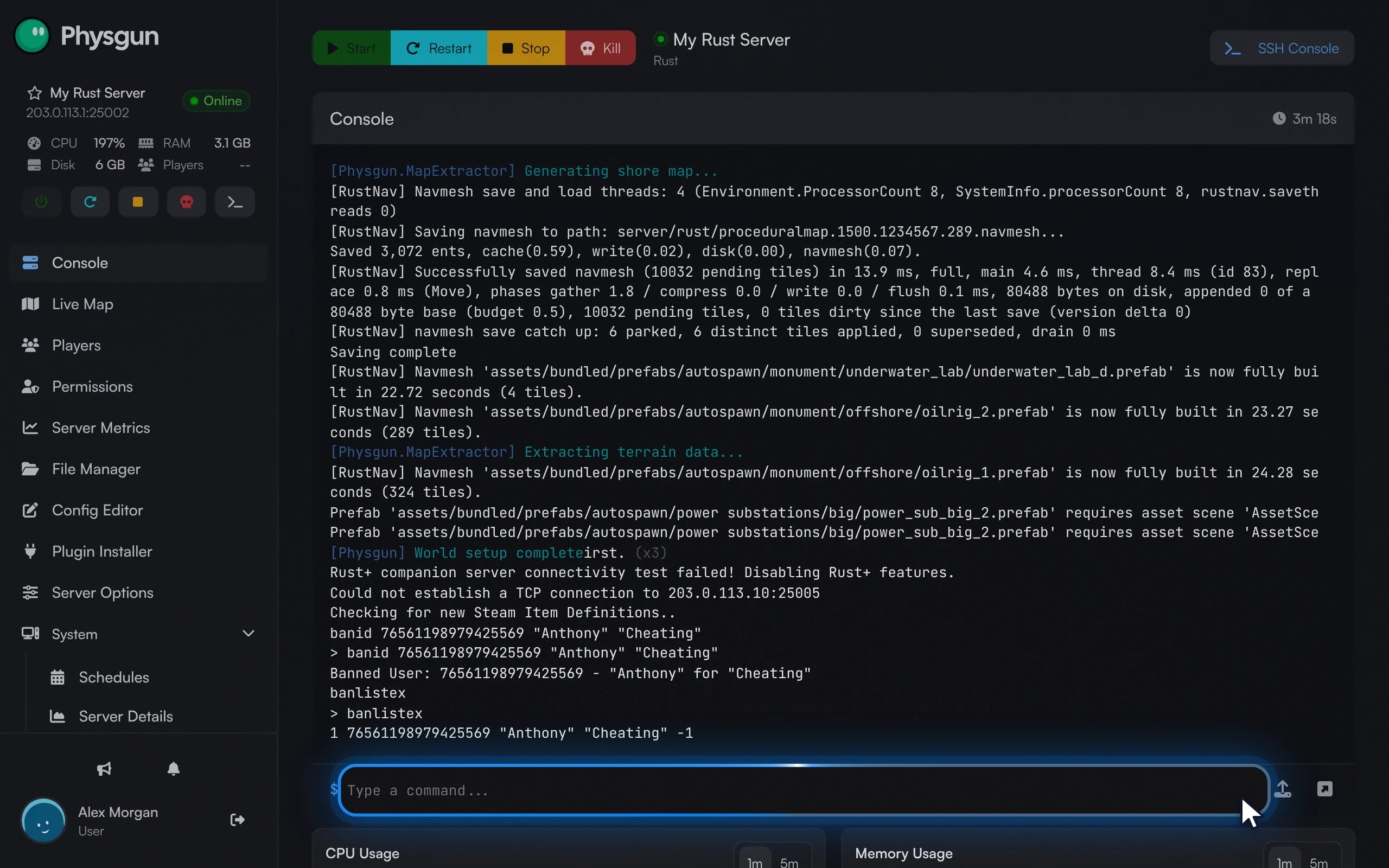 Check the ban listPress Enter. Each ban shows its SteamID64, name and reason.
If the player is online, the console also takes these commands:
kick "Lunaversity" "Spamming chat"
ban "Lunaversity" "Griefing"
Type the name exactly as it shows in game. kick also takes a SteamID64 in place of the name. If the name does not match or the player is not connected, the console prints Player not found, so use banid instead.
Type commands in the console without a leading slash. The slash you may see in other guides is for typing in the in-game chat.
Unban a player and save your bans
-
In the command box, type
unbanand the player’s SteamID64, without quotes:unban 76561198979425569 -
Press Enter. The console prints
Unbanned User: 76561198979425569. -
Type
banlistexand press Enter. The player is no longer listed. When no one is banned, the command prints nothing. -
Type
server.writecfgand press Enter. The console printsConfig Saved.
Your bans are written to server/rust/cfg/bans.cfg, which you can open in the File Manager. The server writes this file when you run server.writecfg and when you stop or restart it normally. If you use Kill or the server crashes before that, changes since the last save are lost. Run server.writecfg after every ban or unban to be safe.
Commands at a glance
Replace SteamID64, name and reason with your own values.
| Action | Command |
|---|---|
| Ban by SteamID64 (online or offline) | banid SteamID64 "name" "reason" |
| Ban by name (online only) | ban "name" "reason" |
| Kick a player (online only) | kick "name" "reason" |
| Kick everyone | kickall |
| List bans with reasons | banlistex |
| Lift a ban | unban SteamID64 |
| Save bans to disk | server.writecfg |
Without the panel
The manual way is to run the same commands as an admin from the in-game console. It works on any Rust server, but you need admin rights on the server first.
-
Give yourself owner rights. Run this in the server console with your own SteamID64 and name, then run
server.writecfg:ownerid 76561198979425569 "Anthony" -
Leave the server and join again so the new rights apply. Until you do, admin commands in the F1 console do nothing.
-
In game, press F1 to open the console.
-
Type any command from the table above and press Enter.
On Physgun, the Owner ID setting in your startup settings also makes you an admin, but only when the server is first installed or reinstalled.
If it does not work
- The banned player still joins. Check that the SteamID64 in
banlistexis theirs. If they play on another Steam account, that account has its own SteamID64 and needs its own ban. - The player is still banned after
unban. Type the SteamID64 without quotes and compare it digit by digit with the numberbanlistexshows.