


















A dedicated server keeps your Dragonwilds world online around the clock, so your friends can log in and keep building even when you’re not playing. Players on PC, PS5, Xbox and Switch 2 can all join the same world, and the server holds up to 6 players.
The game files install and update on their own, so you don’t need to download anything. Before you start, open Dragonwilds and have your Player ID ready: open Settings, scroll to the bottom, and use the copy button next to your Player ID. You’ll paste it into the panel in a moment.
Set up your world
- Log in to the Physgun Gamepanel and open your Dragonwilds server.
- Select Server Options in the menu on the left.
- Paste your Player ID into Owner ID. This makes you the server’s owner, who can ban and unban players.
- Type a name into World Name. Keep it to 16 characters or fewer. Players find your server by searching this exact name, capitals included.
- Type a name into Server Name, also 16 characters or fewer. The world list shows it as the world’s creator.
- Type an Admin Password you’ll remember. The panel fills in a random one, but you need to type this one in the game later.
- Optional: type a World Password if only your friends should get in. Leave it empty to let anyone join.
- Press Tab or click outside the last field you changed. Each field saves when you leave it, and the panel shows Startup variable successfully saved.
You can leave the other settings as they are. Max Players is 6, Platforms is set to all platforms (crossplay), and Automatic Updates is on, which updates the server to the latest game version every time it starts. Settings Port is filled in for you.
The World Name is also the name of the save file. If you change it later, the server makes a new world under the new name, and your old world stays in the save folder.
Start the server
- Select Console in the menu on the left.
- Select Start at the top of the page. The first start can take a few minutes while the game files update.
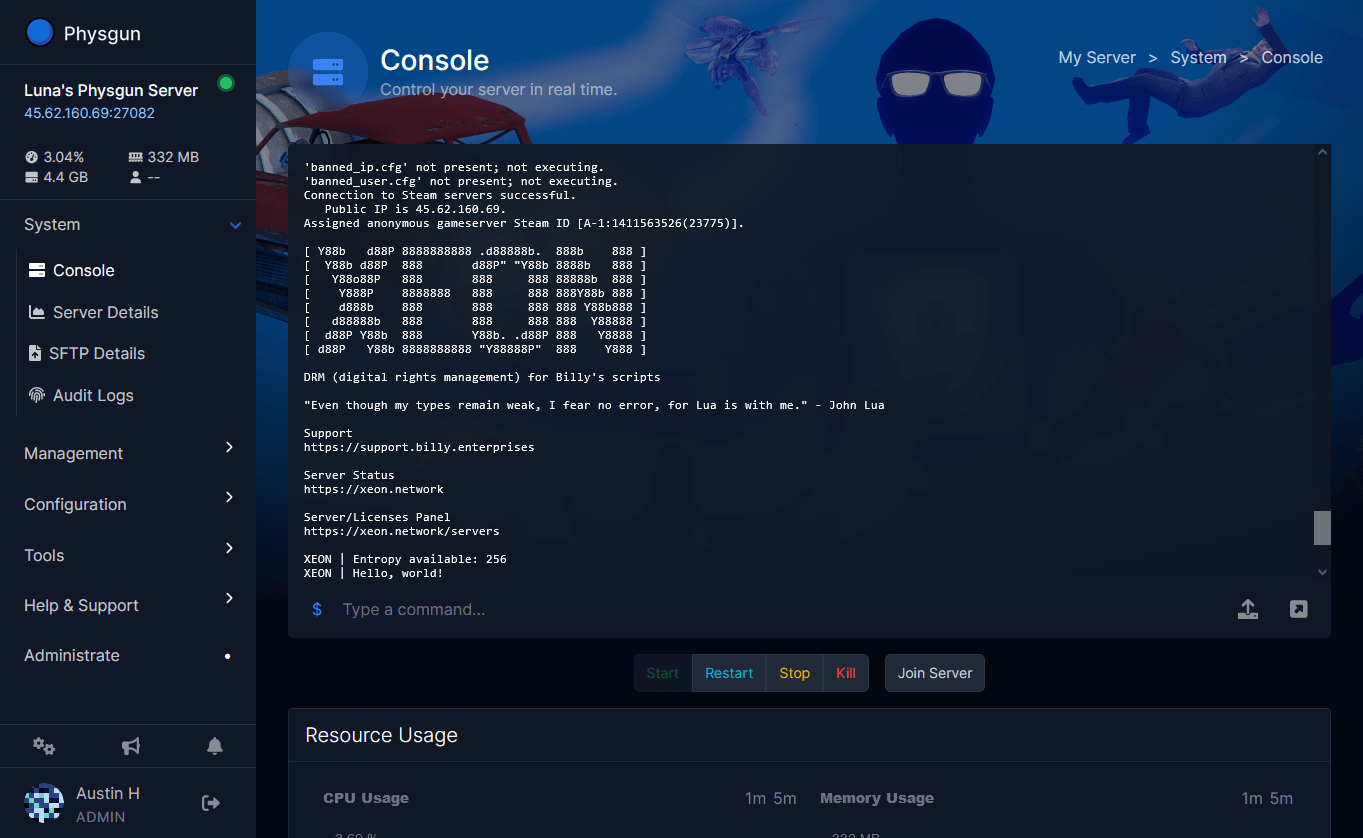
- Watch the console. The server is up once it prints
START SESSION - Success, followed shortly byUPDATE SESSION - complete.
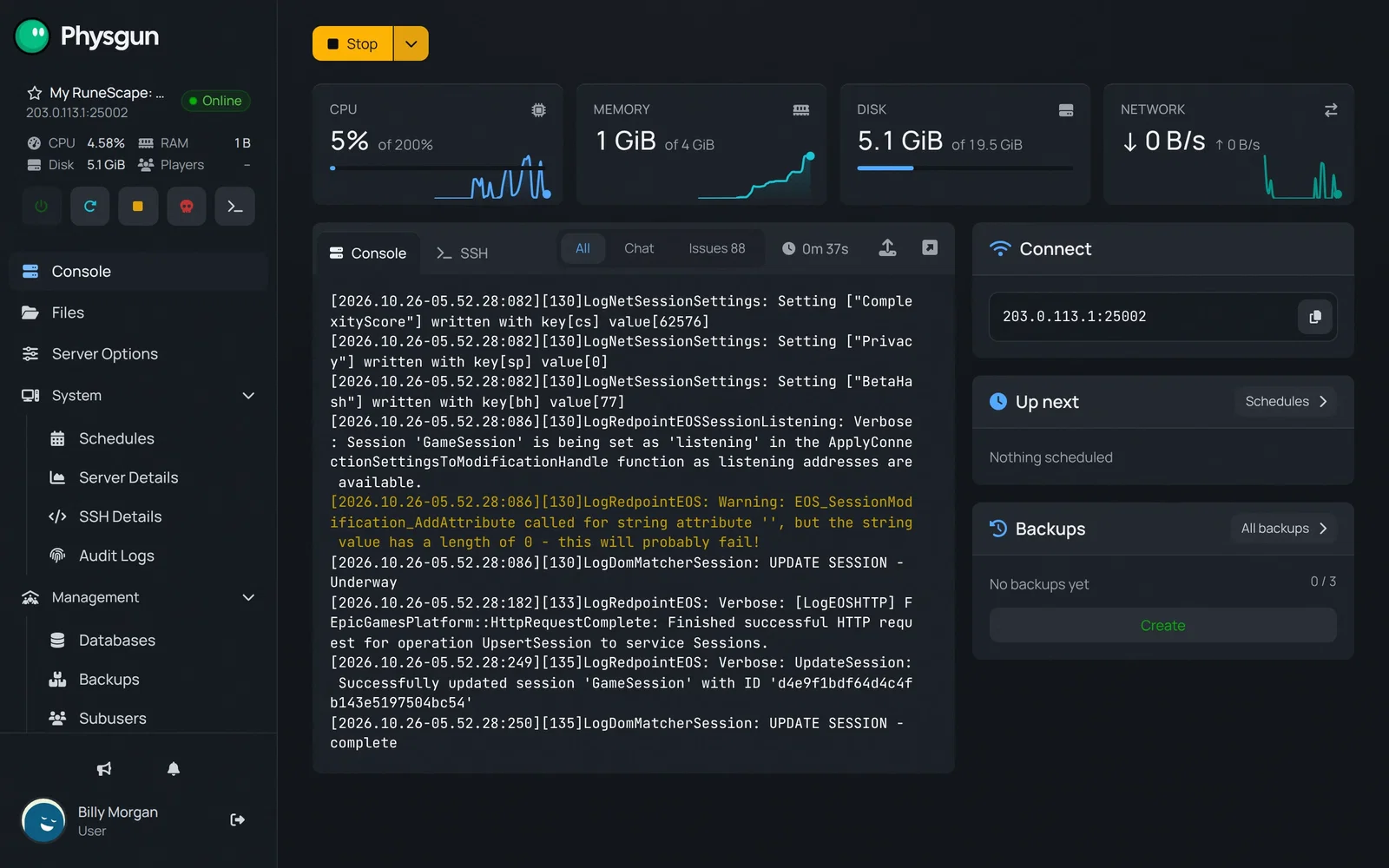 Wait for your worldYour world is ready once the console shows UPDATE SESSION - complete.
The console moves fast, so START SESSION - Success can scroll out of view within a second. If you see UPDATE SESSION - complete near the bottom and the server shows Online, you’re ready.
On the first start, the server creates a new Standard world named after your World Name. You’ll find the save in Files under RSDragonwilds/Saved/SaveGames, for example Physgun World.sav. On every later start, the server loads that save.
Join your world
Everyone joins from the game itself:
- In Dragonwilds, select PLAY, then Worlds.
- Open the PUBLIC tab.
- Search for your World Name (not the Server Name) exactly as you typed it in the panel, capitals included.
- Select your world. Your Server Name shows as its creator.
- Select ENTER WORLD, and type the World Password if you set one.
Steam invites don’t work for dedicated servers yet, so send your friends the World Name instead.
Become an admin
Your Owner ID already gives your own account full control. You or a friend you trust can also become an admin:
- Join the world.
- With the game’s pause menu open (ESC), choose Settings and then the Server Management page.
- Type the Admin Password you set in the panel.
Admins can ban players who are online. Only the owner can unban players, including players who are offline.
If it doesn’t work
- Your world isn’t in the Public list. Check your search against step 3 under “Join your world”, then check the console for
UPDATE SESSION - complete. If the server stopped with errors, start it again and read the last lines before it stopped. - Your friends can’t join after a game update. Players can only join a server on their own game version. After every patch or hotfix, stop the server and select Start again so Automatic Updates installs the new version.
- Your changes didn’t take effect. Change settings in Server Options, then stop and start the server. Changes made in the game’s config file while the server is running are thrown away when it shuts down.
- Owner or admin commands don’t work for you. Check that Owner ID holds your Player ID exactly as copied from the in-game Settings menu, then restart the server.
- The server crashes during fights. In version 1.0.1, Ranged Special Attacks can crash a dedicated server. Once a hotfix is out, restart the server to update it.