







Since version 1.0, RuneScape: Dragonwilds has crossplay, and a new server lets players from every platform join. If your group plays on one platform, or you want to keep the world to PC players only, you can lock the server to a single platform. It’s one setting and a restart.
You need a Dragonwilds server with us and access to the Physgun Gamepanel. If you want to check the result in the config editor afterwards, start the server at least once first: the game creates its config file on the first start.
Choose who can join
- Open your server in the panel and select Server Options in the menu on the left.
- Type
Platformsin the Search box at the top of the page. - Select the Platforms field, under “Which players can join your server.”
- Pick who can join:
- All platforms allows crossplay. This is the default.
- PC only, PlayStation only, Xbox only or Nintendo only lets in players from that platform only.
- Wait until “Startup variable successfully saved.” shows before you leave the page. The setting saves on its own, but if you move on before the message appears, the change is lost.
The config file stores the platform name (PC, PlayStation, Xbox or Nintendo), or Crossplay for All platforms.
Restart and check
The server reads the setting when it starts, so restart it now.
- Select the arrow next to Stop at the top of the page.
- Select Restart.
- Select Yes, Restart Server.
- Wait until the server shows Online again. This took about a minute on our test server.
- Select Config Editor at the top of Server Options.
- Type
PlatformPolicyin the Search settings… box. The value should match the platform you picked, such asPC, orCrossplayfor all platforms.
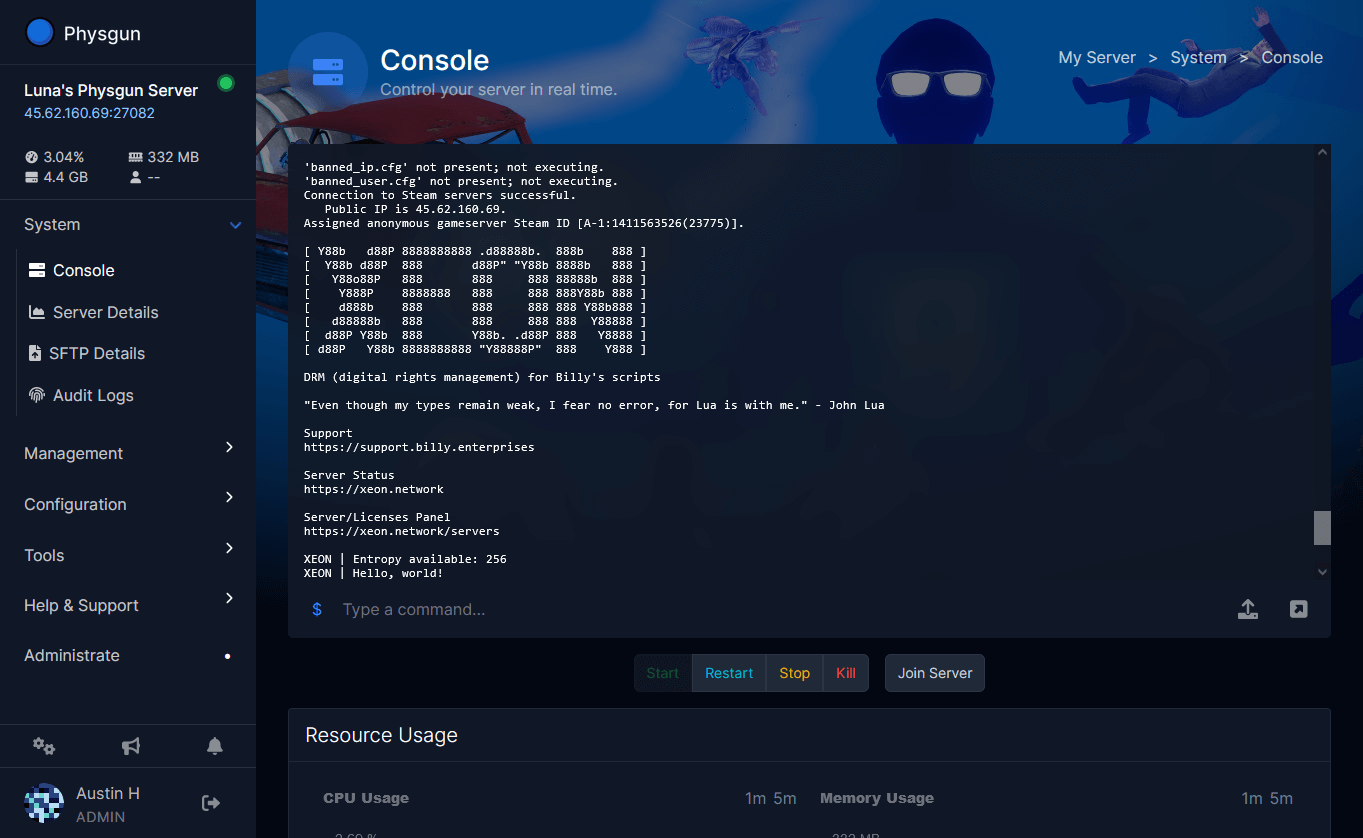
The config editor shows the file read-only while the server is online, so this is a check only. You can also look in the Console: when the server starts, it prints a line such as:
LogDomServerSettings: Dedicated server platform policy: PCCheck it in the game
Players find your server by searching its exact World Name in the Public tab of the server list. A player on an allowed platform should find it and join. With a single platform picked, players on other platforms shouldn’t get in. Everyone needs the same game version as the server.
Crossplay on dedicated servers is new, and Jagex hasn’t published clear details on how console players reach community servers. If you want console players in your world, test it with one of them before you rely on it.
If it doesn’t work
- The setting went back after the restart. Pick it again and wait for the saved message (step 5).
- The config editor doesn’t show DedicatedServer.ini. The file only exists after the server’s first start. Start the server, wait until it’s Online, then look again.
- You edited PlatformPolicy in the file and it changed back. The game rewrites this file when it shuts down. Change who can join with the Platforms setting instead.
- The console shows errors after the restart. Lines about a Bink movie, Navmesh bounds or an online subsystem appear on every start, with any platform choice. If the console reports
START SESSION - Success, the server started normally.