







How to Move Your Palworld Save With the Physgun Save Converter
Moving a Palworld world from co-op to a dedicated server (or back) usually breaks something, either your character resets to level one or your Pals stop following you. The Physgun Save Converter fixes that, and this guide covers moving a world without losing progress.
What Does the Save Converter Do?
It rewrites everything a co-op save needs to work on a dedicated server, or the reverse: character entry, guild membership, admin rights, storage locks, and Pal ownership. That last one matters most, since most converters skip it, which is why migrated Pals end up idle at base instead of following their owner. It runs in your browser and never uploads files.
Why Is This Normally Such a Pain?
Palworld assigns player IDs differently depending on where you’re playing. In co-op the host is always ID ...0001, while a dedicated server assigns a unique ID per account. Copy a save over without fixing that and the server doesn’t recognize your old ID, so it spawns a new character while your bases and Pals sit untouched.
Xbox Game Pass adds another layer, storing everyone’s data in a Windows container (a wgs folder) rather than plain save files, so there’s nothing to drag and drop without pulling it apart first.
What Do I Need Before I Start?
- File access on both sides, whichever direction you’re going. You need to read the save you’re converting and write to wherever it’s headed. For co-op that’s your local
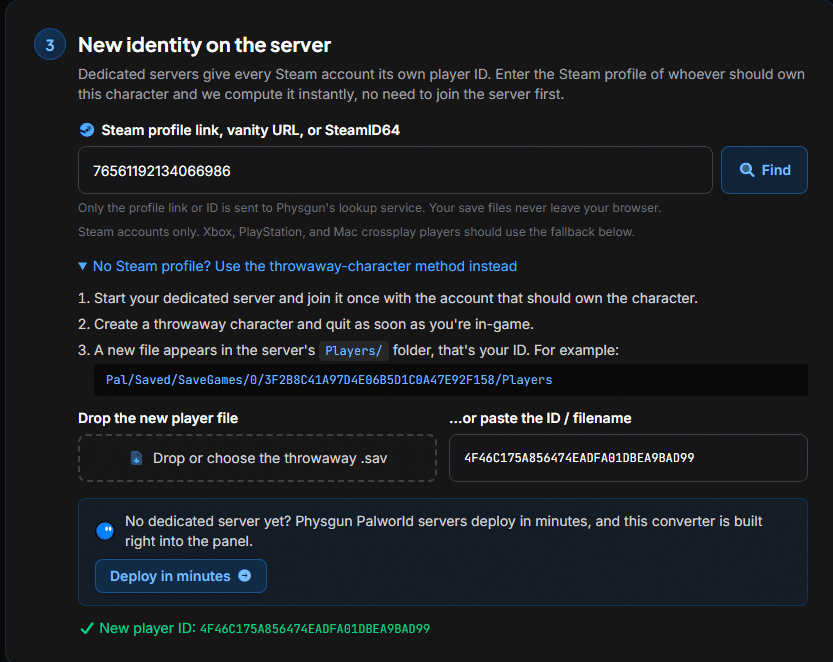
SaveGamesfolder. For a dedicated server it’s the panel’s file manager, or FTP/SFTP if you self-host. Without server-side file access, nothing below works. - A new player ID for everyone you’re moving. Steam players just need their profile link or SteamID64. Xbox, PlayStation, and Mac players need one generated by the server: have them join, make a throwaway character, and quit. The console shows the ID assigned as they connect, which beats guessing which
Players/file is theirs by timestamp. Do everyone in one round.
In order: collect IDs, convert everyone, stop the server, back up, upload, restart.
Where Do I Find My Palworld Save Files?
Steam / co-op: Press Win + R, paste %LocalAppData%\Pal\Saved, and hit Enter. Drag the SaveGames folder onto the converter.
Xbox Game Pass (PC): Close Palworld and the Xbox app first. Grab the wgs folder from %LocalAppData%\Packages\PocketpairInc.Palworld_...\SystemAppData.
Dedicated server: The world lives in Pal/Saved/SaveGames/0/. On a Physgun server, this is available through the panel’s file manager.
How Do I Convert My Palworld Save Step by Step?
- Add your save - Drop your
SaveGamesfolder onto the converter, or a single world folder, and pick your world from the list.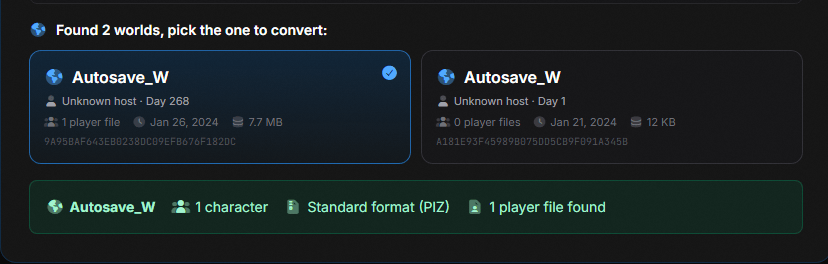
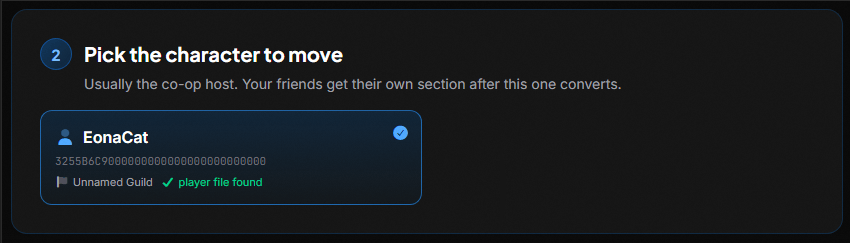
- Pick the character to move - Usually the co-op host. Everyone else is handled after this.
- Set the new identity - Paste your Steam profile link or SteamID64, or the ID from the server console.
- Convert - Click through and the tool downloads your rewritten save files, ready to drop onto the server.

How Do I Move My Friends’ Characters Over?
If anyone besides the host played in that world, the converter handles them too. A players list appears after the host step, and you set each new ID and convert them there. This happens before the final files are produced, so everyone is already included in what you upload. Solo worlds skip this entirely.
How Do I Upload My Converted World To My Server?
Stop the server, then download the existing Pal/Saved/SaveGames/0/ folder so you have a rollback point. Replace the world files there with the ones the converter gave you, keeping the folder names it generated, then restart and connect.
Check that you spawn at your base with your level, inventory, and following Pals intact. If anything’s off, restore the backup before anyone plays, since a later rollback costs everyone their progress.
What Carries Over, and What Should I Double-Check?
Character stats, inventory, base layout, guild roster and permissions, and Pal ownership all move over, along with chest, cooler, and booth privacy locks, death chest ownership, and signboards.
Two things live in LocalData.sav on your own PC rather than in the world save: your discovered map and your Global Palbox. On Steam, join the new server once, which creates a folder under %LocalAppData%\Pal\Saved\SaveGames\<your Steam ID>\, then copy your old LocalData.sav into it. On Xbox Game Pass, that file is sealed inside the wgs container, so run it through the WGS LocalData Extractor first to pull it out.
Troubleshooting and FAQ
Can You Transfer a Palworld Save From Xbox Game Pass?
Yes, the converter reads Steam, dedicated server, and Xbox Game Pass saves directly, including the Oodle-compressed format from 0.6 onward.
Does a Palworld Co-op Save Transfer Back From a Dedicated Server?
Yes, the converter works in both directions, useful if your group is winding a server down but wants to keep playing casually.
Why Isn’t My World Recognized?
Usually the folder isn’t a full save (missing Level.sav or the Players folder), or an Xbox Game Pass wgs upload happened while Palworld or the Xbox app was still running mid-sync. Close both and try again with the complete folder.