








The Palworld crossplay update allowed people playing on different platforms share the same world. The setup can look slightly different depending on whether you’re joining from a PC, a console, or running the server yourself. This article walks through what a crossplay dedicated server needs, how to confirm it’s working on Physgun or a self-hosted setup, how to join from each platform, and how to bring an existing save to your new server.
Who benefits from Palworld crossplay?
Players who play on PC (Steam or Xbox), Xbox Series S/X, Playstation 5, and Mac are all able to take advantage of Palworld’s crossplay features. Crossplay only covers playing together, not cross-progression, so a character build on one platform doesn’t carry it’s saves over to another platform automatically.
What does a Palworld dedicated server require?
The server download itself for Palworld is identical no matter what platforms will be connecting to it. What actually controls crossplay is a single line inside the PalWorldSettings.ini config file:
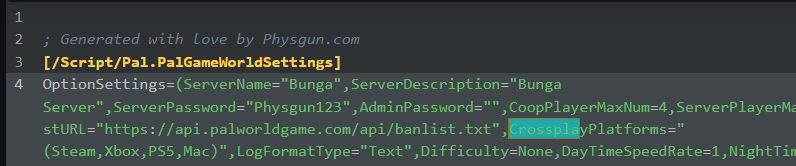
CrossplayPlatforms=(Steam,Xbox,PS5,Mac)This setting usually comes enabled out of the box, unless the line gets edited down to restrict it, such as settings (Steam) for a PC only server.
As well, every client connecting to the server needs to be on the same version of the game, hotfix number included. Version mismatches are something to rule out early if you are having issues connecting to your server.
Enabling/Verifying Crossplay On Your Palworld Server
Physgun Method
New Palworld servers on Physgun have crossplay turned on from the moment they’re deployed. To verify this:
- Login to the Physgun gamepanel and open your Palworld server.
- Make sure your server is turned off, as you cannot edit the Palworld config while your server is online.
- Click Palworld Settings in the left-side navigation.
- Find the
CrossplayPlatformssettings and make sure the value of it is set to(Steam,Xbox,PS5,Mac) - Hit the Save button and start your server back up.
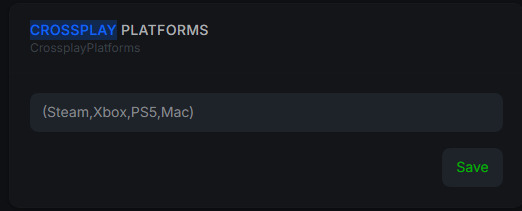
You should now be able to connect to your Palworld server through any of the compatible platforms, either via the IP address (PC Only,) or the in-game server browser.
VPS/Self Hosted Method
Hosting a server from either your own PC or a VPS requires a bit more setup but has the same end-result:
- Connect to your VPS or server via SSH or FTP/SFTP.
- Stop the Palworld server process.
- Navigate to
Pal/Saved/Config/LinuxServer(orWindowsServer) - Find and open the
PalWorldSettings.inifile - Under
[/Script/Pal.PalGameWorldSettings], check that theCrossplayPlatformsline lists every platform you want able to connect - Restart your Palworld server.
How Do I Join A Palworld Server From Steam/Xbox (PC)
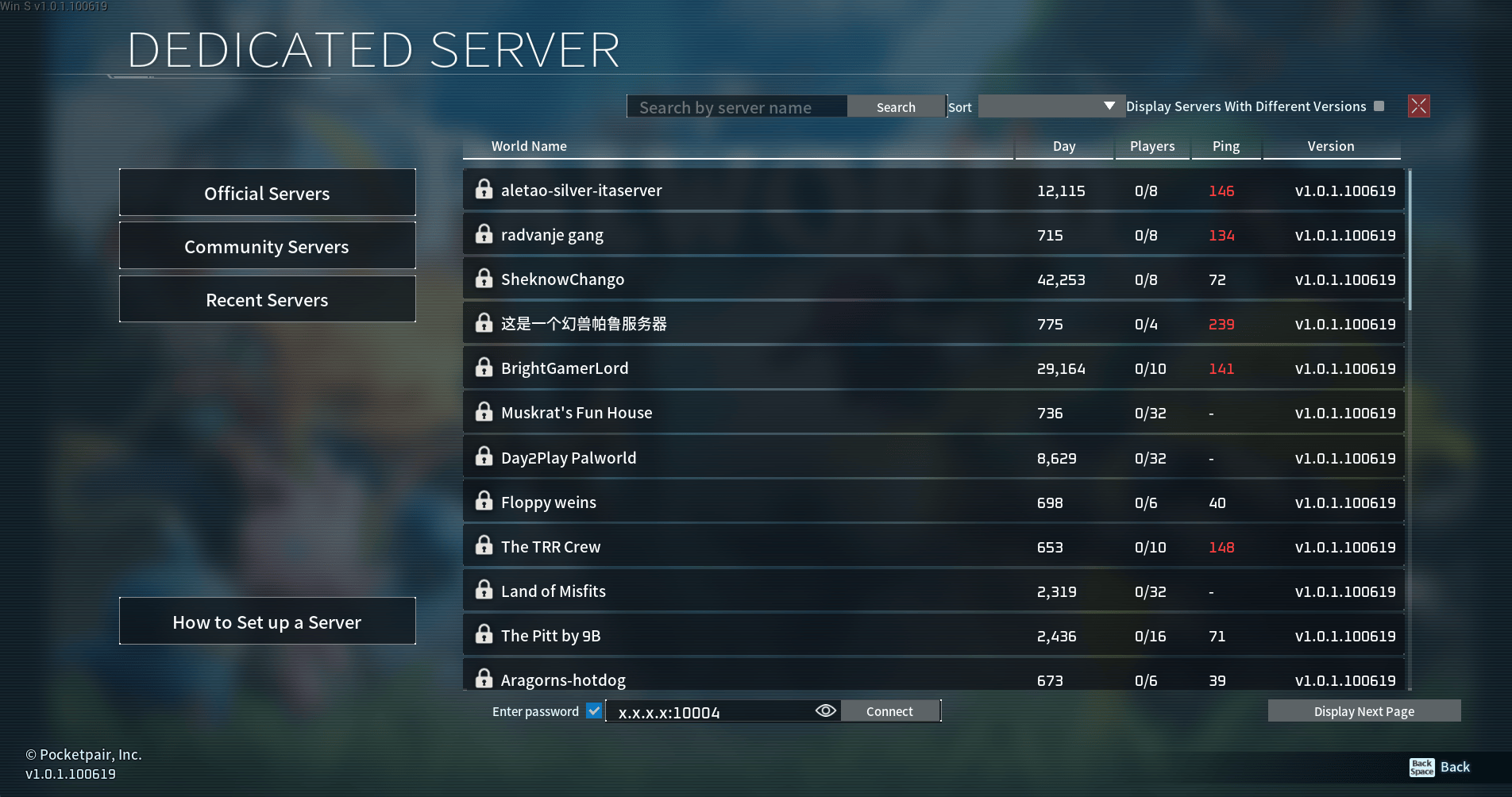
PC players have 2 ways they are able to join a Palworld server: From the Main Menu, select Join Multiplayer Game, then either browse the community server list, or enter the server’s IP address and port directing in the field below the list.
You can find the connection info on your server’s overview page in the Physgun Gamepanel.
How Do I Join A Palworld Server From Xbox/PS5
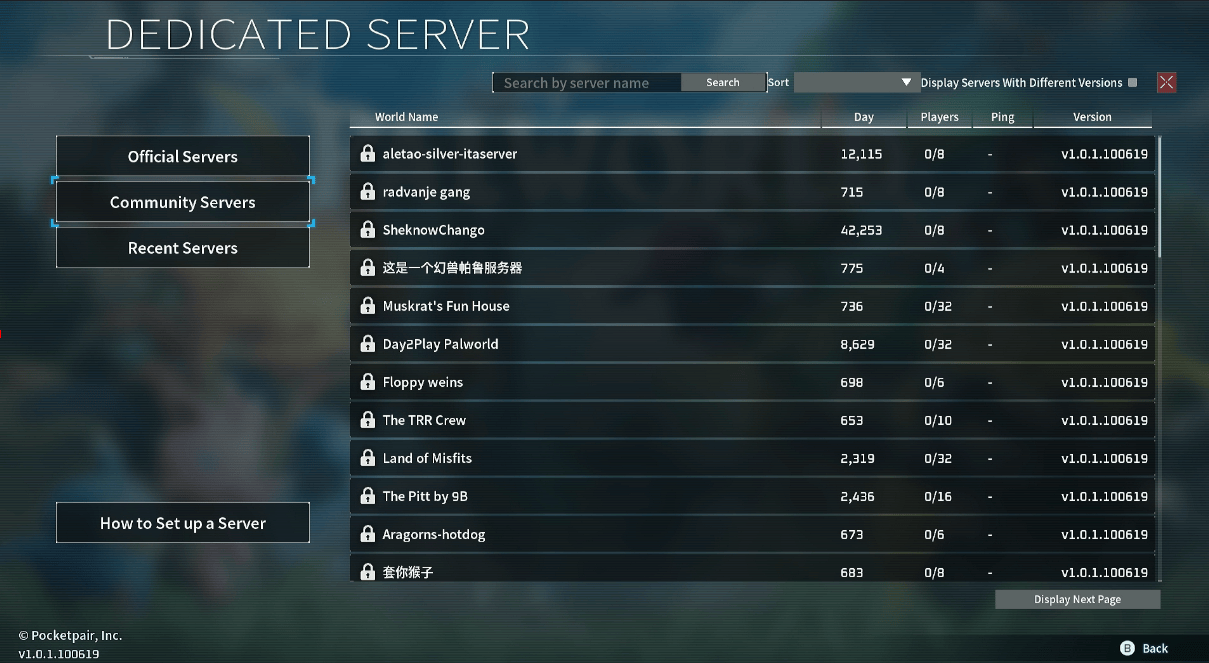
Xbox and Game Pass players are required to sign in with a Microsoft account, open Palworld, and choose Join Multiplayer Game. From there, select Community Servers iun the server list and look for your server by name.
PS5 players use the same flow. Once you’re at the main menu, select Join Multiplayer Game, open Community Servers, and search for your server by name.
How Do I Bring My Existing Palworld Save To My Server?
Moving a co-op world to a dedicated server usually will break your character. Co-op always assigns the host the ID ending in 0001, but a dedicated server gives each account is own unique ID, so a straight copy keeps your bases and pals intact while your character spawns fresh at level one.
The Physgun Palworld Save Converter handles this, along with the pal ownership records most converters skip, which is why migrated pals oftern end up standing idle at base. It runs entirely in your browser, works in both directions (co-op -> dedicated and back), and can remap every other player in the world too.
Troubleshooting
Why Can’t I Find My Server?
If you can’t find your crossplay Palworld dedicated server, start by checking the CrossplayPlatforms line in PalWorldSettings.ini, since it needs to list every platform you’re expecting to connect.
If that looks correct, the next most likely issue is that your server is setup as a private rather than a community server. Make sure your server’s startup command includes the -publiclobby startup option so it shows up on the server list.
Why Does My Server Say “Version Mismatch?”
Every client that tries connecting needs to be on the same version as your server, down to the hotfix number. Check your client’s version and your server’s version, and make sure they are the same. If the aren’t, update, then restart and try to connect again.