

Restarting your Palworld server is an important part of keeping it running smoothly. Whether you’re applying config changes, installing mods, troubleshooting issues, or simply performing routine maintenance, an occasional restart can help improve stability and ensure your server is running the latest settings.
In this guide, we’ll show you step-by-step how to restart your Palworld server using the Physgun server panel, set up automatic restart schedules, and safely reboot a self-hosted dedicated server.
 Restarting a Palworld Server in the Physgun Server Panel
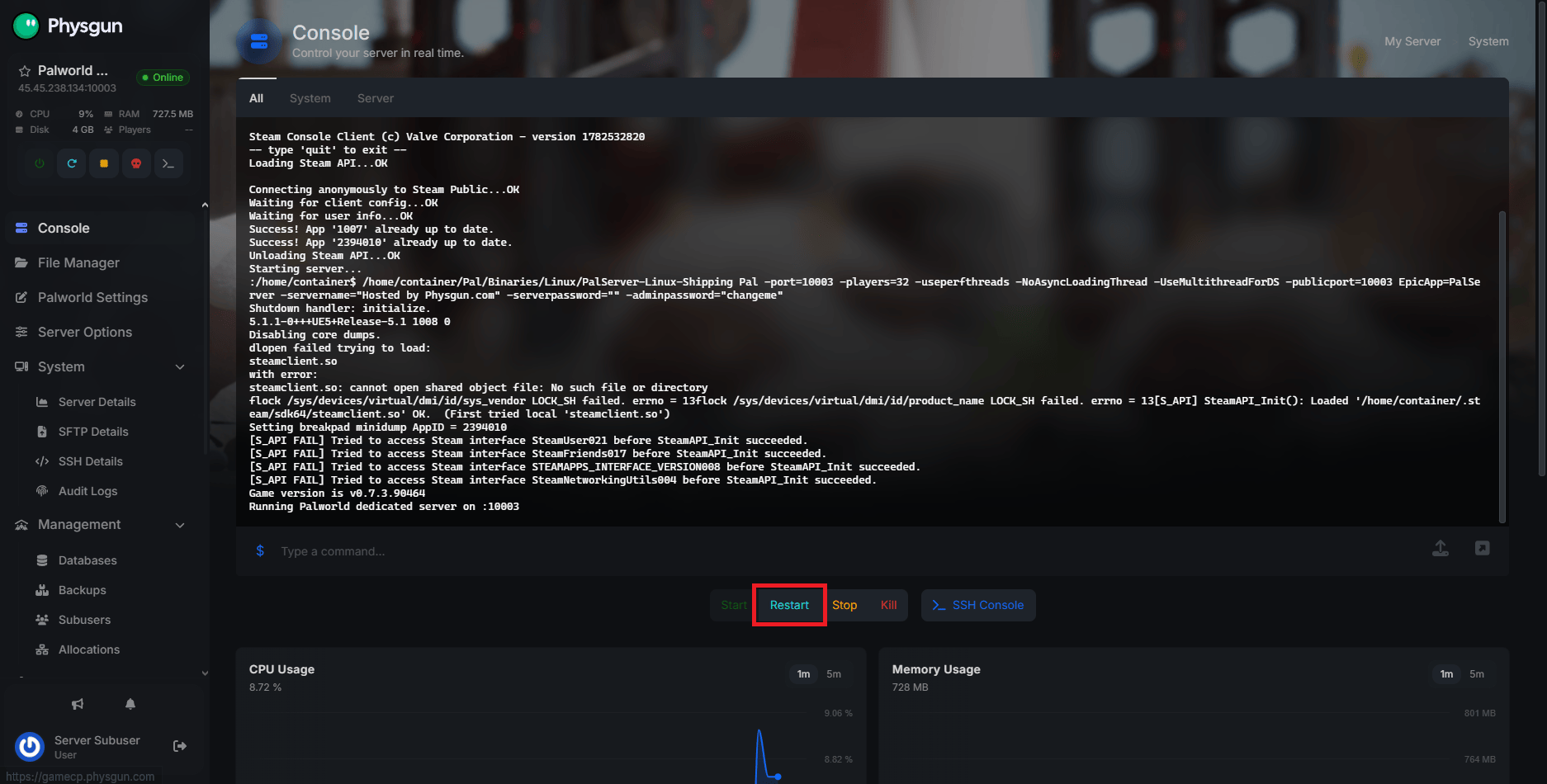
Restarting your Palworld server is incredibly easy with Physgun. From the very moment you visit your server panel, you can already do it! In your server console, locate the Restart button directly below it.
Click it. When the warning message pops up, just hit “Yes, Restart Server”.
Now your server will shut down and automatically restart!
How to Setup Automatic Restarts in Physgun
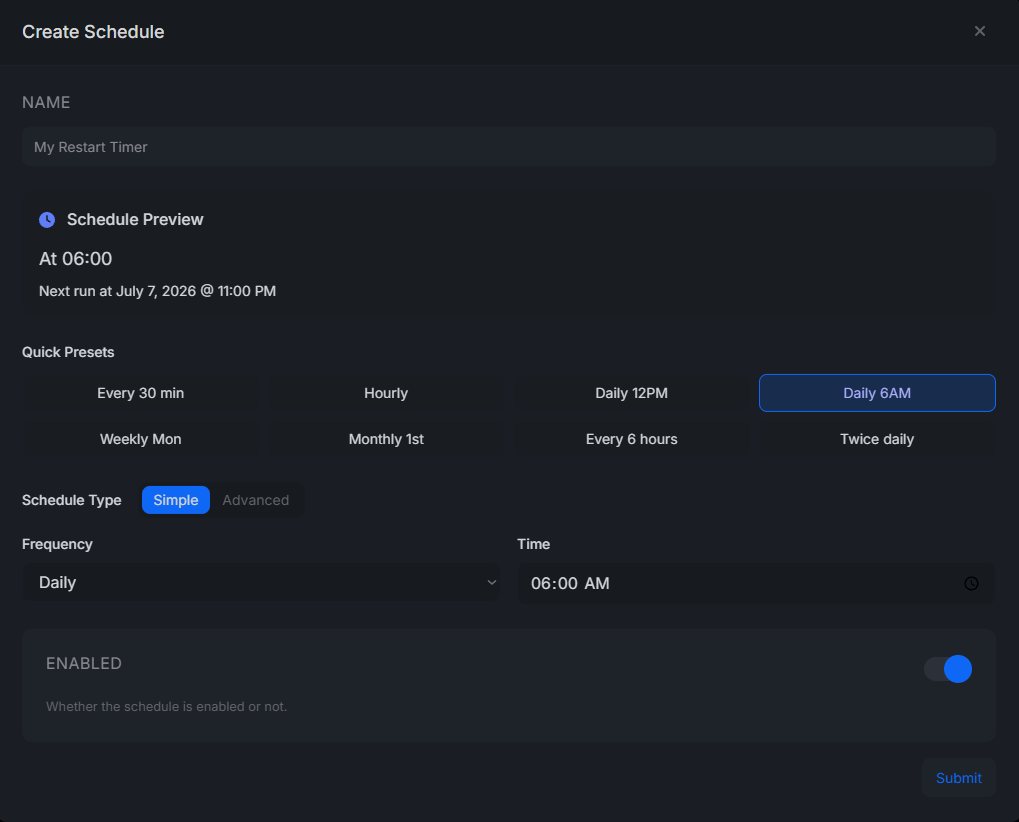
Physgun also lets you set up automatic restarts so your server doesn’t get overly stressed. You can set this up under the Advanced Tab in the left navbar. From here, navigate to the Schedules subtab. This is where you can schedule automatic restarts for your server.
Simply click Create, give it a name, and select a preset. Alternatively, you can press the advanced option and manually set the frequency of the schedule by the minute, hour, or day.
Once your schedule is set up, click submit.
Restarting a Palworld Dedicated Server
If you’re using a Steam-hosted dedicated server, your server can be restarted in two ways.
The first way is to close down your server’s console forcefully. This is the equivalent of using the Kill button on Physgun. It will ignore all safety measures and force your server to close. You should only do this if you get stuck in a loop that prevents you from restarting normally.
The other method is by using the /shutdown command in-game. Make sure you’ve already entered your admin password using the /AdminPassword command. Just send the command in chat, and the server will stop.
If you want to set a small timer or a warning message, you can run the command using additional variables: /shutdown [Seconds][Message]
To start your server back up, just open the PalServer.exe file like normal!
Conclusion
Restarting your Palworld server only takes a few moments, but doing it properly can be helpful in preventing crashes, allowing you to update server settings, applying backups, and keeping your world running reliably. If you’re hosting with Physgun, you can restart your server with a single click or automate the process with scheduled restarts. Self-hosted servers also offer simple restart options, whether through in-game commands or by hard closing the server.
By incorporating regular restarts into your server maintenance routine, you’ll help ensure a smoother experience for everyone playing on your Palworld server.