








How To Reset A Palworld Server
Resetting a Palworld server usually means deleting the world folder that holds the map, structures, wild Pal spawns, and every player’s character data in one step, but a full wipe isn’t always what you actually want. This guide covers a full reset, a settings-only reset, and a player-character-only reset.
Before You Begin
- Confirm you have admin access to the Physgun Gamepanel or valid SFTP credentials for the server. Back up the entire Pal/Saved folder before you start; once save data is deleted, it cannot be recovered.
- Palworld does keep its own automatic backups inside a backup/world/ subfolder in each world’s directory, taken every 30 seconds or so, but that’s a fallback for crashes and corruption, not a substitute for a manual copy before you intentionally delete something.
- Keep the server’s IP address and port handy so you can verify the reset afterward.
Which Reset Do You Need
-
Full wipe. Use this for a genuine fresh start: new map, new characters, nothing carried over. This is the right call after a major update breaks compatibility with an old world, or when a community is starting over entirely.
-
Settings-only reset. Use this when the map and everyone’s progress are fine, but the server’s configuration has drifted from what you actually want, whether that’s from manual edits over time or a patch overwriting your ini. This keeps the world and every character intact.
-
Player-character-only reset. Use this when you want everyone starting from level 1 again, perhaps for a seasonal reset or a rebalance, but you want to keep the map, structures, and wild Pal population exactly as they are.
How Palworld Stores Save Data
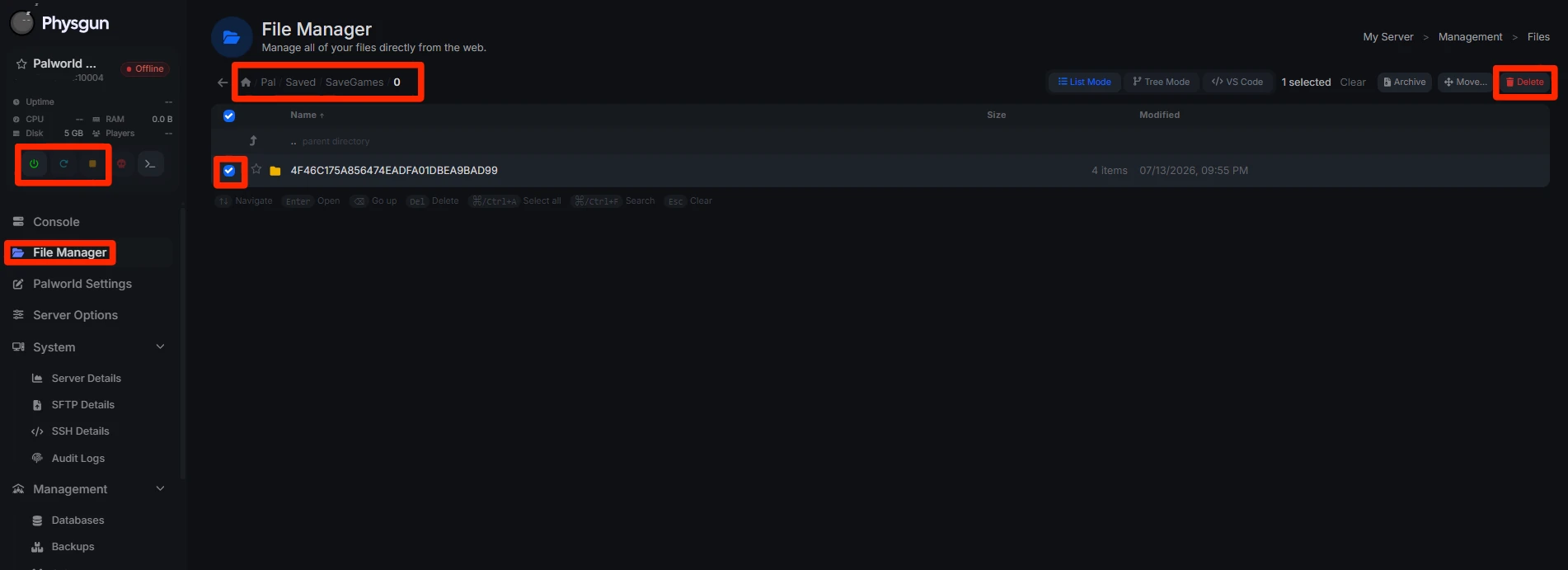
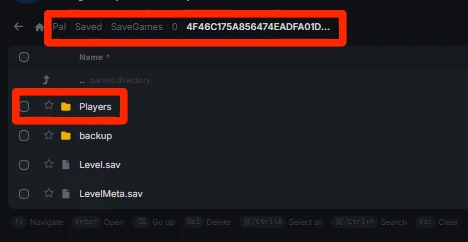
World data sits under Pal/Saved/SaveGames/0/. The 0 folder is a placeholder dedicated servers use instead of a Steam ID, since a server save isn’t tied to one player’s account the way a singleplayer save is. Inside it you’ll find one folder per world, named with a long random string. That folder contains Level.sav (the world itself), LevelMeta.sav and WorldOption.sav (metadata and settings), LocalData.sav, and a Players subfolder with one save file per player, named after that player’s ID. Because Players is nested inside the world folder, deleting the world folder removes the map and all characters at once.
Full Wipe via Physgun Gamepanel
-
Stop the server using Stop, not Restart or Kill, so the save finishes writing cleanly.
-
Open File Manager and navigate to Pal/Saved/SaveGames/0/.
-
Select the randomly named world folder (usually only one exists) and delete it. This clears the map, structures, wild Pal spawns, and all player characters.
-
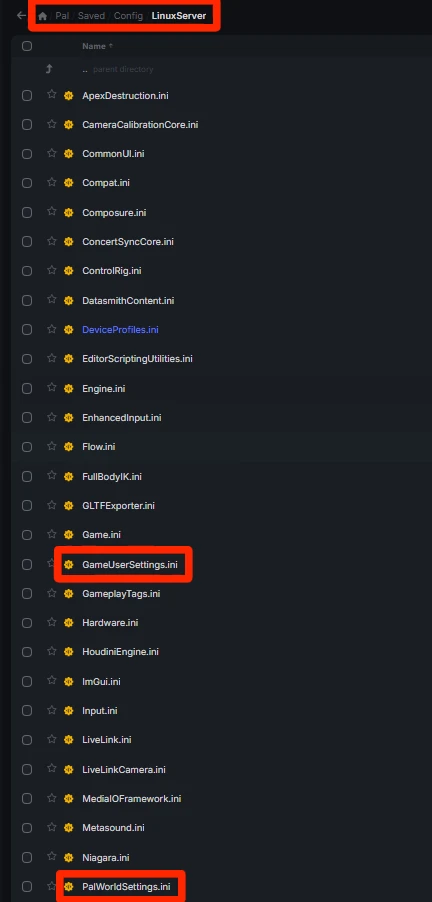
Optional: navigate to Pal/Saved/Config/LinuxServer/ and delete PalWorldSettings.ini and GameUserSettings.ini too, if you also want a fresh settings file rather than carrying your current one over to the new world.
-
Click Start. The server generates a new world folder, and new default settings files if you deleted the old ones.
Full Wipe via SFTP
-
Fully stop the server before editing any files.
-
Connect with an SFTP client such as FileZilla or WinSCP using your server credentials.
-
Navigate to Pal/Saved/SaveGames/0/ and delete the randomly named world folder recursively.
-
Optional: navigate to Pal/Saved/Config/LinuxServer/ (or /WindowsServer/ if your server is on Windows) and delete PalWorldSettings.ini and GameUserSettings.ini.
-
Confirm file permissions on SaveGames and Config still belong to the server user, then restart the server.
Resetting Only the Server Settings
Deleting PalWorldSettings.ini and GameUserSettings.ini and restarting will regenerate both with default values, and the server will keep loading the same world, since DedicatedServerName regenerates blank and falls back to whatever folder already exists under SaveGames/0/. On a brand new world this is enough. On a world that’s already been played, it usually isn’t.
Once a world has been generated, the server copies most of its settings into that world’s own WorldOption.sav file and reads from there on future boots instead of the ini. If you skip clearing that file, your regenerated PalWorldSettings.ini can sit there with fresh default values while the server keeps running the old settings anyway. To actually reset settings on an existing world:
-
Leave the world folder under SaveGames/0/ in place; don’t delete it.
-
Delete PalWorldSettings.ini and GameUserSettings.ini from Pal/Saved/Config/LinuxServer/.
-
Open the existing world’s folder under SaveGames/0/ and delete WorldOption.sav from inside it as well.
-
Restart the server.
Resetting Only Player Characters
Open the existing world folder under SaveGames/0/. Delete only the contents of its Players subfolder. Leave Level.sav, LevelMeta.sav, WorldOption.sav, and LocalData.sav in place. Players will spawn as new level 1 characters into the same map, with all structures and wild Pals intact.
Verifying the Reset
Start the server and join via Direct Connect or the server list. For a full reset, you should see a brand new map, a level 1 character, an empty inventory, and no tamed Pals. For a settings-only reset, confirm the specific values you changed are actually reflected in game, not just that the ini file looks right. For a player-only reset, confirm your base and the map are untouched while your character starts fresh.
Troubleshooting
Old world still loads. You likely deleted the wrong folder, or a second world folder exists under SaveGames/0/. Check DedicatedServerName in GameUserSettings.ini to see which folder the server is actually loading.
Settings reset doesn’t seem to have done anything. This almost always means WorldOption.sav inside the existing world folder was left in place. Go back and delete it from that folder specifically, not just the ini files in Config/LinuxServer/, then restart again.
Server will not start. Check write permissions on Pal/Saved/Config/LinuxServer/. The config folder may only regenerate after one start and stop cycle.
Player keeps their old character. The Players subfolder wasn’t fully cleared, or you targeted the wrong world folder. Recheck the folder name against DedicatedServerName.