
Turning off online mode in Minecraft lets players with cracked clients join your server without going through Mojang’s authentication checks. It’s a straightforward change in your server.properties file — set online-mode to false, restart, and connecting players will no longer need a legitimate account to join. The tradeoff is security. With authentication disabled, usernames are unverified, meaning players can log in under any username including ones already used by existing players. That’s why disabling online mode is only recommended alongside an authentication plugin like AuthMe. This guide covers how to make the change and lock things down properly.
Need a reliable server to run this on? Physgun’s Minecraft server hosting gets you online in minutes.
What Online Mode Does
- With
online-mode=true, the server contacts Mojang/Microsoft to verify each player’s account - Verification prevents username spoofing and ensures only premium accounts can connect
- Setting
online-mode=falseremoves those checks, allowing any client to join without a paid license - The server then generates offline-mode UUIDs, which differ from the ones used in online mode
Risks of Disabling Online Mode
- Anyone can choose any username, so impersonation becomes possible
- Higher likelihood of griefing or malicious behavior since authentication is gone
- Some plugins that rely on Mojang authentication (e.g., permission or anti-spam tools) may stop working
- Player inventories and ender chests are tied to UUIDs — switching modes can reset data for existing players
Warning: Only disable online mode if you understand the security implications and have a plan to mitigate them, such as using an authentication plugin or a whitelist.
Before You Start
- Stop the server completely
- Back up your server folder, especially these directories:
world/world_nether/world_the_end/playerdata/
Step 1: Disable Online Mode
- Open your control panel, SSH session, or FTP client and navigate to the root folder of your server
- Open server.properties in a plain-text editor
- Find the line:
- Change it to:
- Save the file and restart the server
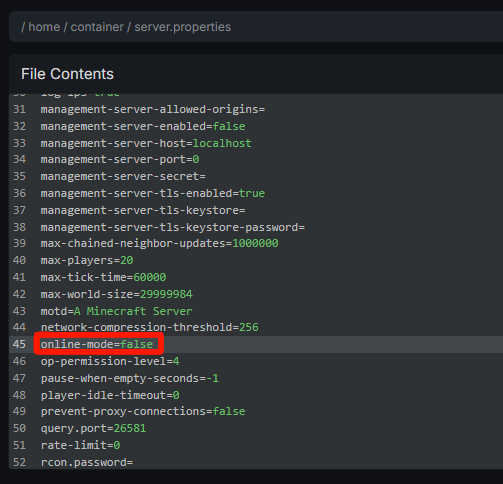
Step 2: Verify It Worked
- After the server starts, look for a line in the console similar to “Server is running in offline mode”
- Have a player join using a cracked client — if the connection succeeds without a “Failed to verify username” error, the change worked
BungeeCord / Proxy Setup
If you run a BungeeCord or Velocity proxy, keep the proxy itself in online mode and only disable it on the backend servers:
- Proxy config — leave
online-mode=true - Backend servers — set each
server.propertiestoonline-mode=false - In each backend’s spigot.yml, enable BungeeCord support:
- Enable IP forwarding on the proxy (usually
ip_forward=truein the proxy’s config)
Tip: Misconfiguring the proxy can expose the real IP addresses of your players, so double-check the forwarding settings.
Player Data & UUID Changes
When a server runs in offline mode it generates UUIDs based on the player’s name instead of their premium account. This can cause inventories, ender chest contents, and advancements to disappear for players who previously joined in online mode.
Before switching, back up the playerdata/ folder. If you want to preserve existing data, consider using a plugin such as UUIDChanger to convert online UUIDs to offline ones before the switch.
Re-Enable Online Mode
- Open
server.propertiesagain - Set the line back to:
- Save the file and restart the server
- Notify your community that a valid Microsoft account is required to reconnect
Troubleshooting
Players can’t join
- Ensure the server was fully restarted after editing
server.properties - Verify you edited the correct file — some hosting panels keep a copy that overwrites changes on restart
Changes not saving
- Check file permissions — the server process must have write access to
server.properties - Some control panels rewrite the file on each start — edit through the panel’s built-in file manager instead
Authentication errors on a proxy
- Confirm that the proxy’s
ip_forwardoption is enabled - Make sure
bungeecord: trueis set in every backend’sspigot.yml - If duplicate username issues appear, add a whitelist or authentication plugin