
















Bedrock players on phones, consoles and Windows can’t join a Java server on their own. Geyser translates between the two editions so they can, and Floodgate lets those players in without buying a Java account. Once both are set up, Java and Bedrock players share the same world.
Geyser and Floodgate are plugins, and the default Vanilla server can’t load plugins, so the first step is switching your server to Paper. Before you start, download Floodgate-Spigot.jar from the GeyserMC download page. If your world matters to you, make a backup under Backups first.
Switch to Paper
- Open the Physgun Gamepanel and select Server Options in the menu on the left.
- Select the Version tab at the top of the page.
- Type
Paperin the Search editions… box. - Select Paper.
- Select the version at the top of the list, marked Latest. The Geyser docs say Paper servers should run 26.3, and other versions need the ViaVersion plugin as well.
- Leave Delete all server files first turned off so you keep your world, then select Install.
- Select Yes, install it. Your server stops while Paper installs.
- Wait for the console to show
Successfully installed version. In our test this took under a minute.
Start the server once
Paper has to run once before you add plugins.
- Select Start at the top of the page.
- If the Minecraft EULA appears, read it and select Accept.
- Wait until the console shows
For help, type "help".
Install Geyser
- Select Plugin Manager under Tools in the menu on the left.
- Select Modrinth as the source.
- Type
Geyserin the Search for plugins… box. - Select Install next to Geyser by GeyserMC.
- Wait for the message that says Geyser was installed. Geyser now shows the Installed label.
This places Geyser-Spigot.jar in your server’s plugins folder.
Add Floodgate
Floodgate isn’t listed in the Plugin Manager, so you upload the jar you downloaded earlier.
- Select Files in the menu on the left.
- Open the
pluginsfolder. Geyser-Spigot.jar is already there. - Select New.
- Select Upload and choose Floodgate-Spigot.jar on your computer.
- Select Restart at the top of the page, and confirm if you’re asked. Both plugins load and create their settings files.
- Open Console. Geyser and Floodgate both print an
Enablingline, and Geyser finishes withDone (...)! Run /geyser help for help!. This takes about a minute.
Floodgate also creates plugins/floodgate/key.pem. Never share this file. Anyone who has it can pretend to be any Bedrock player on your server.
Edit Geyser’s config
Geyser needs two changes. Bedrock players have to use your server’s game port, and Geyser has to let Floodgate handle their logins.
- Select Files in the menu on the left.
- Open the
pluginsfolder. - Open the
Geyser-Spigotfolder. Geyser created it on the last start. If it’s missing, restart once more. - Select
config.ymlto open it in the editor. - Near the top, find
clone-remote-port: falseand changefalsetotrue. - Scroll down to the
javasection, a little below the middle of the file (around line 91 in our test). - Find
auth-type: onlineand changeonlinetofloodgate. - Select Save, the disk icon at the top right of the editor.
Only change the values. Keep the spaces in front of each line exactly as they are, because extra or missing spaces break the file. When you’re done, the two lines look like this:
clone-remote-port: true auth-type: floodgateLeave the port: 19132 line under bedrock as it is. With clone-remote-port: true, Geyser ignores that value and uses your server’s game port, so Bedrock players connect on the same port as Java players and you don’t need a second port.
Restart and check
- Select Console in the menu on the left.
- Select Restart at the top of the page.
- Select Yes, Restart if the panel asks you to confirm.
- Wait about a minute for Geyser to start. The lines to look for:
[Geyser-Spigot] Built-in signaling cannot use port 25000 because the Java server already uses it. Bedrock players can still find this server through the external signaling service at https://agent.warden.cloud instead.
[Geyser-Spigot] Done (1.813s)! Run /geyser help for help!
[Geyser-Spigot] Registered with the external signaling service. Players can join at https://navypasture.wdn.gg (instance ...).
Your port number, timings and join link will be different. The first line shows up in yellow because Geyser shares your game port, which is expected. What you need to see is the Registered with the external signaling service line.
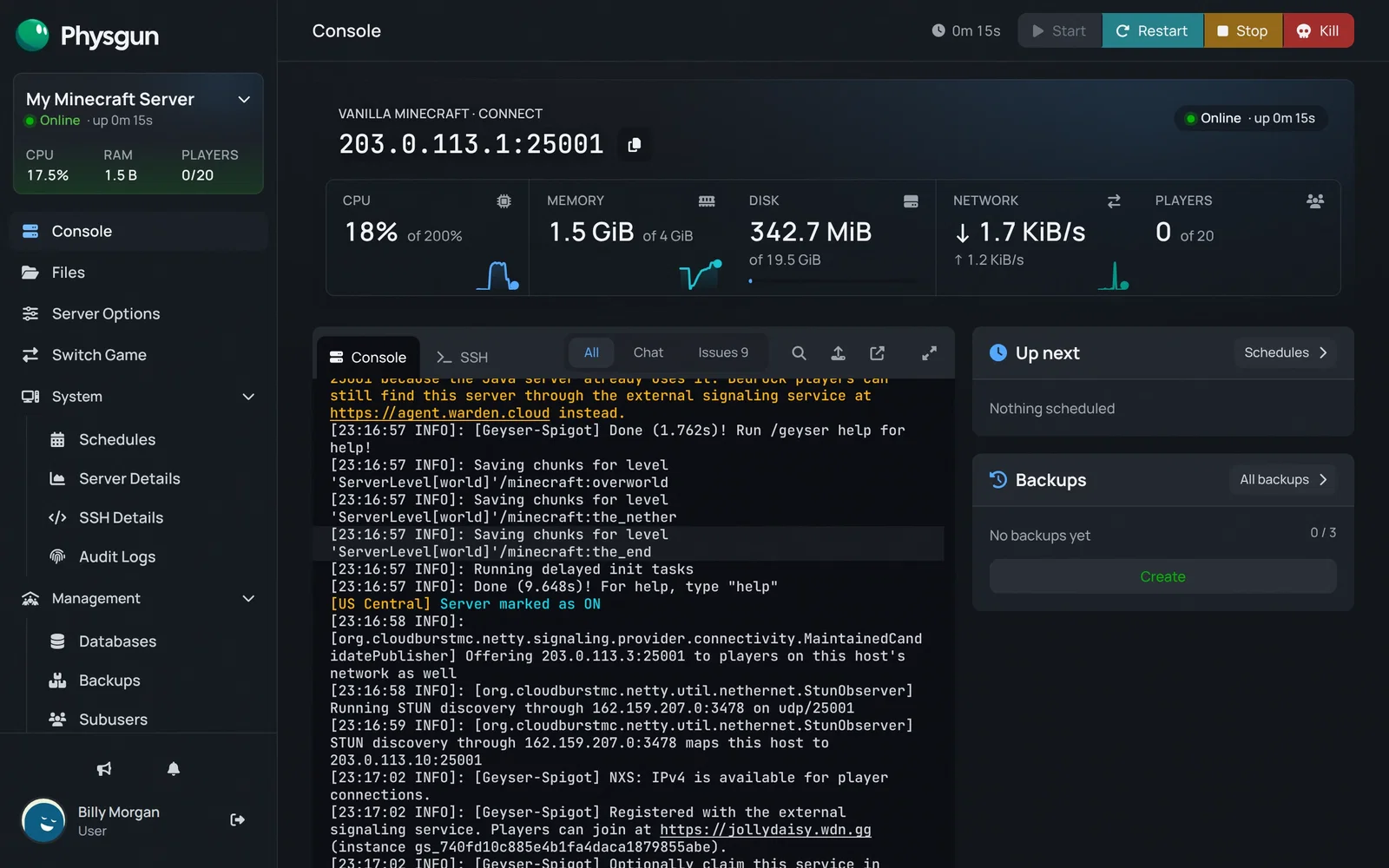 Check Geyser startedWait for Geyser to say it registered with the external signaling service.
- Type
geyser versionin the command box and press Enter. The console shows the Geyser version and which Bedrock versions can join, for example:
This server is running Geyser version 2.12.1-b1305 (git-master-1760ffb) (Java: 26.3, Bedrock: 26.40 - 26.65)- Type
floodgate versionand press Enter. The console shows the Floodgate version and whether there’s an update, for exampleYou're running the latest version of Floodgate!.
In game, an operator can run the same commands as /geyser version and /floodgate version.
Joining from Bedrock
Java players keep joining with your usual address. Bedrock players open Play, go to the Servers tab and select Add Server. They enter your server’s IP as the address and your game port as the port. Both are shown under Connect at the top of the Console page.
If your server has a whitelist, add Bedrock players with Floodgate’s own command. Use their Bedrock name, without any prefix:
/fwhitelist add BedrockNameThe normal /whitelist command is only for Java players.
Without the panel
The manual way works on any Paper or Spigot server where you can upload files and use the console. We tested its upload, config and console parts on our servers.
- Make sure the server runs Paper or Spigot. To switch by hand, download Paper from papermc.io and replace your server jar with it, using the file name your startup settings expect (for example
server.jar). - Download Geyser-Spigot.jar and Floodgate-Spigot.jar from the GeyserMC download page.
- Stop the server, upload both jars to the
pluginsfolder, then start it once so the config files appear. - In
plugins/Geyser-Spigot/config.yml, setauth-type: floodgate. - Set the Bedrock port. If your server only has one port, set
clone-remote-port: trueas shown above. If it has a spare port, you can instead setportunderbedrockto that port (19132 by default). It must be different from the Java port, and the Geyser docs say it must be open for both TCP and UDP. - Restart, then run
geyser versionandfloodgate versionin the console.
Fabric and NeoForge servers use the Fabric or NeoForge builds of both, placed in the mods folder, and Fabric also needs Fabric API. On a Velocity or BungeeCord network, Geyser goes on the proxy only. Geyser handles server-side plugins and mods only, so anything that needs a mod on the player’s own game won’t work for Bedrock players.
If it does not work
- No Geyser or Floodgate lines in the console: the server is probably still on Vanilla. Check that Server Options -> Version shows Paper, and that both jars are in
plugins, not in a subfolder. - Geyser fails to load its config: a line in
config.ymllost or gained spaces. Compareclone-remote-portandauth-typewith the lines around them. - Bedrock players are asked to sign in to a Java account or get kicked:
auth-typeis stillonline, or Floodgate didn’t load. Check the line, then restart and runfloodgate version. - Bedrock players get “Outdated client” or can’t connect: compare their game version with the Bedrock range that
geyser versionshows. If it’s out of range, update Geyser in the Plugin Manager and upload the newest Floodgate. - Still no Bedrock connection: check that the console shows the
Registered with the external signaling serviceline after a restart. If it does and players still can’t connect, contact our support with the Geyser lines from your console.