
How To Make A SkyFactory 4 Server — Quick Start Guide
SkyFactory 4 is a modpack that drops you on a single tree floating in the void: no resources, no ground, just the sky and whatever you can create with the dirt you’re given. The whole point is building something out of nothing, which makes the multiplayer experience even better when you can invite friends to grind alongside you.

Launch a SkyFactory 4 Server Through Physgun
Physgun offers pre‑installed, mod‑ready Minecraft servers with DDoS protection and a dedicated support team. Using the Physgun Gamepanel is the fastest way to get a SkyFactory 4 world online.
To setup a Skyfactory 4 server through Physgun:
-
Sign up at the Physgun website and select a Minecraft Java plan that meets the modpack’s RAM recommendation (8 GB+ for 3-5 players).
-
Choose a data center close to your target audience to reduce latency.
-
Complete the checkout; the server is provisioned within minutes.
-
Navigate to the Physgun Gamepanel and go to your Minecraft server.
-
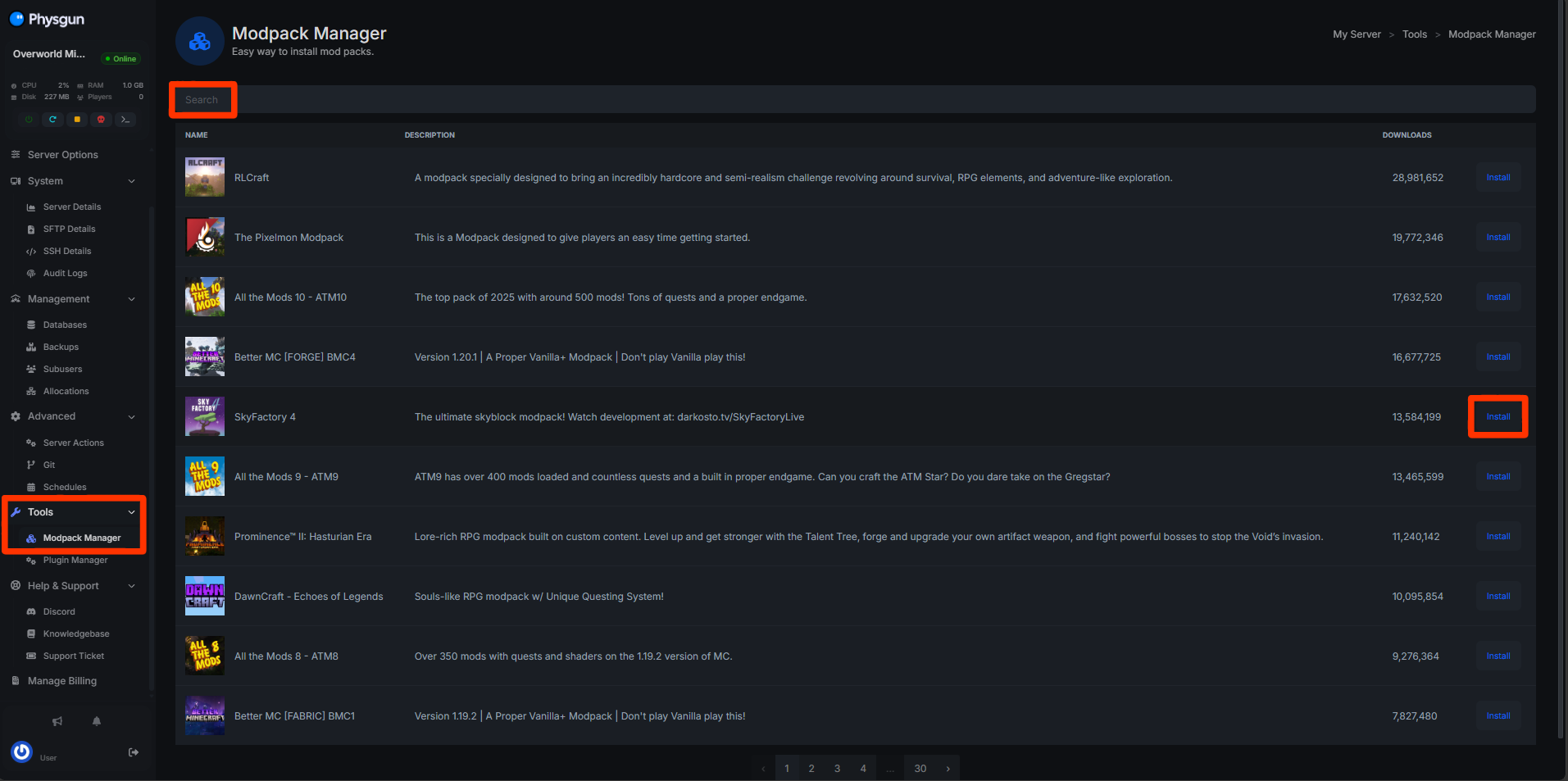
Under Tools > Modpack Manager in the left side navbar, search and find SkyFactory 4. Press the install button.
-
Configure your server, then start and join it!
Configuring the server
The control panel lets you edit server.properties and the SkyFactory 4 config file directly. We’ll revisit those settings later.
Your SkyFactory 4 server is now installed! Continue on to learn how to configure your server before trying to boot it up and join, or else you may face some issues!
Launch a SkyFactory 4 Server with a VPS
A virtual private server gives you full control over the Java environment, backup strategy, and custom scripts. This section assumes you have a VPS running Ubuntu 22.04 or a similar Linux distro.
1. Log in to the VPS
ssh root@your-vps-ipReplace your-vps-ip with the address assigned by your provider.
2. Install the Minecraft server
# Update packages
apt update && apt upgrade -y

# Install Java 8 (required for 1.12.2)
apt install openjdk-8-jre-headless -y

# Create a dedicated user
useradd -m -r -d /opt/mc skyfactory
su - skyfactory
Warning: Running the server as a non‑root user prevents accidental system changes.
Create a minimal server jar (Paper is fine for a vanilla base, but we’ll replace it with Forge later):
mkdir server && cd server
wget https://launcher.mojang.com/v1/objects/....../server.jar -O minecraft_server.jar
echo "eula=true" > eula.txt
3. Download and install SkyFactory 4
# Install Forge installer for 1.12.2
wget https://files.minecraftforge.net/maven/net/minecraftforge/forge/1.12.2-14.23.5.2854/forge-1.12.2-14.23.5.2854-installer.jar
java -jar forge-1.12.2-14.23.5.2854-installer.jar --installServer

# Remove the vanilla jar and rename Forge jar
rm minecraft_server.jar
mv forge-1.12.2-14.23.5.2854.jar server.jar

# Download SkyFactory 4 modpack (CurseForge zip)
wget https://media.forgecdn.net/files/.../SkyFactory%204%20v4.0.zip -O skyfactory4.zip
unzip skyfactory4.zip -d .
The mods/ directory now contains the full 204‑mod list, and the config/ folder holds the default configuration files.
4. Start the server once to generate files
java -Xmx8G -Xms8G -jar server.jar noguiPress Ctrl+C after the initial startup completes. This creates the world/ folder and the default server.properties file, which you’ll edit in the next section.
Configure World Types and Enable Prestige Mode
SkyFactory 4 relies on specific world‑type settings and an optional prestige system that unlocks advanced progression after the first “seed” world is completed.
Open server.properties in your control panel or via SSH
# Example server.properties snippet
level-type=SKYBLOCK
generator-settings={}
level-seed=
level-name=SkyFactory4
Set the level type to the chosen world preset
-
SKYBLOCK – the classic single‑tree start.
-
COMPACTSKY – per‑player compact machines; ideal for large groups.
-
SKYGRID – random block challenges for hardcore players.
-
TOPOGRAPHY – matches the official SkyFactory 4 preset and works with most custom mods.
Replace the value accordingly, for example:
level-type=COMPACTSKYEnter generator settings for your chosen preset
Each preset may require JSON parameters. For CompactSky, you can leave it empty, but for Topography you might need:
generator-settings={"preset":"topography","seed":123456789}Change the world name to generate a fresh world
If you are re‑installing or testing new settings, update level-name:
level-name=SF4_PrestigeEnable Prestige Mode
Prestige mode unlocks a second “prestige” world after the first completes, adding new resources and a separate advancement track.
-
Open the SkyFactory 4 configuration file located at config/skyfactory4.cfg (or skyfactory4-common.toml for newer versions).
-
Find the line enablePrestige=false and change it to true.
# skyfactory4.cfg excerpt
enablePrestige=true
Note: This setting must be applied before the first world generation; changing it later requires a full world reset.
- Restart the server to apply the change:
./restart.sh # or use your control panel's Restart button- Inform other players that prestige mode is active so they can plan their resource gathering and advancement goals accordingly.

Common Issues and Troubleshooting
Missing mod ID errors via console
When the server starts, the console may display:
[Server thread/ERROR]: Mod ID not found: some_modFix:
-
Verify that the missing mod’s jar exists in the mods/ folder.
-
Ensure the mod version matches the SkyFactory 4 pack (most mods are pinned to specific releases).
-
If you added a custom mod, place it in mods/ and restart.
Regenerate world after changing generator settings
If you modify generator-settings but the world does not reflect the change:
-
Stop the server.
-
Delete the world/ folder (or rename it for backup).
-
Restart; a fresh world will generate using the new settings.
Warning: Deleting the world erases all progress. Always keep a backup before making major changes.
Roll back to a backup after a failed update
Most hosts, including Physgun, provide a Snapshots feature:
-
In the control panel, go to Backups → Snapshots.
-
Select a snapshot taken before the update and click Restore.
-
Restart the server.
If you manage your own VPS, use rsync or tar to restore a previously saved archive.
Contact host support for persistent console errors
If errors continue after verifying mods and configs, open a support ticket with:
-
Server ID
-
Recent console log excerpt (use the Copy Log button)
-
Description of the steps you’ve already taken
Physgun’s dedicated support team responds quick, ensuring you’ll be online as quick as possible.