Setting up modern Minecraft mods often requires more than just a single file, and the Cloth Config API is one of the most common requirements you’ll encounter. This utility acts as a bridge, allowing developers to create organized, easy-to-use configuration menus for their mods so you can tweak settings without touching a line of code. Whether you’re running Fabric or Forge, having this API installed correctly is the key to preventing “missing dependency” errors at startup.
Need a server to run your modded setup on? Physgun’s Minecraft server hosting includes full file access so uploading mod dependencies like Cloth Config API is quick and straightforward.
- Verify Your Mod Loader: Ensure you have either Forge or Fabric installed — this API has specific versions for each.
- Match the Minecraft Version: Download the Cloth Config JAR that matches your exact game version (e.g., 1.20.1) from Modrinth or CurseForge.
- Add to Mods Folder: Drop the downloaded file into your
modsfolder alongside Fabric API or other core dependencies.
Step 1: Check Your Mod Loader
Before installing Cloth Config API, confirm which mod loader your Minecraft instance uses. The two primary loaders are Fabric and Forge, each with its own mod ecosystem.
- Fabric is lightweight and modular — the preferred choice for most modern mods.
- Forge remains popular for older modpacks and server environments, but is less common for newer mods.
Cloth Config API supports both loaders, but has separate versions for each. Using the wrong version will cause crashes or missing features.
Most modern mods use Fabric + Fabric API. If you’re unsure, check whether your modpack specifies a loader. Always verify in the Minecraft launcher by selecting your profile and checking the Mod Loader field under the Game tab.
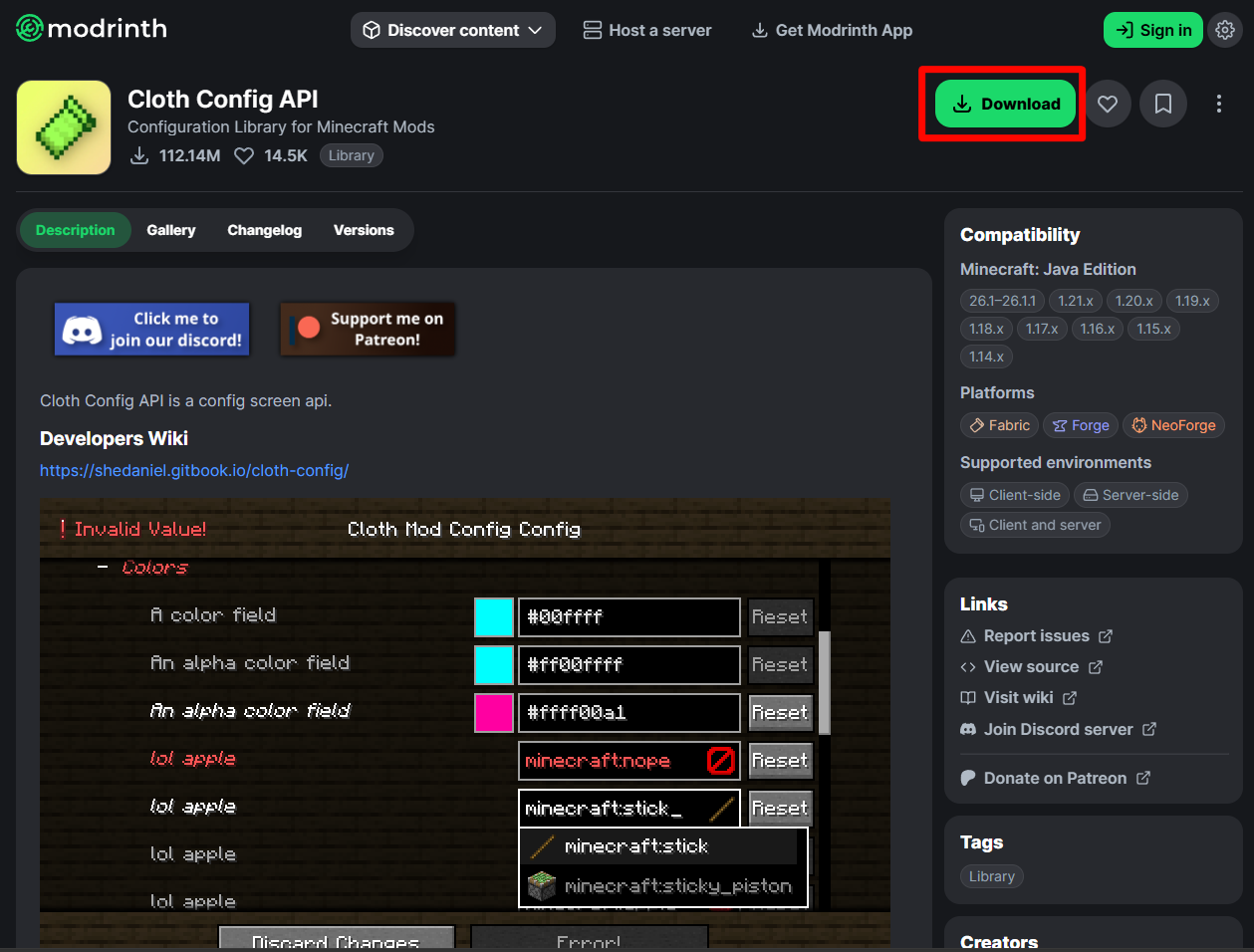
Step 2: Download the Correct Version
Download the correct version of Cloth Config API based on your Minecraft version and mod loader.
Where to download:
- Modrinth — Recommended for up-to-date releases and security.
- CurseForge — Trusted hub with extensive community support.
When selecting a version, confirm it matches both your Minecraft version and your mod loader. A version mismatch — for example, a 1.20.1 Fabric build on a 1.20.4 Forge server — will crash the game on startup. Always check the mod page for notes like:
- “Requires Minecraft 1.20.1”
- “Compatible with Fabric 1.20.1”
Step 3: Install the Mod File
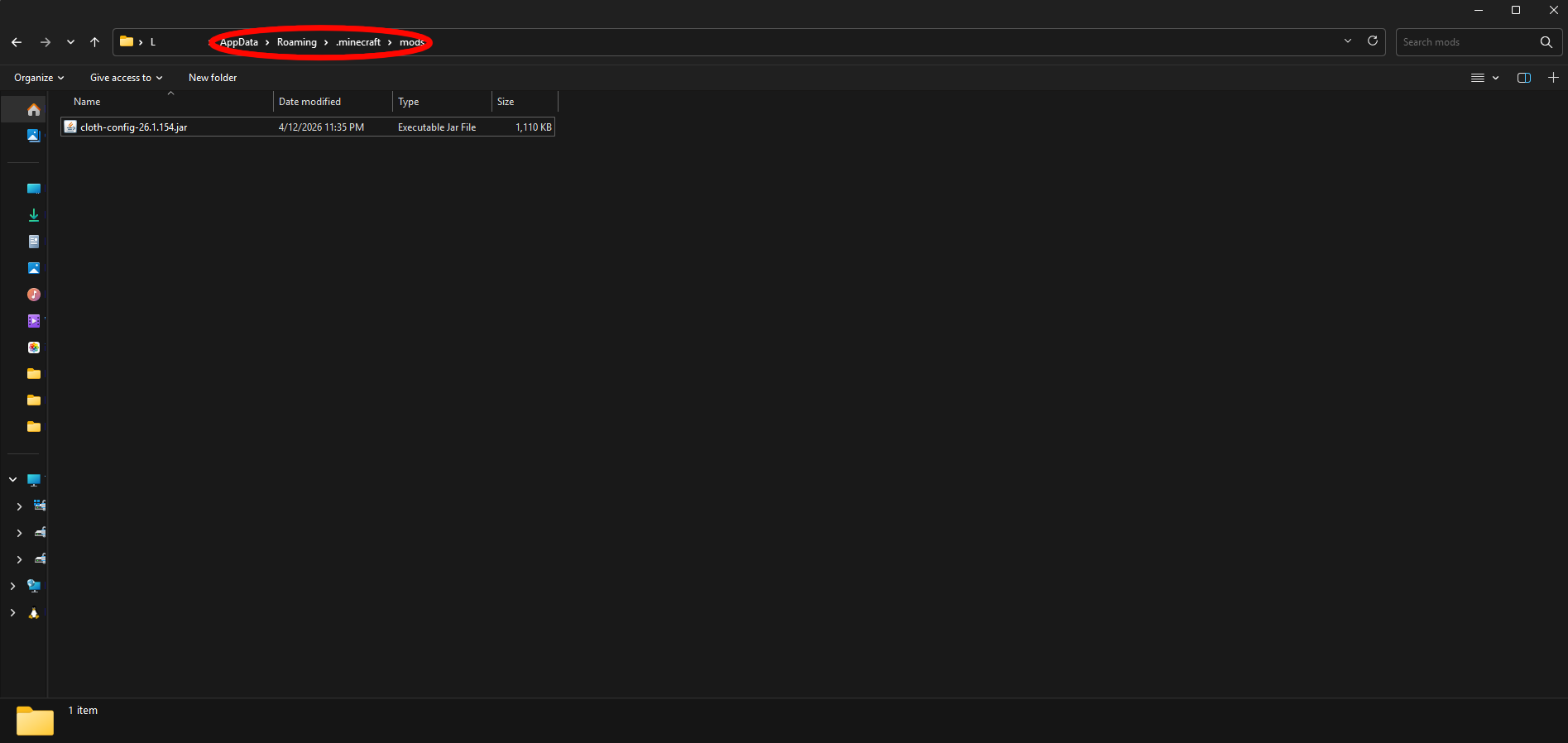
Once downloaded, place the .jar file in your Minecraft mods folder.
Windows:
C:\Users\<YourName>\AppData\Roaming\.minecraft\modsMac:
~/Library/Application Support/minecraft/modsServer:
Navigate to the mods directory on your server, upload the .jar file, and restart your server.
After placing the file, confirm it has a .jar extension and check that the file size matches what’s listed on the download page.
Step 4: Install Required Dependencies
If you’re using Fabric, you must also install Fabric API. Without it, the game will crash at startup with an error like:
Failed to load mod: fabric-apiDownload the correct Fabric API version from Modrinth or CurseForge and place it in the same mods folder as Cloth Config.
Tip: Always keep Fabric API and Cloth Config updated together — version mismatches can cause unexpected behavior.
For Forge, Cloth Config API is typically bundled with other dependencies, so a separate download is usually not required — but always verify the mod’s requirements on its download page.
Step 5: Launch and Verify
Launch Minecraft using your mod loader profile (e.g., Fabric or Forge). If installed correctly:
- The game launches without errors.
- Mods that require Cloth Config will appear in the mod list and load properly.
You can verify the installation by opening the mod menu and checking for a Config button under any mod that uses it.
Step 6: Use In-Game Config Menus
Once Cloth Config is active, you can access in-game configuration menus directly:
- Open Minecraft.
- Go to Mods, select a mod, and click Config.
You’ll see a clean, interactive interface to adjust settings such as:
- Enabling or disabling features
- Setting thresholds or numeric values
- Choosing options from dropdowns
This replaces the need to manually edit files in the /config/ folder, making mod management far more accessible.