






The MOTD (message of the day) is the text players see under your server’s name in the Minecraft multiplayer list. Until you change it, it says “A Minecraft Server”. It’s the first thing a player reads about your server, so it’s your chance to tell them its name and what it offers before they even join.
You need a Java Edition Minecraft server on Physgun. The MOTD lives in the server’s server.properties file, which a new server only creates the first time it starts.
Start the server once
If your server has run before, skip to the next section.
- Open your server in the Physgun Gamepanel.
- Select Start at the top of the page.
- When the EULA Acceptance window opens, read the Minecraft EULA and select Accept.
- Wait until the status next to your server’s name says Online. A new server may stop and start once on its own right after its first start, so give it a moment.
Set the MOTD
- Select Config Editor in the menu on the left.
- Scroll down to the MOTD box and replace the text in its field with your message and its color codes (see below).
- Select Save under the MOTD box. Each setting has its own Save button, and no message pops up when it saves.
You can save while the server is running. The new MOTD only shows after a restart, which comes next.
How the codes work
Every code is Minecraft’s section sign followed by one character, and it changes the text after it. To type the section sign:
- Windows: hold Alt and type 0167 on the number pad.
- Mac with a US keyboard: press Option + 6.
- Any computer: copy it from the Formatting codes page on the Minecraft Wiki.
The message in the video above is typed in this order:
| Type | What it does |
|---|---|
Section sign, then 6 | Makes the text gold |
Section sign, then l | Makes the text bold |
My Physgun Server | The first line |
\n | Starts the second line |
Section sign, then a | Makes the text green |
Welcome! Have fun. | The second line |
In the server list it shows “My Physgun Server” in bold gold, with “Welcome! Have fun.” in green below it. A few things to keep in mind:
\nis a backslash followed by a lowercase n. The MOTD has room for two lines only, so use it once.- Put the color first, then the style. A color code after a style code turns the style off again.
- Keep it short. A MOTD longer than about 59 characters can cause an error in the server list.
- Leave out the
=sign. The config editor may cut your message off at it.
Color codes
Type the section sign, then the character from the Code column.
| Code | Color | Code | Color |
|---|---|---|---|
0 | Black | 8 | Dark gray |
1 | Dark blue | 9 | Blue |
2 | Dark green | a | Green |
3 | Dark aqua | b | Aqua |
4 | Dark red | c | Red |
5 | Dark purple | d | Light purple |
6 | Gold | e | Yellow |
7 | Gray | f | White |
Format codes
| Code | Format |
|---|---|
l | Bold |
o | Italic |
n | Underline |
m | Strikethrough |
k | Obfuscated (scrambled, flickering text) |
r | Reset to plain text |
If you’d rather see the result as you type, an online MOTD creator such as motd.gg or mctools.org/motd-creator gives you a live preview. Copy the value it makes and paste it into the field. RGB and hex colors need a plugin on a Paper or Spigot server. A vanilla server only uses the 16 colors above.
Restart the server
The server only reads server.properties when it starts, so restart it to load your new MOTD.
- Select Console in the menu on the left.
- Select Restart at the top of the page.
- Select Yes, Restart Server to confirm.
- Wait until the status next to your server’s name says Online and the console shows
Done (...)! For help, type "help". Your new MOTD is now live.
Check the MOTD
To see what the server saved:
- Select File Manager in the menu on the left.
- Select
server.properties. - Scroll down to the
motd=line. It holds your message with its codes. The server adds a\before each!on its own. This is normal and doesn’t show in the server list.
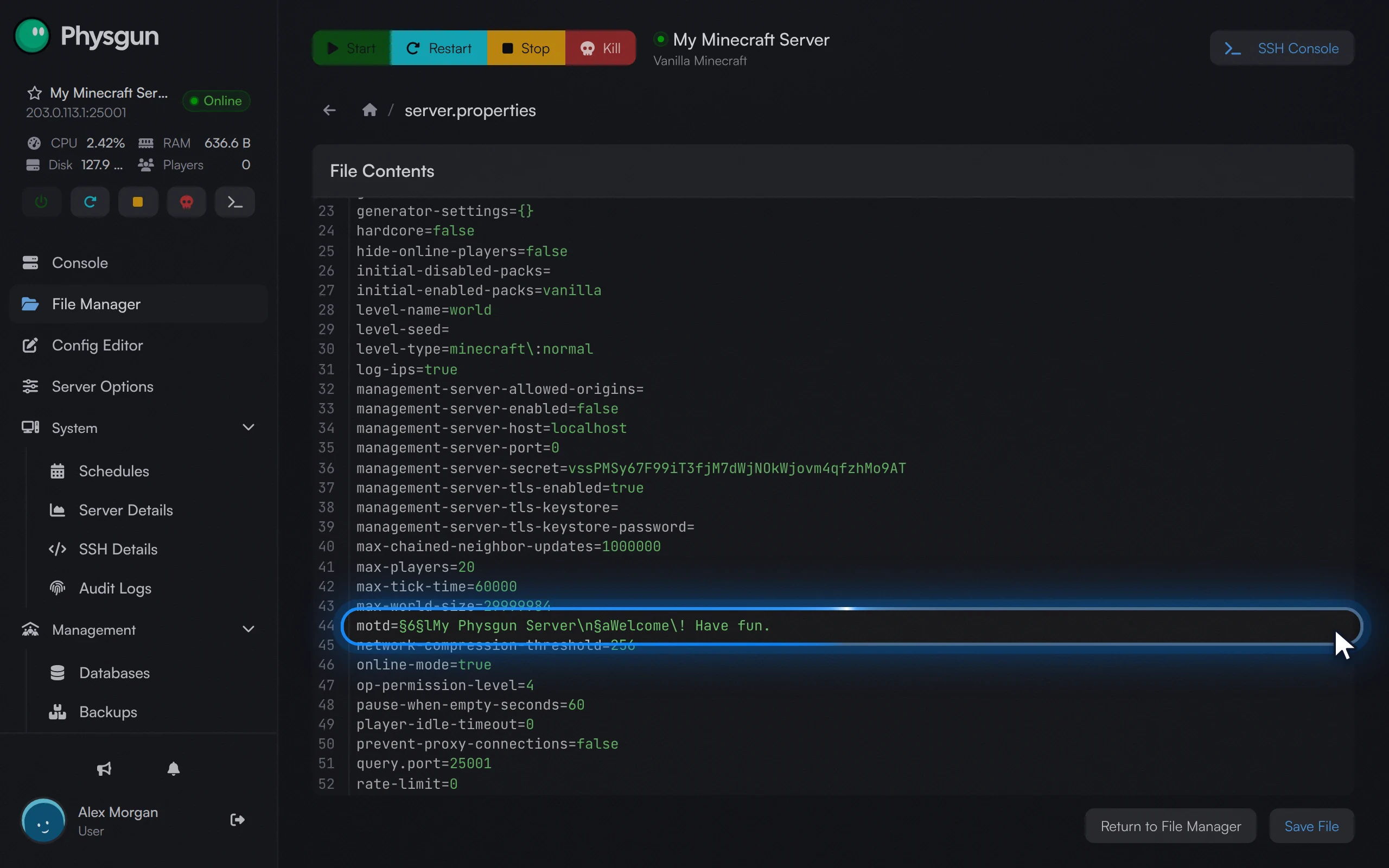 Find the motd lineThe motd line holds your new text. The server adds a \ before each ! on its own, which is normal.
Then check it in the game:
- Open Minecraft Java Edition and select Multiplayer.
- Add your server with Add Server and its address (shown under the server’s name in the panel), or select Refresh if it’s already in your list.
- Your MOTD shows under the server’s name, in its colors and on two lines.
Editing server.properties by hand
The Config Editor is quicker and harder to get wrong, but you can also change the motd= line in the file itself.
- Select File Manager in the menu on the left.
- Open
server.properties. - Find the line that starts with
motd=and replace everything after the=with your message, typed the same way as above. - Change only that line, then select Save File. You’ll see “The file was saved”.
- Restart the server and confirm with Yes, Restart Server.
If it doesn’t work
- The server list still shows the old text. Restart the server after saving, then select Refresh in the multiplayer list.
- The codes show as plain text in the server list. Make sure each code starts with the real section sign. Codes that start with
&only work with plugins. - There’s no
server.propertiesfile or MOTD box. The server hasn’t started yet. Start it once and accept the EULA. - The list shows an error, cuts your message off or loses its bold halfway. See the tips under How the codes work.