





















Without a license, a TeamSpeak 3 server runs one virtual server with up to 32 slots. Your license from TeamSpeak lifts that limit, but only once the server finds the license file in the right folder and reads it at startup.
Before you start, have your licensekey.dat ready. This is the file TeamSpeak sends you with your license, and it holds both a license and a license2 block. The license agreement is a different file. Keep the name exactly licensekey.dat, do not open and edit it, and do not share it: it is tied to you.
Upload your license file
TeamSpeak looks for the license in the server’s main folder, the same folder as the ts3server file. That is the folder the file manager opens in.
- Open your server in the Physgun Gamepanel and select Files in the menu on the left.
- Stay in the main folder. You should see
ts3server,ts3server.iniand folders likelogsandsqlin the list. - Select New in the toolbar.
- Select Upload and pick your
licensekey.dat.
When the upload finishes, licensekey.dat is listed in the main folder. If your computer saved it as something like licensekey (1).dat, rename it to licensekey.dat after uploading.
Set your slot count
Your server sets its slot count from the Slots setting every time it starts. A slot count you change in the TeamSpeak client is replaced at the next restart, so set it here instead.
- Select Server Options in the menu on the left.
- Type
Slotsin the Search box at the top. - In the Slots field, type the number of slots your license allows, for example
64. - Click outside the field to save it. You see “Startup variable successfully saved.”
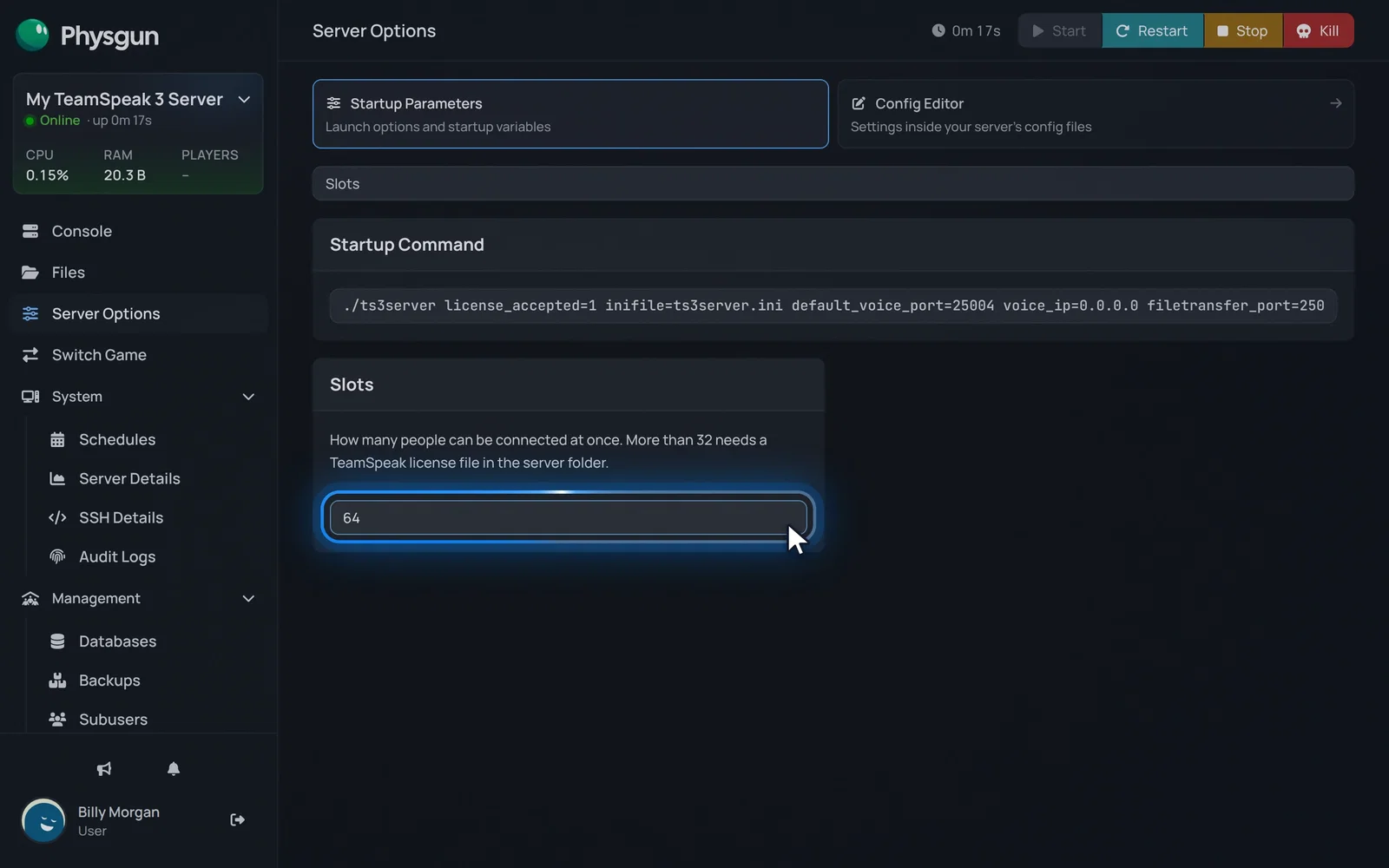 Enter your slot countType the number of slots your license allows.
Do not set it higher than your license allows. The server would still start, but it would refuse the new slot count.
Restart and check the license
Restart the server so it picks up the license.
- Select Console in the menu on the left.
- Select Restart at the top of the page.
- Select Yes, Restart to confirm.
- When the server is back online, scroll up in the console to the Licensing Information lines.
With a working license, these lines show your license instead of the free limits:
- licensed to shows your name, not
Anonymous. - type shows your license type, not
No License. - max slots shows the slot count of your license, not
32. - ending date shows when your license runs out.
A few lines further down, the server confirms the slot count from Server Options:
Applied the server name, slots and password from the Startup page.The same lines are saved in the logs folder. Open the newest file whose name starts with ts3server_ and ends in _0.log if you missed them in the console.
Once you connect with the TeamSpeak client, your server shows the new slot count.
If the license does not load
If you uploaded the file but did not restart, restart from the Console first. Then find your error in the console lines from the latest start and match it below.
| Console message | What to do |
|---|---|
Unable to open licensekey.dat, falling back to limited functionality | The server did not find the file. Check that it is in the main folder next to ts3server, not in a subfolder, and that it is named exactly licensekey.dat. |
invalidly formatted license | The file was changed or damaged. Download it again from TeamSpeak and upload the new copy without opening it first. |
Could not apply the slots: error id=2817 msg=max slot limit reached | The license did not load, or Slots is higher than your license allows. Fix the license first, then lower Slots to your licensed count. |
Other likely causes:
- The license has ended. Compare the ending date in the Licensing Information lines with today’s date, and renew with TeamSpeak if it has passed.
- The license is tied to another address. Some licenses are issued for a specific server address. If you moved your license from another server, check with TeamSpeak that it covers your server’s address, shown at the top of the Console page.
- The server cannot reach TeamSpeak. The license may need to be checked with TeamSpeak’s servers at startup. Restart once more and check the console again.