





















Carbon runs Oxide plugins, so you can switch frameworks without setting your server up again. The first time Carbon starts, it copies your Oxide plugins, plugin configs, data files, language files and permissions into its own folder. You don’t have to move any files yourself, and your original oxide folder stays where it is.
Before you start, your server should be running Oxide and should have started at least once with your plugins loaded. Plan for a few minutes of downtime, because the switch reinstalls the game files and restarts the server. If backups are enabled for your server, make one under Backups first.
Before you switch
Make a note of what Oxide has loaded right now. You’ll compare it with Carbon’s list after the switch.
- Open your server in the Physgun Gamepanel and go to Console.
- Type
o.pluginsin the command box. - Press Enter. The console prints
Listing ... plugins:and then one line for each plugin. Write down the names. - Select File Manager in the menu on the left.
- Find the oxide folder. It holds your plugins, configs and data, and Carbon copies from it.
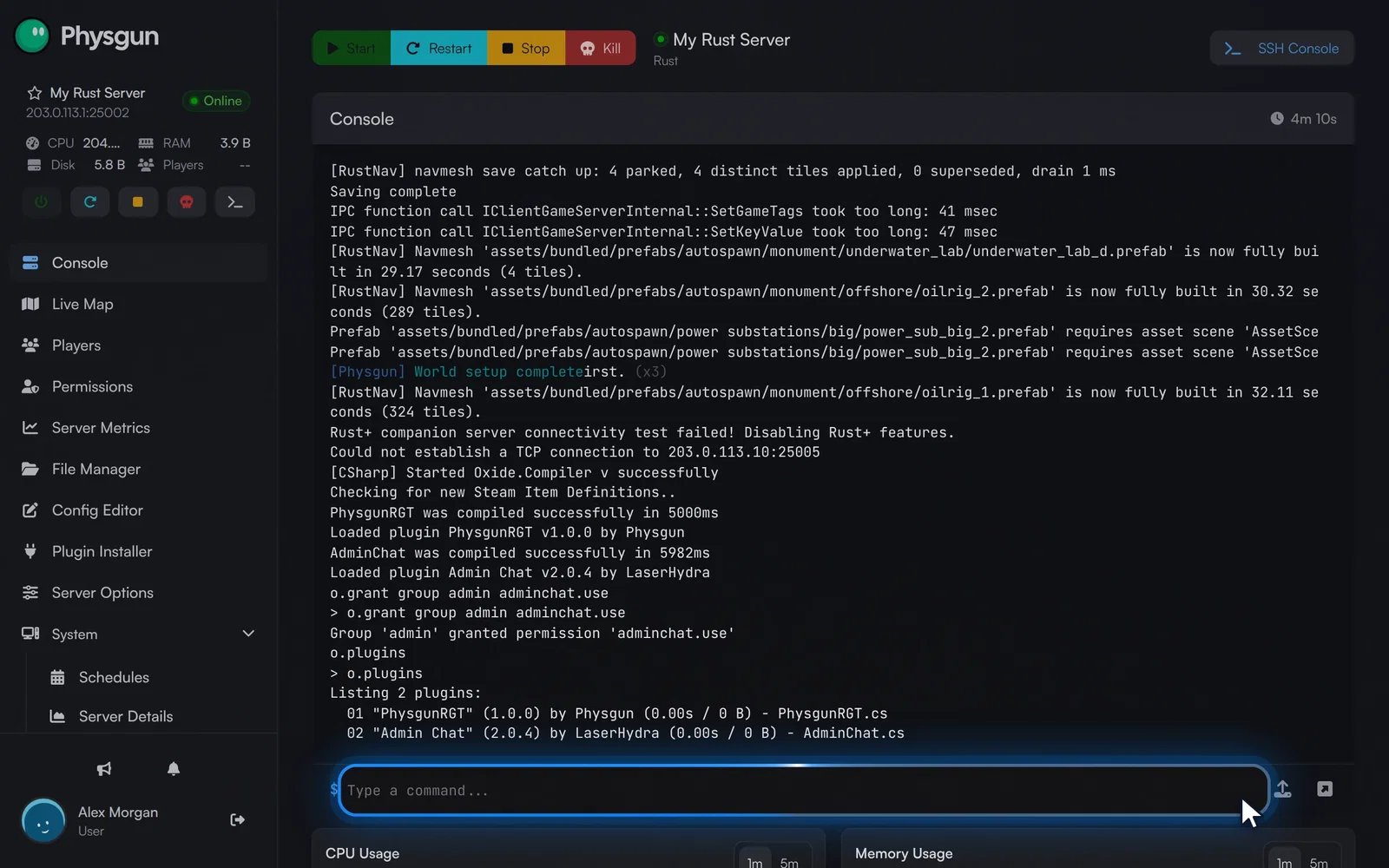 Note your pluginsPress Enter and write down the plugins listed, so you can compare them after the switch.
Switch to Carbon
- Select Server Options in the menu on the left.
- Type
Moddingin the Search box. - Select the Modding Framework list. It shows oxide.
- Select carbon. The setting saves on its own, and the panel confirms with “Startup variable successfully saved.”
- Under Advanced in the menu on the left, select Server Actions.
- Select Reinstall Server.
- Leave Wipe All Files off, so your plugins, configs, map and saves stay on the server.
- Turn on Start Server after Reinstall.
- Select Yes, Reinstall Server.
Use Reinstall Server here, not Restart. Oxide changes some of Rust’s own game files. The reinstall puts back the original files, and Carbon needs them to load. With a plain restart, Carbon starts on top of the files Oxide changed and the server breaks.
The reinstall and first Carbon start take a few minutes. Go to Console to follow along. While Carbon starts, it logs that it found a fresh install and is migrating the Oxide directories, then lists each folder it copied, such as oxide/plugins -> carbon/plugins.
Check that Carbon took over
Once the server has finished starting:
- In Console, type
c.versionand press Enter. The reply starts withCarbonfollowed by the version your server runs. - Type
c.pluginsand press Enter. Carbon lists its loaded plugins. Check that every plugin from your Oxide list is there, and that the last lines showfailed plugins (0). - Select File Manager in the menu on the left.
- Open the carbon folder. The configs, data and lang folders inside it hold copies of your Oxide files.
- Open plugins. Your plugin
.csfiles are here now.
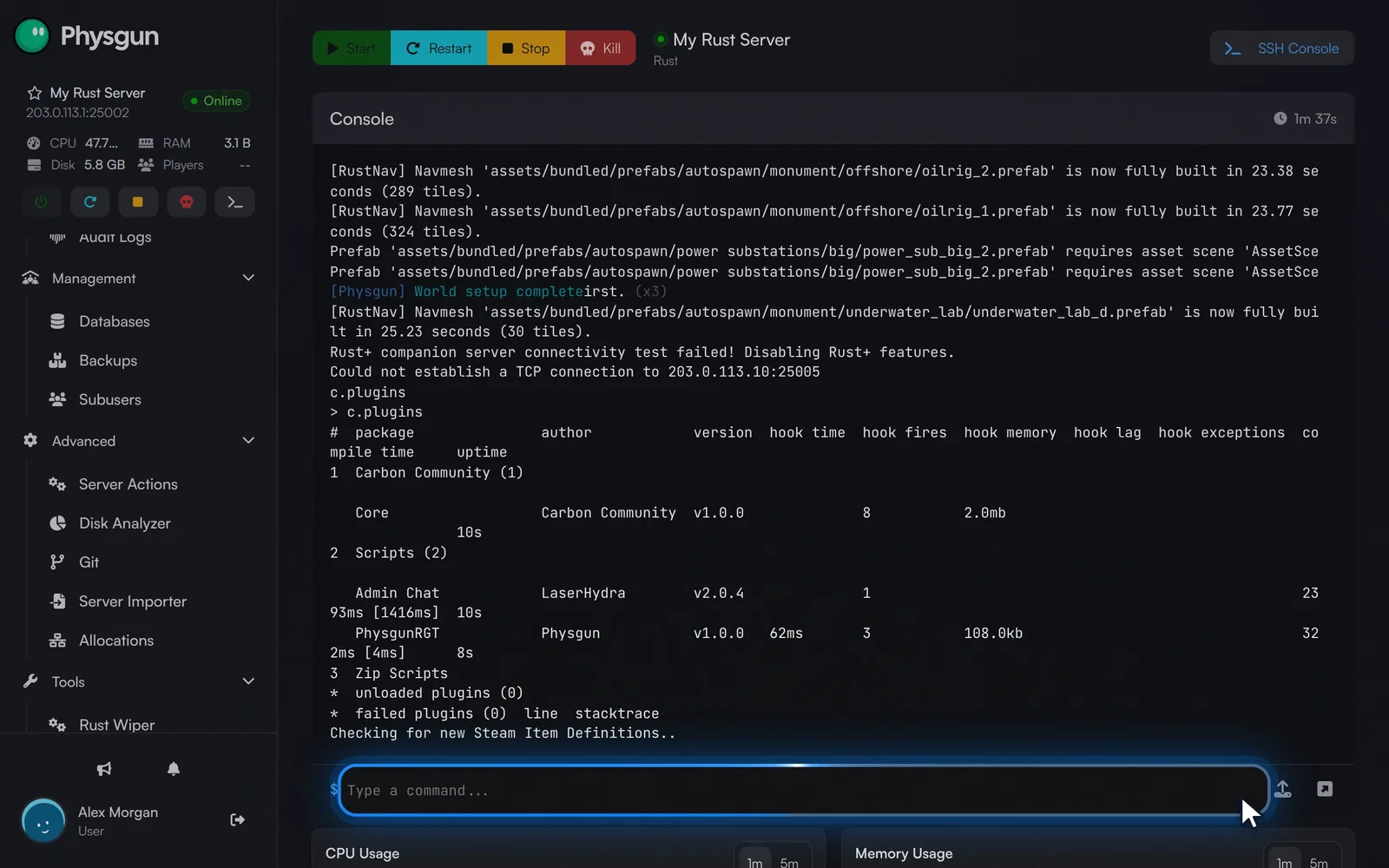 Compare the plugin listPress Enter and check that your Oxide plugins are listed and loaded.
From now on, add new plugins to carbon/plugins and edit their settings in carbon/configs. Carbon doesn’t read the oxide folder any more, so changes you make there won’t do anything.
If a plugin has a chat command, join the server and try it. For example, a member of a group that was granted a plugin’s permission under Oxide should still be able to use that plugin’s command.
Check your permissions
- To check that your Oxide grants came over, select Permissions in the menu on the left.
- Select Enable permissions. The panel reads your groups at the next restart. Nothing on your server changes until you make an edit on this page.
- Select Restart at the top of the page.
- Select Yes, Restart Server.
After a minute or two, the page shows a Carbon badge, and your groups appear as columns with a tick next to every permission they hold. A permission you granted under Oxide, such as adminchat.use for the admin group, should show its tick here.
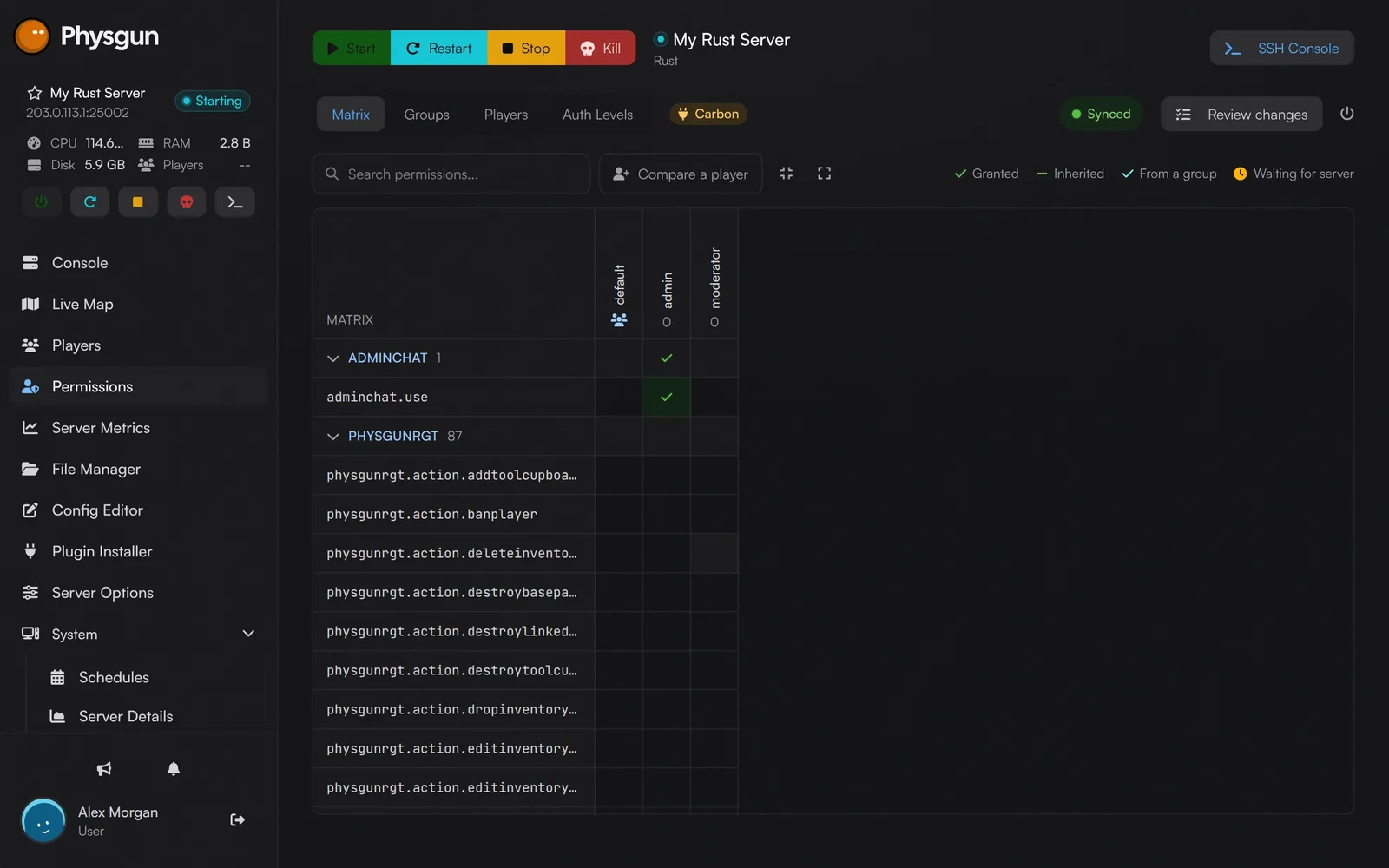 See your groupsSelect Yes, Restart Server, and your Oxide groups show here under Carbon shortly after.
Checking permissions from the console
If you’d rather not use the Permissions page, type this in Console on any server running Carbon, replacing admin with the name of a group on your server:
c.show group adminCarbon lists every permission the group holds. Each grant you made under Oxide with o.grant should be there. The migrated groups are also saved as a file in carbon/data.
Switching back to Oxide
Carbon leaves your oxide folder exactly as it was when you switched, so you can go back if you need to:
- In Server Options, set Modding Framework back to oxide.
- Run Reinstall Server from Server Actions again, with Wipe All Files off and Start Server after Reinstall on.
Oxide loads the plugins, configs and data from the oxide folder as they were on the day you switched. Anything you changed under Carbon after that stays in the carbon folder. Pick one framework and stay with it. Switching back and forth leaves you with two sets of configs that drift apart.
If it does not work
- The console fills with
TypeLoadExceptionorCould not load file or assembly 'Oxide.Core'errors. The server was restarted after the switch instead of reinstalled. Run Reinstall Server from Server Actions with Wipe All Files off, and Carbon will load cleanly on the next start. c.versionis not recognised. The server is still running Oxide or vanilla. Check that Modding Framework shows carbon in Server Options, then reinstall.- A plugin is missing from
c.pluginsor listed as failed. Check that its.csfile is incarbon/plugins, then look in the console for the error Carbon printed when it loaded it. Most Oxide plugins run unchanged, but an outdated plugin may need an update from its author.