

















In RuneScape: Dragonwilds you kick, ban and unban players from inside the game. You don’t need console commands or config files for it. The server only gives you these controls once it knows you are its owner, so you need to put your Player ID into the server’s settings first. After that, everything happens in the pause menu while you play.
Before you start, launch the game and open Settings. Your Player ID is at the bottom of that menu. Copy it, because you will paste it into the panel in a moment.
Make yourself the owner
- Open your server in the Physgun Gamepanel and select Server Options in the menu on the left.
- Type
Ownerin the Search box. - Paste your Player ID into the Owner ID field.
- Press Tab or click outside the field. The panel saves it right away and shows Startup variable successfully saved.
A server has only one owner. Whoever’s Player ID is in Owner ID can ban and unban anyone, whether that player is online or offline.
Restart the server
The new Owner ID only takes effect after a restart.
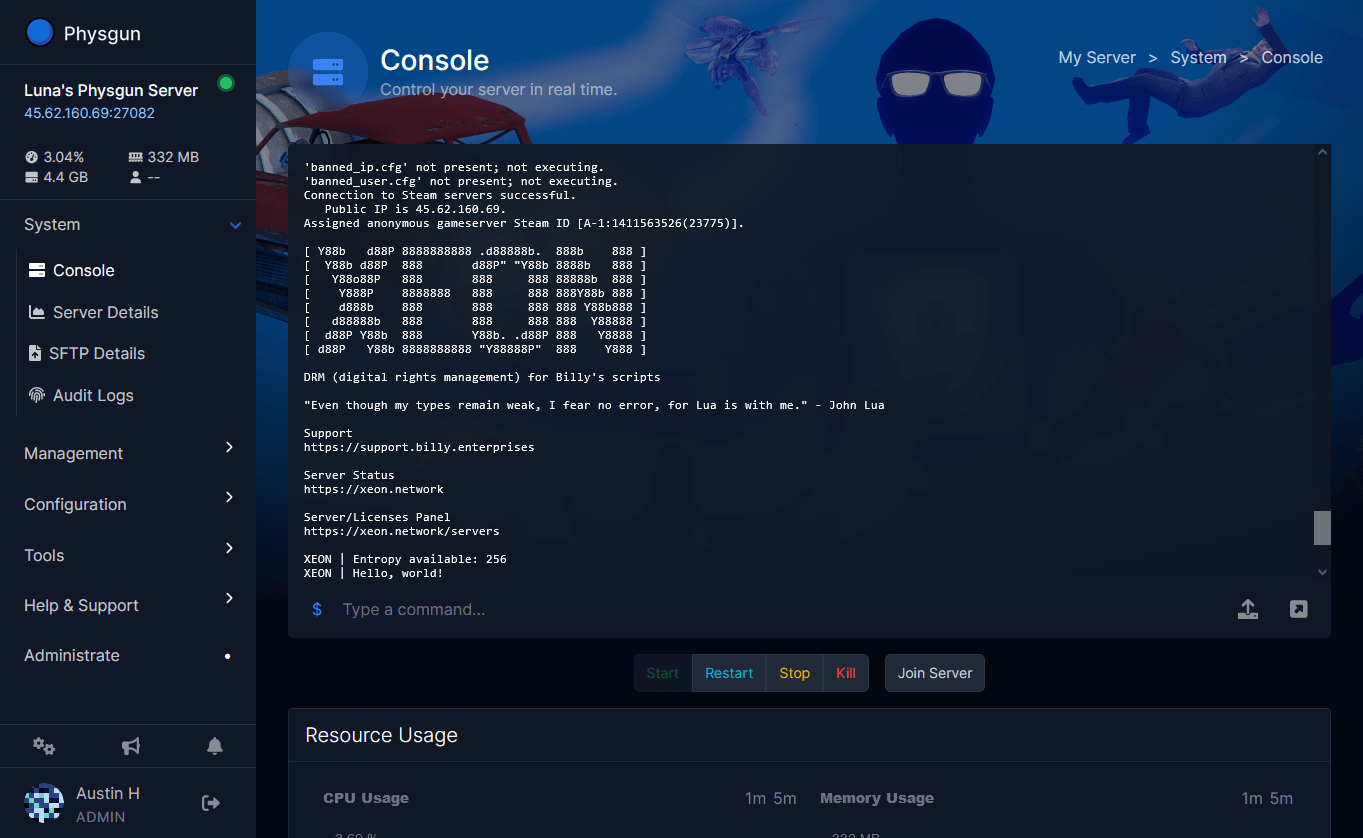
- Select Console in the menu on the left.
- Select the arrow next to Stop to open the power menu.
- Select Restart.
- Confirm with Yes, Restart Server.
- Wait until the status at the top left reads Online again. This usually takes about a minute.
If your server was stopped, select Start instead.
Kick or ban a player
Now join your server with the account whose Player ID you entered.
- Press Esc to open the pause menu.
- Go to Settings -> Server Management.
- In the player list, find the player and select the three-dot button next to their name.
- Choose kick or ban.
A kicked player drops off the server but can join again whenever they like. A banned player is removed, added to the banned list and can’t rejoin.
Unban a player
- Open Settings -> Server Management from the pause menu, as above.
- Press E to move to the next page of the player list, which shows your banned players.
- Select the player and choose unban.
Once they are off the banned list, they can join again. Only the owner can unban. Admins can ban regular players who are online, but they can’t lift a ban.
Keeping people out
If you want only your own group on the server, open Server Options and set a World Password. Players then have to enter it before they can join. Leave it empty to let anyone in. Restart the server after you change it.
If it doesn’t work
- No Server Management option, or you can’t ban: the Player ID in Owner ID doesn’t match the account you’re playing on. Copy it again from the bottom of the in-game Settings menu, paste it in, and restart the server.
- You can’t unban: ask whoever owns the server to do it, or put your own Player ID in Owner ID.
- A banned player is still getting in: make sure they show up on the banned list page (E). If they aren’t there, ban them again from the player list while they are online.