
















Dragonwilds doesn’t connect you to a server by its address. You find your world by searching its World Name in the game’s server list, so you and your friends need that exact name, with the same capital letters. Dragonwilds has crossplay, so the same steps work on PC, PlayStation 5, Xbox Series X|S and Switch 2.
Before you start, you need your server on the Physgun Gamepanel and the game installed and up to date on the device you’re playing on.
Find your World Name
- Open your server and select Server Options in the menu on the left.
- Type
Worldin the Search box. This leaves only the World Name and World Password settings on the page. - Note the World Name. Unless you changed it, it is
Physgun World. This is the name you search for in the game. - Look at the World Password field. If it is empty, anyone who searches for your world can join. If it has a password, everyone joining types it in when they join.
Send your friends the World Name, plus the World Password if you set one. They only need those two. The Owner ID and Admin Password are for you as the owner and should never go to players.
Changing the name or password
Each field saves as soon as you click out of it. After you change one, restart the server from the Console page with the Restart button and confirm with Yes, Restart Server. Players won’t see the change until you restart.
Before you rename your world, read the description above the World Name field. The World Name is also the save file the server loads. If you enter a name with no save behind it, the server starts a brand new world. Your old world stays in its file, and you can go back to it by setting the old name again. Keep the name short and leave out the .sav extension.
Start the server
- Select Console in the menu on the left.
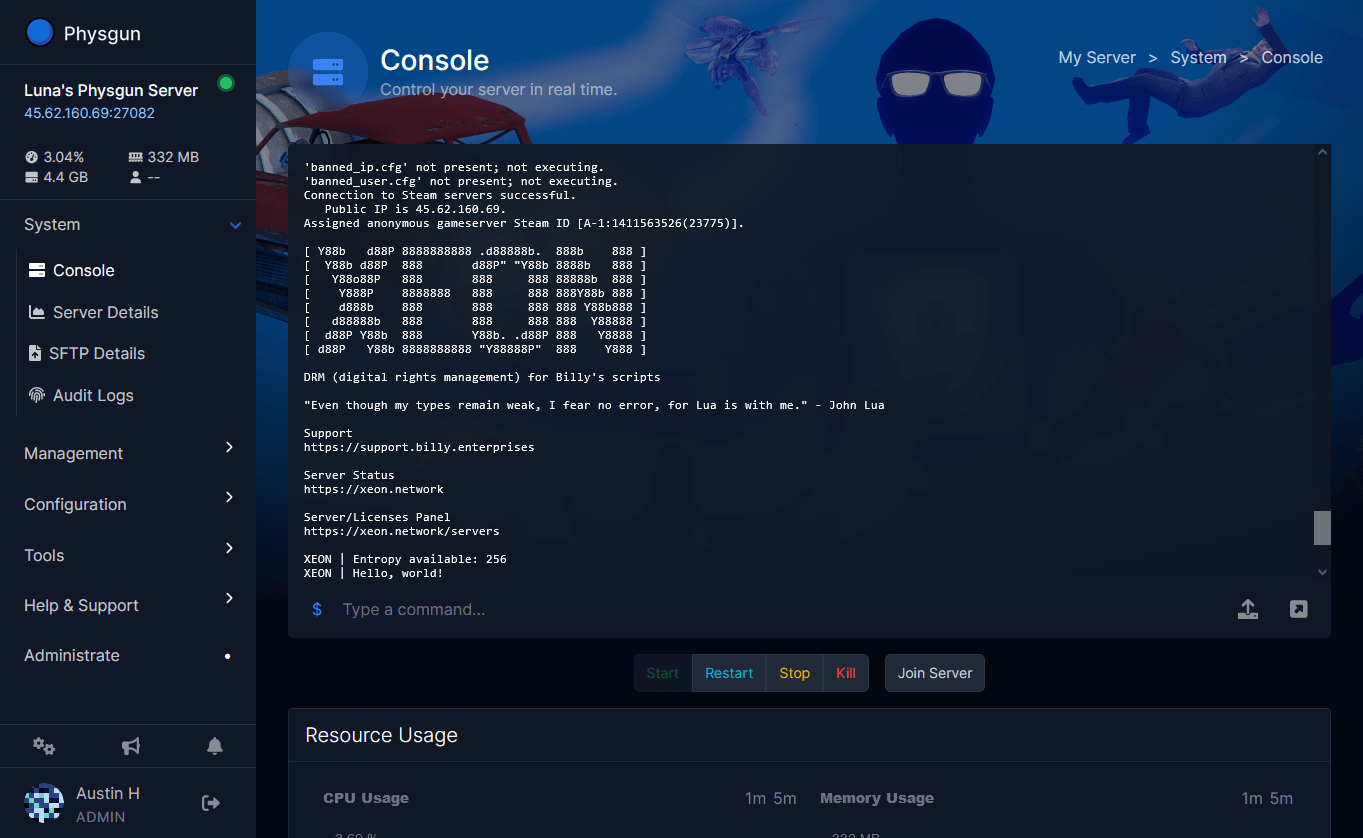
- Select Start at the top of the page. The first start can take a minute or two.
- Wait until the status next to your server’s name changes from Offline to Online. In the console, the last line reads
LogDomMatcherSession: UPDATE SESSION - completeonce the world is listed.
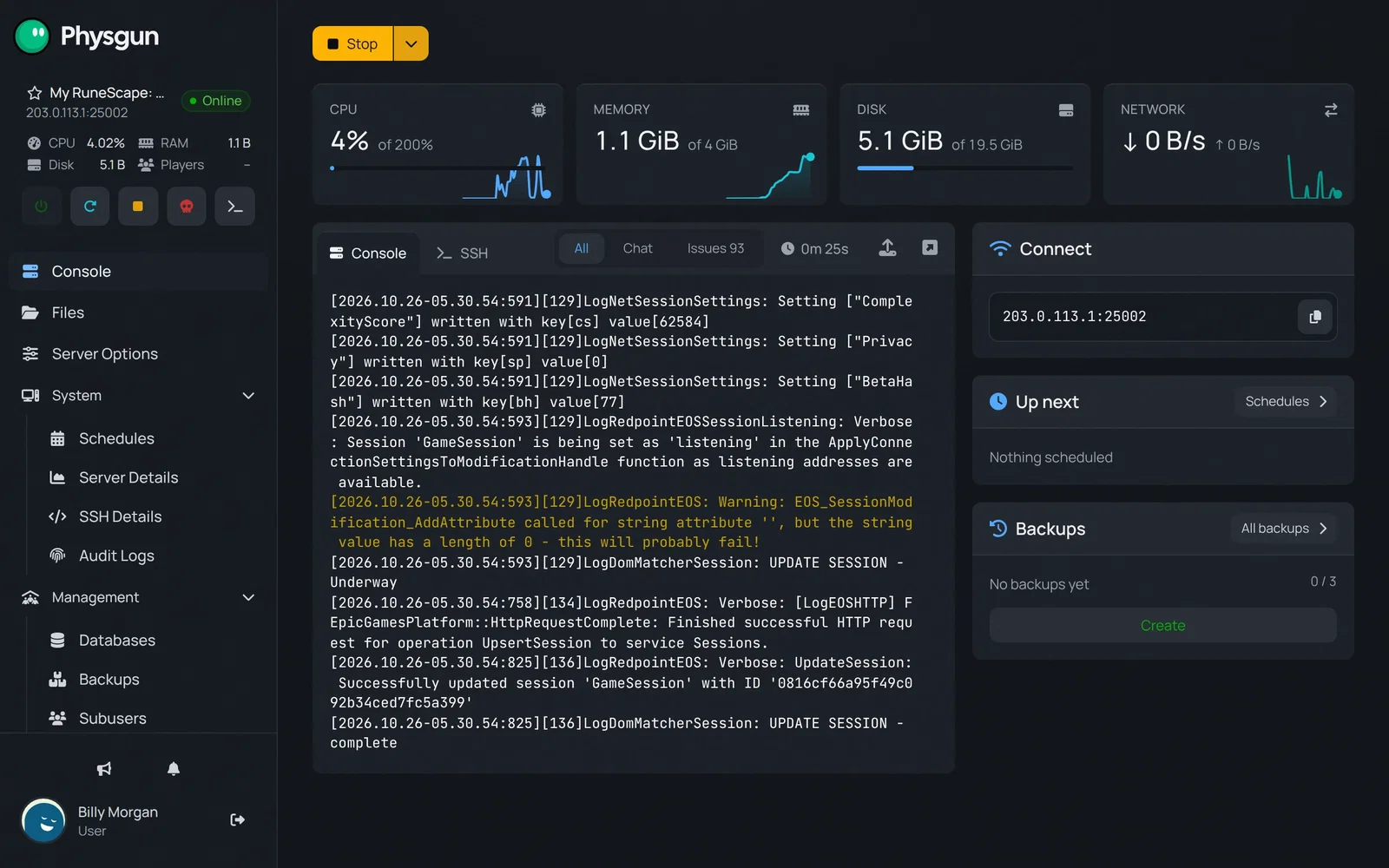 Wait for OnlineOnce your server shows Online, players can find your world and join.
If you want to check the World Name again, look for a console line that ends in value[Physgun World] (or your own name). That is the name the server shows in the game’s list.
Join from the game
- Launch RuneScape: Dragonwilds and choose Play.
- Open the Worlds screen.
- Select the Public tab.
- Search for your World Name exactly as it appears in Server Options, including the capital letters. Give it a few seconds to show up.
- Select your world. If it has a World Password, type it in when the game asks.
- Choose a character and enter the world.
The list may show a second name as the world’s creator. That is the server’s name, and search doesn’t find it. Search for the World Name.
When a player joins, a new line with their name should show up in your server’s console.
Extra steps on console
On PlayStation 5, Xbox and Switch 2, the console’s own settings can block online play with other people. If your world never shows up or you can’t join, check these first:
- PlayStation 5: go to Settings -> Family and Parental Controls and allow communication with other players and user-generated content.
- Xbox: go to Settings -> Account -> Privacy & online safety and allow playing with people outside Xbox.
- Switch 2: open the parental controls settings and allow online communication with other players.
You also need that platform’s online subscription: PlayStation Plus, Nintendo Switch Online, or Game Pass Core on Xbox. Console players can’t use mods, so if your group mixes PC and console, run the server without mods.
If you can’t find or join the world
- The search finds nothing: make sure the server shows Online and the console has reached
UPDATE SESSION - complete. Then check the name letter by letter.physgun worldwon’t findPhysgun World. - You changed the name, but the old one still shows up: restart the server from the Console page.
- The game turns you away after an update: you can only join a server that runs the same game version as you. With Automatic Updates turned on in Server Options, the server updates every time it starts, so restart it after a game patch.
- The password is rejected: copy the World Password straight from Server Options. It is not the Admin Password.
- Console players can’t see the world: in Server Options, check that Platforms is still set to Crossplay, which is the default. Then check the console’s privacy settings above.
- A Steam invite doesn’t work: Steam invites don’t connect players to a dedicated server. Send the World Name instead and have your friends search for it.
- The world is full: Max Players in Server Options sets how many players can be in the world at once. The default is 6.