





















Before you invite anyone, set who owns your RuneScape: Dragonwilds server, the name players search for, who can join and who gets admin. A new server starts with placeholder values. Set the World Name before you play, because changing it later starts a new world.
You’ll need your Player ID from the game. Open RuneScape: Dragonwilds, go to Settings, scroll to the bottom and copy the Player ID shown there.
The settings
All of these are on the Startup Parameters tab under Server Options in the Physgun Gamepanel.
| Setting | What it does |
|---|---|
| Owner ID | Your Player ID. Makes you the server’s owner, who can ban and unban players. It starts as a row of zeros, so replace it. |
| World Name | The save your server runs, matched by its file name in the SaveGames folder. Players find your server by searching this exact name. Default: Physgun World. |
| Server Name | Shown as the creator of your world in the server list. Up to 16 characters. Default: A Physgun Server. |
| World Password | Players must enter it to join. Leave it empty to let anyone join. |
| Admin Password | Players who enter it in the game become admins and can ban players. Use a different value from the World Password. |
| Max Players | How many players can be on the server at once, from 1 to 6. Default: 6. |
| Platforms | Which players can join your server. Default: Crossplay. |
| Automatic Updates | Updates the server to the latest game version on every start. Players can only join a server on their own version, so leave it on. |
| Settings Port | The port the in-game server settings use. Leave it as it is. |
Change your settings
- Select Server Options in the menu on the left. The Startup Parameters tab opens.
- In Owner ID, replace the zeros with your Player ID.
- Check the World Name. Keep it, or change it now if you have not played on the server yet.
- Type a Server Name, for example
My Test Server. - Type a World Password, or leave it empty for a public world.
- Type an Admin Password.
- Type a number from 1 to 6 in Max Players.
- Press Tab or click outside the field. Each field saves when you leave it, and “Startup variable successfully saved.” appears in the corner.
You can change these while the server is running. The new values are used the next time it starts.
Restart the server
- Select the arrow next to Stop at the top of the page.
- Select Restart.
- Select Yes, Restart Server.
- Wait until the server shows Online again. This takes about a minute.
Check the new settings
- In Server Options, select Config Editor at the top of the page.
- Open DedicatedServer.ini in the Files list. It lives in
RSDragonwilds/Saved/Config/LinuxServer. - Check that ServerName, DefaultWorldName, WorldPassword and OwnerId show your new values.
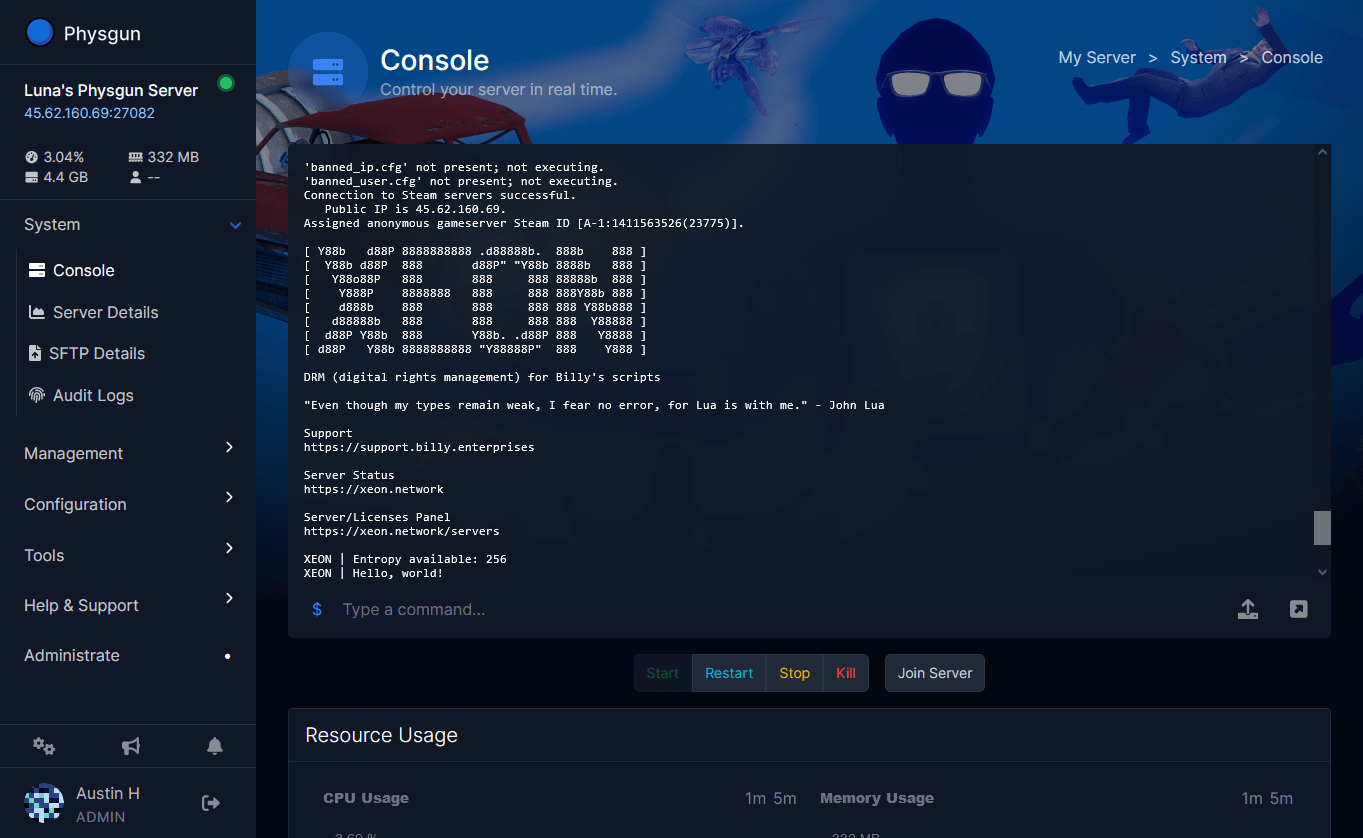
The Admin Password is not listed in this file, because the game rewrites the file when the server starts. To check Max Players, open Console and look for the line starting with Command Line:. It ends with MaxPlayers= and your number. The same line is in RSDragonwilds/Saved/Logs/RSDragonwilds.log.
Test it in the game
- In RuneScape: Dragonwilds, open Worlds and select the Public tab.
- Search for your World Name exactly as you typed it, including capitals. The result can take a few seconds to show up.
- Check that your Server Name is shown as the creator, then join. If you set a World Password, the game asks for it.
- To become an admin, open the pause menu, go to Settings -> Server Management and enter the Admin Password.
Anyone who enters the Admin Password stays an admin until you change it. When a moderator leaves your group, set a new Admin Password and restart.
Editing DedicatedServer.ini by hand
Dragonwilds stores its settings in DedicatedServer.ini, and editing it by hand works on any server. On a Physgun server, use Server Options for the settings in the table above: the server writes OwnerId, ServerName, DefaultWorldName, WorldPassword, AdminPassword and PlatformPolicy from your Startup Parameters into this file every time it starts, so edits to those keys in the file are replaced. Other entries in the file, such as the crash report setting, keep your changes.
- Stop the server. The game rewrites the file when it shuts down, so changes made while it runs are lost.
- Back up
DedicatedServer.ini. - Open it in Config Editor or in the file manager at
RSDragonwilds/Saved/Config/LinuxServer/DedicatedServer.ini. On a Windows server, the folder isWindowsServer. - Change the values and save the file.
- Start the server.
The settings sit under one section:
[SectionsToSave]
bCanSaveAllSections=true

[/Script/Dominion.DedicatedServerSettings]
OwnerId=YOUR_PLAYER_ID
ServerName=My Test Server
DefaultWorldName=My World
AdminPassword=YOUR_ADMIN_PASSWORD
WorldPassword=YOUR_WORLD_PASSWORD
Keep the section headers and any entries the server wrote itself, such as ServerGuid and the history of players who used the Admin Password.
Max Players is not set in this file. The server reads it from its launch line:
-ini:Game:[/Script/Engine.GameSession]:MaxPlayers=4DefaultWorldName only names a new world when the RSDragonwilds/Saved/SaveGames folder has no save. Changing it does not rename an existing save.
If it does not work
- Your world is gone or empty: the World Name was changed, so the server made a new world. Set World Name back to the old save’s file name, as shown in
RSDragonwilds/Saved/SaveGames, and restart. - Players cannot find the world: they need to search the World Name, not the Server Name, with the same capitals. If the search still finds nothing, they can use the Direct IP Connection tab with your server’s address and port.
- The server stops on start, or you cannot ban players: open Console and check the last lines, then check Owner ID. It must be your own Player ID, not the zeros.
- Players cannot join with the right password: their game is on a different version from the server. Keep Automatic Updates on and restart the server after a game update.