












Your RuneScape: Dragonwilds server has two names. The World Name is the one that matters for finding you: players type it into the search on the Public tab of the in-game server list. The Server Name is a shorter label shown as the world’s creator. Each world also has its own save, so a new World Name starts a new world. Your old world stays on the server, and you can switch back to it any time.
You need your server open in the Physgun Gamepanel, and the server must have started at least once. If your players have built something you want to keep, take a backup from Backups before you start.
Change the names
- Select Server Options in the menu on the left.
- In the World Name field, type the name players should search for, for example
Dragon Keep. It can be up to 32 characters long. - If you also want a new creator label, type it in the Server Name field. It can be up to 16 characters long.
- Press Tab or click outside the field. Each field saves on its own, and a “Startup variable successfully saved.” message appears for each one.
Wait until you have seen that message for every field you changed. If you restart before it shows, the server can start with the old name. If that happens, open Server Options, check that the field shows your new name, and restart again.
Restart the server
- Select the arrow next to Stop at the top of the page.
- Select Restart.
- Select Yes, Restart Server.
- Wait until your server shows Online again. This took about a minute on our test server.
If your server was stopped, select Start instead.
Check the new world
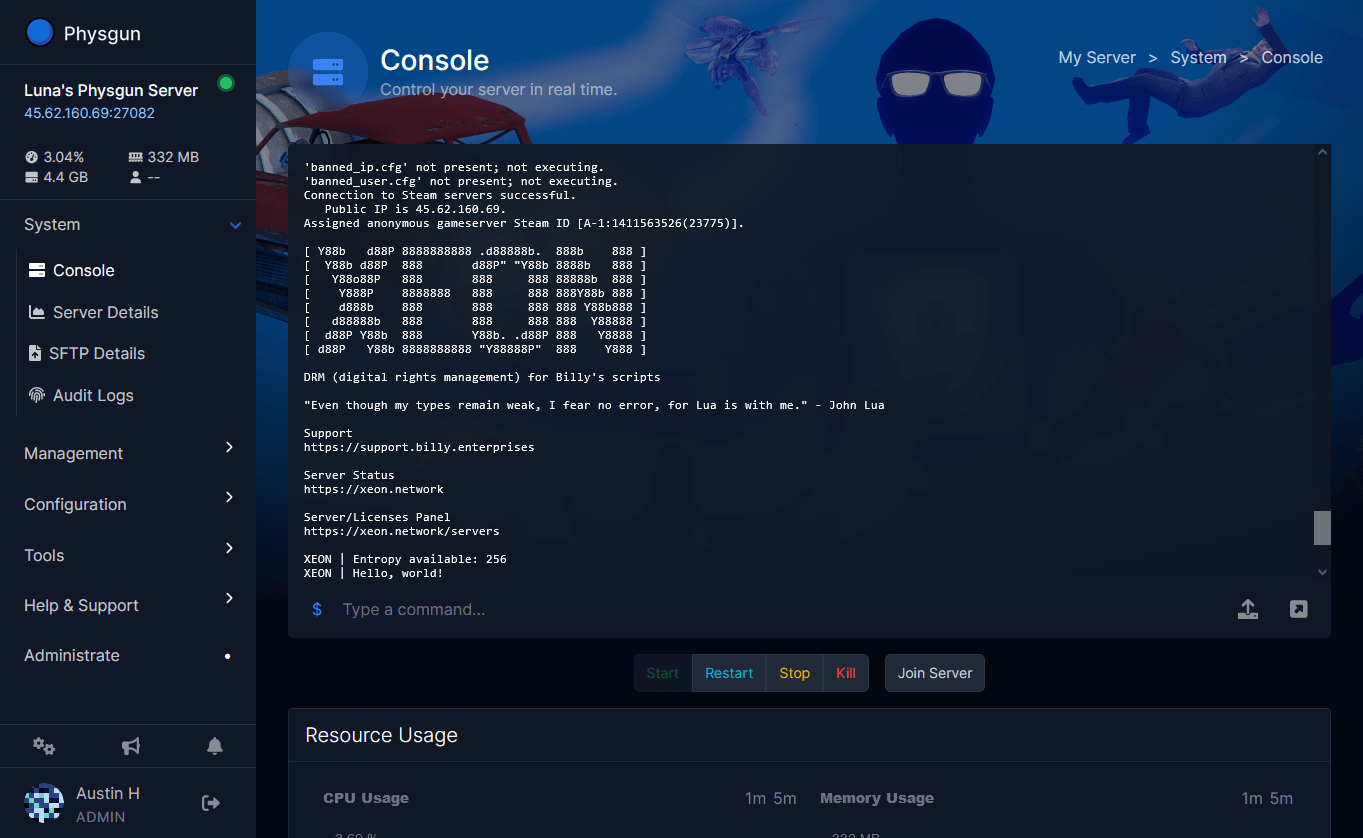
Open Console while the server starts. When the World Name is new, the log shows that no save was found for it and that a new one is being created:
No save found for configured world [Dragon Keep]; creating itIf you typed the name of a world that already exists, the log shows the server loading it instead:
Loading configured world [Dragon Keep] from save slot [Dragon Keep]You can also see the save in the file manager:
- Select Files in the menu on the left.
- Open the RSDragonwilds folder.
- Open the Saved folder.
- Open the SaveGames folder.
- Find the save named after your new World Name, such as Dragon Keep.sav. The save of your old world, such as Physgun World.sav, is still next to it.
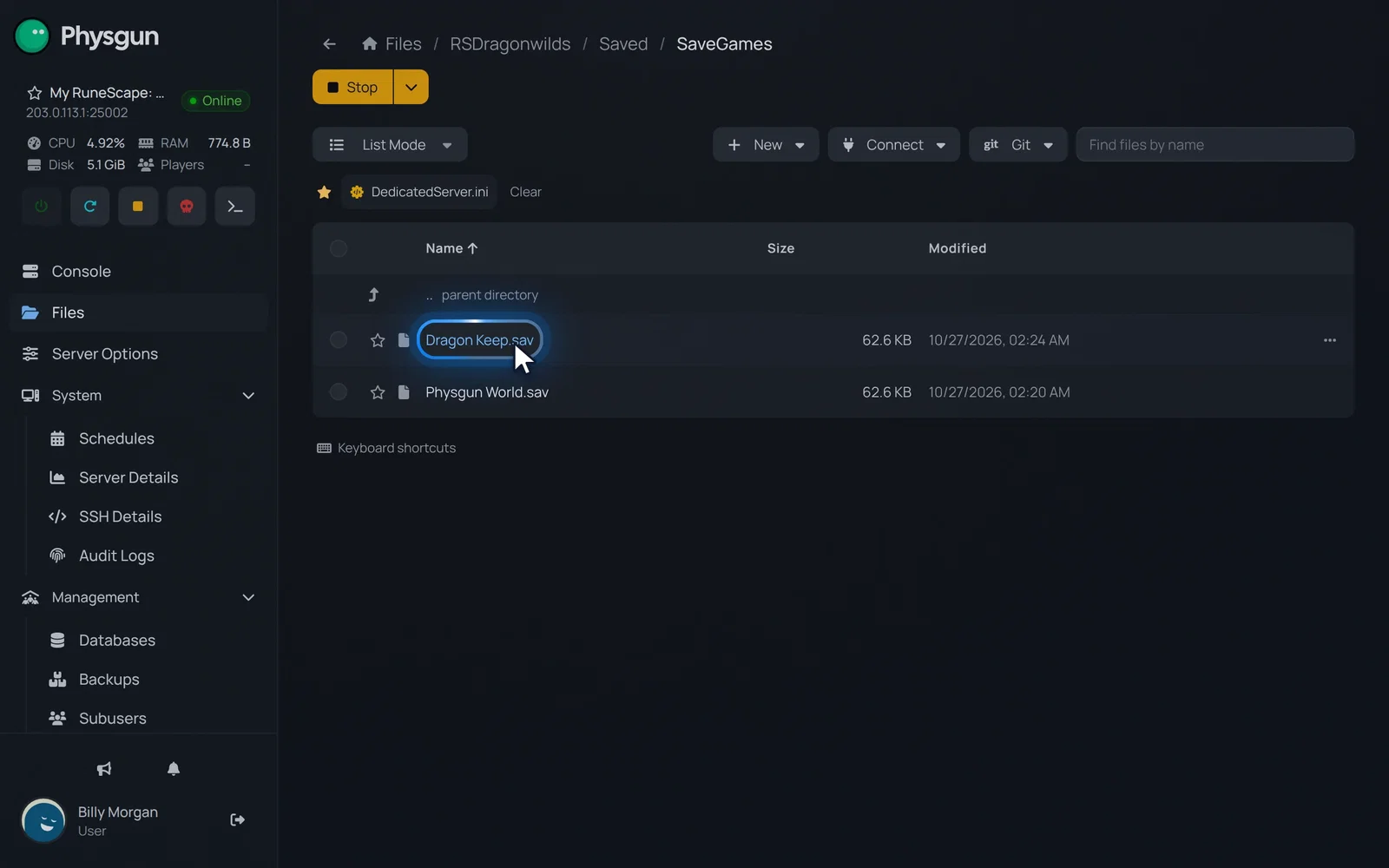 Find your new worldDragon Keep.sav is the new world, and Physgun World.sav still holds your old one.
Then check it in the game. Open the server list, go to the Public tab and search for your exact World Name. Your server should be listed, with your Server Name shown as the creator.
Keep your old world
- To go back to your old world, set World Name back to the old name, without
.sav(for examplePhysgun World), and restart. The server loads that save again. - To only change the label players see as the creator, change Server Name and leave World Name as it is. Your world and its progress stay the same.
Do not rename .sav files in SaveGames to carry a world over to a new name. The game knows a world by the name stored inside its save, not by the file name. On our test server, a renamed save was ignored, a new world was created, and the server stayed stuck on Starting.
If it does not work
- Players cannot find the server. They have to search for the World Name exactly as you typed it in Server Options, not the Server Name. Make sure the server shows Online first.
- The server is stuck on Starting after you renamed a save. Stop the server, rename the
.savfile in SaveGames back to its original name, set World Name to that name, and start the server.