













A Dragonwilds world keeps its difficulty inside its save file, not in your startup settings. To make an existing world easier or harder, you download that save, change the difficulty on your computer with a save editor, and upload it back under exactly the same name. Your world, builds and progress stay in the file, so nothing else changes.
Before you start, your server needs a world: it must have started at least once. You’ll also need a save editor on your computer. We use the free Dragonwilds Save Editor at rsdw-save-editor.vercel.app. It’s an unofficial fan tool, not made by Jagex, so back up your world first.
Stop the server and make a backup
The game writes your world to its save when it stops, so stop the server before you touch the file.
- Open your server in the Physgun Gamepanel and select Stop at the top.
- Select Yes, Stop Server and wait until your server shows Offline.
- Select Backups in the menu on the left.
- Select Create at the top right of All Backups.
- Type a name you’ll recognise in Name, such as
Before difficulty change. - Select Submit. The backup shows Backup in progress and can take a few minutes.
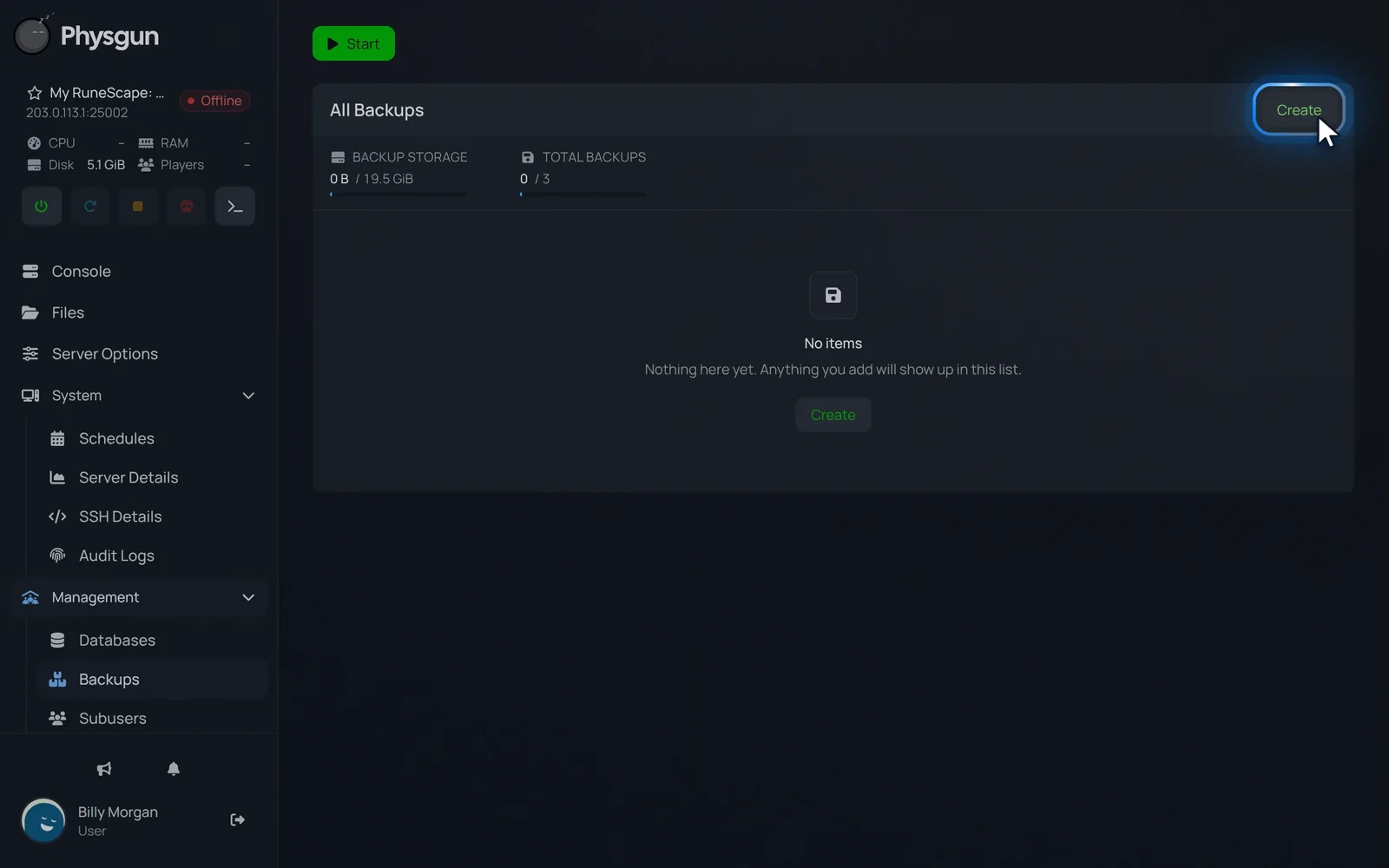 Create a backupSelect Create, so you can go back to your world if the edit goes wrong.
Download your world save
- Select Files in the menu on the left.
- Open the RSDragonwilds folder.
- Open the Saved folder.
- Open the SaveGames folder. Your world save is named after the World Name in Server Options. On a new server that’s
Physgun World.sav. - Select the … button at the end of the save’s row.
- Select Download.
You may also see a file ending in .sav.backup next to your save. The game makes that one itself. Download the file that ends in .sav.
Change the difficulty
This part happens in your browser, outside the panel.
- Open the Dragonwilds Save Editor.
- Drop your downloaded
.savfile onto the upload area, or click it to choose the file. - Open the Difficulty mode drop-down and pick the difficulty you want.
- If you picked Custom, open the Difficulty tab at the top and set the options you want.
- Select Download edited save.
- Rename the downloaded file so it matches the original exactly, letters and spaces included. Browsers often add a number, so
Physgun World (1).savhas to becomePhysgun World.savagain.
Leave settings the game locks alone, such as Standard World Difficulty and No Building Stability. Changing locked settings with a third-party tool can cause problems later or corrupt your world.
If you’d rather start a fresh world, you can also create a world with the difficulty you want in the game on your PC, then upload that save instead. On Windows, the game keeps its saves in C:\Users\YOUR_USERNAME\AppData\Local\RSDragonwilds\Saved\SaveGames. Rename the file to your World Name before uploading it.
Upload the edited save
- Go back to RSDragonwilds -> Saved -> SaveGames in Files.
- Select the … button on the row of your world save.
- Point to New.
- Select Upload files and pick your edited save.
- When the panel asks Do you want to overwrite this file?, select Overwrite. The size and modified time of the save change.
- Select Start at the top. Your server shows Online after about a minute.
You don’t need to delete the old save first. Overwriting replaces it.
Check the new difficulty
The server writes the difficulty it loaded into its log every time it starts.
- In Files, open RSDragonwilds -> Saved -> Logs.
- Select RSDragonwilds.log. It holds everything from the latest start.
- Click inside the log and press Ctrl+F.
- Type
Setting Survival Difficultyin the Find box and press Enter.
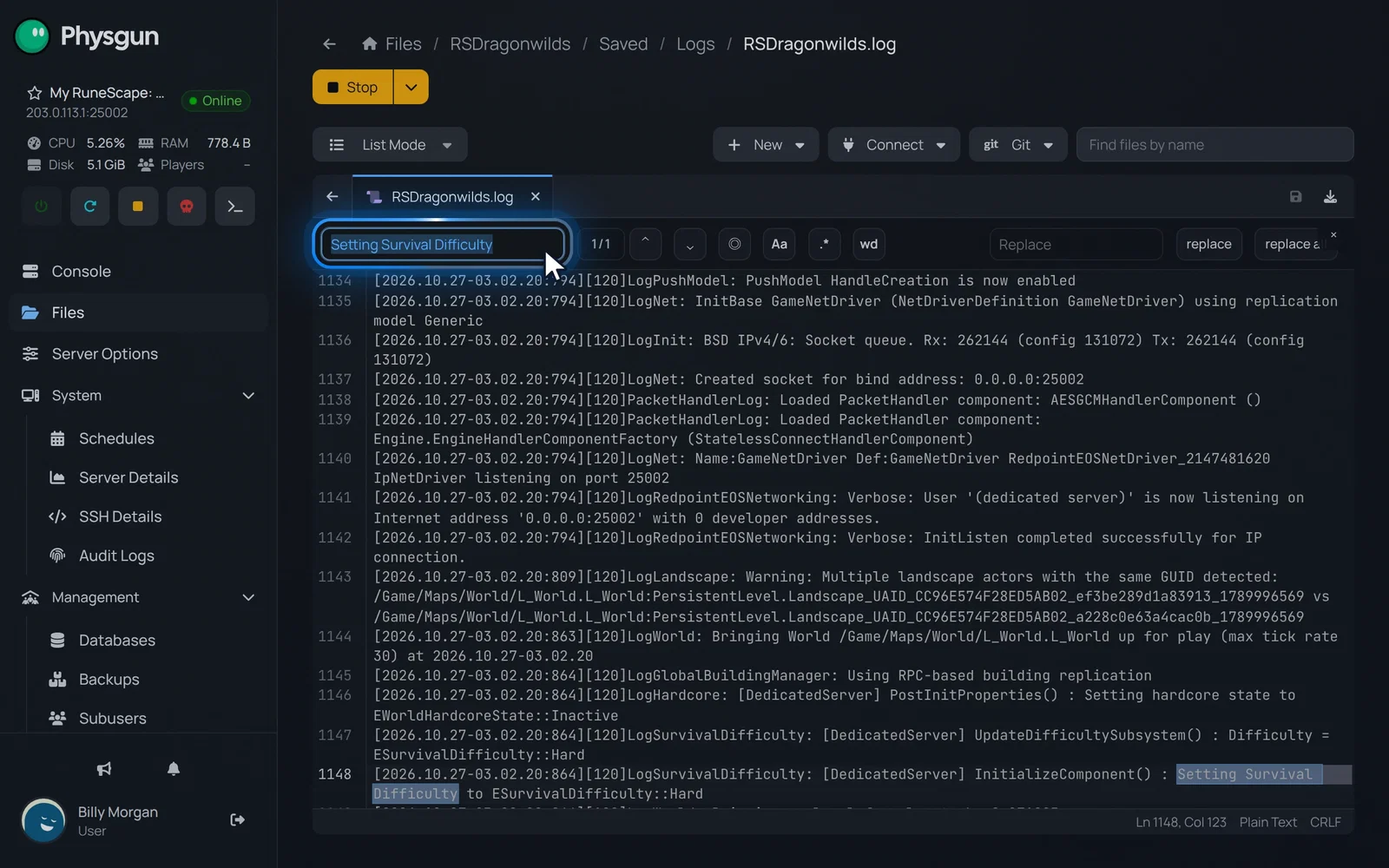 Check the difficultyPress Enter. The highlighted line shows your world's difficulty, here Hard.
The highlighted line ends with the difficulty your world loaded with, for example:
Setting Survival Difficulty to ESurvivalDifficulty::HardSearch the log for World load SUCCEEDED as well, to confirm your world loaded without errors. In the game, open the Public tab on the Worlds screen and search for your exact World Name. It’s case-sensitive. Join and play on the new difficulty.
If it doesn’t work
- Black screen, server missing from the Public tab, or
No save found for configured worldin the log: the file name doesn’t match your World Name. Rename the save in SaveGames so it matches World Name in Server Options exactly, then start the server again. - The log still shows the old difficulty: the server was probably still running when you uploaded, and saved its own copy over yours when it stopped. Stop the server, wait for Offline, upload the edited save again and start it.
- The world fails to load after the edit: the edited save may be damaged. Restore the backup you made from Backups and try the edit again, changing only Difficulty mode.
- Progress is missing: make sure you edited the save from your own server and not an older copy. If you uploaded the wrong file, restore your backup.