


















The Max Players setting decides how many people can be in your RuneScape: Dragonwilds world at the same time. Your server starts at 6, which is the most a Dragonwilds dedicated server allows. You can set any number from 1 to 6, so lower it if you want to keep the world to a smaller group.
All you need is access to your server in the Physgun Gamepanel. The new limit only takes effect after a restart, so pick a moment when a short break won’t bother anyone who is playing.
Change Max Players
- Open your server in the panel and select Server Options in the menu on the left.
- Type
Max Playersin the Search box at the top of the page. - In the Max Players field, type the new limit, for example
4. - Press Tab or click anywhere outside the field. The change saves on its own, and a Startup variable successfully saved. message appears in the top right.
The Startup Command box on the same page updates right away and ends with MaxPlayers= followed by your new number. If you type a number above 6, the panel shows The Max Players field must be between 1 and 6 and does not save it.
Restart the server
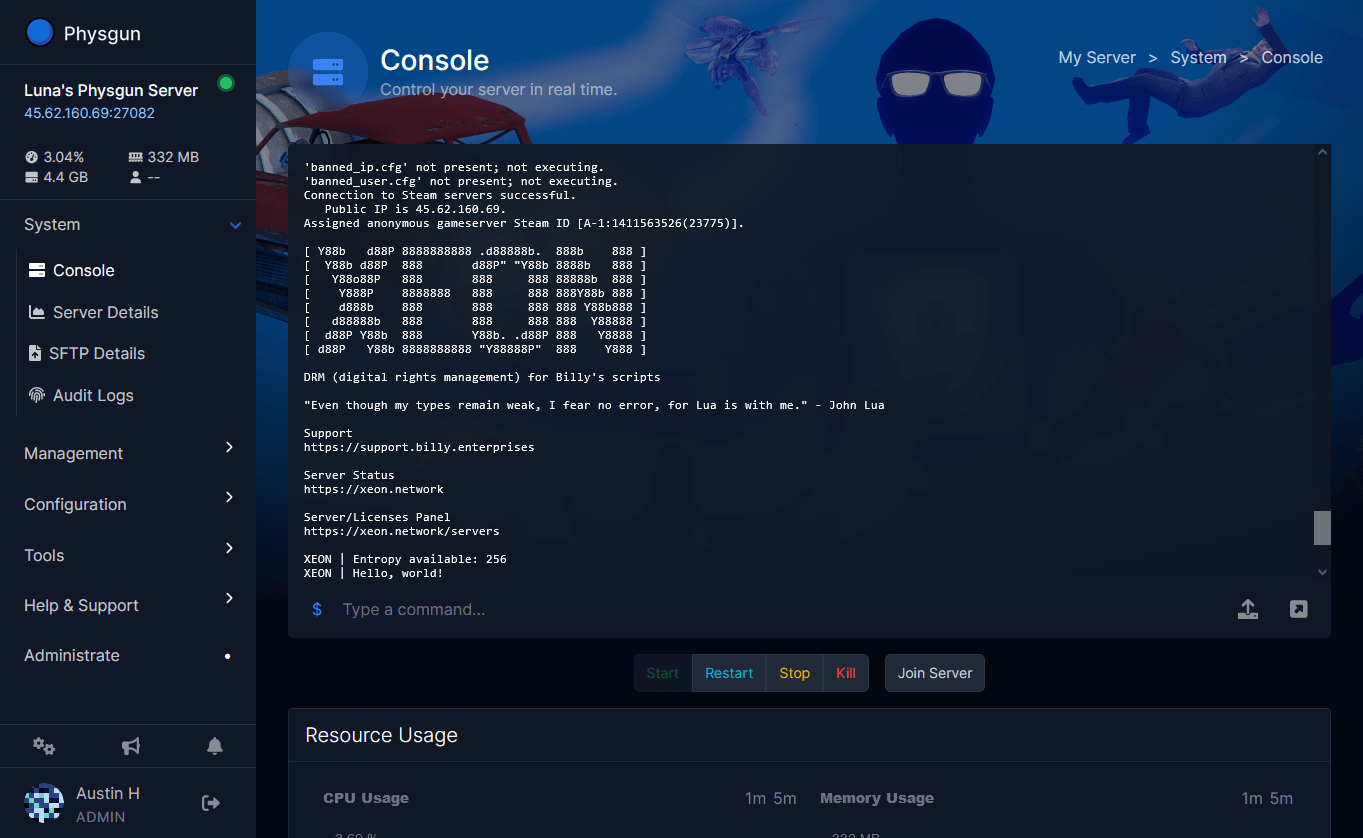
- Select Console in the menu on the left.
- Select the arrow next to the Stop button at the top of the page.
- Select Restart.
- Select Yes, Restart Server to confirm.
- Wait until the status next to your server name shows Online. This usually takes a minute or two.
If your server is offline, select Start instead of opening the power menu.
Check the new limit
While the server starts up, the console prints the command it was started with. Look for a line that begins with LogInit: Command Line: and ends with your new value:
-ini:Game:[/Script/Engine.GameSession]:MaxPlayers=4If the console has already scrolled past it, open Files and look in RSDragonwilds/Saved/Logs/RSDragonwilds.log, which has the same line near the top.
To try it in the game, search your server’s exact World Name in the Public tab and join. Once your world is full, the next player who tries to join is turned away until someone leaves.
If it does not work
- The old limit still applies. The server was not restarted after the change, or it was restarted before the saved message appeared. Check that the Startup Command on Server Options ends with your new number, then restart again.
- Players cannot find or join the world. Check that they are searching the exact World Name in the Public tab and that their game is on the same version as the server. If your server updates when it starts, they may need to update their game too.
- The server struggles when it is full. Each extra player uses more CPU and RAM. Check the CPU and Memory usage on the Console page while people are playing, and lower Max Players if the server is near its limits.