











When your Dragonwilds server is running but nobody can find it under Worlds > Public, or players find it and can’t join, the cause is almost always one of a few things: the server hasn’t finished starting, the world is being searched under the wrong name, or the game and the server are on different versions.
Have the game open on your PC or console next to the panel, since you’ll need it to copy your Player ID and read your game version. Then work through the sections below in order.
Check your server settings
First get your Player ID: in the game, open Settings and scroll to the bottom. It’s 32 characters long, so copy it rather than typing it.
- In the Physgun Gamepanel, open your server and select Server Options in the menu on the left.
- Paste your Player ID into Owner ID, then click outside the field. The panel saves it and shows “Startup variable successfully saved.” A new server has all zeros here. Your Player ID makes you the owner of the world, who can ban and unban players, so set it even if the world already shows up.
- Note the World Name (
Physgun Worldon a new server). This is the name players search for. Keep it to 16 characters or fewer, since longer names can get cut off and then stop matching. - Check World Password. Players have to type it to join; leave it empty to let anyone in. It’s separate from Admin Password, which only gives admin rights in game.
- Check Max Players. It can be 1 to 6, and once that many players are online, nobody else can join.
- Check that Platforms is set to All platforms, so PC and console players can play together.
- Check that the Automatic Updates switch is on. Your server then updates to the latest game version each time it starts.
Server Name (A Physgun Server by default) isn’t searchable. It shows as the creator of the world in the list.
Restart and wait for Online
Settings apply on the next start, and a restart also pulls in the latest game update.
- Select Console in the menu on the left.
- Select the arrow next to Stop to open the power menu.
- Select Restart.
- Select Yes, Restart Server.
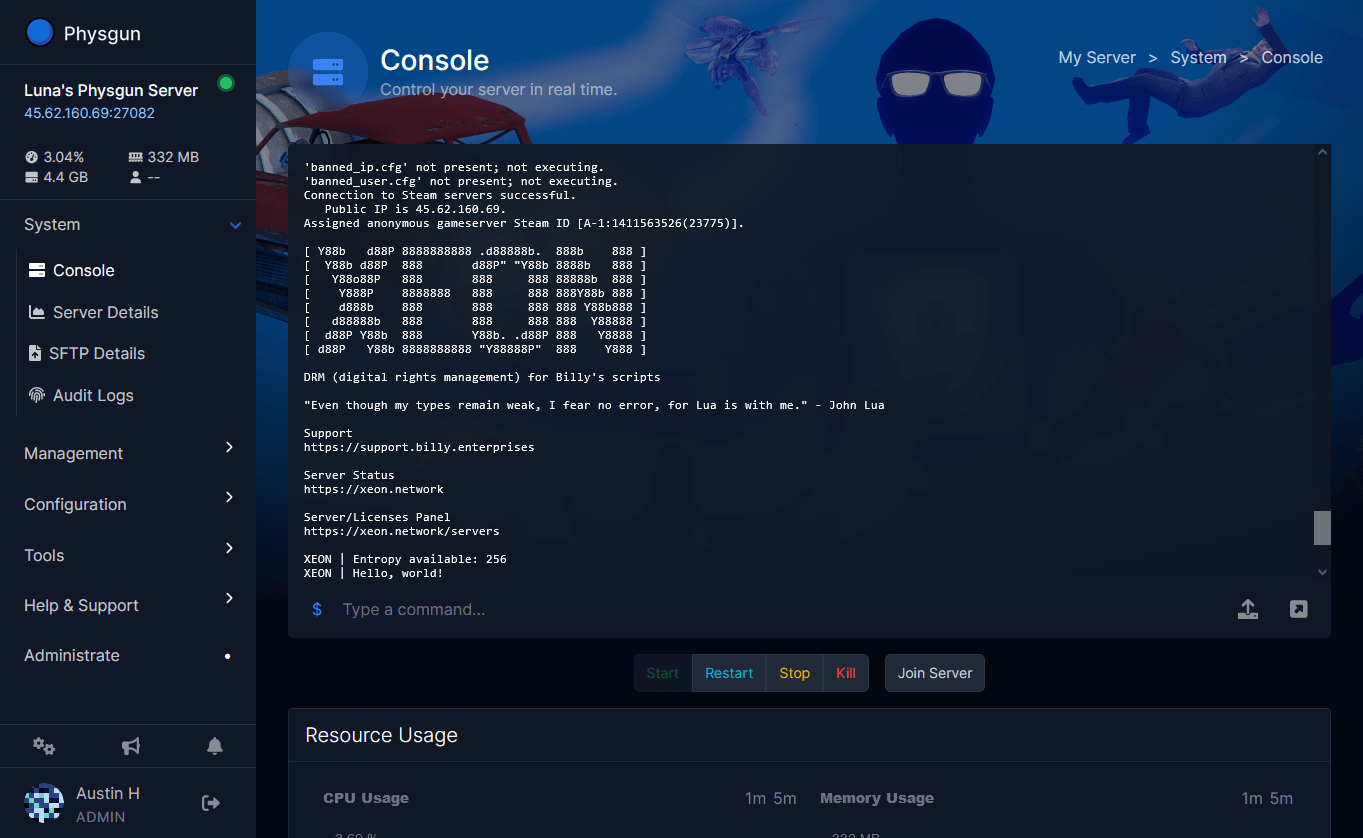
- Wait until the badge next to your server’s name at the top left says Online. That usually takes about a minute, and can take a few minutes after a first start or a big update.
The badge turns Online when the console prints START SESSION - Success. Until then, your world won’t be in the list.
Find your world’s real name
The Public list shows your world by the name of its save file. Changing World Name later doesn’t rename a world: when no save has the new name, the server makes a new world with it. So if you renamed it and your old world seems gone, it’s still in this folder under its old name.
- Select Files in the menu on the left.
- Open RSDragonwilds > Saved > SaveGames.
- Read the name of the
.savfile, for examplePhysgun World.sav. Players search that name without the.sav.
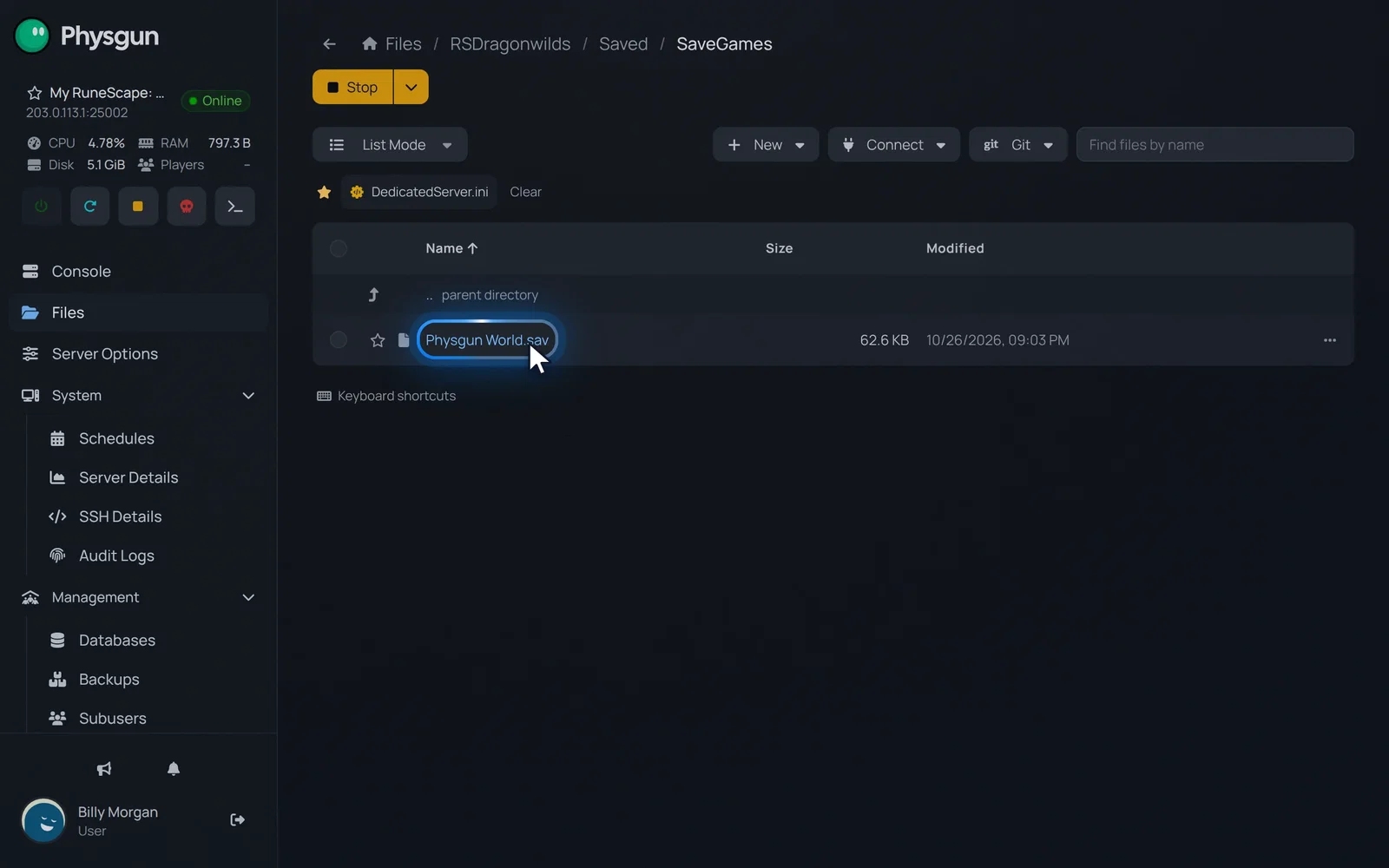 Read the world's namePlayers search this file name without .sav, so it should match World Name.
To bring an older world back, set World Name to its file name without .sav and restart.
Check the server’s version
Players can only join a server that’s on the same game version as their game. The server writes its build number to its log every time it starts.
- Select Saved in the path at the top of the file manager.
- Open the Logs folder.
- Open RSDragonwilds.log, the log of the latest start.
- Click in the file and press Ctrl+F.
- Type
LogInit: Build:in the Find box. - Press Enter. The panel jumps to a line like this one:
LogInit: Build: ++dominion+hotfix-CL-254097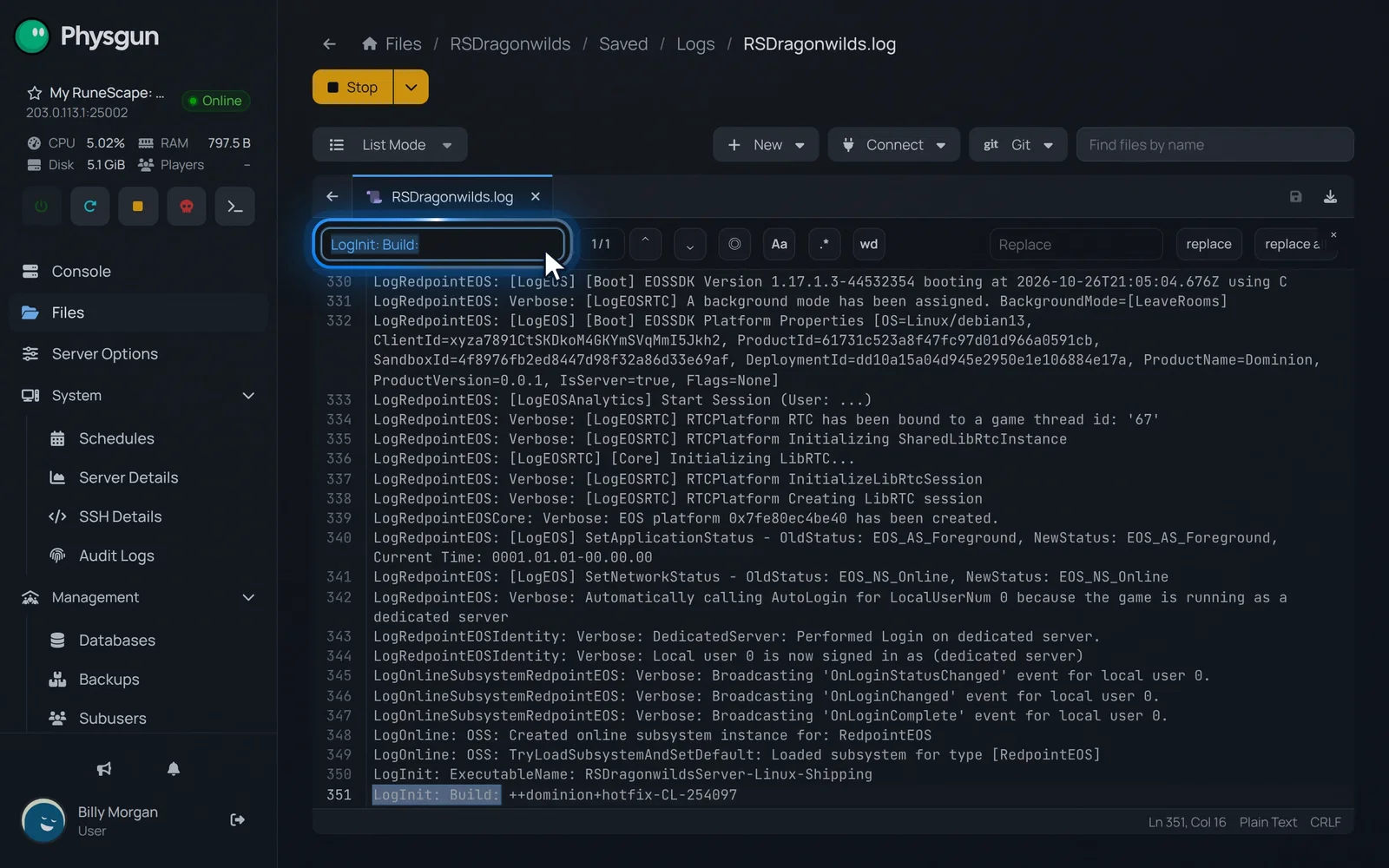 Read the server's buildPress Enter. The number at the end of the line must match your game's version.
The number at the end is the server’s build. Compare it with the version in the top-left corner of the game.
- The server is behind: make sure Automatic Updates is on and restart the server.
- The game is behind: update the game. Xbox, Game Pass and Switch 2 can get patches a few days after PC, and crossplay stays off until every platform has the patch. If your group plays on one of those, you can turn Automatic Updates off before a patch reaches your server, so it stays on the version they have. That only works while your server hasn’t updated yet.
Find the world in game
- In the game, open Worlds and select the Public tab.
- Search for your world’s exact name. The search is case sensitive, so
physgun worldwon’t findPhysgun World. Copying and pasting the name is the safest way. - Check that Created By shows your Server Name, so you know it’s your world.
- Join the world, and enter the World Password if you set one.
Steam invites don’t connect to a dedicated server at the moment, so have your friends search the world name instead.
If it still doesn’t work
- The world isn’t in the list: go back through the sections above, and make sure Owner ID holds your own Player ID and not the zeros of a new server.
- The world is in the list but joining fails: players need the World Password, not the Admin Password, and the server can’t be full. A player you banned can’t join either.
- Only console players can’t get in: besides the latest patch, their console’s parental or online play settings have to allow online multiplayer.
- Some players can join and others can’t: mods that the others don’t have can stop a join, especially on console. A VPN or proxy can get in the way too, so ask them to turn it off and try again. If they connect by address, they need the IP and port from the Connect box on the Console page, not a domain name.
- Something else is wrong: open
RSDragonwilds/Saved/Logs/RSDragonwilds.login Files and look for errors near the end of the latest start.