












You uploaded your single-player world, and now players get a black screen or the server never gets past Starting. This happens when the save’s file name doesn’t match the world’s real name, which the game stores inside the save. The server can’t find a save with the name it’s looking for, so it tries to make a new world instead of loading yours. Your world is fine, and it still loads in single-player.
To fix it, give the save file and the server’s World Name setting the world’s real name. You need RuneScape: Dragonwilds on your PC to look that name up, and your uploaded .sav file already in the server’s SaveGames folder.
Find the world’s real name
The real name only shows in the game, so this part happens on your PC.
-
Put a copy of your
.savfile in the game’s local save folder:%LOCALAPPDATA%\RSDragonwilds\Saved\SaveGames -
Start the game, load the world in Solo Play, and play until the game saves once.
-
Go back to the Solo Play world list, select the world and choose Edit Settings.
-
Write down the value in the NAME field exactly as shown, for example
World-05c47.
That name plus .sav is what your file needs to be called, so World-05c47.sav here.
Back up your saves
It’s easy to rename the wrong file, so grab a backup first.
- Open your server in the Physgun Gamepanel and select Stop.
- Select Yes, Stop Server and wait until the server shows Offline.
- Select Files in the menu on the left.
- Open RSDragonwilds, then Saved.
- Open the … menu at the end of the SaveGames row.
- Select Compress.
- When you see Archive created successfully, select Close.
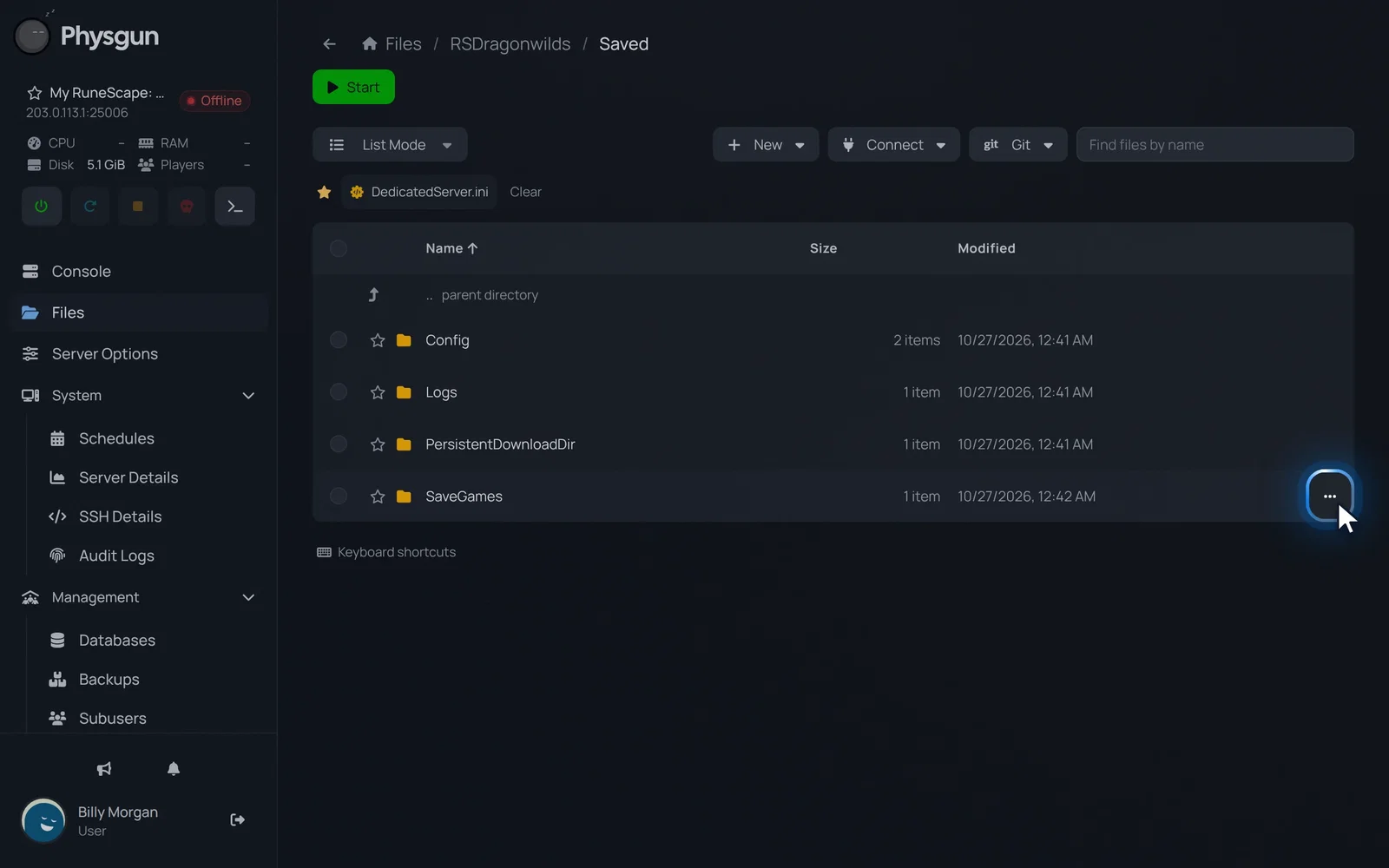 Open the folder menuOpen the menu at the end of the SaveGames row.
A file named archive- plus the date, ending in .tar.gz, now sits in Saved. It has every save from SaveGames in it, .sav.backup files included.
Rename the save
- In Saved, open the SaveGames folder. Your uploaded save is listed here. In our example it’s
MyWorld.sav. - Open the … menu at the end of your save’s row.
- Select Rename.
- Type the real name from Edit Settings followed by
.sav(World-05c47.savin our example). Match the capitals and dashes exactly. - Press Enter.
Make sure SaveGames holds only one save with that name. Did you keep playing in Solo Play and want that newer copy? Upload it to SaveGames and rename it the same way.
Set World Name and start the server
The server picks its save by World Name, so this has to match the file name. Wait until the server is fully Offline before you change it.
- Select Server Options in the menu on the left.
- Type
World Namein the Search box. - In the World Name field, type the save’s new name without
.sav. In our example that’sWorld-05c47. - Press Tab and wait for Startup variable successfully saved.
- Select Start at the top of the page.
- Wait until the server shows Online. This usually takes about a minute.
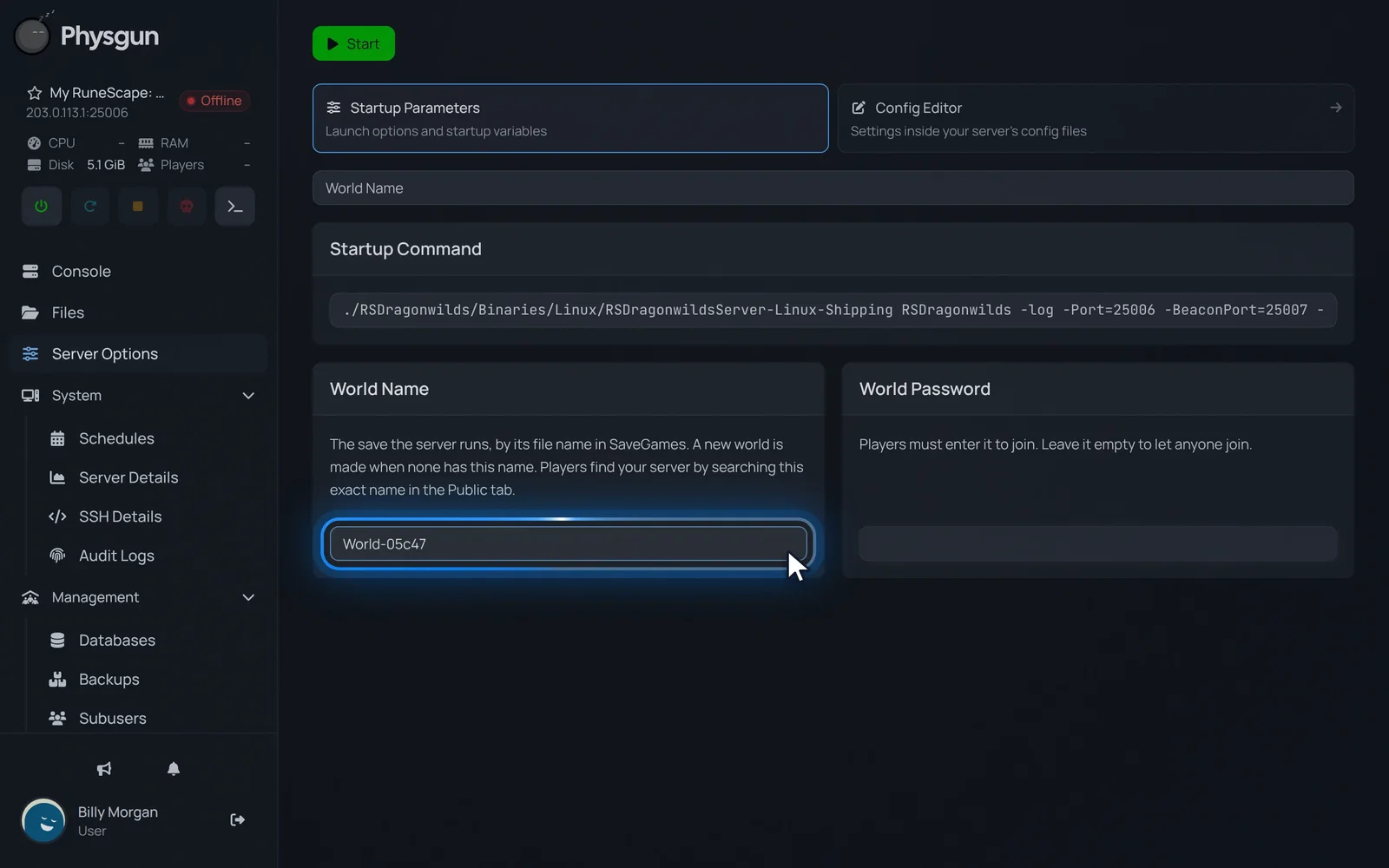 Enter the same nameType the save's new name without .sav, here World-05c47.
Check that your world loads
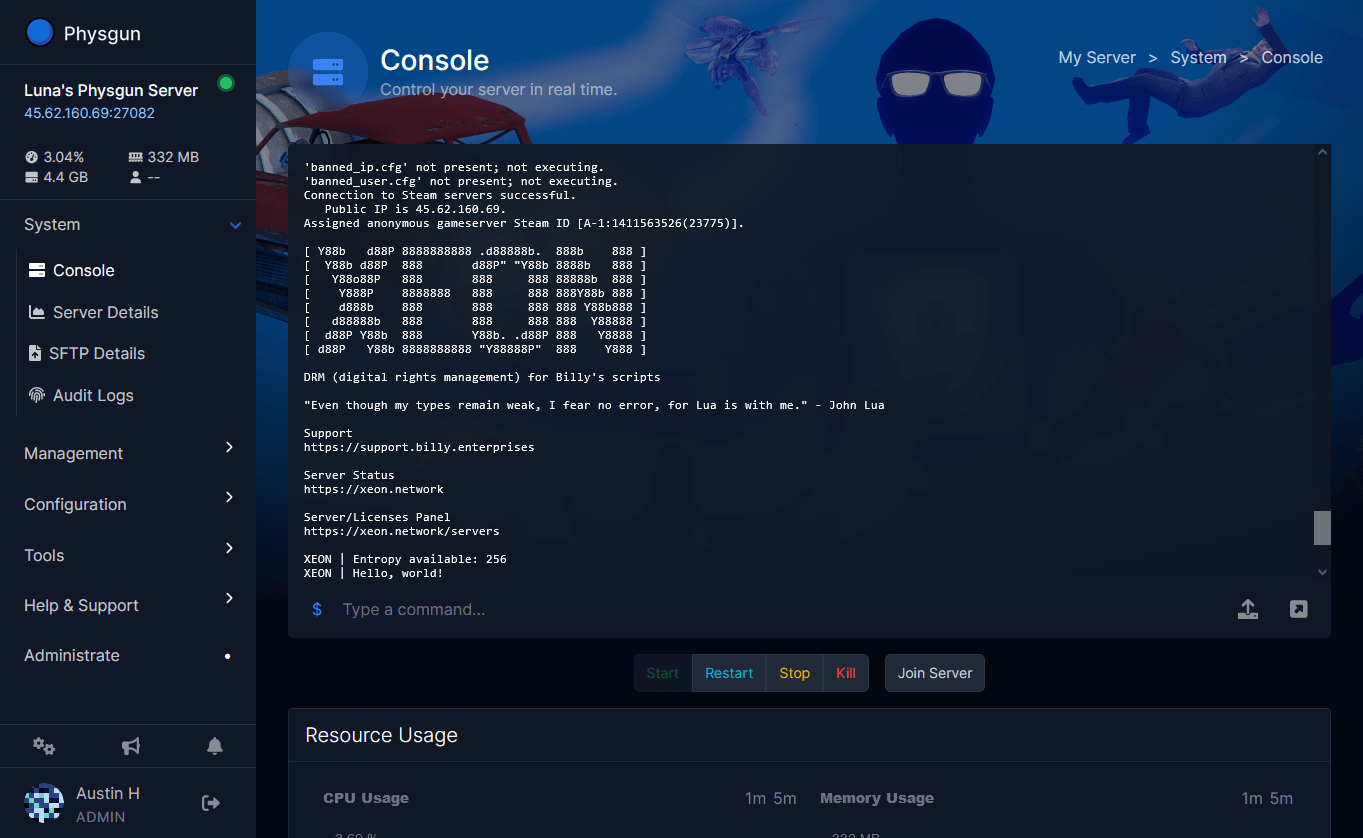
Select Console in the menu on the left and look for this line, with your world’s name in it:
World load SUCCEEDED (slot: World-05c47)Then open the Public tab in the game and search for your exact World Name. If it doesn’t show up, make sure the server says Online first. Join, and you should land in your world instead of a black screen.
Back in Files, SaveGames should hold your renamed save and no extra new world. Once the server saves, a matching .sav.backup file shows up next to it too. The server writes that one itself.
If it still doesn’t load
- The server stays on Starting. The names still don’t match. Look in the console for a line like
No save found for configured world [MyWorld]; creating it, which tells you which name the server looked for. Stop the server, then check that the file name and World Name both match the NAME from Edit Settings, capitals and dashes included. If you changed World Name while the server was still stopping, save it again now that it’s Offline. - You see a different, fresh world. The server didn’t find a save with that name, so it made a new one. Stop the server, delete the new save from
SaveGames, give your own save the right name, and start the server again. Your original is in the archive you made in Saved.